
Screen guide · Web app
Search Fee Receipt(By Date-Range)
Find all the fee receipts collected between two dates, with the total collected, and view, print, download or delete them.
यह पेज अंग्रेज़ी में है। कुछ समझ न आए तो ।
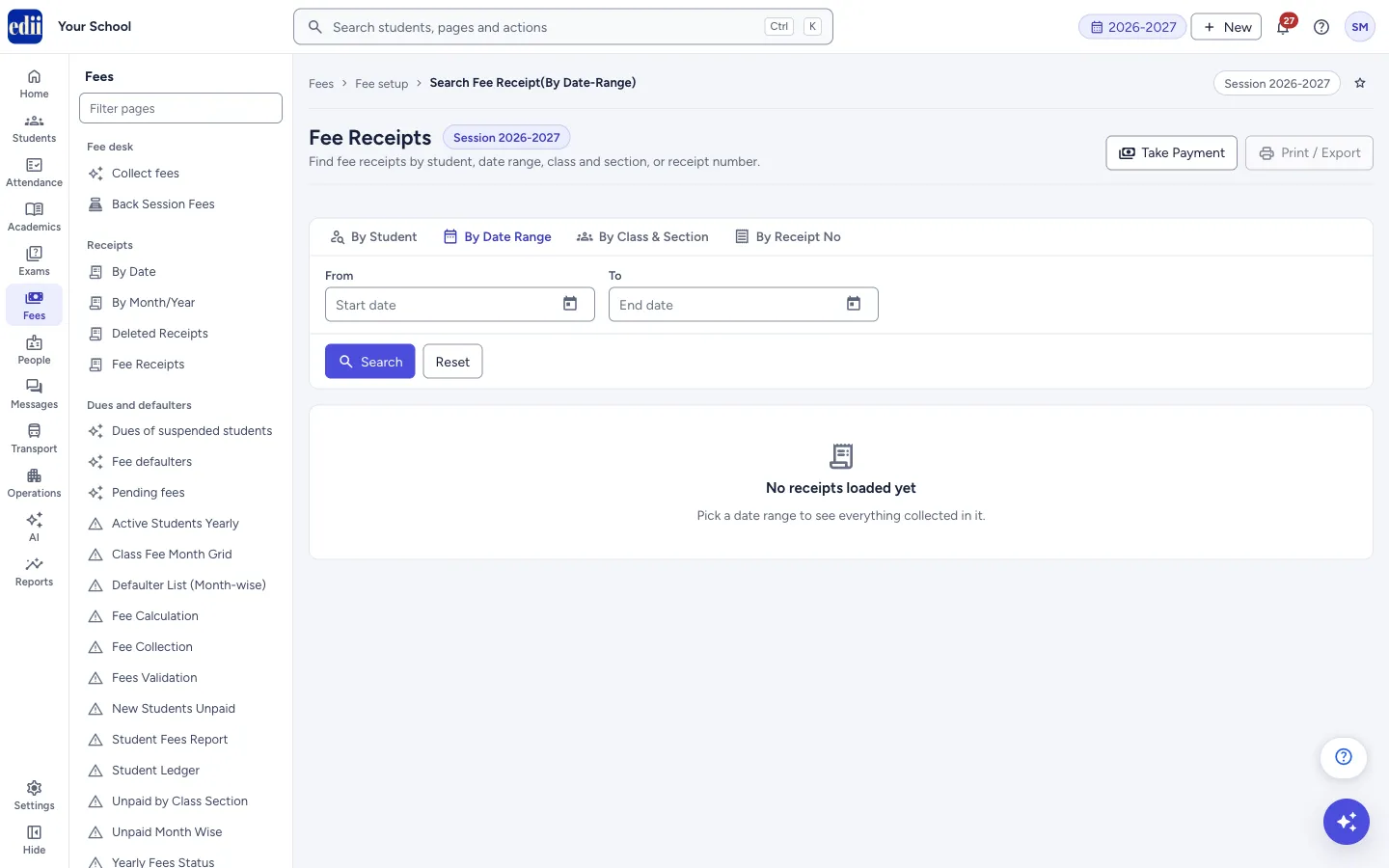
This page (menu name Search Fee Receipt(By Date-Range)) is the Fee Receipts screen opened on the By Date Range tab. Pick a From date and a To date and select Search. EDII lists every receipt collected in those dates for all classes, and shows the number of receipts and the Total Collected.
The same screen has three more tabs: By Student, By Class & Section and By Receipt No. They work as described below.
When the school keeps Accessories inside Fees, the page header also has Accessory receipts.
Receipts for accessories sold to students (for example ties, belts and diaries) are not fee receipts and are not listed here. If you search By Receipt No for the number of an accessory receipt, the page tells you so and offers Open in Accessory receipts.
Who uses it and when
Section titled “Who uses it and when”The accounts office uses it to see what was collected in a day, a week or a month, to reprint a receipt, or to correct a receipt that was made by mistake.
Before you start
Section titled “Before you start”- Check the session at the top right of the page. Only the receipts of that session are found.
- Receipts must already exist. Take payments in Collect fees.
Where to find it
Section titled “Where to find it”- In school.edii.in: Fees › Fee setup › Search Fee Receipt(By Date-Range)
- Or press Ctrl K (⌘ K on a Mac) and type Search Fee Receipt(By Date-Range).
- Address:
school.edii.in/view/fees-report-date - Who can see it: The same staff who see the other Fee setup pages. If it is missing from your menu, ask your school admin.
 Open a bigger pictureतस्वीर बड़ी करें
Step by step
Section titled “Step by step”1. Pick the dates
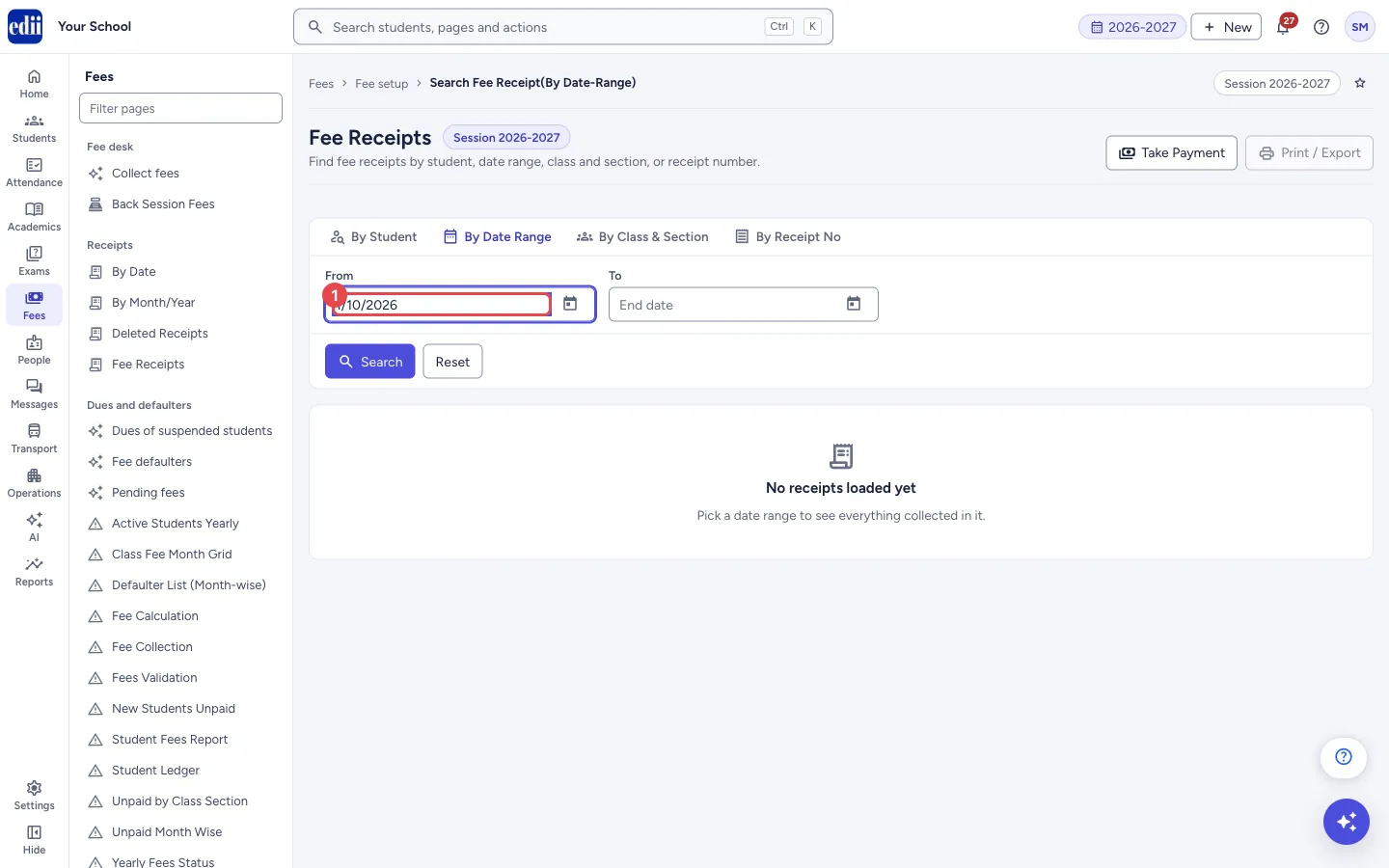
Section titled “1. Pick the dates”On the By Date Range tab, select From and pick the first day, then To and pick the last day. You can also type the date. Both dates are required.
 Open a bigger pictureतस्वीर बड़ी करें
2. Search
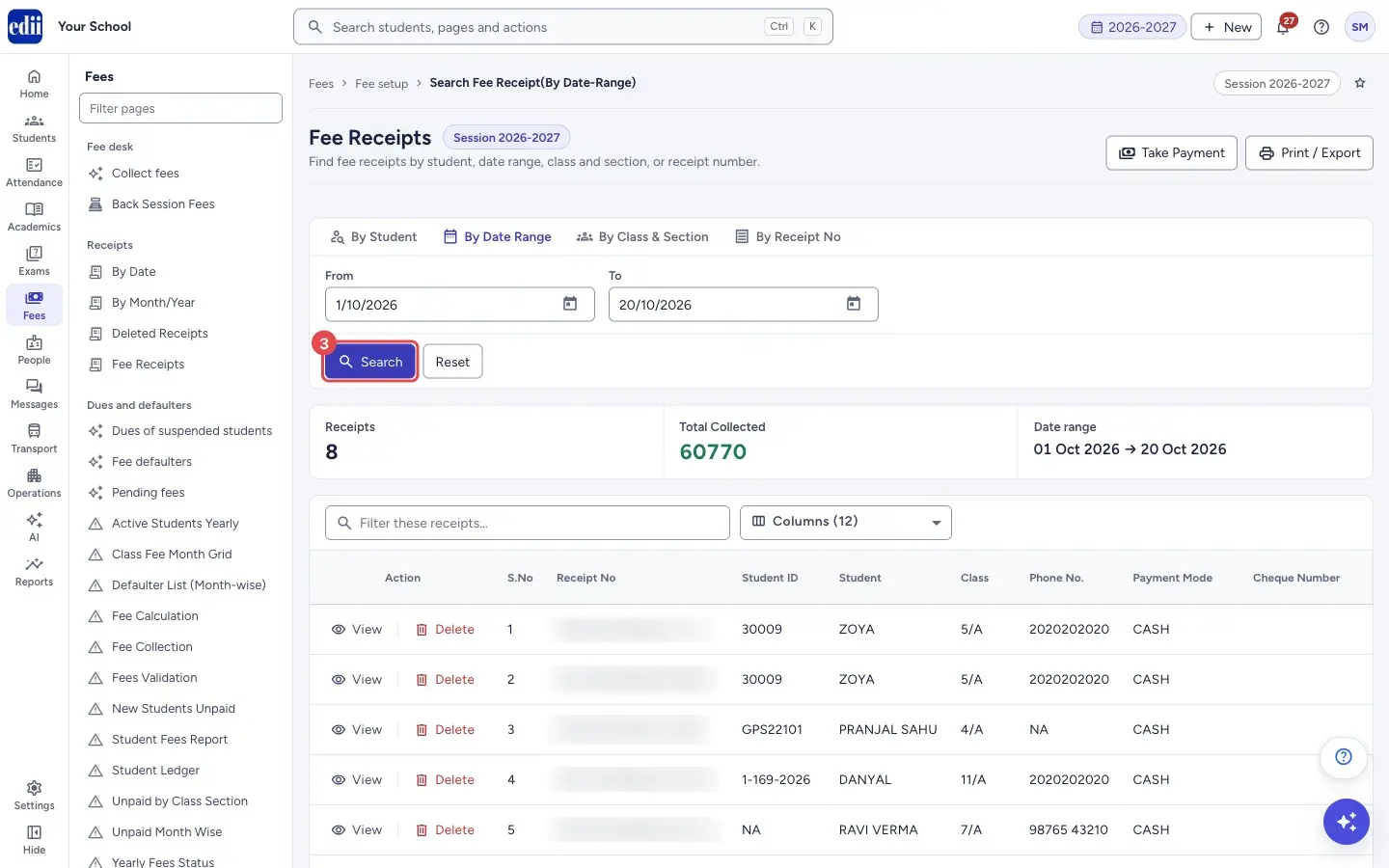
Section titled “2. Search”Select Search. Three cards show the number of Receipts, the Total Collected and the dates searched, for example 01 Oct 2026 → 20 Oct 2026. The table lists the receipts, with the cheque number and cheque bank for payments by cheque.
 Open a bigger pictureतस्वीर बड़ी करें
3. Filter and choose columns
Section titled “3. Filter and choose columns”Type in Filter these receipts… to keep only the rows that contain what you typed. Open Columns to tick the columns you want; Select All ticks every column.
4. View, print or download
Section titled “4. View, print or download”Select View on a row to open the receipt. Select Print / Export to print the table or the receipts, or to download the table as Excel, text or CSV. At the bottom you can choose to see 100, 200, 300, 400, 500 or 1000 rows on a page.
5. Delete a receipt (only if it was made by mistake)
Section titled “5. Delete a receipt (only if it was made by mistake)”Select Delete on the row. The window Delete this receipt? shows the receipt number, student, class, amount, mode and date, and tells you whether the receipt number will be reused or a permanent gap will be left. Type the Reason for deletion (required) and select Delete Receipt. Select Cancel to keep the receipt.
6. Find a receipt by its number
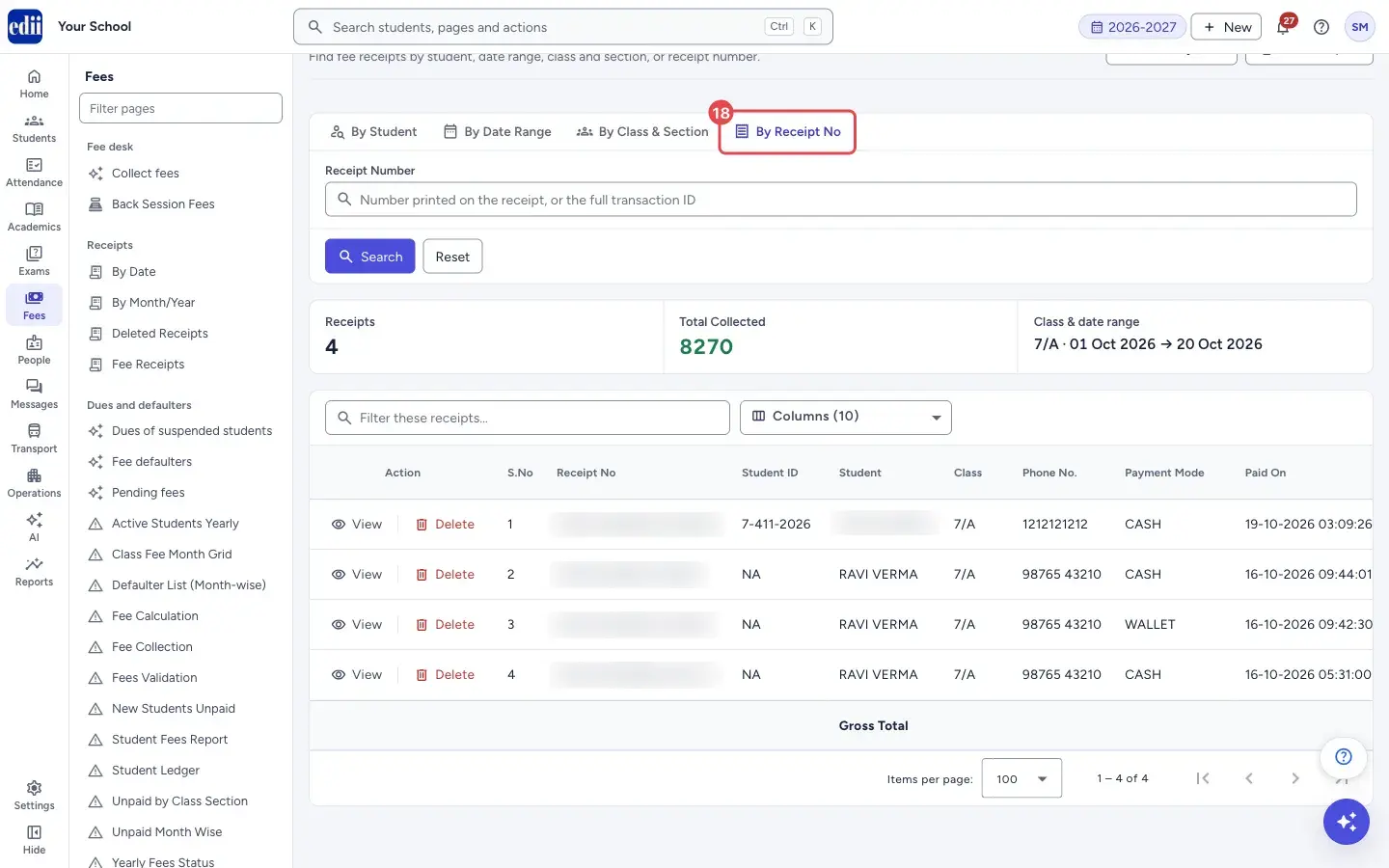
Section titled “6. Find a receipt by its number”Select the tab By Receipt No, type the number printed on the receipt (or the full transaction ID) and select Search. No name or date is needed.
If no fee receipt has exactly that number but an accessory receipt does, a note shows: Receipt … is an accessory receipt for …, not a fee receipt. and Accessory receipts are kept in their own list, where you can view, reprint or cancel them. Select Open in Accessory receipts. That page opens with the same number already searched.
 Open a bigger pictureतस्वीर बड़ी करें
Fields and filters
Section titled “Fields and filters”| Field | What it is | Notes |
|---|---|---|
| By Student | Type a name, student ID, roll number, enrollment number or father’s name and click the student in the list that shows. | Required in this tab. If more students match than the list can hold, it says N more match — keep typing to narrow it down. |
| By Date Range: From, To | The first and the last day of the payments to list. | Both are required. Pick from the calendar. |
| By Class & Section: Class, Section | The class and section whose receipts are listed, within the same dates. | Both are required, together with From and To. |
| By Receipt No: Receipt Number | The number printed on the receipt, or the full transaction ID. | Required in this tab. No name or date is needed. |
| Filter these receipts… | Keeps only the rows that contain what you type, in the columns shown. | Optional. |
| Columns | Chooses the columns of the table. Select All ticks every column. | The choice is remembered for this page on this computer. The columns offered depend on the tab you searched. |
Buttons
Section titled “Buttons”| Button | What it does | What happens next |
|---|---|---|
| Take Payment | Opens Collect fees. | You leave this page. |
| Accessory receipts | Opens Accessory receipts, the list of receipts for accessories sold to students. Shown only when the Accessories module is on and Show Accessories inside Fees is on in Settings. | You leave this page and Accessory receipts opens. |
| Open in Accessory receipts (in the note) | Opens the accessory receipt whose number you searched. | Accessory receipts opens with that receipt number searched. |
| Print / Export | Opens a menu: Print, Print All Receipts (Type 8), Download Excel File, Download Text File, Download CSV File. | Print opens the print window; the others save a file named Fee Receipts, or open the batch of receipts. Switched off until a search has results. |
| Search | Finds the receipts for the tab you are on. | The cards Receipts and Total Collected and the table show. A red message shows when something is missing. |
| Reset | Clears the search boxes and the results. | The page shows No receipts loaded yet. |
| View | Opens the receipt of the row. | The receipt opens in a window. FeeReceipt Fetched shows. |
| Delete | Starts the deletion of the receipt of the row. | A window Delete this receipt? opens. It shows the receipt, what happens to the receipt number, and asks for a reason. |
Columns
Section titled “Columns”| Column | Meaning |
|---|---|
| Action | View opens the receipt. Delete starts the deletion of the receipt. The column is not printed. |
| S.No | The serial number of the row. |
| Receipt No | The receipt (transaction) number. |
| Printed Receipt No | The number printed on the receipt slip. Shown after a By Receipt No search. |
| Student ID | The student’s ID number. |
| Student, Father Name, Class, Phone No. | The student who paid. Father Name is offered for a By Student search. Class shows class/section, for example 7/A. |
| Payment Mode | How the money was paid, for example cash. |
| Cheque Number, Cheque Bank | The cheque details. Offered for By Date Range and By Receipt No searches. |
| Fee For Month | The month the fee was for. Offered for By Date Range and By Receipt No searches. |
| Paid On | The date and time of the payment. |
| Amount Paid | The amount of the receipt. The last row, Gross Total, adds up the amounts. |
After you save
Section titled “After you save”- Searching and viewing change nothing. Only Delete changes data: the receipt is deleted, the Fee desk opens, and Transaction: <number> Successfully Deleted shows.
Good to know
Section titled “Good to know”- Only receipts of the session open in EDII (shown at the top right) are found.
- Both dates are needed for By Date Range and By Class & Section. By Class & Section needs a class and a section.
- Total Collected is the gross total reported for the search. When you type in Filter these receipts…, it becomes the sum of the rows left and shows a filtered badge.
- Deleting a receipt asks for a reason (required, up to 100 characters). Before you confirm, the window tells you what happens to the receipt number: Receipt number will be reused when it is the latest receipt, or A permanent gap will be left when a later receipt exists. It also shows the next receipt number.
- After a receipt is deleted EDII opens the Fee desk. This page has no option to bring a deleted receipt back, so delete only a receipt that was made by mistake.
- Print All Receipts (Type 8) prints the receipts of the rows shown, four to an A4 page, and works only when the school’s Receipt Type is 8.
- Print / Export is switched off until a search has results.
- Accessory receipts are kept apart from fee receipts. They are never in the lists or the Total Collected of this page, even when they take a fee receipt number. View, reprint or cancel them in Accessory receipts.
- A By Receipt No search looks at fee receipts first. When no fee receipt has exactly the number you typed, EDII also looks for an accessory receipt with that number. The note shows only when the Accessories module is on and your login has Fees access.
Messages you may see
Section titled “Messages you may see”| Message | What it means | What to do |
|---|---|---|
| Select both a start date and an end date. | A date box is empty. | Pick From and To. |
| Select a class and a section. | By Class & Section needs both. | Choose the class and the section. |
| Search and select a student first. | In By Student, no student was picked from the suggestions. | Type part of the name, then click the student in the list. |
| Enter the receipt number printed on the slip. | The By Receipt No box is empty. | Type the receipt number. |
| Receipt … is an accessory receipt for …, not a fee receipt. | The number you searched belongs to an accessory receipt, not a fee receipt. (cancelled) after the name means that accessory receipt was cancelled. | Select Open in Accessory receipts to view, reprint or cancel it. |
| FeeReceipt Fetched | The receipt opened after View. | Nothing to do. |
| Transaction: <number> Successfully Deleted | The receipt was deleted. The title is Transaction Deleted!. | The deleted receipt shows on screen so that you can keep a copy. |
| Please enter a reason | The reason box of the delete window is empty. | Type why the receipt is deleted (up to 100 characters). |
| No transactions to print. Run a search first. | Print All Receipts (Type 8) was chosen with an empty list. | Search first. |
| This print needs Receipt Type 8. Set it under Configuration > Preferences > Receipt Type. | The school’s receipt type is not 8. | Use Print or the downloads, or change the receipt type in Preferences. |
| Network Issue, Please Try Again. | The request did not reach EDII. | Check the internet and search again. |
| Bad/Slow Internet Connection, Please check your internet connection | The request did not reach EDII. | Check the internet and try again. |
- Use By Receipt No when a parent brings a slip: it needs no name or date.
- Set the dates to one day to reconcile a day’s collection, and compare the total with the cash and cheques in hand.
Stuck? Try this
Section titled “Stuck? Try this”| Problem | Likely cause | What to do |
|---|---|---|
| Print / Export is greyed out | No search result is on screen. | Run a search first. |
| The old results stay when I change the tab | The results shown belong to the search you last ran, until you search again or select Reset. | Select Search on the new tab, or Reset to clear the page. |
| I cannot find a receipt I know exists | It was paid in another session, outside the dates, or in another class and section. | Check the session at the top right and the dates, or search by receipt number. |
Did this page help?क्या इस पेज से मदद मिली?
Thanks! Glad it helped.धन्यवाद! अच्छा लगा कि काम बन गया।
Sorry about that. Ask in your own words, or write to us.माफ़ कीजिए। अपने शब्दों में पूछें, या हमें लिखें।