
Screen guide · Web app
Duplicate Students
Finds students who look like the same child entered more than once, shows the records side by side, and lets you delete the extra copy.
यह पेज अंग्रेज़ी में है। कुछ समझ न आए तो ।
Duplicate Students scans every student of the selected session and compares them on name, date of birth, parents, contact number, Aadhaar and admission number. Records that look like the same child are put together in a box, so you can compare them side by side.
The scan starts when you open the page. Each box has a label: Almost certain, Likely or Worth a look. Under it are small tags that say why the records were matched (for example Same name, Same date of birth, Same contact number) and, with a warning sign, what does not match (for example Different father’s name).
Deleting a copy does not destroy it. A deleted student can be restored from Deleted Students.
Who uses it and when
Section titled “Who uses it and when”The office uses it after bulk uploads or at the start of a session, to clean the student list.
Use it before fees or marks are entered, so they do not get split between two records of the same child.
Before you start
Section titled “Before you start”- Deleting a student needs a login that is allowed to manage students.
Where to find it
Section titled “Where to find it”- In school.edii.in: Students › Directory › Duplicate Students
- Or press Ctrl K (⌘ K on a Mac) and type Duplicate Students.
- Address:
school.edii.in/view/duplicate-students - Who can see it: Staff whose role includes Students or Attendance access. Shown only when your school uses Student in EDII. If it is missing from your menu, ask your school admin.
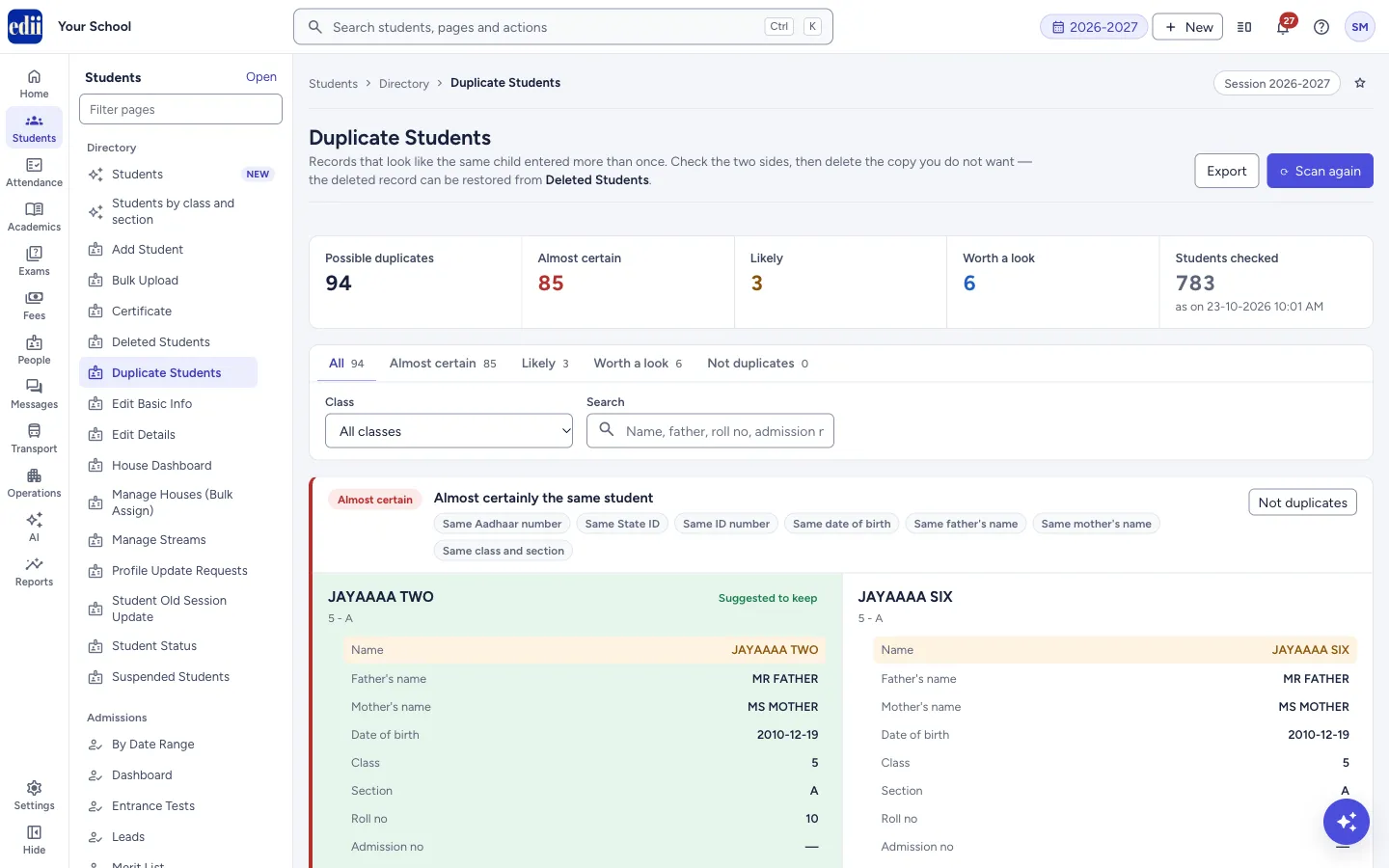 Open a bigger pictureतस्वीर बड़ी करें
Step by step
Section titled “Step by step”1. Read the summary
Section titled “1. Read the summary”The tiles at the top show Possible duplicates, Almost certain, Likely, Worth a look and Students checked with the time of the scan.
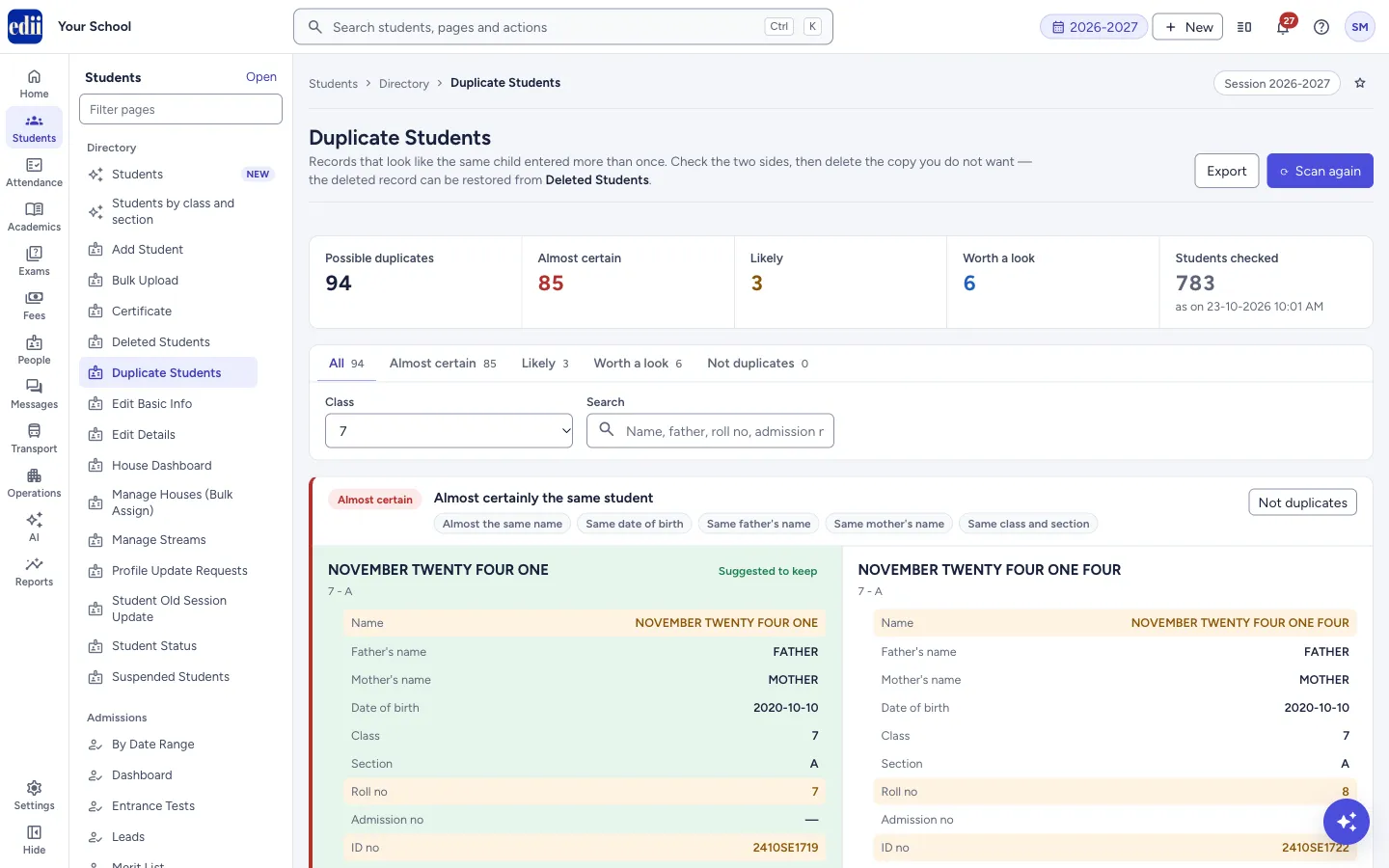 Open a bigger pictureतस्वीर बड़ी करें
2. Choose what to look at
Section titled “2. Choose what to look at”The tabs All, Almost certain, Likely, Worth a look and Not duplicates each show a count. Start with Almost certain.
Use Class to see only the boxes that include a student of that class, and Search (name, father, roll no, admission no…) to find one child.
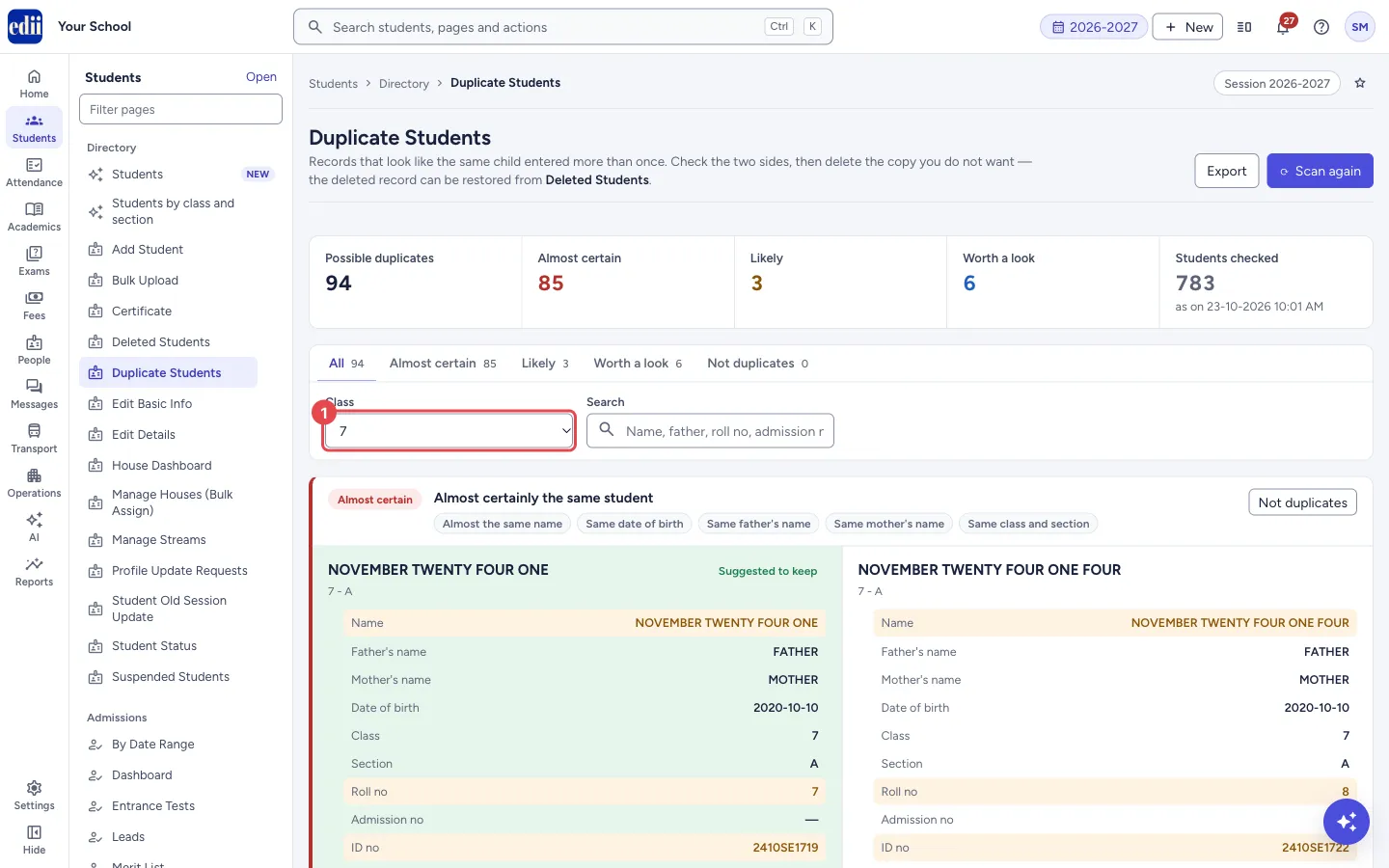 Open a bigger pictureतस्वीर बड़ी करें
3. Compare the records
Section titled “3. Compare the records”Each record shows the details one under the other. Rows that differ between the records are highlighted. Under the details are four small chips: the number of fee receipts (with the amount), the days of attendance, whether the parent app is linked, and how many profile fields are filled in. If a record has nothing, it says Nothing recorded against this one — no fees, no attendance, no app login.
The record marked Suggested to keep is the one EDII thinks is the better one (for example it has fees or attendance). Point at the label to see the reason.
4. Open a record if you need more
Section titled “4. Open a record if you need more”Select Open full record on a side to see the whole student record.
5. Delete the extra copy
Section titled “5. Delete the extra copy”On the record you do not want select Delete this one. A box asks Delete this student record? and lists the student, any warnings (for example that it has fees) and You can restore it from Student > Deleted Students. Select Delete record to go ahead.
You see Student record deleted and the record leaves the box. When only one record is left, the box goes away.
6. Or say they are not duplicates
Section titled “6. Or say they are not duplicates”If they really are two children, such as twins or cousins with the same name, select Not duplicates at the top of the box and confirm. Both records stay as they are and are not shown again in future scans. You see Marked as not duplicates.
Fields and filters
Section titled “Fields and filters”| Field | What it is | Notes |
|---|---|---|
| Class | Shows only boxes in which a student is of that class. | Hidden on the Not duplicates tab. |
| Search | Finds boxes by name, father, mother, roll no, admission no, ID no, contact, class or section. | Hidden on the Not duplicates tab. |
Buttons
Section titled “Buttons”| Button | What it does | What happens next |
|---|---|---|
| Scan again | Checks the whole school again. | The button says Scanning… while it runs. Use it after you delete or edit students. |
| Export | Saves the boxes now on screen as a CSV file named Duplicate-Students. | The file has one row per student with the group number, confidence, reasons, which one is suggested to keep, fee receipts, attendance days and whether the app is linked. |
| Not duplicates (on a box) | Marks all the records of that box as different children. | A box asks Mark as not duplicates?. After you confirm, the box is removed and the pair shows on the Not duplicates tab. |
| Open full record | Opens that student’s record. | The student’s record opens. |
| Delete this one | Deletes that record after a warning box. | Student record deleted. |
| Check again (on the Not duplicates tab) | Puts a pair you had marked back into the scan. | This pair will be checked again. Rescan to see it. |
Good to know
Section titled “Good to know”- Almost certain, Likely and Worth a look show how strong the match is. Check each box before you delete anything, whatever its label.
- A record that has fee receipts, attendance or an app login is the one that usually must be kept. The warning box lists such things when you try to delete it.
- If the school has more matches than one screen can hold, EDII says This school has more matches than one screen can hold — the strongest are shown first. Work through these, then scan again to see the next set.
- When too many records are linked in one box, the box shows only the first few and a line at the bottom says so.
Messages you may see
Section titled “Messages you may see”| Message | What it means | What to do |
|---|---|---|
| No duplicates found | The scan found no two records that look like the same child. | Nothing to do. |
| Nothing matches this filter | There are duplicates, but none in the class or search you chose. | Select Clear filters. |
| Nothing marked yet | You have not marked any pair as not duplicates. | Nothing to do. |
| Delete this student record? | The warning before a delete. It may start with CAUTION: this is the record suggested to KEEP. | Read it, then select Delete record or close the box. |
| Nothing to export | No box is on screen. | Clear the filters and try again. |
| Network Issue, Please Try Again. | The scan or a change did not reach EDII. | Check the internet and try again. |
- Work down the list from Almost certain. Use Export to take the list to the teachers and decide offline.
- Keep the record with fees and attendance. Delete the empty one.
- If you delete the wrong record by mistake, restore it from Deleted Students.
Stuck? Try this
Section titled “Stuck? Try this”| Problem | Likely cause | What to do |
|---|---|---|
| A deleted student is still shown in a box | The screen is still showing the earlier scan. | Select Scan again. |
| Two real children keep showing up | They share a name, date of birth or phone number, as twins or cousins do. | Use Not duplicates on that box. |
Did this page help?क्या इस पेज से मदद मिली?
Thanks! Glad it helped.धन्यवाद! अच्छा लगा कि काम बन गया।
Sorry about that. Ask in your own words, or write to us.माफ़ कीजिए। अपने शब्दों में पूछें, या हमें लिखें।