
Screen guide · Web app
Send SMS
SMS भेजें
Send a ready-made SMS template to the parents of chosen classes and sections, or of students you pick one by one.
यह पेज अंग्रेज़ी में है। कुछ समझ न आए तो ।
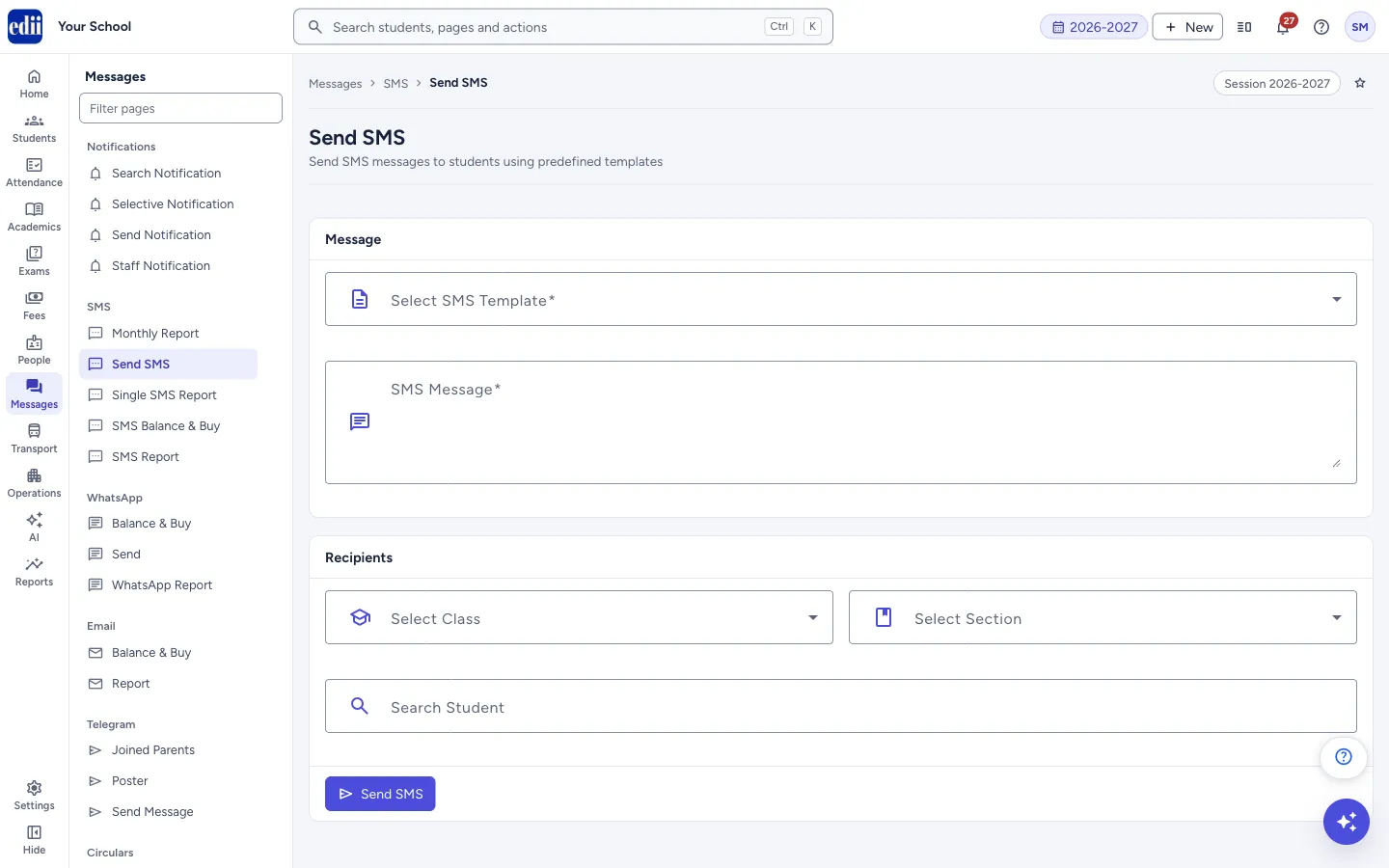
Send SMS sends a text message to parents’ phones. You do not type free text: you choose one of the school’s approved templates under Select SMS Template, fill the blanks the template has (Variable 1, Variable 2 and so on), choose who gets it under Recipients, and select Send SMS.
This message is charged to your SMS balance and cannot be taken back. One SMS is used for each phone number it is sent to. Before anything is sent, EDII asks you to confirm in a box called Send this SMS now?
To see how many SMS you have left, open SMS Balance & Buy. To see what was sent, open SMS Report.
Who uses it and when
Section titled “Who uses it and when”The office uses it for notices that must reach every parent, such as a holiday or the start of exams, including parents who do not use the app.
Before you start
Section titled “Before you start”- The school needs SMS balance. Check it in SMS Balance & Buy.
- The template list is fixed. Only the blanks (Variable boxes) can be changed. If your school needs a new message, ask your EDII contact to add a template; a template has to be approved before it can be used.
Where to find it
Section titled “Where to find it”- In school.edii.in: Messages › SMS › Send SMS
- Or press Ctrl K (⌘ K on a Mac) and type Send SMS.
- Address:
school.edii.in/view/generate-sms - Who can see it: Staff whose role includes Messages access. Shown only when your school uses Messages in EDII. If it is missing from your menu, ask your school admin.
 Open a bigger pictureतस्वीर बड़ी करें
Step by step
Section titled “Step by step”1. Choose the template
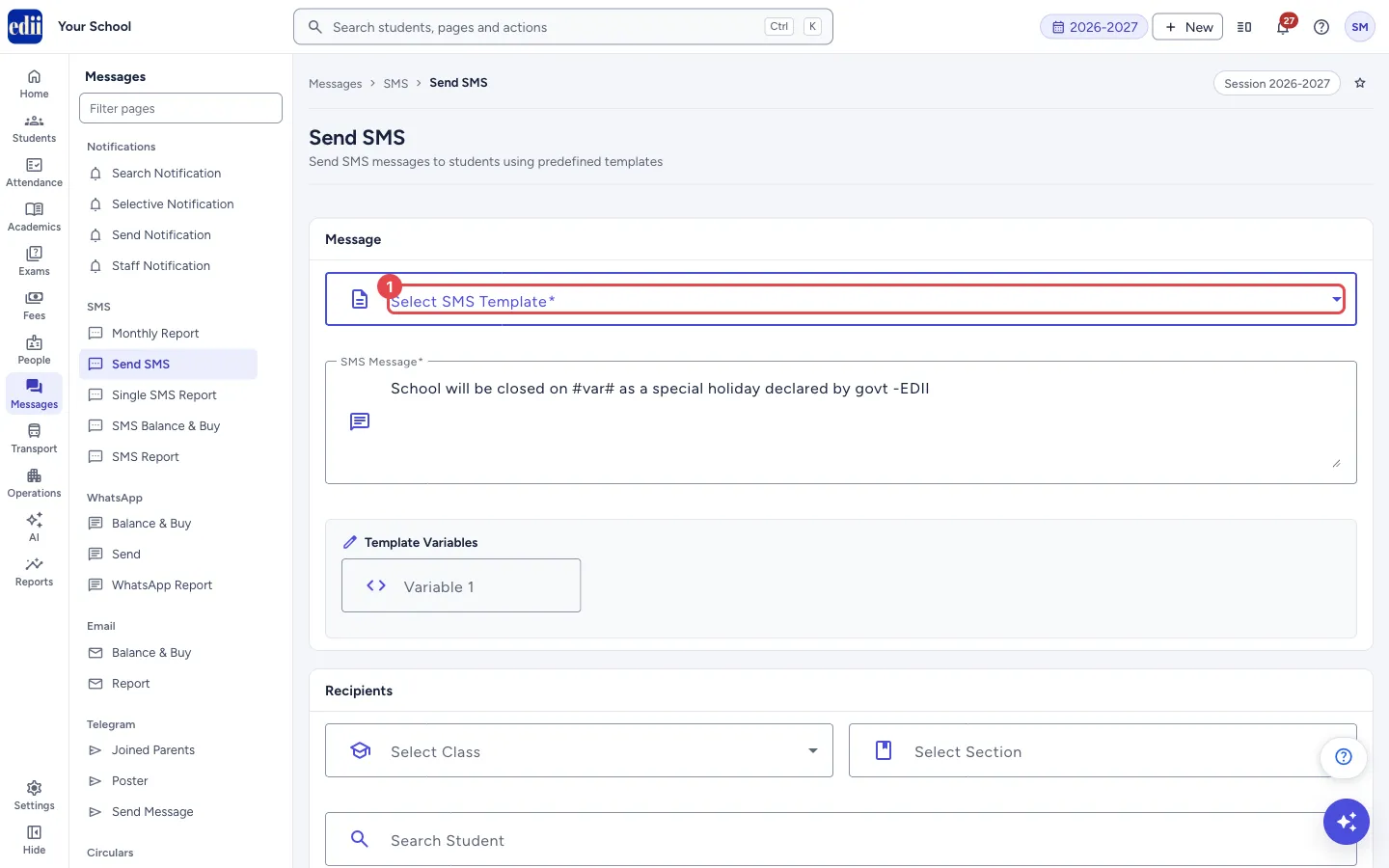
Section titled “1. Choose the template”Open Select SMS Template and pick a message. Typical ones are School Close Message, Exam Start Message and School close Occasion. A school that sends under its own sender name sees its own templates instead.
The text appears in SMS Message. You cannot edit that box. Each #var# in the text is a blank that you fill in the next step.
 Open a bigger pictureतस्वीर बड़ी करें
2. Fill the variables
Section titled “2. Fill the variables”For each #var# a box called Variable 1, Variable 2 and so on appears under Template Variables. Type the value in the same order as the blanks in the message, for example the date of the holiday. Fill every box: if the number of values does not match the template, the send is stopped with Error, The Variables don’t match the template.
 Open a bigger pictureतस्वीर बड़ी करें
3. Choose the classes and sections
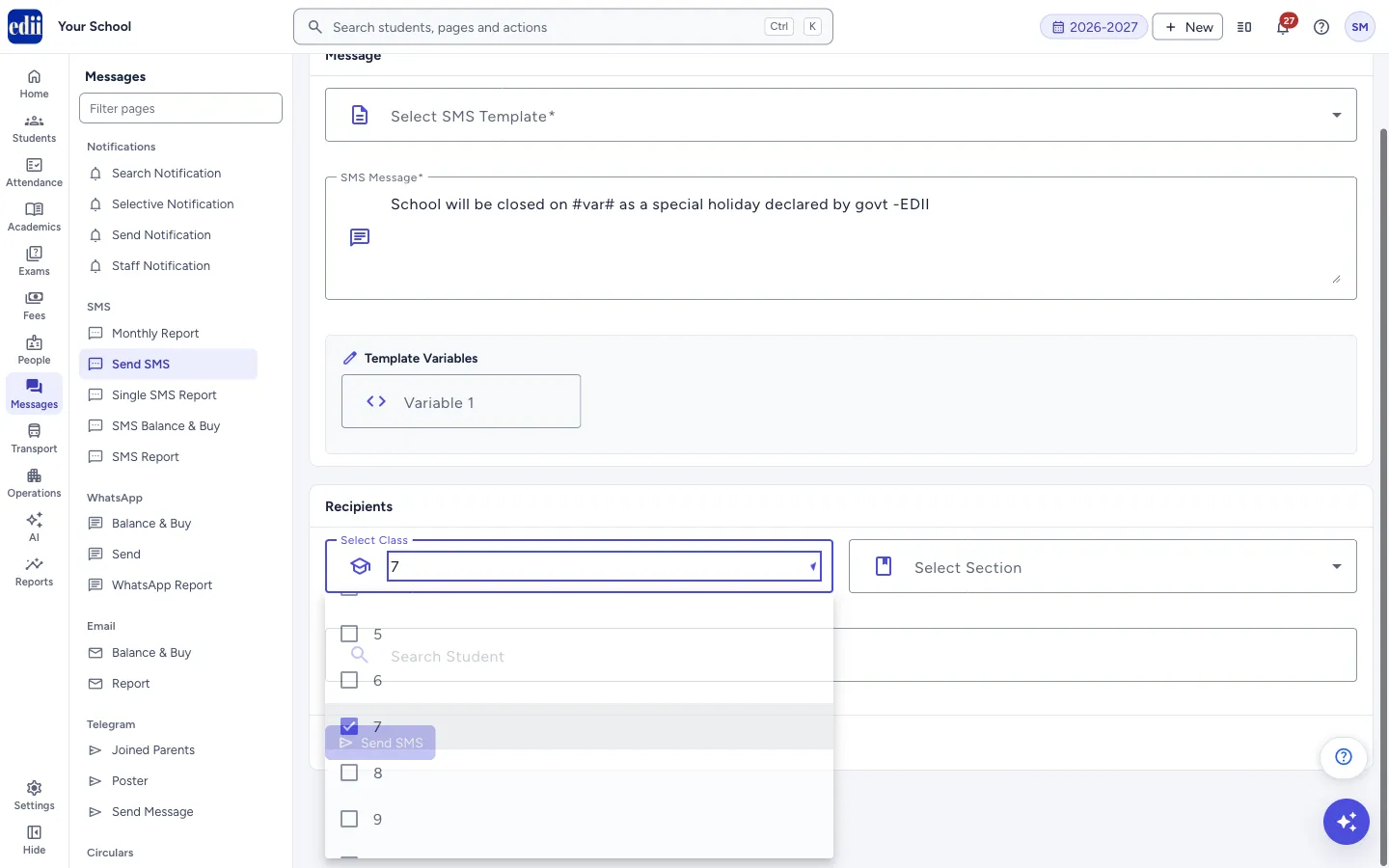
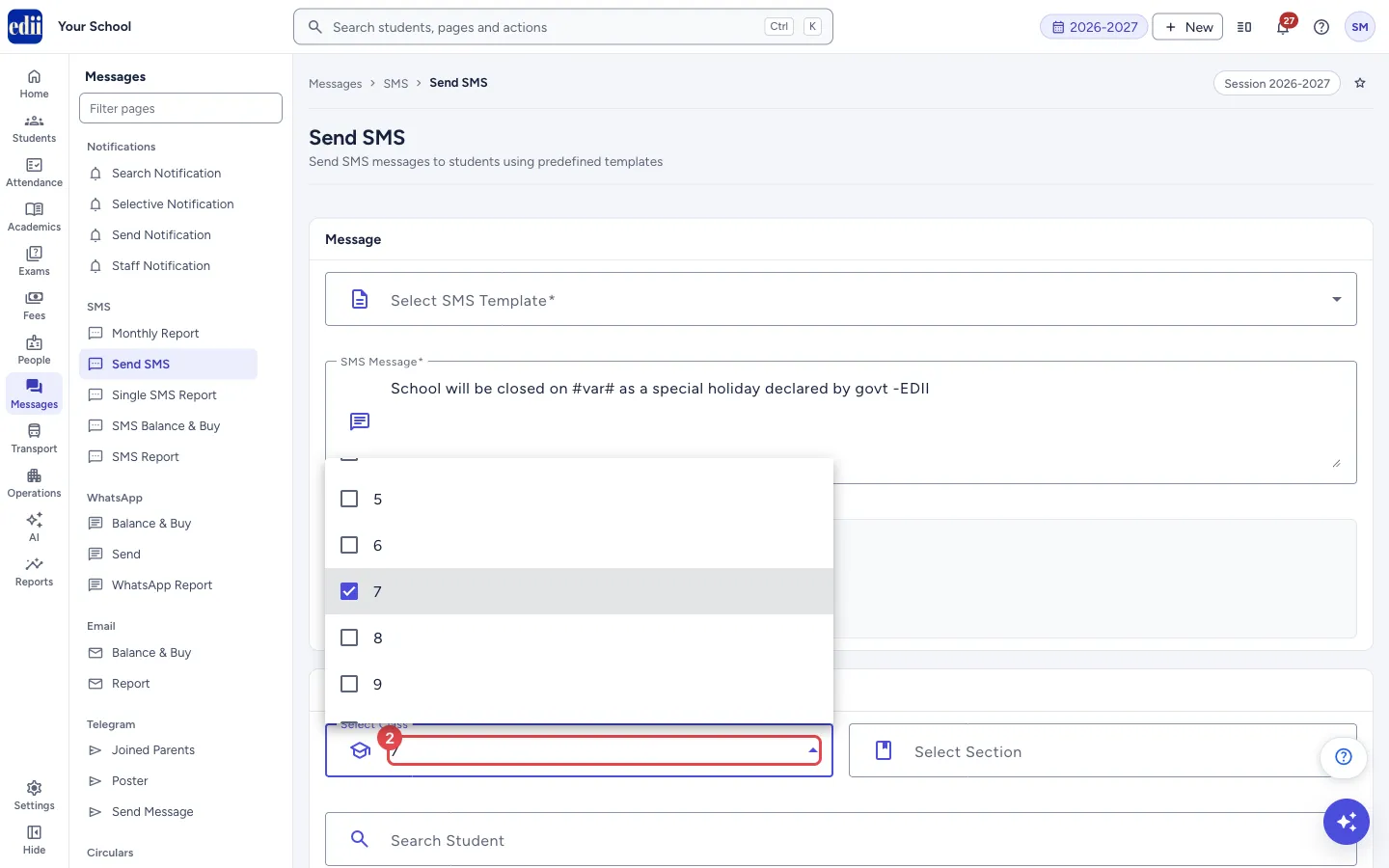
Section titled “3. Choose the classes and sections”In Recipients, open Select Class and tick one or more classes. Open Select Section and tick one or more sections. Select All in each list ticks everything.
The SMS goes to every active student whose class is among the classes you ticked and whose section is among the sections you ticked.
 Open a bigger pictureतस्वीर बड़ी करें
4. Add individual students (optional)
Section titled “4. Add individual students (optional)”Click Search Student and type a name, ID, roll number, enrollment number or father’s name. Click a line in the list to add that student. Added students show under Selected Students; select the cancel icon on a name to remove it.
You can use class and section, individual students, or both together. Pressing Enter in this box does not send the SMS.
5. Send and confirm
Section titled “5. Send and confirm”Select Send SMS. A box asks Send this SMS now? and tells you who it goes to, for example every active student of 7 (section A) and/or the number of selected students. It adds that the SMS is charged to your SMS balance and cannot be taken back.
Select Yes, send it to send, or Not yet to go back. After sending you see Notifications Sent.
Fields and filters
Section titled “Fields and filters”| Field | What it is | Notes |
|---|---|---|
| Select SMS Template | The approved message to send. | Required. Error: Please select an SMS template. |
| SMS Message | The text of the chosen template, with #var# where a value goes. | Read only. |
| Variable 1, Variable 2 … | The values that replace each #var# in the message, in order. | One box per #var#. Fill all of them. Enter does not move on or send. |
| Select Class | The classes to send to. | Several can be ticked. Select All ticks every class. Must be used together with Select Section. |
| Select Section | The sections to send to. | Several can be ticked. Select All ticks every section. |
| Search Student | Adds single students to the list of recipients. | Placeholder: Enter Student Details (Name / ID / Roll No / Enrollment No / Father Name). Only letters, digits and - @ & . , / _ # : and space can be typed. |
Buttons
Section titled “Buttons”| Button | What it does | What happens next |
|---|---|---|
| Send SMS | Starts the send. It is greyed out while a send is in progress. | The box Send this SMS now? opens. Nothing is sent until you select Yes, send it. |
| Yes, send it | Sends the SMS to the recipients. | The SMS is charged to your SMS balance and cannot be taken back. Notifications Sent shows. |
| Not yet | Closes the box without sending. | The form stays as it is. |
After you save
Section titled “After you save”- The SMS is sent one number after another, so a large class can take a short while to finish.
- Open SMS Report to see the messages that went out and SMS Balance & Buy to see what is left.
Good to know
Section titled “Good to know”- Who receives it: for a class and section, every student whose status is active. For students you pick one by one, those students, whatever their status. The SMS goes to the main phone number saved on the student’s record.
- One SMS per phone number. If brothers and sisters share one number, that number gets the message once. A student whose phone number is not 10 digits long is skipped.
- Credits: each SMS uses one from your SMS balance. If the balance is less than the numbers to be sent, the send still goes ahead and a warning tells you how many will not be delivered. If the balance is zero, nothing is sent.
- The class and the section go together: if you tick one you must tick the other, unless you pick individual students.
Messages you may see
Section titled “Messages you may see”| Message | What it means | What to do |
|---|---|---|
| Notifications Sent | The SMS was handed over for sending. | Nothing to do. Check SMS Report later if you need proof. |
| Only N of M SMS could be covered by your balance. K will not be delivered. Please buy more SMS. | Shown with the title Partially Sent! Your balance was smaller than the number of phone numbers. The first N could be covered; the rest will not receive the SMS. | Open SMS Balance & Buy, add SMS, and send again to the remaining parents. |
| Your school has run out of SMS. N SMS are needed for this send and 0 are left. Please buy more SMS to continue. | The balance is zero. Nothing was sent. | Add SMS in SMS Balance & Buy. |
| Choose a class and a section, or search and pick students first. | Nobody is chosen as a recipient. | Tick a class and a section, or add students with Search Student. |
| Please Select the Section | A class is ticked but no section. | Tick at least one section. |
| Please Select the Class | A section is ticked but no class. | Tick at least one class. |
| Error, The Variables don’t match the template | A Variable box is empty, so the number of values does not match the number of blanks in the template. | Fill every Variable box and send again. |
| Network Issue, Please Try Again. | The request did not finish. | Check the internet. Look in SMS Report before you send again, so parents do not get the SMS twice. |
- Check the dates you type into the Variable boxes. The text cannot be changed after it is sent.
- Test with one student first: use Search Student to add only one child whose parent you know.
Stuck? Try this
Section titled “Stuck? Try this”| Problem | Likely cause | What to do |
|---|---|---|
| After I pick a template, the box still shows Select SMS Template* | The screen shows the message text but not the template name in the box. | Look at SMS Message. If the text is the one you want, carry on. |
| The template I need is not in the list | Only the templates approved for your school are listed. | Ask your EDII contact to add it. |
| Pressing Enter did not send the SMS | Enter is turned off in the Search Student and Variable boxes, so that an SMS is never sent by accident. | Select Send SMS with the mouse. |
Did this page help?क्या इस पेज से मदद मिली?
Thanks! Glad it helped.धन्यवाद! अच्छा लगा कि काम बन गया।
Sorry about that. Ask in your own words, or write to us.माफ़ कीजिए। अपने शब्दों में पूछें, या हमें लिखें।