
Screen guide · Web app
Library Issue/Return
Issue a book to a student, take a book back, look at all past issues and returns, and collect a library fine in cash, UPI, cheque or card, all on one page with four tasks.
यह पेज अंग्रेज़ी में है। कुछ समझ न आए तो ।
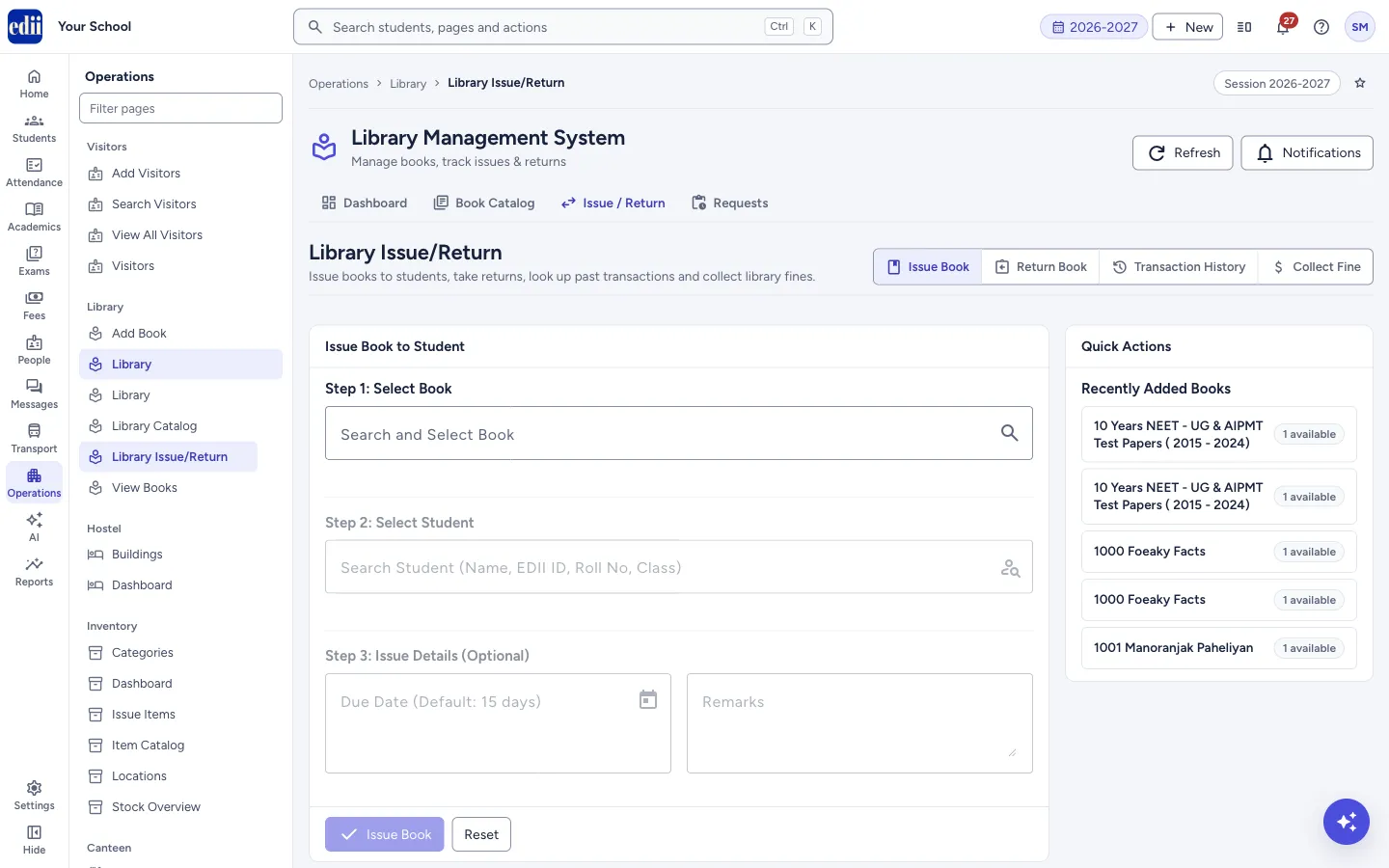
Library Issue/Return is the counter desk of the library. At the top right are four buttons that switch the task: Issue Book, Return Book, Transaction History and Collect Fine. The page opens on Issue Book. The page sits under the Library Management System heading, next to the tabs Dashboard, Book Catalog and Requests.
While you issue or return a book, a Quick Actions box on the right lists five books or five issues, so you can pick one with a single click.
When you collect a fine you choose how it was paid (Cash, UPI, Chq/DD or Card). The money then counts in the Day Book of the Cash Deposit Register.
Who uses it and when
Section titled “Who uses it and when”The librarian or the library assistant, every time a student takes a book, brings one back, or pays a fine.
Before you start
Section titled “Before you start”- The book must be in the catalog with at least one copy available. Add books in Add Book or Book Catalog.
- The students must be on the school’s student list. Students are found by name, EDII ID, roll number or class.
Where to find it
Section titled “Where to find it”- In school.edii.in: Operations › Library › Library Issue/Return
- Or press Ctrl K (⌘ K on a Mac) and type Library Issue/Return.
- Address:
school.edii.in/library-management/issue-return - Who can see it: The same staff who see the other Library pages. If it is missing from your menu, ask your school admin.
 Open a bigger pictureतस्वीर बड़ी करें
Step by step
Section titled “Step by step”1. Issue a book: choose the book
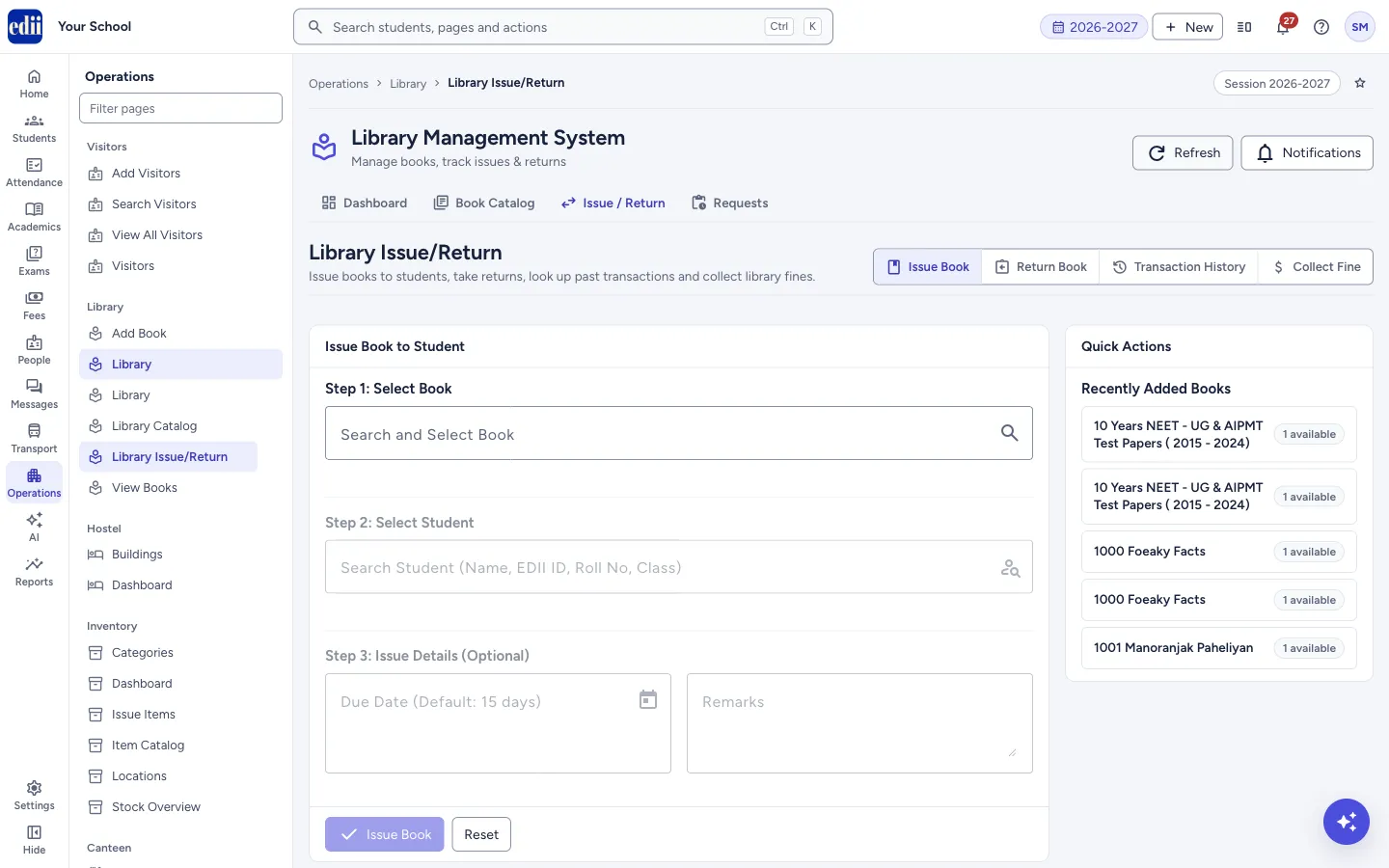
Section titled “1. Issue a book: choose the book”With Issue Book on, type in Search and Select Book a title, author or ISBN. Choose the book from the list that opens; it shows how many copies are available. Only books with at least one copy available are listed.
You can also start from Issue in the Book Catalog or a book in Quick Actions (Recently Added Books).
 Open a bigger pictureतस्वीर बड़ी करें
2. Issue a book: choose the student
Section titled “2. Issue a book: choose the student”Step 2 is switched on after you pick a book. Type at least 2 characters of the student’s name, EDII ID, roll number, class, section, father’s name or enrollment number. Up to 20 students are shown; select the right one. A tick shows who is chosen.
3. Issue a book: set the due date and issue
Section titled “3. Issue a book: set the due date and issue”In Step 3, Due Date (Default: 15 days) and Remarks are optional. If you leave the due date empty, the book is due in 15 days. You cannot pick a day before today.
Select Issue Book. EDII shows Book issued successfully! with the Transaction ID and the due date. Reset clears the page.
4. Take a book back
Section titled “4. Take a book back”Select Return Book. Search by the book title, the student’s name or the transaction ID and select the issue from the list. An OVERDUE tag shows on late books. If the book is late, a note shows Fine Due with the amount.
Under Return Details, set Book Condition to Good, Damaged or Lost and add a Remark if you like. Select Return Book. EDII shows Book returned successfully! and, if there was a fine, Fine collected with the amount. The fine is not paid yet at this point: it is added to the student’s Pending Fine, which you take in Collect Fine.
5. Look at the history
Section titled “5. Look at the history”Select Transaction History for a table of every issue and return with Transaction ID, Book Title, Student, Issue Date, Return Date, Status and Fine. Type in Filter to search; select a heading to sort; use the page controls at the bottom (10, 25, 50 or 100 rows).
6. Collect a fine
Section titled “6. Collect a fine”Select Collect Fine and search for the student. EDII shows the Pending Fine. If the student has no fine, EDII shows No pending fine; if they never borrowed, No library membership found for this student.
Type the Amount to Collect (₹). It starts as the full pending fine and cannot be more. You can collect part of the fine; the box then shows what is left.
Choose how it was paid: Cash, UPI, Chq/DD or Card. Cash is chosen when the page opens. For UPI, Chq/DD or Card, type the UTR / cheque / card reference; the collect button stays locked until you do.
Select Collect ₹… (the button shows the amount). EDII shows Fine of Rs. … collected successfully and the pending fine goes down. When nothing is left, No pending fine shows.
Fields and filters
Section titled “Fields and filters”| Field | What it is | Notes |
|---|---|---|
| Search and Select Book | Finds an available book by title, author or ISBN. | Required to issue. |
| Search Student (Name, EDII ID, Roll No, Class) | Finds the student. | Type at least 2 characters. Required to issue. |
| Due Date (Default: 15 days) | The day the book should come back. | Optional. Not before today. |
| Remarks | A free note on the issue or on the return. | Optional. |
| Search by Book Title, Student Name, or Transaction ID | Finds an issued book to take back. | Required to return. |
| Book Condition | Good, Damaged or Lost. | Starts as Good. |
| Filter (history) | Keeps only the rows that contain the text. | Optional. |
| Amount to Collect (₹) | How much fine you are taking now. | At least 1 and not more than the pending fine. |
| Cash / UPI / Chq/DD / Card | How the fine was paid. | Starts as Cash. |
| UTR / cheque / card reference | The UPI transaction number, cheque or DD number, or card reference. | Shown only for UPI, Chq/DD and Card, and then required. Up to 100 characters. |
Buttons
Section titled “Buttons”| Button | What it does | What happens next |
|---|---|---|
| Issue Book / Return Book / Transaction History / Collect Fine (top right) | Switch the task on the page. | The matching box opens. The history is loaded fresh each time you open it. |
| Issue Book (in the box) | Issues the chosen book to the chosen student. | Book issued successfully! The lists are loaded again. |
| Return Book (in the box) | Takes the chosen issue back. | Book returned successfully! |
| Cash / UPI / Chq/DD / Card (Collect Fine) | Choose how the fine was paid. | For anything but Cash, the reference box opens. Going back to Cash empties it. |
| Collect ₹… | Records the fine payment with the way it was paid. | Fine of Rs. … collected successfully. The pending fine goes down by the amount. The button is locked until an amount is typed that is not more than the pending fine and, for UPI, Chq/DD or Card, the reference is filled. |
| Reset | Clears the choices in that task. | The boxes are empty again. |
Columns
Section titled “Columns”| Column | Meaning |
|---|---|
| Transaction ID | The number of the issue. |
| Book Title, Student | What was issued and to whom (with the EDII ID). |
| Issue Date, Return Date | When it went out and came back. A dash means it is still out. |
| Status | For example issued, returned or overdue. |
| Fine | The fine in rupees; a dash means none. |
Good to know
Section titled “Good to know”- The fine on a late book is the number of days after the due date times the fine per day set in Preferences, Library. If the setting cannot be read, 5 rupees a day is used.
- Returning a book as Damaged adds ₹100 to the fine. Returning it as Lost adds the book’s price from the catalog, and the copy does not go back on the shelf.
- A collected fine goes to the Day Book of the Cash Deposit Register for that day: cash in Daily Collection, UPI, cheque and card in Other Collection. With Show bank detail columns on, it shows under Collection by source as Library fines.
- Fines collected on beta.edii.in do not ask how they were paid, so they are not counted in the Day Book.
- When a fine is collected, the student’s parent gets a notification that the fine was received, with the amount still due if any.
- Dates on this page are DD-MM-YYYY.
- A book with no available copy does not appear in the book list and cannot be issued.
Messages you may see
Section titled “Messages you may see”| Message | What it means | What to do |
|---|---|---|
| Please select a book | You selected Issue Book without a book. | Choose a book first. |
| Please select a student | No student is chosen. | Search and select a student. |
| Book issued successfully! | The book was issued. The message also gives the Transaction ID and the due date. | Note the due date for the student. |
| Failed to issue book | The book could not be issued. | Check the internet and try again. If the server sends a reason, it is shown instead. |
| Please select a transaction | No issue is chosen to return. | Search and select the issue. |
| Book returned successfully! | The return is recorded. If the message also says Fine collected with an amount, that amount has been added to the student’s pending fine; it is not paid yet. | Collect the fine in Collect Fine. |
| Failed to return book | The return could not be recorded. | Try again. |
| Fine of Rs. 100 collected successfully | The fine payment was saved (the message shows the amount you collected). The pending fine goes down by that amount. | Nothing to do. If some fine is left, you can collect the rest now or later. |
| Please select a student and enter fine amount | The student or the amount is missing. | Fill both. |
| No pending fine, or amount exceeds the pending fine for this member | The amount is more than the student’s pending fine right now, for example because someone else collected it a moment ago. | Select the student again to see the current pending fine, then collect that amount. |
| Failed to collect fine | The fine could not be saved. | Try again. |
| Failed to load books | The list of books could not be loaded. | Select Refresh at the top of the page. |
| Failed to load transaction history | The history could not be loaded. | Select Refresh at the top of the page. |
- To return a book quickly, pick it from Recent Issues in Quick Actions while Return Book is open.
- A fine is shown when a book is returned, but it is paid in Collect Fine.
- After a part payment, the payment choice and the reference stay filled. Change them before you collect the rest if it is paid another way.
Stuck? Try this
Section titled “Stuck? Try this”| Problem | Likely cause | What to do |
|---|---|---|
| The book I want is not in the list | All copies are issued, or the title is not in the catalog. | Check Book Catalog. Add the book, or wait for a return. |
| I cannot find the student | You typed fewer than 2 characters, or the student is not in the school’s student list. | Type more of the name or the EDII ID. |
| Collect Fine shows no library membership | The student has never been issued a library book. | Nothing is owed by this student. |
Did this page help?क्या इस पेज से मदद मिली?
Thanks! Glad it helped.धन्यवाद! अच्छा लगा कि काम बन गया।
Sorry about that. Ask in your own words, or write to us.माफ़ कीजिए। अपने शब्दों में पूछें, या हमें लिखें।