
Screen guide · Web app
Add Feedback
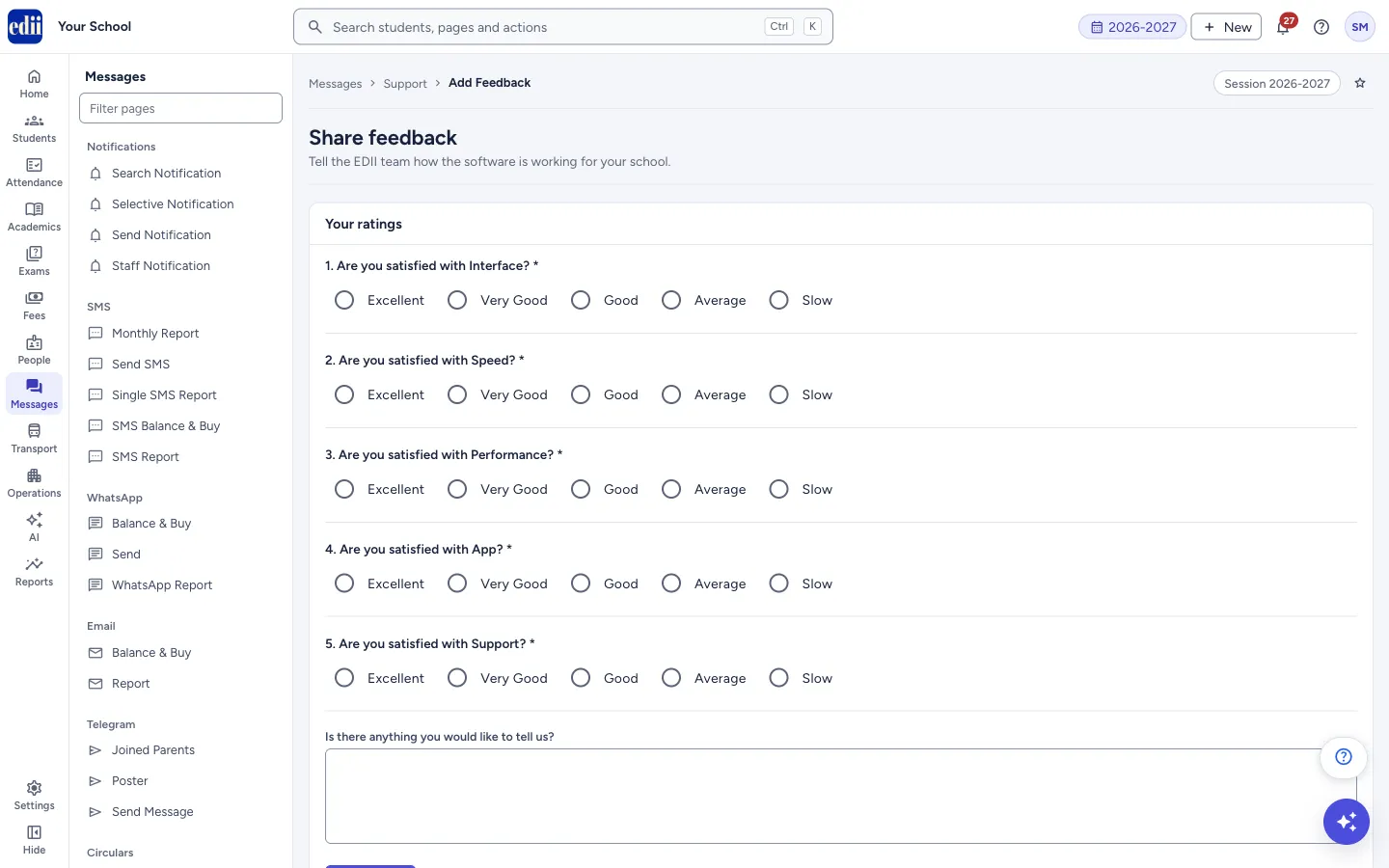
A short form, headed Share feedback, where you rate five areas of EDII from Excellent to Slow and can add a note.
यह पेज अंग्रेज़ी में है। कुछ समझ न आए तो ।
Share feedback asks five questions about how EDII is working for your school: Interface, Speed, Performance, App and Support. Each has the same five choices: Excellent, Very Good, Good, Average and Slow. You must rate all five. Below them is a box for Is there anything you would like to tell us?, which is optional.
Select Submit when you are done. EDII shows Thank you. Your feedback has been sent. and clears the form. Your feedback is saved as your school’s own feedback and also shows in View Feedback.
Who uses it and when
Section titled “Who uses it and when”Anyone in the school office who wants to tell the EDII team how the software is working.
Before you start
Section titled “Before you start”- If something is wrong and you need an answer, raise a ticket on the Tickets page instead. A ticket gets a reply; this form is for general opinion.
Where to find it
Section titled “Where to find it”- In school.edii.in: Messages › Support › Add Feedback
- Or press Ctrl K (⌘ K on a Mac) and type Add Feedback.
- Address:
school.edii.in/add/add-feedback - Who can see it: Staff whose role includes Support access. If it is missing from your menu, ask your school admin.
 Open a bigger pictureतस्वीर बड़ी करें
Step by step
Section titled “Step by step”1. Rate the five areas
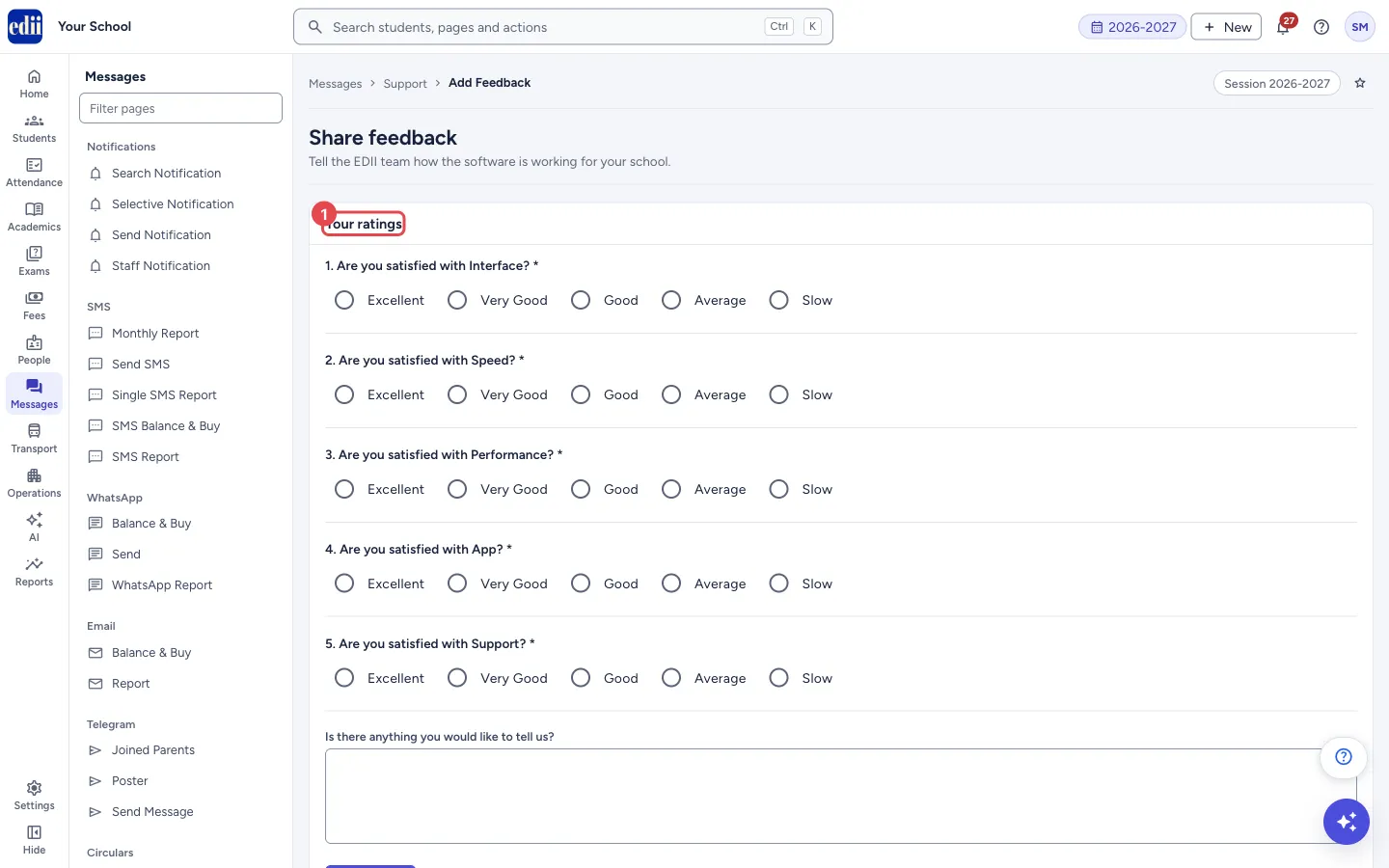
Section titled “1. Rate the five areas”For each of the five questions, choose one of Excellent, Very Good, Good, Average or Slow. All five are required and are marked with a star (*).
 Open a bigger pictureतस्वीर बड़ी करें
2. Write a note (optional)
Section titled “2. Write a note (optional)”In Is there anything you would like to tell us?, write anything else you want to say.
3. Submit
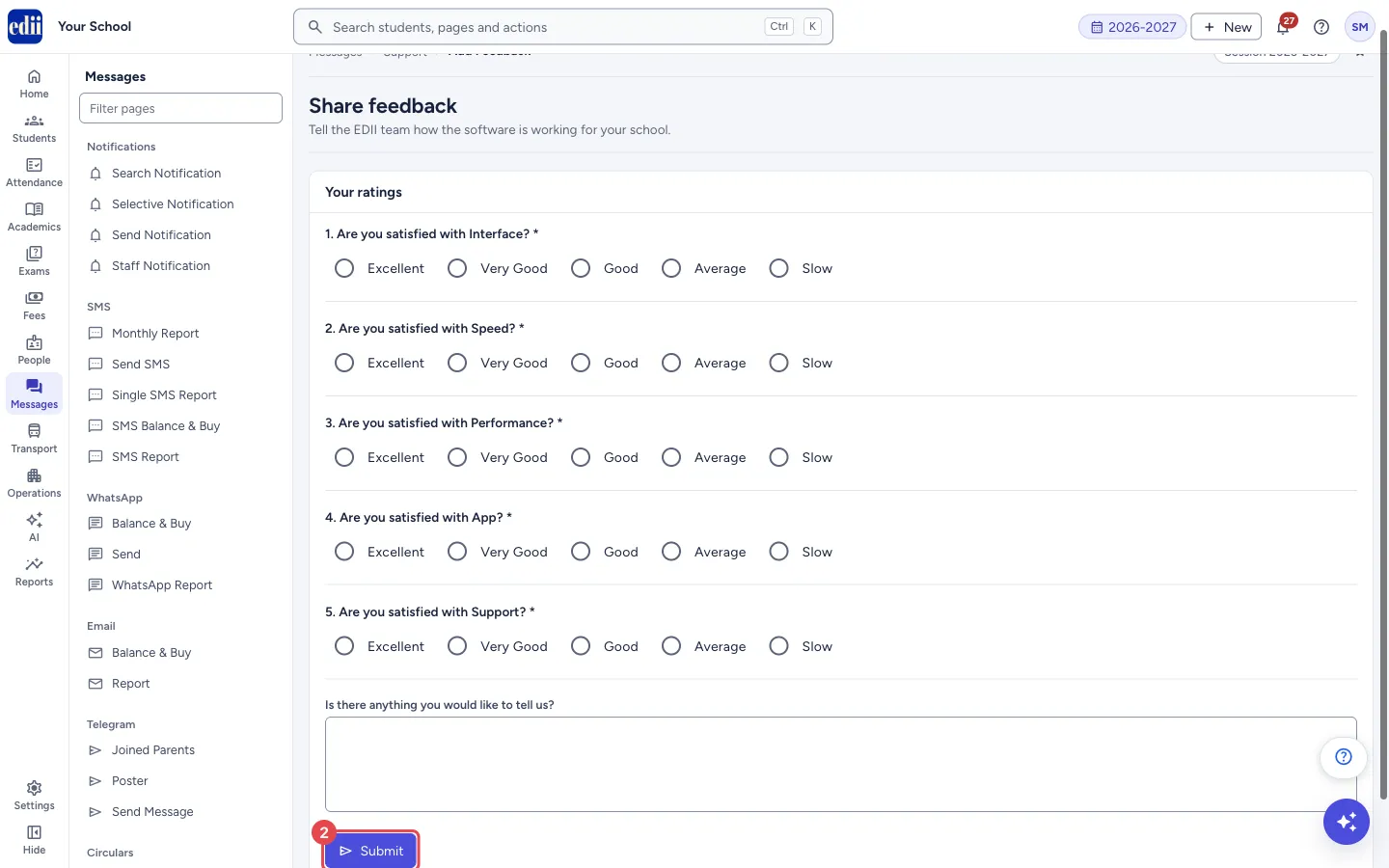
Section titled “3. Submit”Select Submit at the bottom of the page. If any rating is missing, EDII lists the missing ones and sends nothing. Otherwise it shows Thank you. Your feedback has been sent. with the title Success! and the form is cleared, ready for a new one.
 Open a bigger pictureतस्वीर बड़ी करें
Fields and filters
Section titled “Fields and filters”| Field | What it is | Notes |
|---|---|---|
| 1. Are you satisfied with Interface? | Your opinion of how the screens look and work. | Required. One of Excellent, Very Good, Good, Average, Slow. |
| 2. Are you satisfied with Speed? | Your opinion of how fast pages load. | Required. One of the five choices. |
| 3. Are you satisfied with Performance? | Your opinion of how well EDII works overall. | Required. One of the five choices. |
| 4. Are you satisfied with App? | Your opinion of the EDII mobile app. | Required. One of the five choices. |
| 5. Are you satisfied with Support? | Your opinion of the help you get from EDII. | Required. One of the five choices. |
| Is there anything you would like to tell us? | A free note. | Optional. |
Buttons
Section titled “Buttons”| Button | What it does | What happens next |
|---|---|---|
| Submit | Sends the form. | Thank you. Your feedback has been sent. shows and the form clears. |
Messages you may see
Section titled “Messages you may see”| Message | What it means | What to do |
|---|---|---|
| Thank you. Your feedback has been sent. | The form was sent and saved. | Nothing to do. |
| Please rate: Interface, Speed. | One or more of the five ratings is not chosen. The message lists the missing ones. | Choose a rating for each listed question and select Submit again. |
| Bad/Slow Internet Connection, Please check your internet connection | The form could not be sent. | Check the internet and select Submit again. |
- For a problem that needs a reply, use Tickets, not this form.
- To ask for something new, use Feature Request.
Did this page help?क्या इस पेज से मदद मिली?
Thanks! Glad it helped.धन्यवाद! अच्छा लगा कि काम बन गया।
Sorry about that. Ask in your own words, or write to us.माफ़ कीजिए। अपने शब्दों में पूछें, या हमें लिखें।