
Screen guide · Web app
Add Job
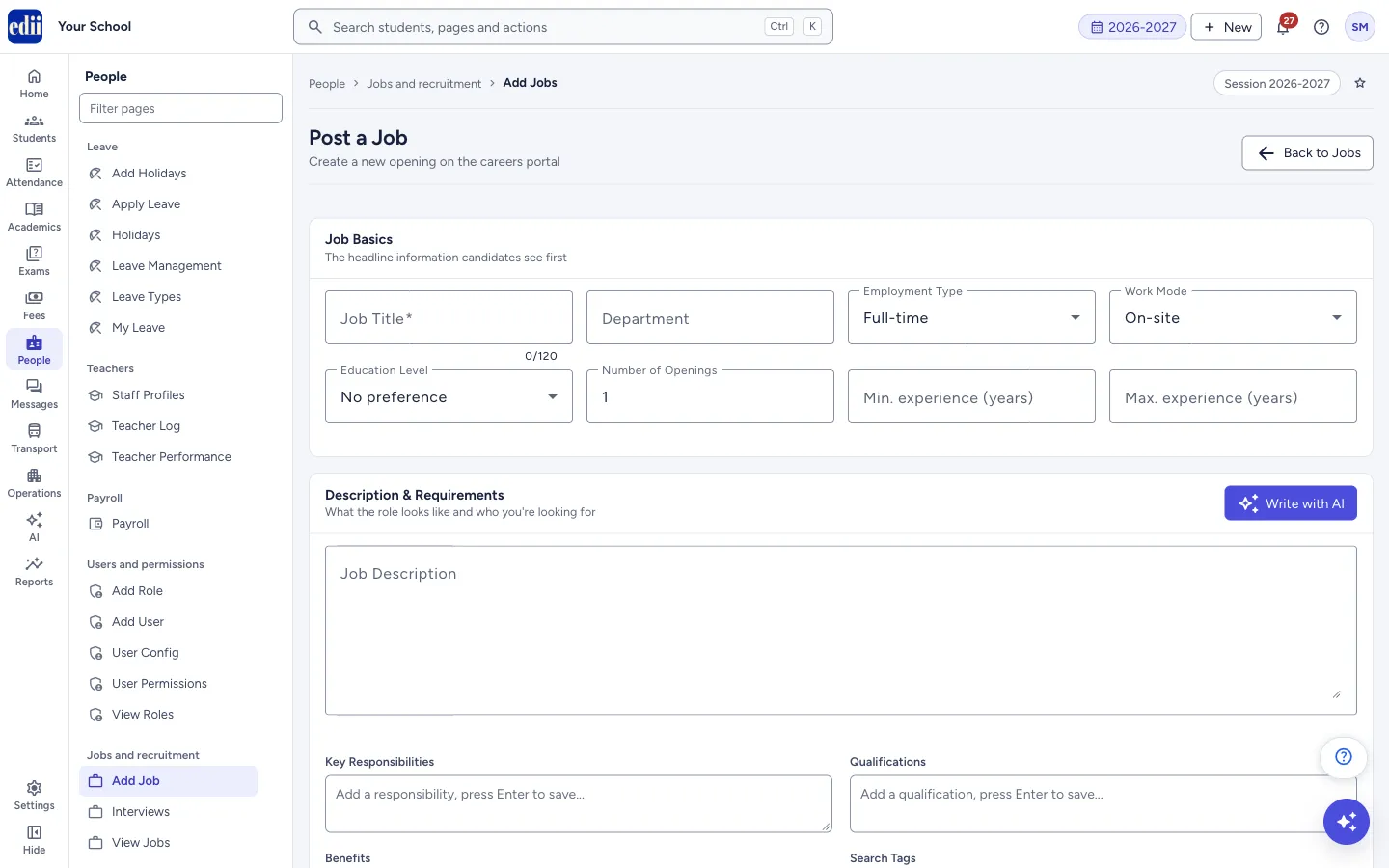
The form for creating a new job opening for the school's careers portal, either as a draft or published.
यह पेज अंग्रेज़ी में है। कुछ समझ न आए तो ।
Add Job (the page is headed Post a Job) creates a new opening on the school’s careers portal. The form has six parts: Job Basics, Description & Requirements, Visibility & Dates, Compensation, Location and Hiring Contact.
Only the Job Title, Active From and Expires On are required. Select Save as Draft to keep the job without publishing it, or Publish Job to put it live. Either way, View Jobs opens afterwards.
Who uses it and when
Section titled “Who uses it and when”The principal or the person who handles recruitment, when the school needs to hire.
Before you start
Section titled “Before you start”- Keep the role details, experience needed, pay range and last date ready.
- Contact Name and Contact Email are filled in with your own name and email, and City, State, Country and Contact Phone with the school’s details, when the school has them. Change any of them if needed.
Where to find it
Section titled “Where to find it”- In school.edii.in: People › Jobs and recruitment › Add Job
- Or press Ctrl K (⌘ K on a Mac) and type Add Job.
- Address:
school.edii.in/add/add-job - Who can see it: Staff whose role includes Messages or Leave or Meetings access. Shown only when your school uses HR and Calendar in EDII. If it is missing from your menu, ask your school admin.
 Open a bigger pictureतस्वीर बड़ी करें
Step by step
Section titled “Step by step”1. Fill in Job Basics
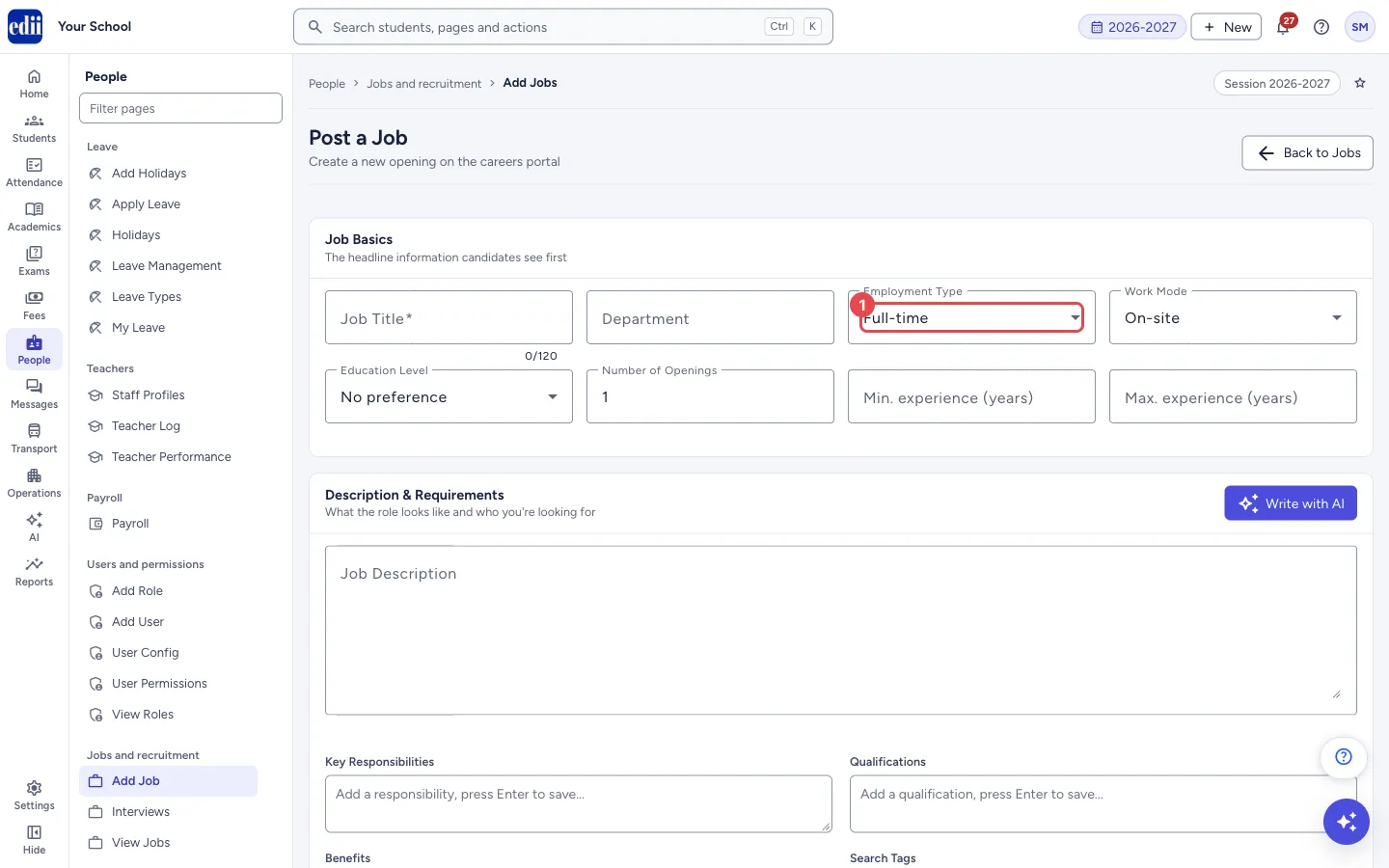
Section titled “1. Fill in Job Basics”Type the Job Title (up to 120 characters; a counter shows how many you have used) and the Department. Choose the Employment Type (Full-time, Part-time, Contract, Internship or Temporary), the Work Mode (On-site, Hybrid or Remote), the Education Level (No preference, High School, Diploma, Bachelors, Masters, PhD or Any), the Number of Openings (starts at 1) and the Min. experience (years) and Max. experience (years).
 Open a bigger pictureतस्वीर बड़ी करें
2. Describe the role
Section titled “2. Describe the role”Write the Job Description. Then add Key Responsibilities, Qualifications and Benefits one by one: type a line and press Enter to add it to the list (use Shift+Enter for a new line inside the same item). The small button next to an item removes it.
Search Tags are short words that help candidates find the job. Type a tag and press Enter or a comma.
3. Let AI draft the text (optional)
Section titled “3. Let AI draft the text (optional)”Select Write with AI (top right of this part). Type the Job Title first, otherwise you see Add the job title first — AI uses it to write better content. In the Write with AI window you can add a note under Anything else? (optional), then select Generate. After a short wait, EDII fills the description, responsibilities, qualifications, benefits and tags, and shows Generated — review and tweak before publishing.
AI replaces the description and the three lists, and adds its tags to the ones you have. Read and correct everything before you publish.
4. Set the dates
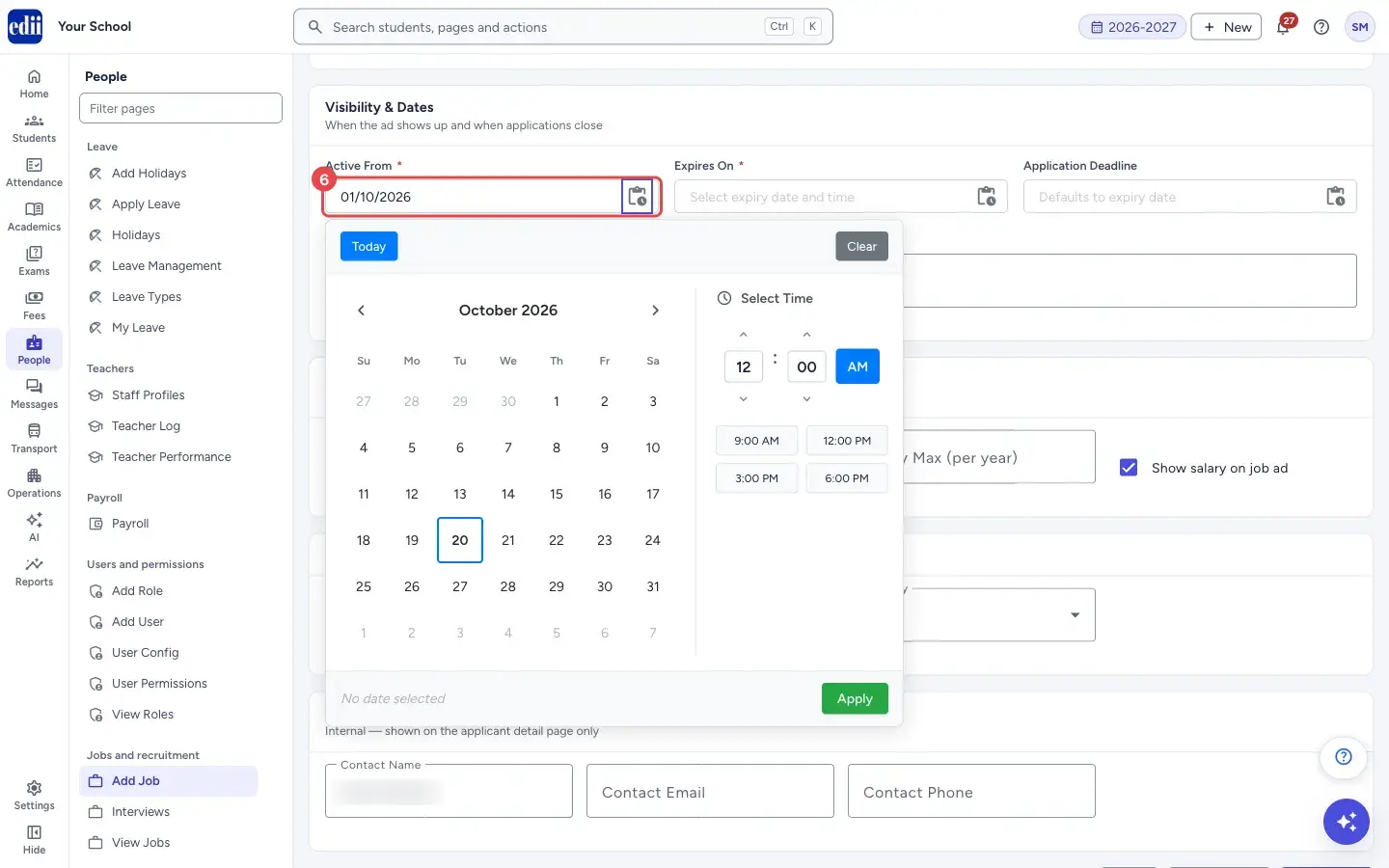
Section titled “4. Set the dates”Under Visibility & Dates, pick Active From (when the ad starts showing), Expires On (when it stops) and, if you wish, an Application Deadline (it uses the expiry date when left empty). Each box opens a calendar with a time picker: choose the day, set the time (or use a quick time such as 9:00 AM), and select Apply. Today picks today, and Clear empties the box.
If you have your own application page, type its address in External application URL (optional). The Apply button of the job then opens that page instead of the in-app form.
 Open a bigger pictureतस्वीर बड़ी करें
5. Add pay and location
Section titled “5. Add pay and location”Under Compensation choose the Currency, and type Salary Min (per year) and Salary Max (per year). Tick Show salary on job ad to publish the range; untick it to keep it hidden. Under Location fill City, State and Country. Under Hiring Contact fill Contact Name, Contact Email and Contact Phone; these are shown only on the applicant’s detail page.
6. Save or publish
Section titled “6. Save or publish”Select Save as Draft to store the job without making it live, or Publish Job to post it. When saved you see Job “<title>” saved as draft or Job “<title>” posted, and View Jobs opens. Reset clears the whole form.
Fields and filters
Section titled “Fields and filters”| Field | What it is | Notes |
|---|---|---|
| Job Title | The name of the post, for example Senior Mathematics Teacher. | Required, up to 120 characters. |
| Department | The department the job belongs to. | Optional. |
| Employment Type | Full-time, Part-time, Contract, Internship or Temporary. | Starts as Full-time. |
| Work Mode | On-site, Hybrid or Remote. | Starts as On-site. |
| Education Level | The minimum education. | Starts as No preference. |
| Number of Openings | How many people you want to hire. | At least 1. If left empty it is saved as 1. |
| Min. experience (years), Max. experience (years) | The experience range. | Optional. |
| Job Description | A free-text description of the role. | Optional. |
| Key Responsibilities, Qualifications, Benefits | Bullet lists, one item per line. | Optional. Press Enter to add an item. |
| Search Tags | Short words for search. | Optional. Duplicates are ignored. |
| Active From | Date and time the ad starts. | Required. |
| Expires On | Date and time the ad ends. | Required. |
| Application Deadline | Last date to apply. | Optional. Defaults to the expiry date. |
| External application URL (optional) | Your own application page. | If set, the Apply button opens it instead of the in-app form. |
| Currency, Salary Min (per year), Salary Max (per year) | The pay range per year. | Optional. Currencies: INR, USD, GBP, AED, SGD, AUD, CAD. |
| Show salary on job ad | Whether candidates can see the pay range. | Ticked to start with. |
| City, State, Country | Where the job is. | Country list: India, USA, UK, UAE, Singapore, Australia, Canada. |
| Contact Name, Contact Email, Contact Phone | The person who handles the hiring. | Shown only on the applicant’s detail page. |
Buttons
Section titled “Buttons”| Button | What it does | What happens next |
|---|---|---|
| Write with AI | Opens a window to draft the description, lists and tags from the job basics. | After Generate, the text boxes are filled and you see Generated — review and tweak before publishing. |
| Reset | Clears every box on the form, including the lists and tags. | The form goes back to its starting values. |
| Save as Draft | Saves the job without publishing it. EDII still needs the title and both dates. | Job “<title>” saved as draft and View Jobs opens. |
| Publish Job | Checks the required fields and posts the job. | Job “<title>” posted and View Jobs opens. |
| Back to Jobs | Leaves the form without saving. | View Jobs opens. |
After you save
Section titled “After you save”- The job shows on View Jobs. A published job is open for applications on the careers portal; a draft stays private until you publish it.
- Applicants appear on the job’s Applicants page, and Interviews lists interviews you schedule for them.
Good to know
Section titled “Good to know”- The Job Title, Active From and Expires On are needed both to publish and to save a draft.
- Back to Jobs and leaving the page do not keep what you typed.
Messages you may see
Section titled “Messages you may see”| Message | What it means | What to do |
|---|---|---|
| Please fill all required fields | The title or a required date is missing and you selected Publish Job. | Fill the boxes marked with a star: Job Title, Active From and Expires On. |
| Job Name is required / Active Date is required / Expiry Date is required | You selected Save as Draft with the title or a date empty. | Fill the title and both dates. |
| Add the job title first — AI uses it to write better content | You selected Write with AI before typing a title. | Type the Job Title, then try again. |
| Generated — review and tweak before publishing | The AI text was added to the form. | Read and correct it. |
| AI returned an unexpected format. Please try again. | The AI answer could not be used. | Select Generate again. |
| Network error, please try again | The job did not reach EDII. | Check the internet and select the button again. |
- Use Save as Draft while the text or pay is not final, then finish the job from View Jobs.
- Untick Show salary on job ad if the school does not want to publish the pay range.
Did this page help?क्या इस पेज से मदद मिली?
Thanks! Glad it helped.धन्यवाद! अच्छा लगा कि काम बन गया।
Sorry about that. Ask in your own words, or write to us.माफ़ कीजिए। अपने शब्दों में पूछें, या हमें लिखें।