
Screen guide · Web app
Duty Shifts
Define the school's duty shifts (including night shifts that cross midnight) and put each staff member on one or more of them, so that staff attendance can be read against the shift.
यह पेज अंग्रेज़ी में है। कुछ समझ न आए तो ।
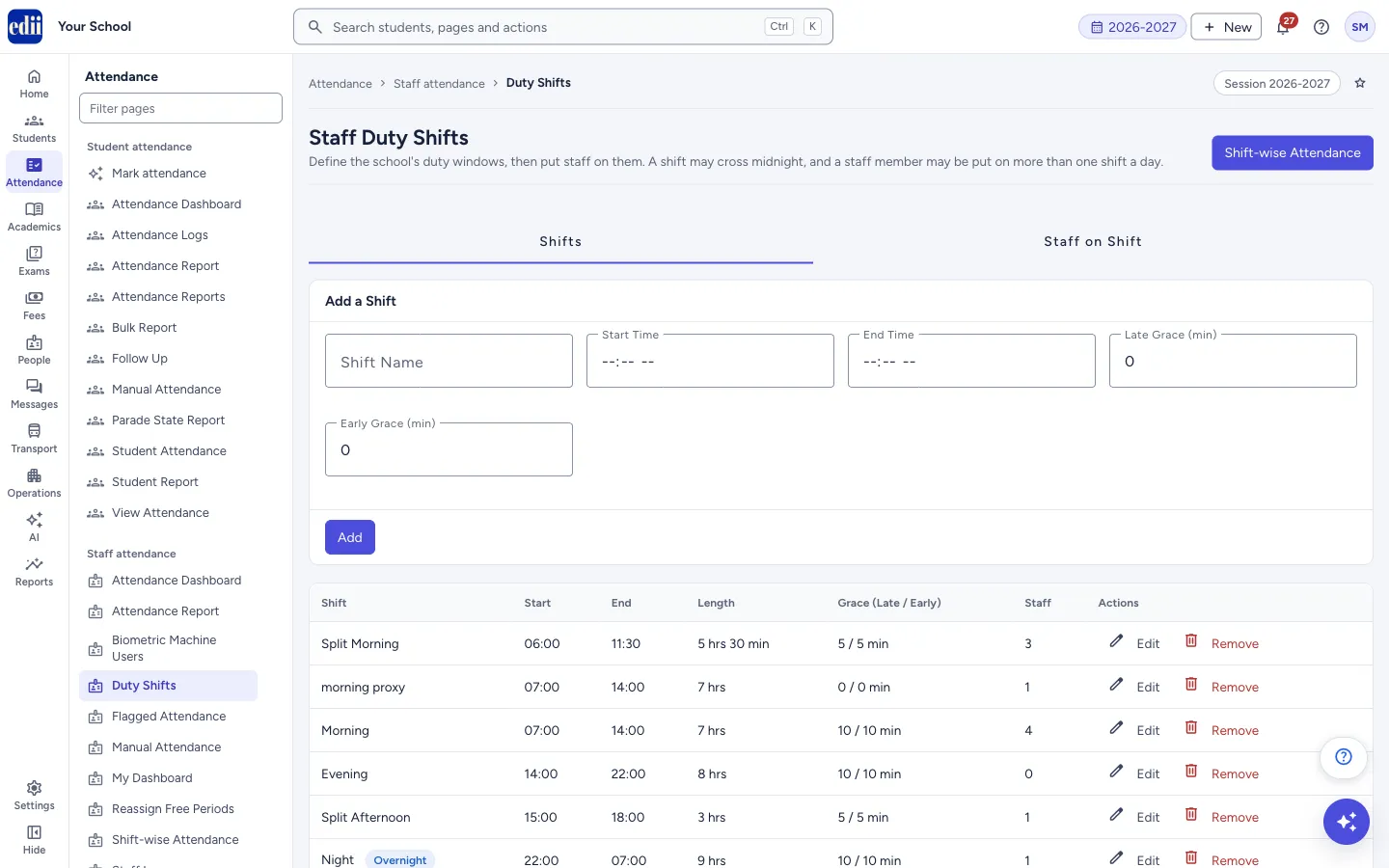
The screen is headed Staff Duty Shifts. It has two tabs. Shifts is where you add, edit and remove the school’s duty windows, for example Morning 07:00 to 14:00. Staff on Shift is where you choose a staff member and say which shifts they work.
A shift may cross midnight (for example 22:00 to 07:00): EDII reports it as one duty on the day it starts. A staff member may be on more than one shift in a day; that is called a split shift.
A staff member who is on no shift keeps their attendance as it is: first punch in and last punch out. Shift-wise Attendance (button at the top right) shows the result against the shifts.
Who uses it and when
Section titled “Who uses it and when”The administrator or the HR in-charge, when the school sets up its duty timings or changes a staff member’s duty.
Before you start
Section titled “Before you start”- Staff must exist in the school and have their attendance recorded (biometric, app or manual) for shifts to be useful.
Where to find it
Section titled “Where to find it”- In school.edii.in: Attendance › Staff attendance › Duty Shifts
- Or press Ctrl K (⌘ K on a Mac) and type Duty Shifts.
- Address:
school.edii.in/view/staff-shifts - Who can see it: Staff whose role includes Messages or Leave or Meetings or Students or Attendance access. Shown only when your school uses HR and Calendar and Student in EDII. If it is missing from your menu, ask your school admin.
 Open a bigger pictureतस्वीर बड़ी करें
Step by step
Section titled “Step by step”1. Add a shift
Section titled “1. Add a shift”On the Shifts tab, in Add a Shift, type the Shift Name (up to 40 characters, for example Morning), the Start Time and the End Time, and the Late Grace (min) and Early Grace (min) in minutes. Select Add.
Under the boxes EDII tells you the length of the duty, for example Duty length: 7 hrs. If the end is not after the start, it says This shift crosses midnight (9 hrs). It will be reported as one duty on the day it starts. The message Shift saved shows when it is done.
2. Edit or remove a shift
Section titled “2. Edit or remove a shift”The table lists each shift with its Start, End, Length, Grace (Late / Early) and the number of Staff on it; a shift that crosses midnight has an Overnight tag. Select Edit to load the shift into the form (the heading becomes Edit Shift), change it and select Update; Cancel drops the edit.
Select Remove and confirm in the Remove Shift window. If staff are on the shift, the window says how many and that removing it takes them off the shift. Past attendance is not changed. The message Shift removed shows.
3. Open Staff on Shift
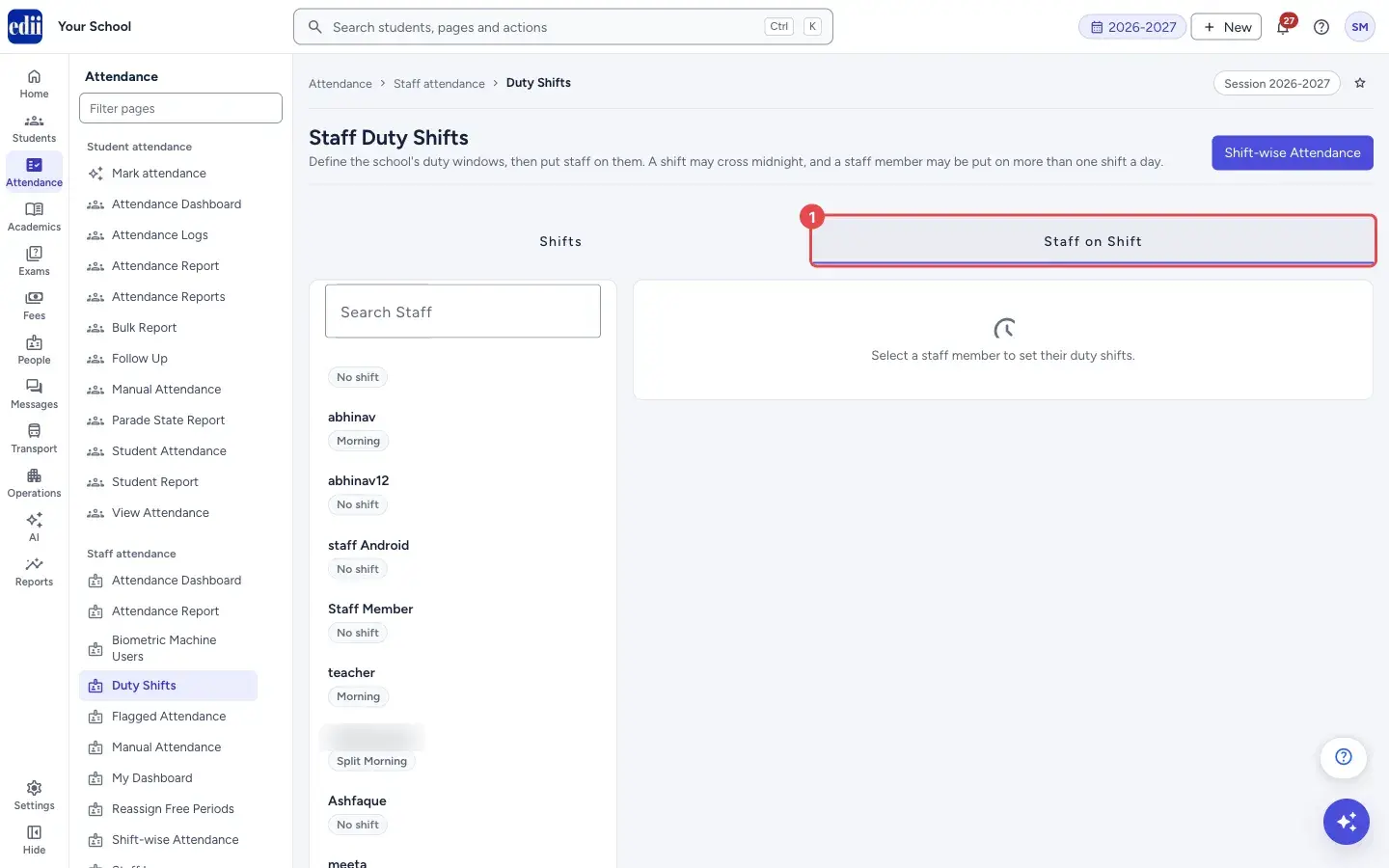
Section titled “3. Open Staff on Shift”Select the Staff on Shift tab. On the left is the list of staff with the shifts each one has (or a No shift tag, or a Split tag for two or more). Use Search Staff to find a name or staff ID, then select a staff member.
 Open a bigger pictureतस्वीर बड़ी करें
4. Put the staff member on shifts
Section titled “4. Put the staff member on shifts”On the right, Shifts for this staff member shows one row for each duty. In Shift pick a shift. Optionally fill From (DDMMYYYY) and To (DDMMYYYY) to limit the dates, and select the weekdays (Sun to Sat) the duty applies to; when no weekday is selected the duty is for every day.
Tick Only if on duty for staff on a changing rota: on a day they work another duty, this one is left out of the report instead of being counted absent. A day with no punches at all still shows as absent.
Select Add another duty (split shift) for a second row, and Remove on a row to drop it.
5. Save
Section titled “5. Save”Select Save. The message is Shift saved for one duty and Split shift saved for more than one. The same shift cannot be on two rows: The same shift has been added twice.
Fields and filters
Section titled “Fields and filters”| Field | What it is | Notes |
|---|---|---|
| Shift Name | A name for the duty. | Required. Up to 40 characters. |
| Start Time, End Time | The planned times of the duty. | Required, and they cannot be the same. An end before the start means the shift crosses midnight. |
| Late Grace (min) | Minutes of grace for coming in late. | Whole minutes, 0 or more. Shown as the first number of Grace (Late / Early). |
| Early Grace (min) | Minutes of grace for leaving early. | Whole minutes, 0 or more. Shown as the second number. |
| Search Staff | Filters the staff list. | Name or staff ID. |
| From, To (DDMMYYYY) | The dates the duty applies from and to. | Optional, 8 digits, for example 01042026. |
| Weekdays | The days of the week the duty applies. | None selected means every day. |
| Only if on duty | For changing rotas: do not count this duty absent on a day the staff member works another duty. | Off by default. |
Buttons
Section titled “Buttons”| Button | What it does | What happens next |
|---|---|---|
| Shift-wise Attendance | Opens the report of attendance against shifts. | You leave this screen. |
| Add / Update | Saves the shift in the form. | Shift saved; the shift appears in the table. |
| Edit | Loads the shift into the form. | The button changes to Update, with Cancel. |
| Remove (shift) | Removes the shift after you confirm. | Shift removed. Staff on it are taken off it; past attendance is not changed. |
| Add another duty (split shift) | Adds a row for a second shift for the same staff member. | Choose its shift and days. |
| Save (staff) | Saves the staff member’s shifts. | Shift saved or Split shift saved. |
Columns
Section titled “Columns”| Column | Meaning |
|---|---|
| Shift | Name of the shift, with Overnight when it crosses midnight. |
| Start, End | Planned times (24-hour). |
| Length | Hours and minutes between start and end. |
| Grace (Late / Early) | The two grace values in minutes. |
| Staff | How many staff are on the shift. |
Messages you may see
Section titled “Messages you may see”| Message | What it means | What to do |
|---|---|---|
| Please enter a Shift Name | The name is empty. | Type a name. |
| Please enter the Start and End time as HH:mm | A time is missing or not valid. | Choose both times. |
| Start Time and End Time cannot be the same | A shift needs a length. | Change one of the times. |
| Please select a staff member | You selected Save without choosing a staff member. | Select a name in the list first. |
| The same shift has been added twice | Two rows have the same shift. | Keep one row or choose another shift. |
| Network Issue, Please Try Again. | The request did not go through. | Check the internet connection and try again. |
- Add the school’s usual windows first, for example Morning 07:00–14:00, Evening 14:00–22:00 and Night 22:00–07:00, then put staff on them.
- Check the result for a few days on Shift-wise Attendance.
Did this page help?क्या इस पेज से मदद मिली?
Thanks! Glad it helped.धन्यवाद! अच्छा लगा कि काम बन गया।
Sorry about that. Ask in your own words, or write to us.माफ़ कीजिए। अपने शब्दों में पूछें, या हमें लिखें।