
Help homeहेल्प होम
Get started · Parent app
Switch the academic session
सेशन बदलें
Change the school year you are working in, for example 2025-2026 instead of 2026-2027.
2 steps2 स्टेप
यह पेज अंग्रेज़ी में है। कुछ समझ न आए तो ।
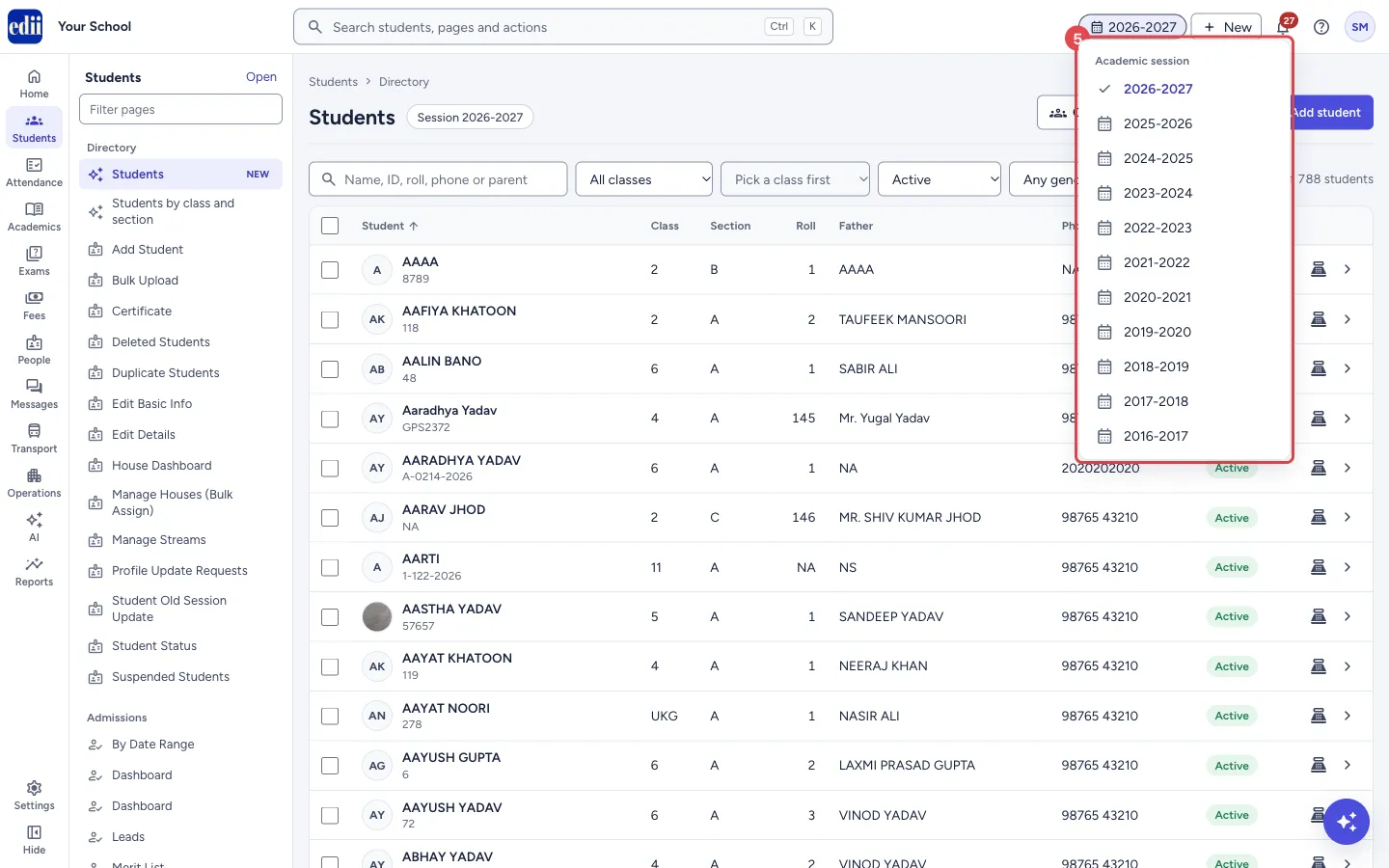
The session chip at the top (for example 2026-2027) shows the academic session you are working in. Lists, fees, attendance and reports show that session’s data.
1. Open the session list
Section titled “1. Open the session list”Select the session chip in the top bar. A list of Academic session years opens, with a tick on the current one.
 Open a bigger pictureतस्वीर बड़ी करें
2. Choose a year
Section titled “2. Choose a year”Select the year you need. The chip then shows that year, and the pages you open work in that session.
Good to know
Section titled “Good to know”- Pages that show a session (for example Session 2026-2027 next to a page title) follow the session you chose here.
Stuck? Try this
Section titled “Stuck? Try this”| You see | Why | What to do |
|---|---|---|
| Last year’s students or fees are missing | You are in the current session. | Switch to the earlier session in the chip, then open the page again. |
Did this page help?क्या इस पेज से मदद मिली?
Thanks! Glad it helped.धन्यवाद! अच्छा लगा कि काम बन गया।
Sorry about that. Ask in your own words, or write to us.माफ़ कीजिए। अपने शब्दों में पूछें, या हमें लिखें।