
Screen guide · Web app
Joined Parents
The list of students whose parents have joined the school on Telegram, with how and when they joined.
यह पेज अंग्रेज़ी में है। कुछ समझ न आए तो ।
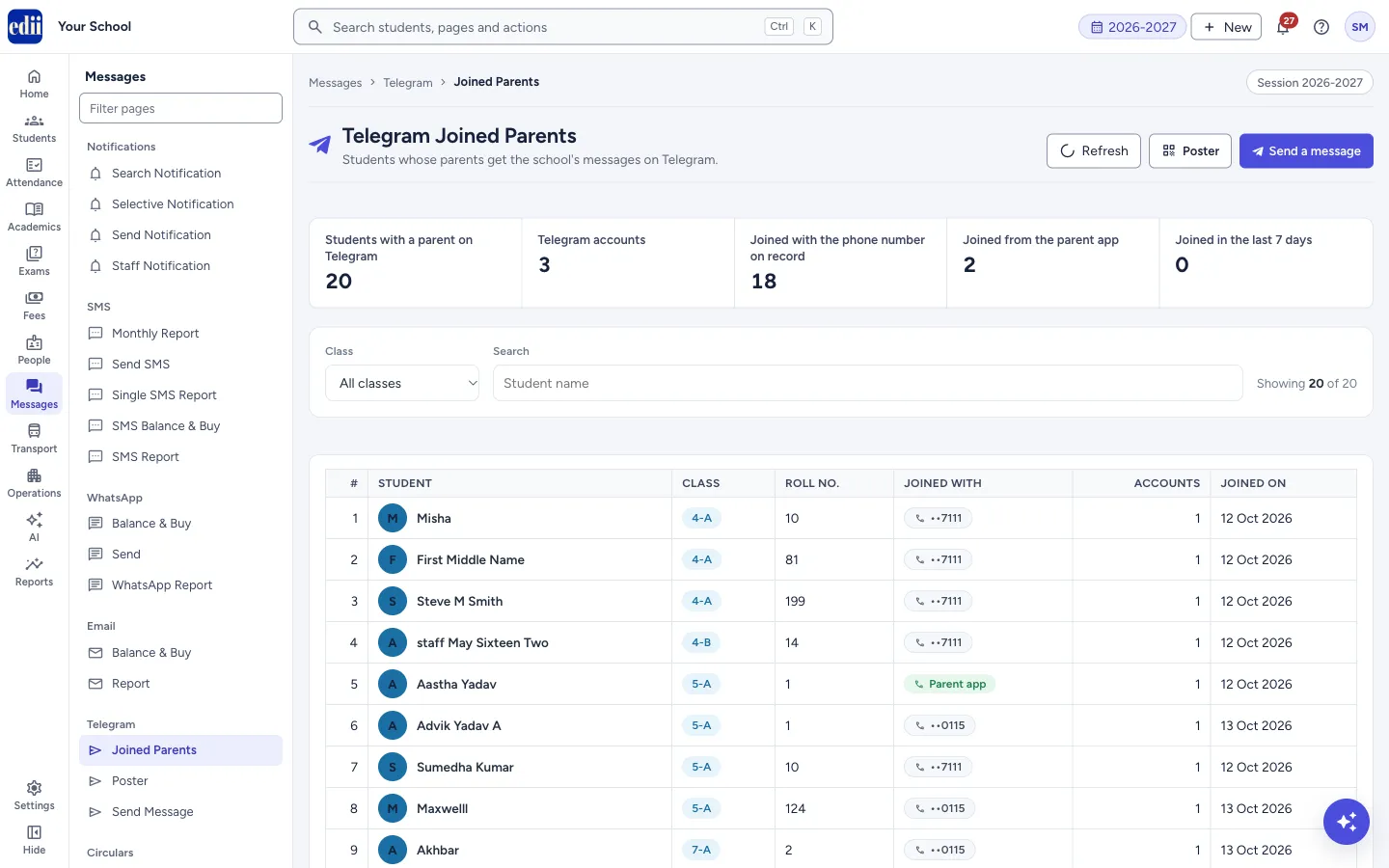
Joined Parents (the page is headed Telegram Joined Parents) shows which parents get the school’s messages on Telegram. Parents join on their own by scanning the school’s Telegram poster; this page then lists their children.
The page lists one row for each student, for the session chosen at the top of the screen. Counts at the top give the totals. You can filter by class and section, and search a student by name.
It only shows who has joined. It sends nothing. To send, use Send Message.
Who uses it and when
Section titled “Who uses it and when”The office checks it to see how many parents have joined, and which classes need a reminder to join.
Before you start
Section titled “Before you start”- Parents must first join using the poster from Poster. A parent joins by scanning the code, tapping Start in Telegram and sharing a phone number that the school has saved for the student. Until then this page says No parent has joined yet.
Where to find it
Section titled “Where to find it”- In school.edii.in: Messages › Telegram › Joined Parents
- Or press Ctrl K (⌘ K on a Mac) and type Joined Parents.
- Address:
school.edii.in/view/telegram-parents - Who can see it: Staff whose role includes Messages access. Shown only when your school uses Messages in EDII. If it is missing from your menu, ask your school admin.
 Open a bigger pictureतस्वीर बड़ी करें
Step by step
Section titled “Step by step”1. Read the totals
Section titled “1. Read the totals”At the top you see five counts: Students with a parent on Telegram, Telegram accounts, Joined with the phone number on record, Joined from the parent app and Joined in the last 7 days.
Telegram accounts counts each Telegram account once. It can be higher than the number of students, when two parents of one student have joined. It can also be lower, when one parent’s account covers several children.
2. Filter the list
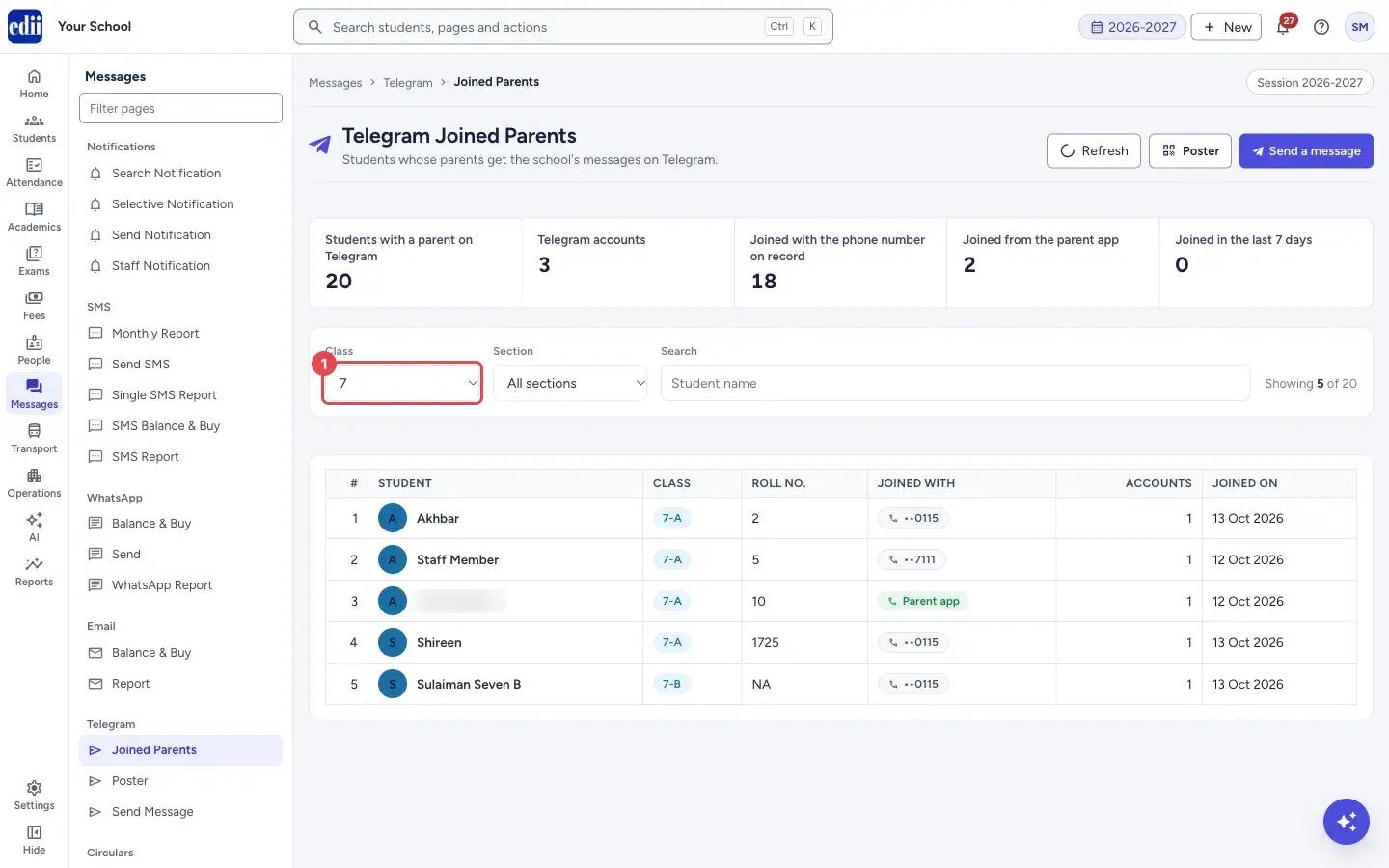
Section titled “2. Filter the list”Choose a Class (the list holds only classes where somebody has joined). Then a Section box appears; choose a section or keep All sections. Type part of a student’s name in Search.
A line says Showing N of M.
 Open a bigger pictureतस्वीर बड़ी करें
3. Read the table
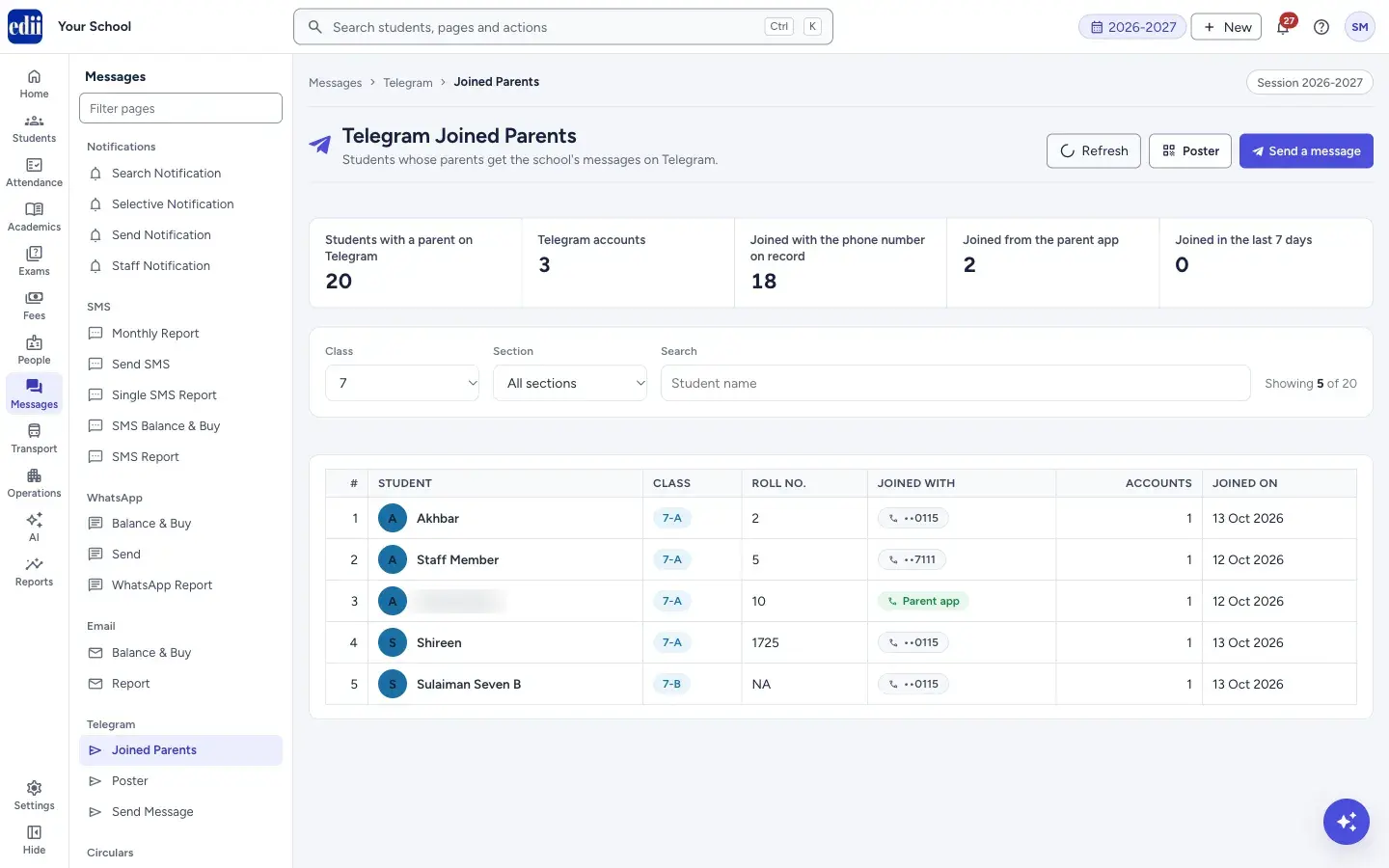
Section titled “3. Read the table”Each row gives the student, class and section, roll number, how the parent joined, the number of Telegram accounts and the date. The first 200 rows show; select Show more to see more.
 Open a bigger pictureतस्वीर बड़ी करें
4. Go on to the poster or send a message
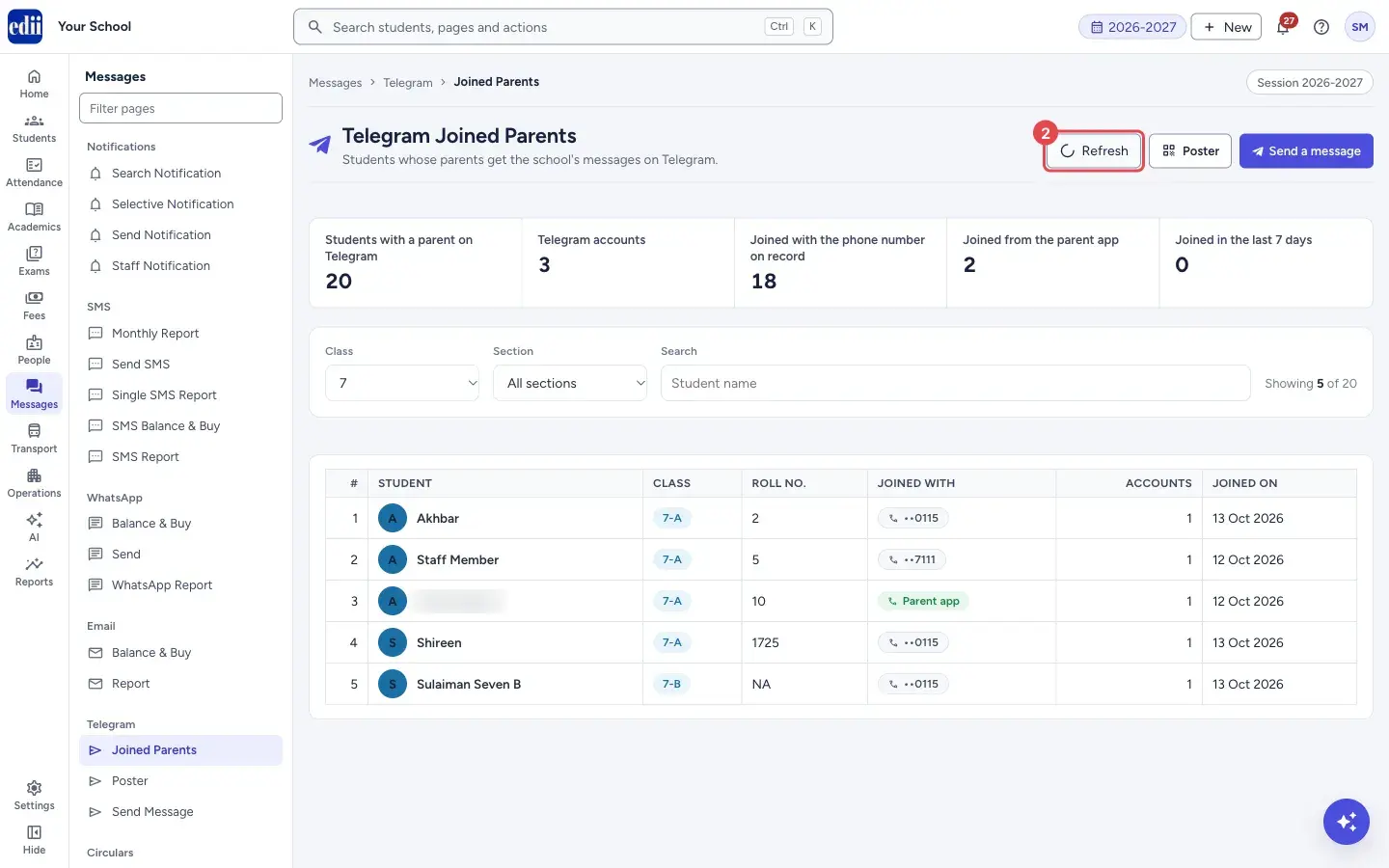
Section titled “4. Go on to the poster or send a message”Refresh reads the list again. Poster opens the printable poster. Send a message opens Send Message.
 Open a bigger pictureतस्वीर बड़ी करें
Fields and filters
Section titled “Fields and filters”| Field | What it is | Notes |
|---|---|---|
| Class | Shows only students of that class. | Starts at All classes. Lists only classes where a parent has joined. |
| Section | Shows only students of that section. | Appears after you choose a class. |
| Search | Finds students by name. | Up to 60 characters. |
Buttons
Section titled “Buttons”| Button | What it does | What happens next |
|---|---|---|
| Refresh | Reads the list again. | The counts and rows update. |
| Poster | Opens the Telegram poster page. | You can print the poster. |
| Send a message | Opens the page to send a Telegram message. | You can write the message. |
| Try again | Reads the list again. It shows only when the list could not be loaded. | The list appears if the read works. |
| Show more | Shows the next 200 rows. | More rows are added to the table. |
Columns
Section titled “Columns”| Column | Meaning |
|---|---|
| # | Row number. |
| Student | The student’s name. |
| Class | Class and section, for example 7-A. |
| Roll no. | The roll number. A dash when there is none. |
| Joined with | How the parent joined: the end of the phone number the parent shared, or Parent app. |
| Accounts | How many Telegram accounts are joined for this student. |
| Joined on | The date the parent joined. A dash when it is not known. |
Good to know
Section titled “Good to know”- Messages on Telegram are free. They do not use SMS credits.
- Only parents who joined on Telegram are listed, so this is not a list of all students.
- The list follows the session chosen at the top of the screen.
Messages you may see
Section titled “Messages you may see”| Message | What it means | What to do |
|---|---|---|
| Network issue, could not load who has joined. Please try again. | The list did not load. | Select Try again. |
| No parent has joined yet | Nobody has joined Telegram for this session. | Print the poster and ask parents to scan it. |
| No student matches these filters. | Your class, section or name search matches nobody. | Change the filters. |
Stuck? Try this
Section titled “Stuck? Try this”| Problem | Likely cause | What to do |
|---|---|---|
| A parent says they joined, but the child is not listed | The parent shared a phone number that is not saved on the student’s record, or you are looking at another session. | Ask the parent to share the number the school has on record. Check the session at the top. |
Did this page help?क्या इस पेज से मदद मिली?
Thanks! Glad it helped.धन्यवाद! अच्छा लगा कि काम बन गया।
Sorry about that. Ask in your own words, or write to us.माफ़ कीजिए। अपने शब्दों में पूछें, या हमें लिखें।