
Screen guide · Web app
Attendance Logs
A month grid of one class and section: for every student and every day, the saved attendance status and the in and out times, with totals of present and absent days.
यह पेज अंग्रेज़ी में है। कुछ समझ न आए तो ।
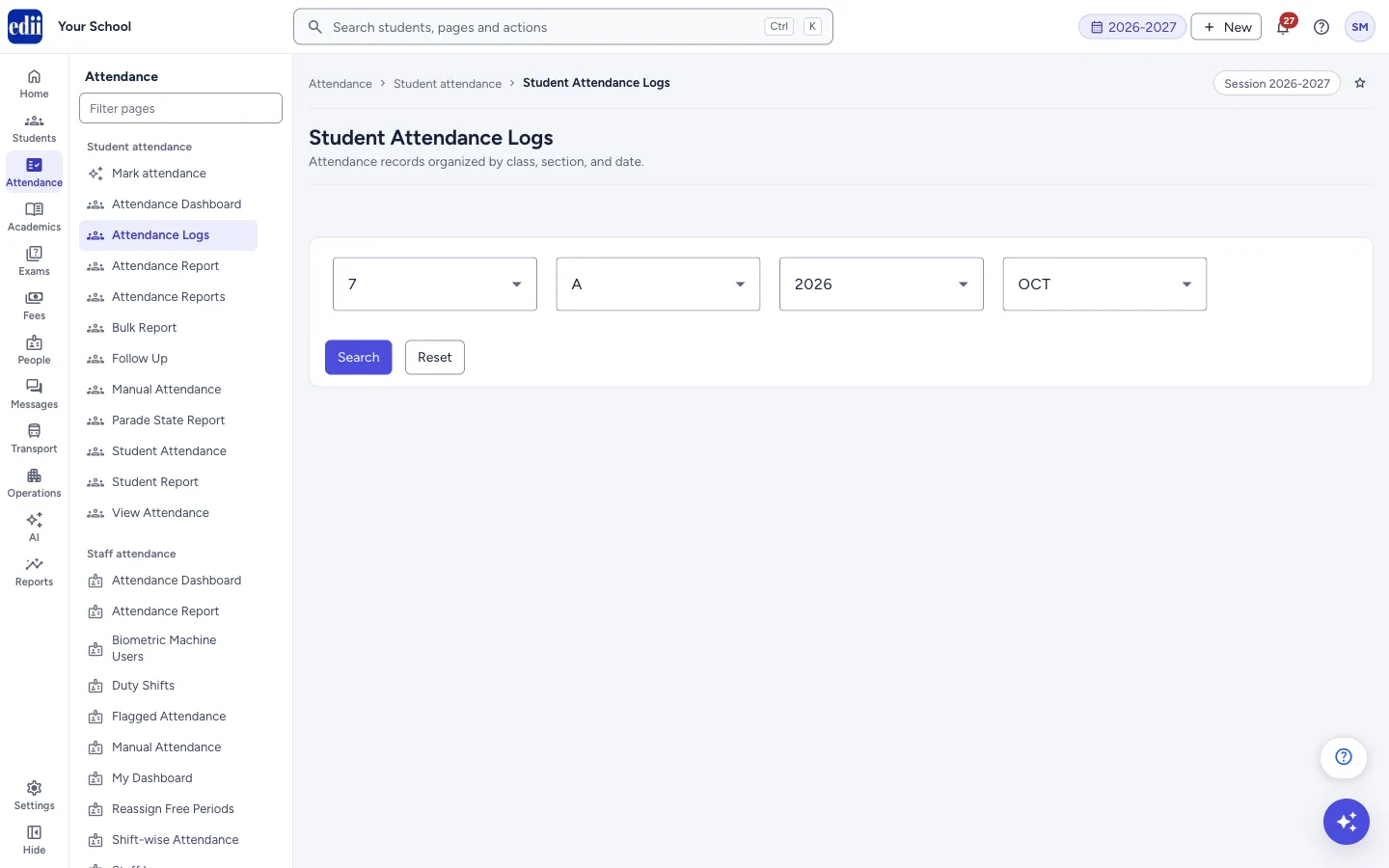
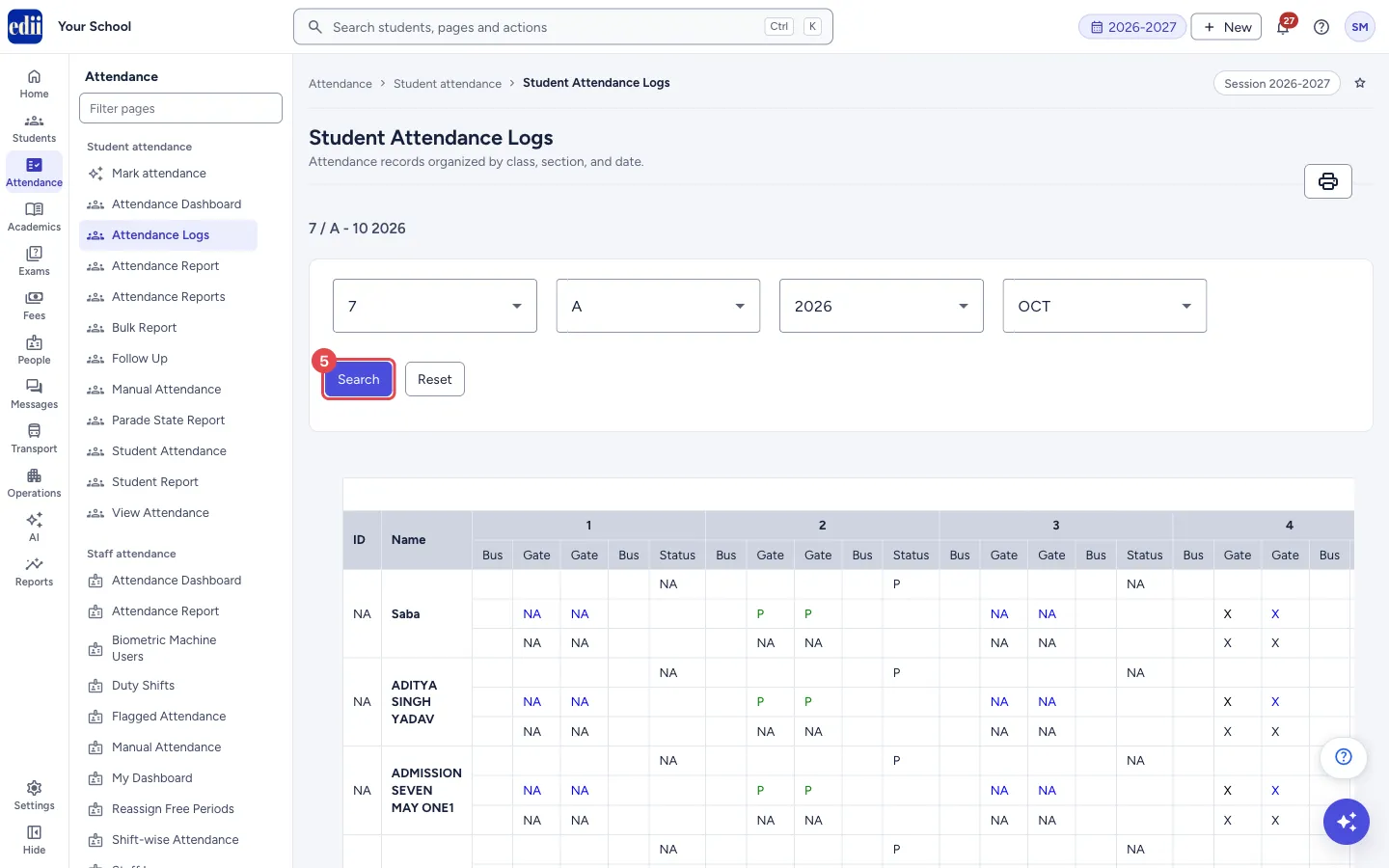
The screen is headed Student Attendance Logs. You choose a class, a section, a year and a month, and select Search. EDII shows one block of three rows for each student, with one group of columns for each day of the month.
The Total Present and Total Absent columns at the right end of each block count the days of that month.
The year and month start as the current year and month. In Section you can also choose All to see every section of the class in one grid; a Section column is then added.
Who uses it and when
Section titled “Who uses it and when”The class teacher, the attendance in-charge and the office, to check a whole month of one class at a glance or to print the register.
Before you start
Section titled “Before you start”- Attendance must have been marked for the month on Mark attendance (or on Manual Attendance).
Where to find it
Section titled “Where to find it”- In school.edii.in: Attendance › Student attendance › Attendance Logs
- Or press Ctrl K (⌘ K on a Mac) and type Attendance Logs.
- Address:
school.edii.in/view/attendance-logs - Who can see it: Staff whose role includes Students or Attendance access. Shown only when your school uses Student in EDII. If it is missing from your menu, ask your school admin.
 Open a bigger pictureतस्वीर बड़ी करें
Step by step
Section titled “Step by step”1. Choose the class
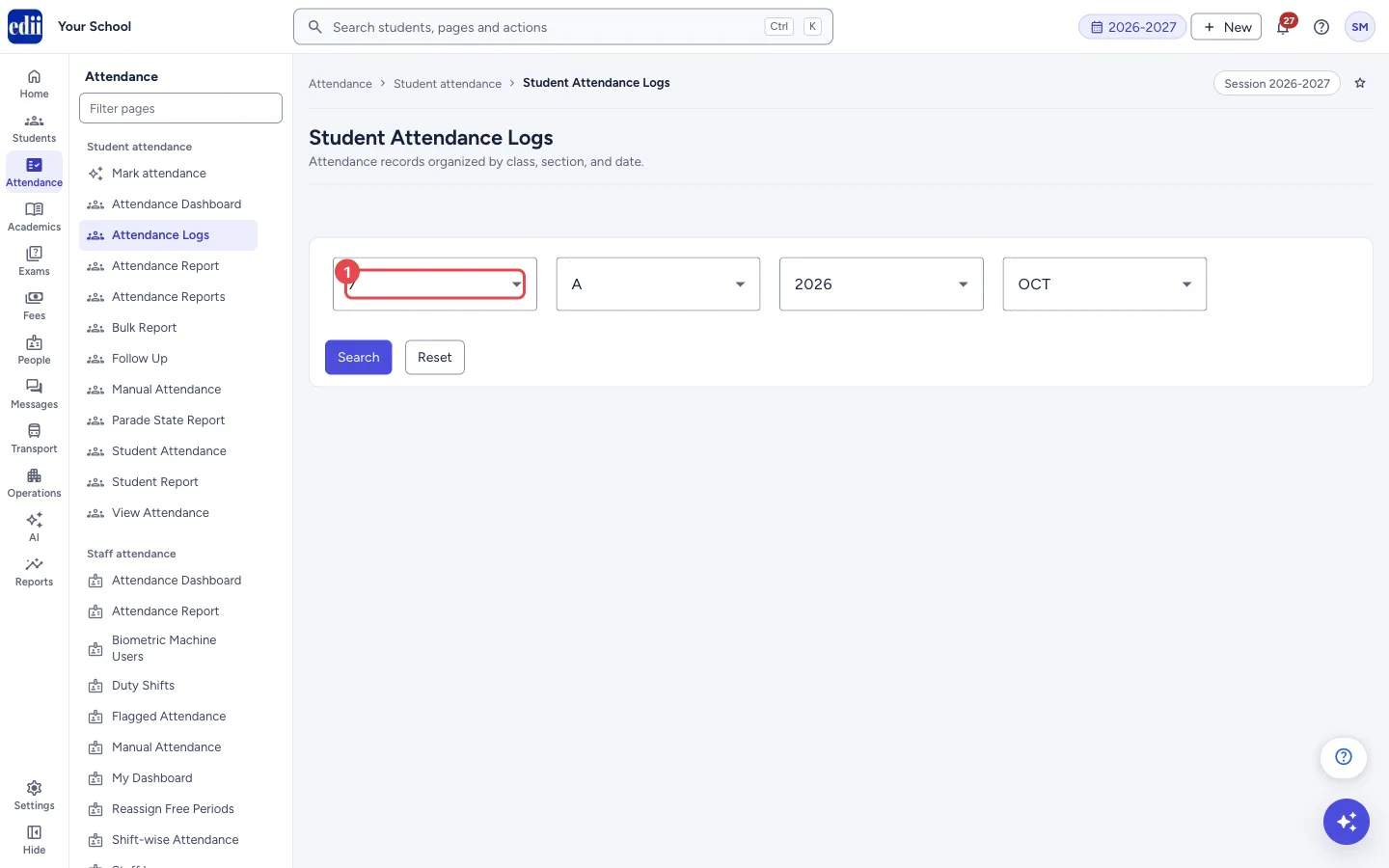
Section titled “1. Choose the class”Open the first list (Select Class) and pick the class.
 Open a bigger pictureतस्वीर बड़ी करें
2. Choose the section
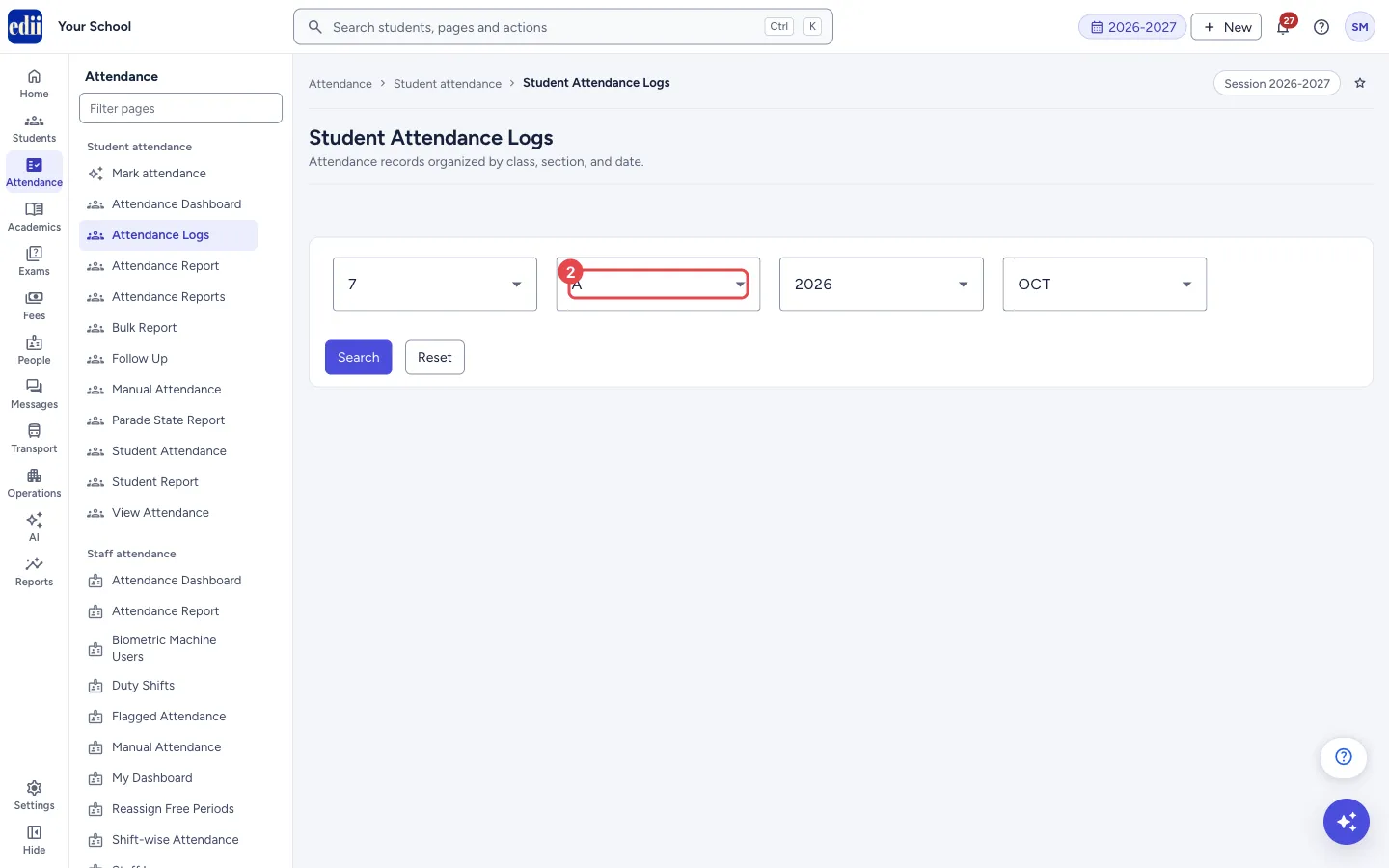
Section titled “2. Choose the section”Open the second list (Select Section) and pick the section, or All.
 Open a bigger pictureतस्वीर बड़ी करें
3. Choose the year and the month
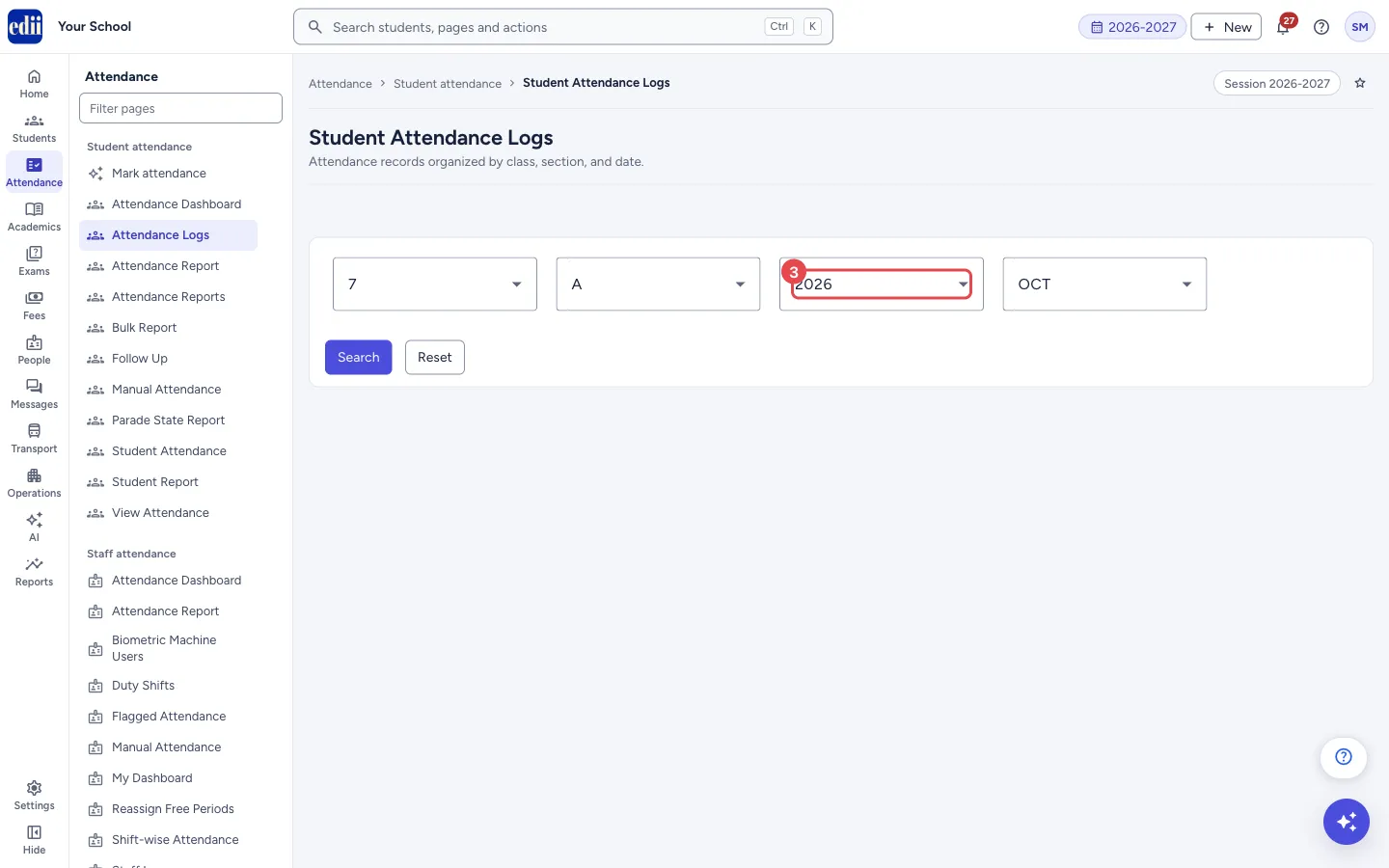
Section titled “3. Choose the year and the month”Choose the Year in the third list and the month in the fourth (Select Month, for example OCT).
 Open a bigger pictureतस्वीर बड़ी करें
4. Select Search
Section titled “4. Select Search”Select Search. A line above the filters shows what you opened, for example 7 / A - 10 2026. The grid appears below, headed with the school name and the month, for example October Attendance. Scroll right to see all days.
 Open a bigger pictureतस्वीर बड़ी करें
5. Read the grid
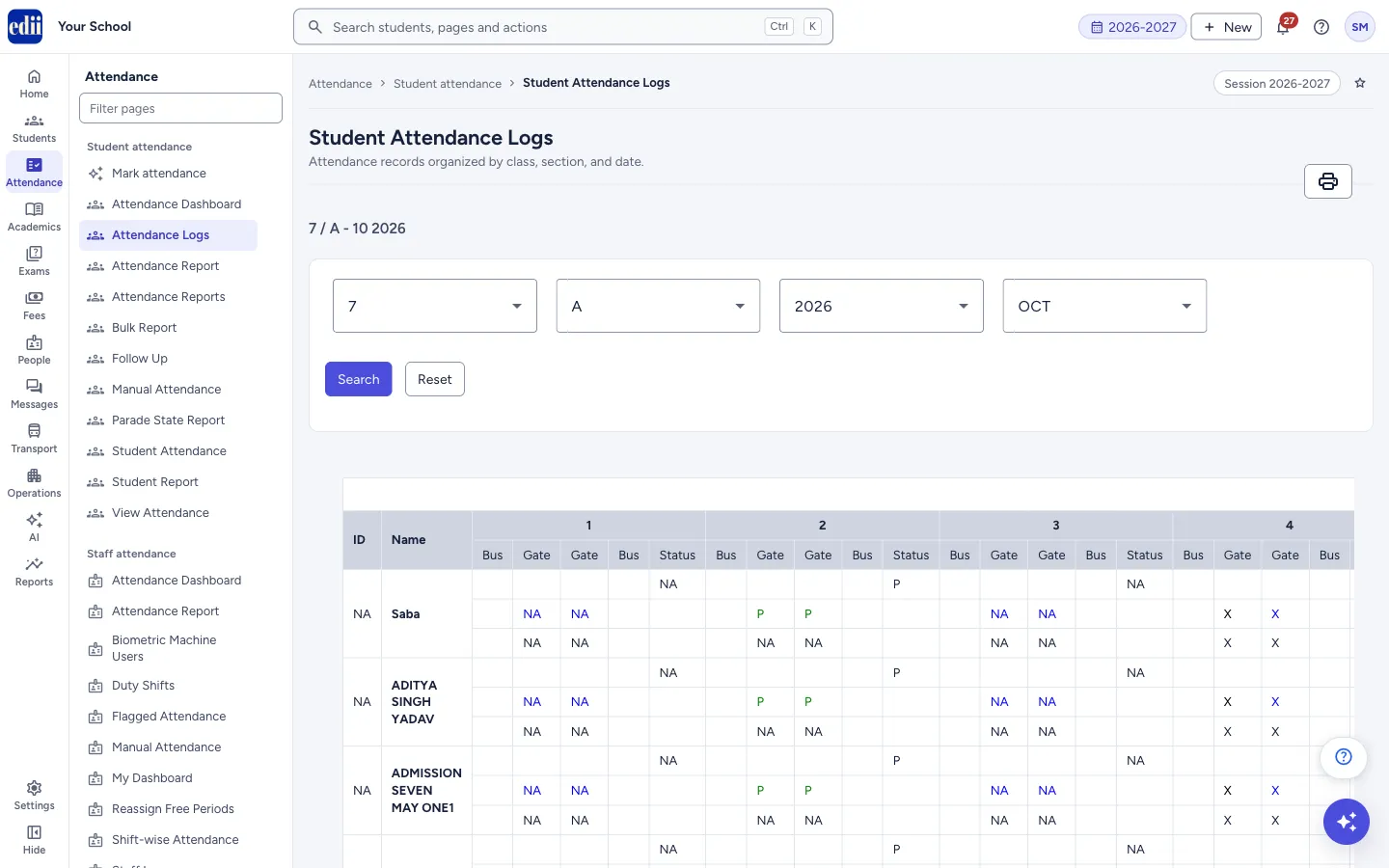
Section titled “5. Read the grid”Each day has five small columns: Bus, Gate, Gate, Bus and Status. In the second row of a student, the two Gate cells show the day’s attendance mark. In the third row, they show the in time and out time that were recorded.
The marks are: P present (green), A absent (red), NA nothing saved for that day (blue), and X for a Sunday. Times appear as hh:mm AM/PM when the school has a gate or biometric device that records them; otherwise they read NA.
 Open a bigger pictureतस्वीर बड़ी करें
6. Print or download
Section titled “6. Print or download”After a search, the printer button above the grid opens a small menu. Print prints the grid on the paper size and orientation set in the school’s print settings; CSV File downloads the same data as a file called Attendance logs.
Fields and filters
Section titled “Fields and filters”| Field | What it is | Notes |
|---|---|---|
| Select Class | The class to show. | Required. |
| Select Section | The section to show. | Required. All shows every section of the class. |
| Select Year | The year of the month. | Required. Starts as the current year. |
| Select Month | The month to show. | Required. Starts as the current month. |
Buttons
Section titled “Buttons”| Button | What it does | What happens next |
|---|---|---|
| Search | Loads the grid for the class, section, year and month. | The grid opens under the filters. The button is greyed out until all four are chosen. |
| Reset | Clears the four choices and the grid. | You choose again. |
| Printer button | Opens the menu with Print and CSV File. | Appears only after a search. |
Columns
Section titled “Columns”| Column | Meaning |
|---|---|
| ID | The student’s ID number. |
| Name | The student’s name. |
| Section | Shown only when you chose All sections. |
| 1 to 31 | One group of columns for each day of the month (28 to 31, depending on the month). |
| Total Present | Days marked present in the month. |
| Total Absent | Days marked absent in the month. |
Good to know
Section titled “Good to know”- Sundays show X. Other days on which attendance was not saved show NA; they are not counted as present or absent.
- Only days marked P count in Total Present and only days marked A count in Total Absent.
Messages you may see
Section titled “Messages you may see”| Message | What it means | What to do |
|---|---|---|
| Please Select Class/Section/Date | One of the choices is missing. | Choose the class, section, year and month, then search again. |
| Bad/Slow Internet Connection, Please check your internet connection | The grid could not be loaded. | Check the internet connection and search again. |
- For one month of the whole school, use Attendance Reports instead; this grid is for one class at a time.
- On a small screen the grid is wide. Use the printed or CSV copy if it is hard to read.
Stuck? Try this
Section titled “Stuck? Try this”| Problem | Likely cause | What to do |
|---|---|---|
| Every day shows NA. | Attendance has not been saved for that class and month. | Mark attendance on Mark attendance and search again. |
Did this page help?क्या इस पेज से मदद मिली?
Thanks! Glad it helped.धन्यवाद! अच्छा लगा कि काम बन गया।
Sorry about that. Ask in your own words, or write to us.माफ़ कीजिए। अपने शब्दों में पूछें, या हमें लिखें।