
Screen guide · Web app
Transfer certificates received
A report that lists every student of the session and shows whether the transfer certificate from the student's previous school has been received.
यह पेज अंग्रेज़ी में है। कुछ समझ न आए तो ।
Transfer certificates received lists the students of the session you are working in, with a TC received column that says Yes or No. It is about the certificate a new student brings from the school they came from. It is not the certificate your own school issues when a student leaves.
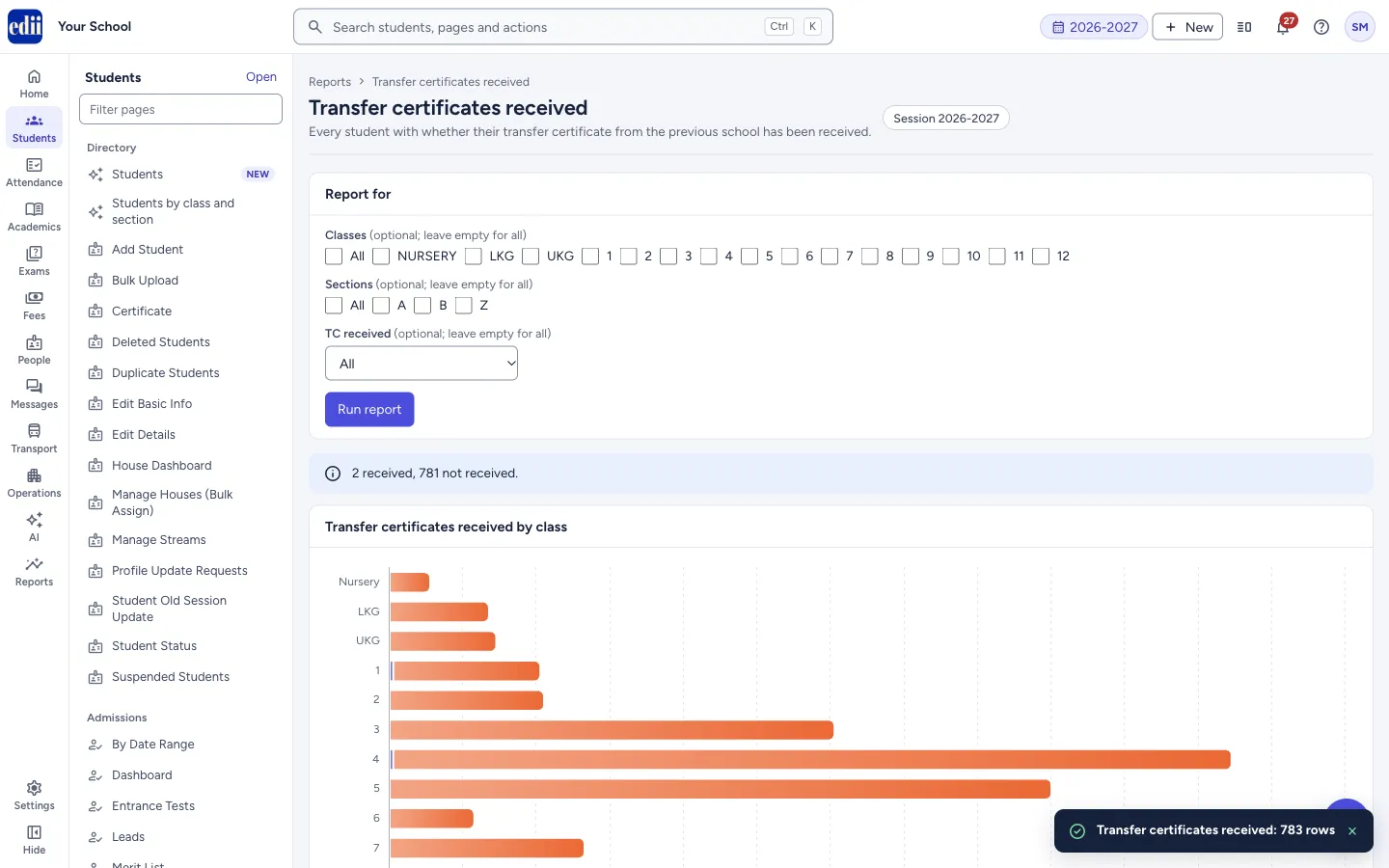
The report runs by itself when you open it. A line above the table says how many certificates are received and how many are not received, and a bar chart shows the same by class.
You can narrow the list by class, section or TC status. You can also search, sort, choose columns, export to CSV or Excel, or print.
Who uses it and when
Section titled “Who uses it and when”Admission and records staff, when they chase pending transfer certificates from parents of new students.
Where to find it
Section titled “Where to find it”- In school.edii.in: Students › Promotion, TC and documents › Transfer certificates received
- Or press Ctrl K (⌘ K on a Mac) and type Transfer certificates received.
- Address:
school.edii.in/reports/tc-received - Who can see it: Staff whose role includes Students or Attendance access. Shown only when your school uses Student in EDII. If it is missing from your menu, ask your school admin.
 Open a bigger pictureतस्वीर बड़ी करें
Step by step
Section titled “Step by step”1. Open the report
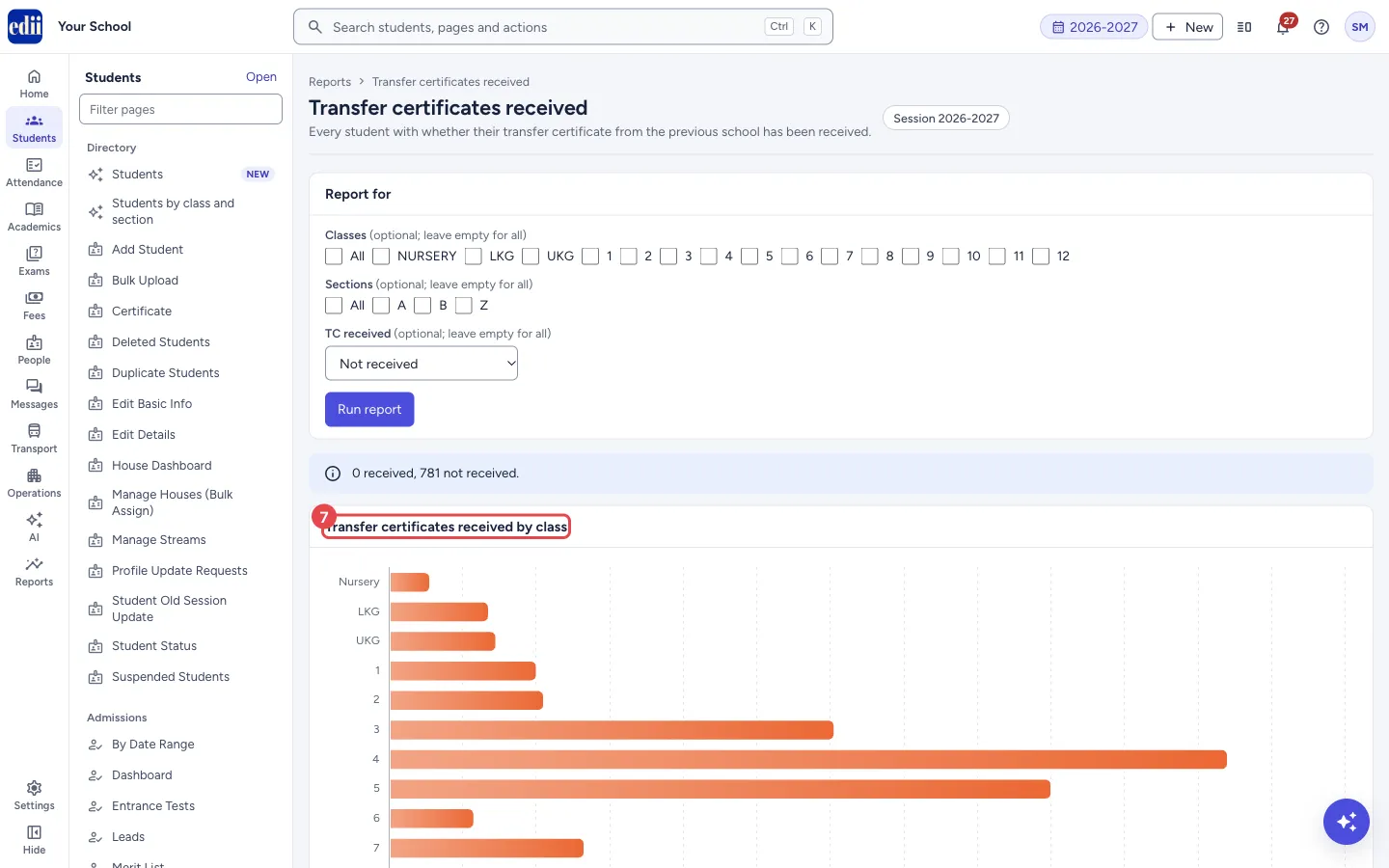
Section titled “1. Open the report”Open Transfer certificates received under Promotion, TC and documents. The report runs at once for all classes and sections of the session shown at the top of the page.
A blue line gives the counts, for example “0 received, 783 not received.” The chart Transfer certificates received by class shows received and not received students for each class.
 Open a bigger pictureतस्वीर बड़ी करें
2. Choose classes and sections
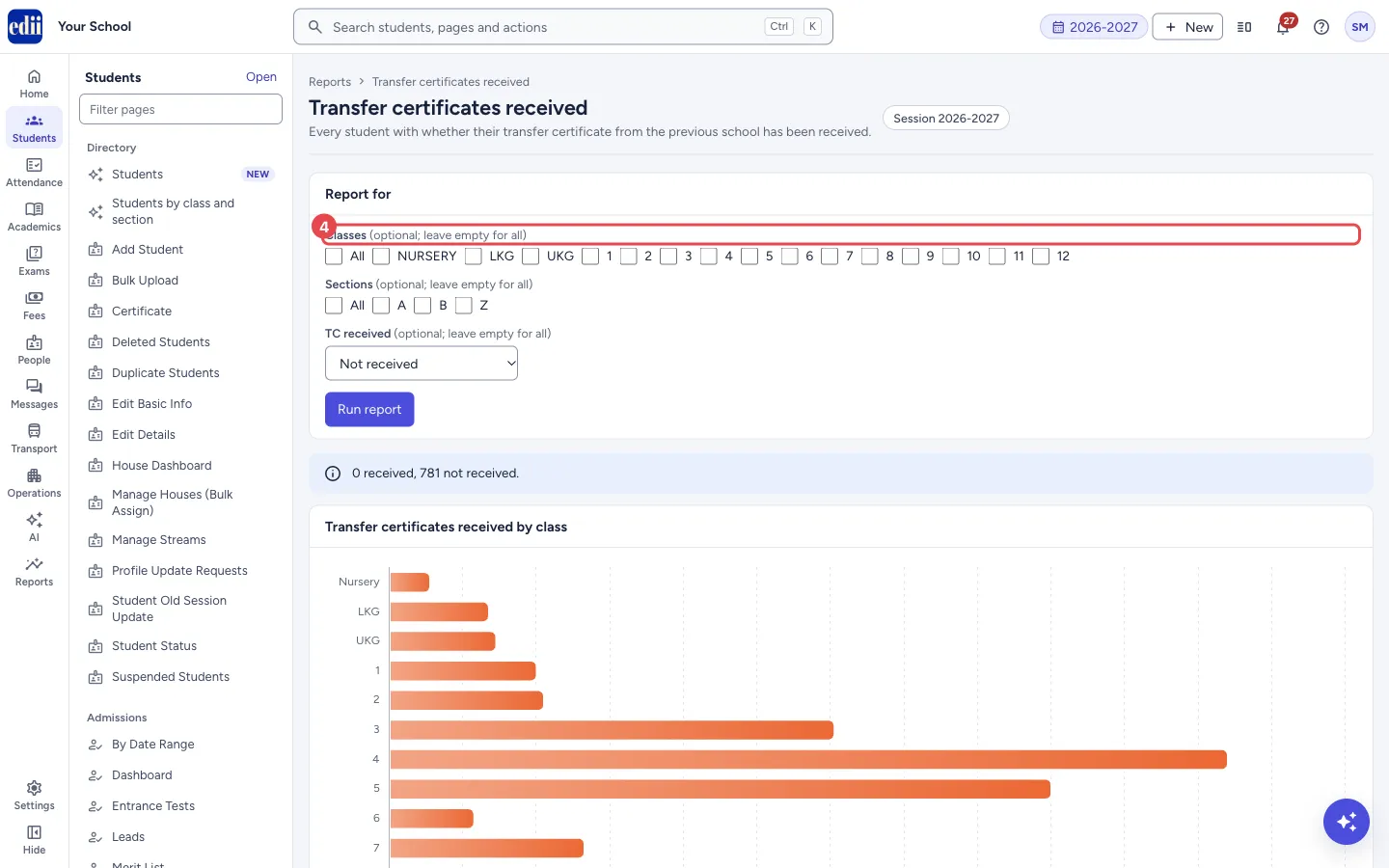
Section titled “2. Choose classes and sections”Under Report for, tick the Classes and Sections you want. Tick All to choose every one. Leave them all empty to see every class and section.
The table, the counts and the chart change as soon as you tick.
 Open a bigger pictureतस्वीर बड़ी करें
3. Choose the TC status
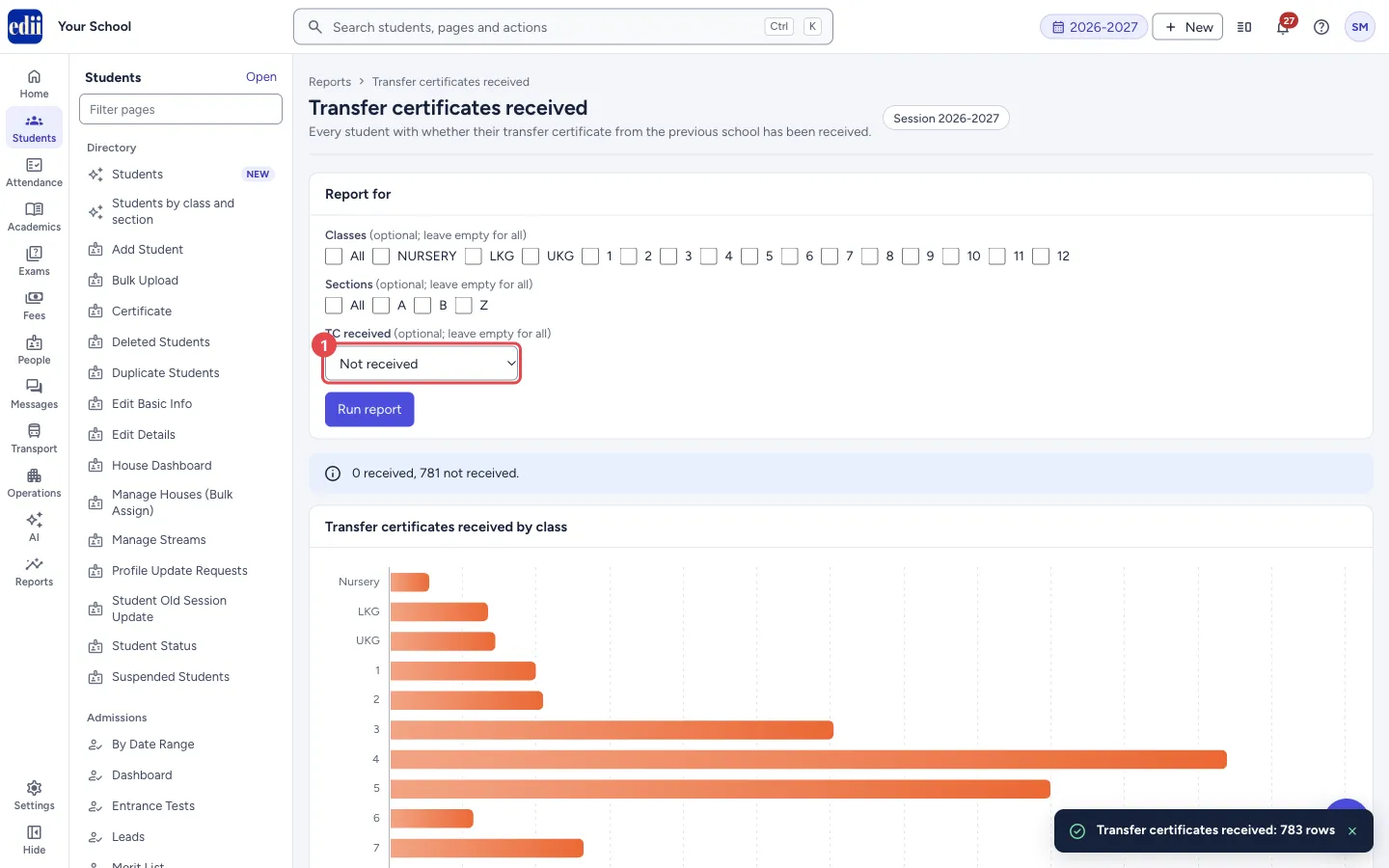
Section titled “3. Choose the TC status”In TC received, choose Not received to see only the students whose certificate is still pending, or Received to see only those whose certificate has come. Leave it on All to see both.
The counts line and the chart show only the students you have chosen. After choosing Not received, the line reads “0 received” because the received students are hidden.
 Open a bigger pictureतस्वीर बड़ी करें
4. Reload the data
Section titled “4. Reload the data”Select Run report to fetch the latest data from the school records. Use it if someone has updated a student while this page was open.
5. Look through the table
Section titled “5. Look through the table”Use Search in these results to find a student by any word in the table, such as a name, a phone number or a class. Choose how many rows to show in Rows per page (25, 50, 100 or All) and use the arrows at the bottom to change page.
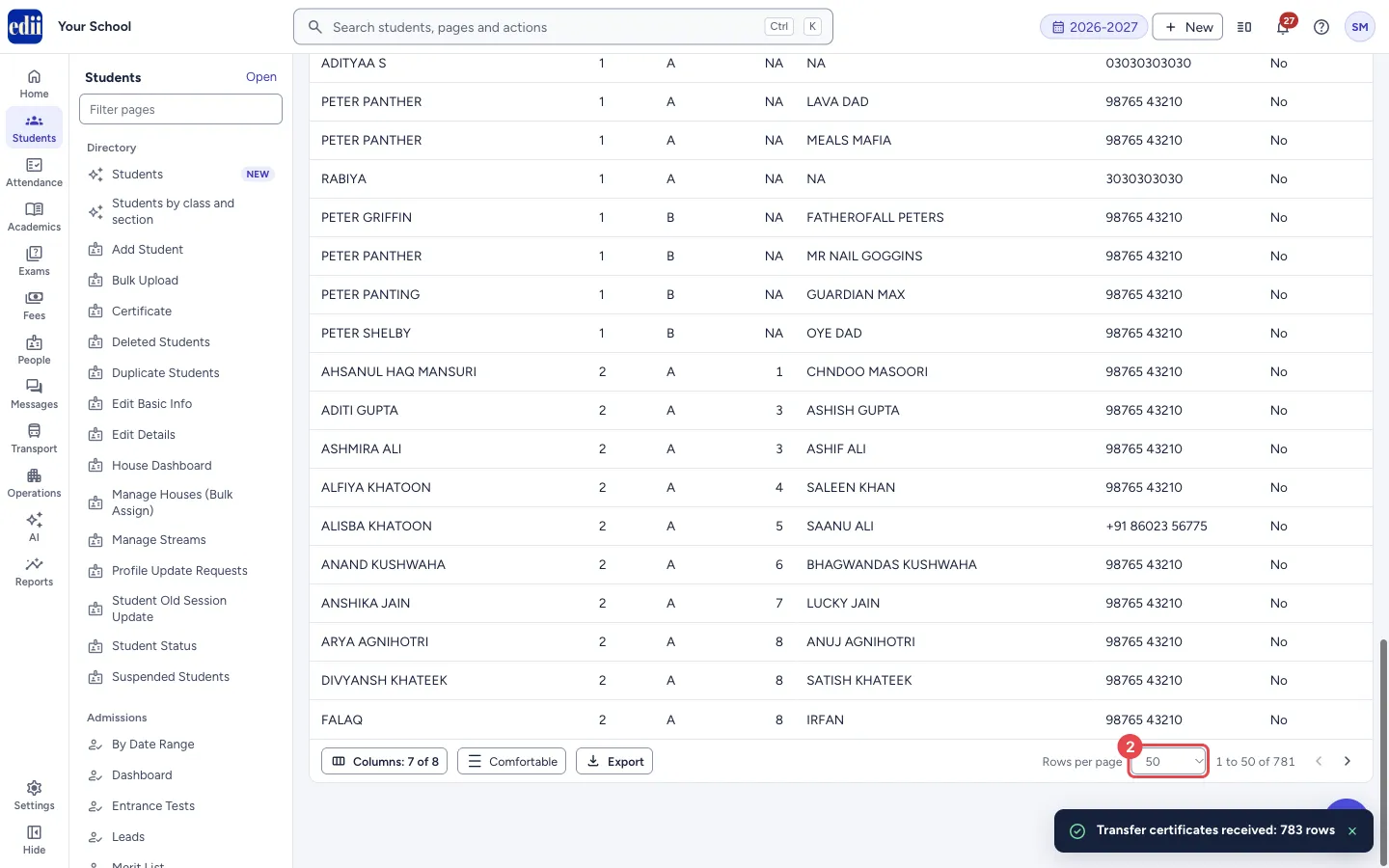 Open a bigger pictureतस्वीर बड़ी करें
6. Export or print
Section titled “6. Export or print”At the bottom of the table, select Export and choose CSV, Excel or Print this page. CSV and Excel include all the rows you have chosen, not only the page you are looking at.
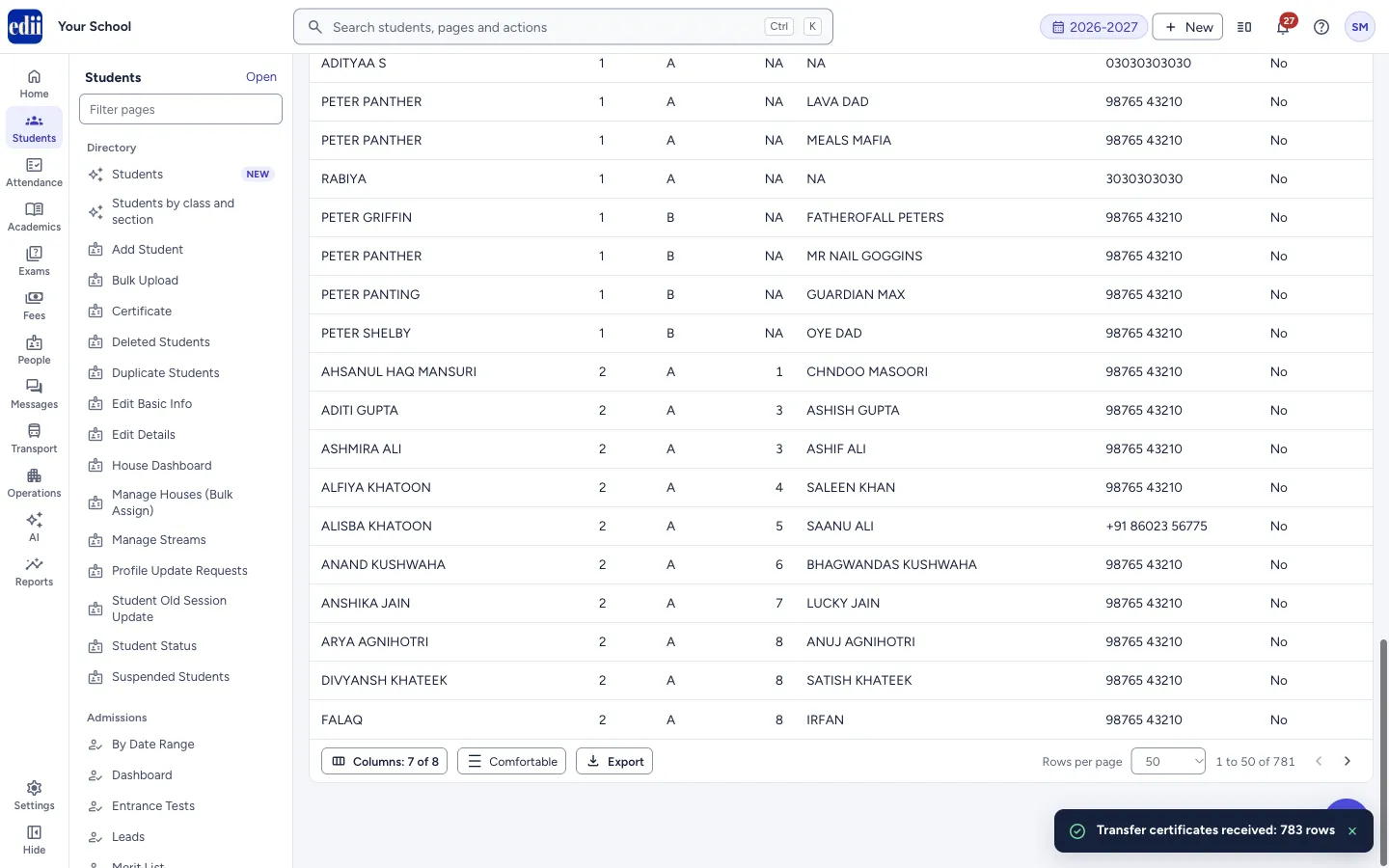 Open a bigger pictureतस्वीर बड़ी करें
Fields and filters
Section titled “Fields and filters”| Field | What it is | Notes |
|---|---|---|
| Classes | Shows only students of the ticked classes. | Optional. Leave empty for all classes. |
| Sections | Shows only students of the ticked sections. | Optional. Leave empty for all sections. |
| TC received | Shows only students whose TC is received or not received. | Optional. Options: All, Not received, Received. |
| Search in these results | Keeps only the rows that contain every word you type. | Looks in the columns of the table. |
| Rows per page | How many rows show on one page. | 25, 50, 100 or All. |
Buttons
Section titled “Buttons”| Button | What it does | What happens next |
|---|---|---|
| Run report | Loads the students again from the school records. | The table, counts and chart are refreshed, and a message shows how many rows were found. |
| Columns | Lets you tick the columns to show. Your choice is remembered for this table. | The table shows the columns you ticked. Reset to default columns brings back the usual set. |
| Comfortable / Compact | Changes the space between the table rows. | The rows become tighter or roomier. |
| Export | Opens the menu CSV, Excel, Print this page. | CSV and Excel download all the rows chosen. Print opens the print dialog for the page. |
Columns
Section titled “Columns”| Column | Meaning |
|---|---|
| Student | Name of the student. |
| Class | The student’s class. |
| Section | The student’s section. |
| Roll | Roll number. NA appears when the school has not set one. |
| Father | Father’s name. |
| Phone | The phone number kept for the student. |
| TC received | Yes when the school has recorded that the certificate from the previous school is received. No for everyone else, including students for whom nothing is recorded. |
| ID number | The student’s ID number. It is hidden by default; tick it in Columns to show it. |
Good to know
Section titled “Good to know”- The report always covers the session chosen at the top of the screen.
- A student counts as received only when the record says so. A student with no entry counts as not received.
- Class, section and TC filters work on the data already loaded, so the page updates at once. Run report reloads from the school records.
Messages you may see
Section titled “Messages you may see”| Message | What it means | What to do |
|---|---|---|
| Transfer certificates received: 785 rows | A short message at the bottom of the screen after the report runs. The number is how many students were loaded. | Nothing to do. |
| Nothing to report for these choices | No student matches the classes, sections or TC status you chose. | Untick some classes or sections, or set TC received back to All. |
| The connection failed before the report finished. Check the internet connection and try again. | The data did not arrive. | Check the internet and select Run report again. |
Stuck? Try this
Section titled “Stuck? Try this”| Problem | Likely cause | What to do |
|---|---|---|
| The page says “Your login cannot open this report” | Your login does not have access to student records. | Ask your school administrator for access. |
Did this page help?क्या इस पेज से मदद मिली?
Thanks! Glad it helped.धन्यवाद! अच्छा लगा कि काम बन गया।
Sorry about that. Ask in your own words, or write to us.माफ़ कीजिए। अपने शब्दों में पूछें, या हमें लिखें।