
Screen guide · Web app
Admission settings
Sets up one admission session: online admission on or off and its dates, classes with seats and fees, the application form, merit points, the online entrance test, messages to families, numbering, consent text and the school's place on the parent app's map. It is one of the Admissions pages and is shown to roles with Admission access.
यह पेज अंग्रेज़ी में है। कुछ समझ न आए तो ।
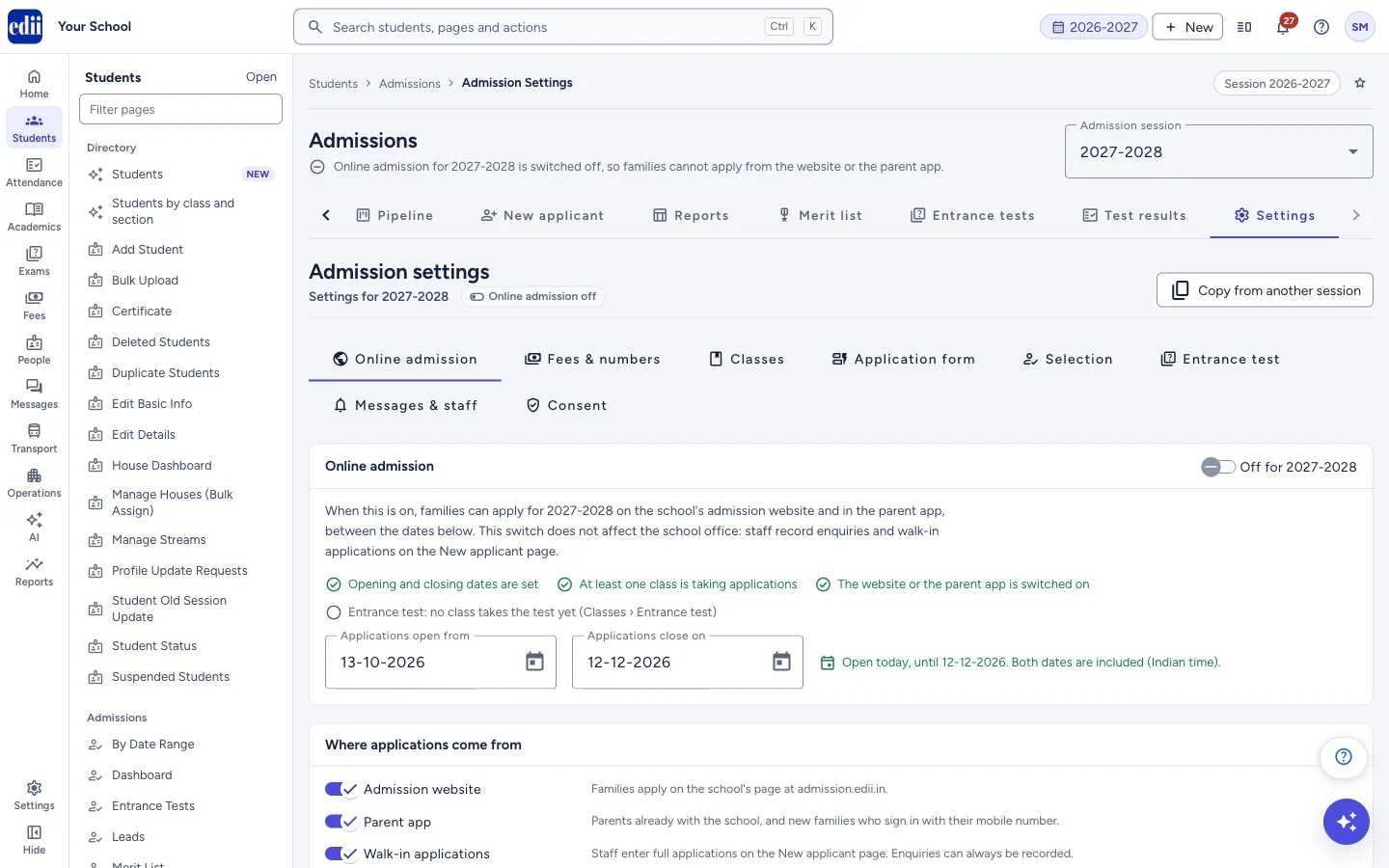
Admission settings (the menu calls it Settings) works on the Admission session chosen at the top of the Admissions pages, usually next year’s session. The line under the title shows Online admission on or off. Each session has its own settings, except the school location, which is the same for every session.
The settings are in eight tabs: Online admission, Fees & numbers, Classes, Application form, Selection, Entrance test, Messages & staff and Consent. Change what you need and press Save settings at the bottom. A bar there says You have unsaved changes. or All changes saved.
Roles that can only view admissions see the settings but cannot change them; the page says: Your role can view these settings but not change them.
Who uses it and when
Section titled “Who uses it and when”The principal or admission head sets this up once before admission season for each session, and returns to it to open or close classes, change dates or edit the messages.
Before you start
Section titled “Before you start”- Decide the session you are setting up and choose it in Admission session. If you are setting up next year, do not use the school’s current session.
- Have the classes, seats, form and admission fees, age limits and the list of documents ready.
Where to find it
Section titled “Where to find it”- In school.edii.in: Students › Admissions › Settings
- Or press Ctrl K (⌘ K on a Mac) and type Settings.
- Address:
school.edii.in/admissions/settings - Who can see it: Needs Admission access for your role. A role without permission to update admissions can see the settings but not change them. It does not need the Admissions module switch that the entrance-form pages need. If it is missing from your menu, ask your school admin.
 Open a bigger pictureतस्वीर बड़ी करें
Step by step
Section titled “Step by step”1. Choose the admission session
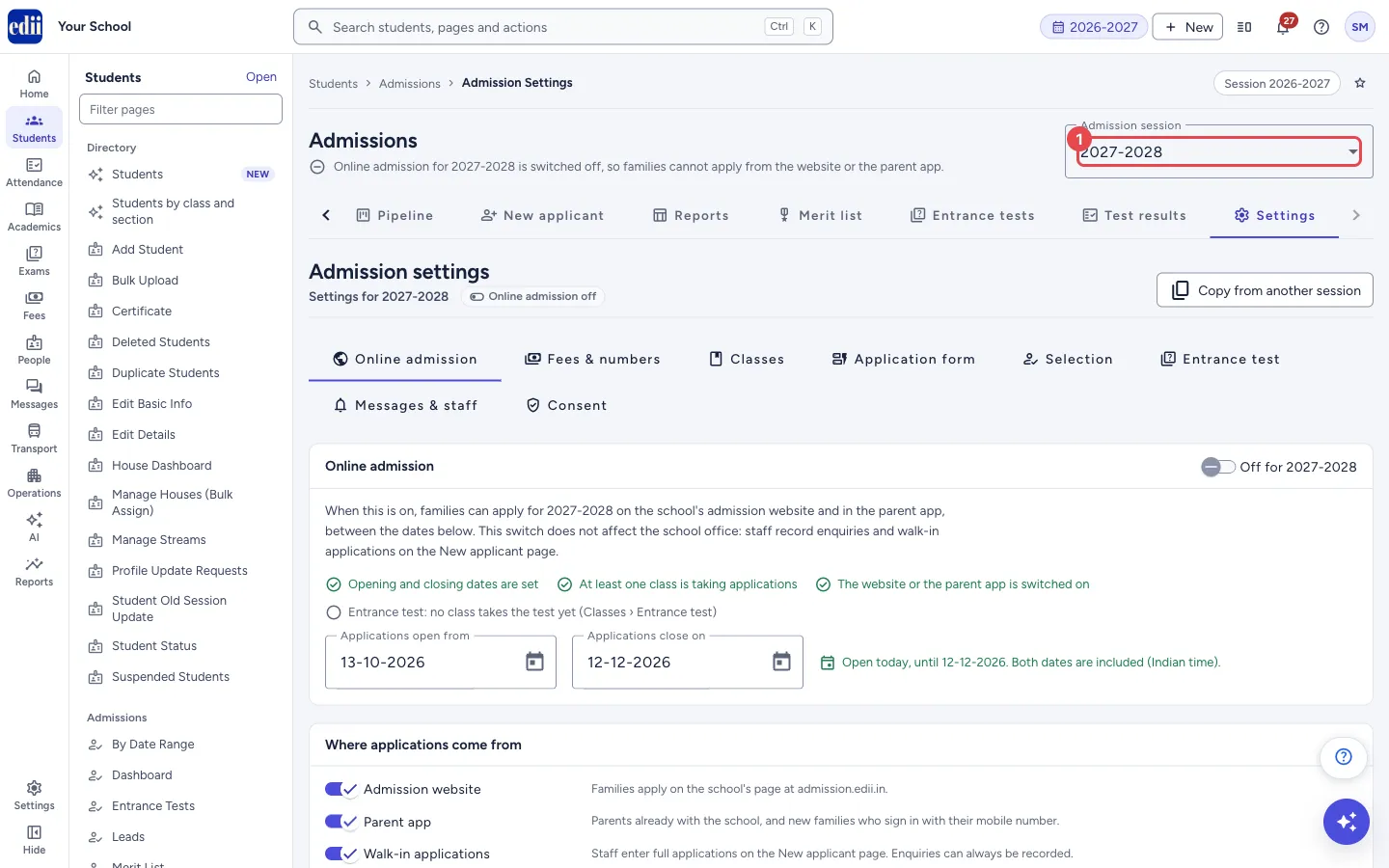
Section titled “1. Choose the admission session”Pick the Admission session at the top. If this is the school’s current session, a yellow note reminds you to choose next year’s session if the admissions are for next year. To start from an earlier session’s settings, press Copy from another session.
 Open a bigger pictureतस्वीर बड़ी करें
2. Online admission tab
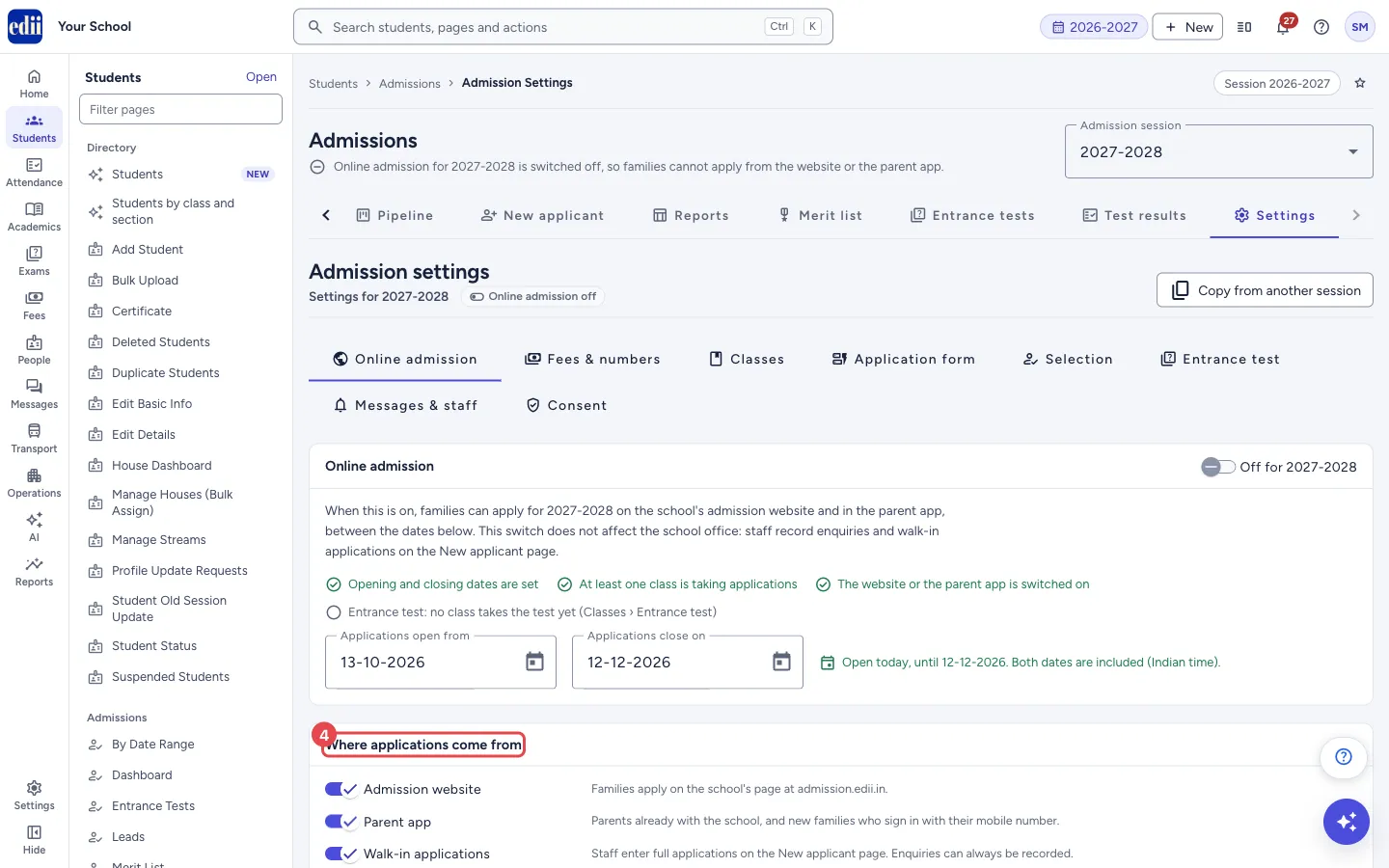
Section titled “2. Online admission tab”Switch Online admission on or off for the session. A checklist shows what must be ready: opening and closing dates set, at least one class taking applications, and the website or the parent app switched on. While the entrance test is on, it also checks that every class taking the test has a published question paper and a test window.
Set Applications open from and Applications close on (DD-MM-YYYY). Both dates are included, in Indian time. Under Where applications come from switch Admission website, Parent app and Walk-in applications on or off.
In Information for families write the Instructions (up to 5000 characters, plain text), and the Admission office phone and Admission office email, which families see. In School location paste a Google Maps link or the coordinates and press Save location; Remove takes the school off the map. The location is saved by its own button, not by Save settings.
 Open a bigger pictureतस्वीर बड़ी करें
3. Fees & numbers tab
Section titled “3. Fees & numbers tab”Online payment: switch it on to let families pay on the website or in the app. Choose whether the form fee must be paid before submitting, whether the admission fee is collected in Admissions after a seat is offered, and an optional convenience charge. Fee amounts are set per class on the Classes tab.
Application and receipt numbers: set the Application number pattern and the Admission receipt number pattern. Add parts with the buttons {SESSION}, {SEQ4}, {SEQ5} and {SCHOOL}. A line shows an example number. A changed pattern applies to new numbers only.
4. Classes and Application form tabs
Section titled “4. Classes and Application form tabs”Add the classes that take admission and set each one: Status (Taking applications, Notify me only or Closed), Seats, Form fee, Admission fee, the age rule (Age as on, Min. age (years), Max. age (years)) and the Documents asked for. Use the arrows to reorder and the bin to remove a class. While the entrance test is on, each class card also has an Entrance test button and a short line such as No entrance test, No question paper chosen, Test window not set, or the paper and its window.
The same form is used on the website, in the parent app and at the school office. Arrange it in sections; for each field tick Required and where it shows (Web, App, Office). Add a standard field, or add a custom field with its own name, answer type and help text. Fields marked with a lock are always required and shown everywhere.
5. Selection tab
Section titled “5. Selection tab”Switch on Interview, test or interaction and choose what to call it, with the instructions sent to families. Switch on Merit list and add criteria with their maximum points. Under Time limits set how many days an offered seat stays open and how long unfinished online forms are kept.
While the entrance test is on, each merit criterion has Points come from: Entered by staff or From entrance test. One criterion can take its points from the test: the score divided by the paper’s total marks, times the criterion’s maximum points. Staff cannot type those points.
6. Entrance test tab and each class’s test
Section titled “6. Entrance test tab and each class’s test”On the Entrance test tab turn on Online entrance test (it then reads On for the session) and, if you like, write Instructions shown before the test starts (up to 2000 characters; a paper’s own instructions are shown instead when it has them). Press Save settings. The Entrance tests and Test results pages then appear in the Admissions tabs. The box Classes that take the test lists the next steps, then one line per class with its paper and window.
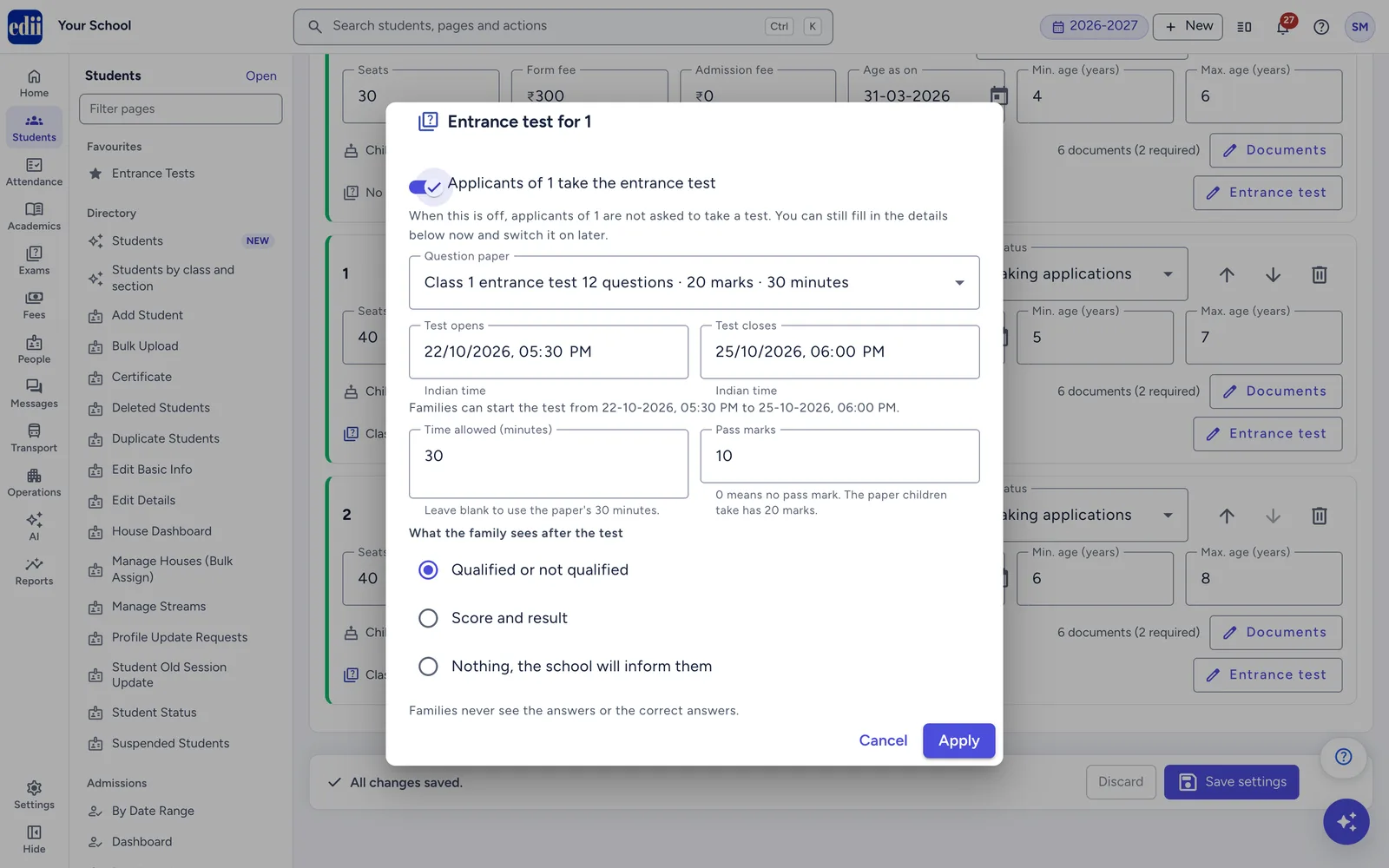
On the Classes tab press Entrance test on a class card. Turn on the switch (it reads Applicants of … take the entrance test), choose the Question paper (published papers only), set Test opens and Test closes (Indian time), Time allowed (minutes), Pass marks and What the family sees after the test. Press Apply, then Save settings: Apply alone does not save.
 Open a bigger pictureतस्वीर बड़ी करें
7. Messages & staff and Consent tabs
Section titled “7. Messages & staff and Consent tabs”In Messages to families tick, for each event, whether it is sent by WhatsApp, Email or App notification. In Staff to notify add staff members and an email for each, to get the notifications and summaries. While the entrance test is on, the list also has Entrance test scheduled and Entrance test result; they go by email and app notification only, never by WhatsApp.
Write the Consent text families must agree to. If you change the text, press New version so that families’ agreement to the new wording is recorded.
8. Save
Section titled “8. Save”Press Save settings. A message says Admission settings for 2027-2028 saved. (the session name changes). If something is wrong, the page says how many problems to fix and shows buttons that take you to the tab with the problem. Discard returns to the last saved settings after you confirm.
Fields and filters
Section titled “Fields and filters”| Field | What it is | Notes |
|---|---|---|
| Online admission | Lets families apply on the website and parent app. | Does not affect the office, where staff can still record enquiries and applications. |
| Applications open from, Applications close on | The dates online applications are accepted. | DD-MM-YYYY; both dates are included. |
| Admission website, Parent app, Walk-in applications | Where applications may come from. | Walk-in controls whether staff can enter full applications on New Applicant. |
| Instructions | Text shown to families. | Up to 5000 characters. |
| Admission office phone, Admission office email | Contact details shown to families. | Optional. |
| New Google Maps link or coordinates | The school’s place on the map. | A Google Maps link or two numbers like 28.613939, 77.209021. |
| Online payment | Lets families pay fees online. | Cannot be switched on until online payment is set up for admissions; contact EDII. |
| Convenience charge on online payments | A percentage added to what families pay online. | 0 up to the limit shown. |
| Application number pattern, Admission receipt number pattern | How the numbers look. | Use exactly one {SEQ4} or {SEQ5}; letters, digits and - / _ are allowed. |
| Class status, Seats, Form fee, Admission fee | For each class: whether it takes applications, how many seats, and the fees. | Seats up to 5000. |
| Age as on, Min. age, Max. age | The age rule for each class. | A warning, not a block, appears on New Applicant when a child is outside it. |
| Call it | Name for the meeting: Interview, Test or Interaction. | Choose from the list. |
| Merit criteria and Maximum points | What applicants are scored on and the most points for each. | Up to 20 criteria. |
| Points come from | Where a merit criterion’s points come from (Selection tab, while the test is on). | Entered by staff or From entrance test; only one criterion can take its points from the test. |
| An offered seat stays open for, Unfinished online forms are kept for | Time limits in days. | After the second limit a form never submitted is marked withdrawn. |
| Online entrance test | Switches the online entrance test on or off for the session (Entrance test tab). | While it is off, nothing about the test is shown to staff or families. It is separate from the interview, test or interaction on the Selection tab. |
| Instructions shown before the test starts | What every child reads before starting. | Plain text, up to 2000 characters. Used when the question paper has no instructions of its own. |
| Question paper (class Entrance test) | The paper this class takes. | Only published papers are listed. Several classes can share one paper. |
| Test opens, Test closes | When families can start the test. | Date and time, Indian time. At most 31 days long. |
| Time allowed (minutes) | How long each child has. | 5 to 180. Leave blank to use the paper’s duration. |
| Pass marks | The marks needed to qualify. | 0 means no pass mark. Keep it at or below the paper’s total marks. |
| What the family sees after the test | Qualified or not qualified, Score and result, or Nothing, the school will inform them. | Families never see the answers or the correct answers. |
| Consent text and Version | The wording families agree to, and its version. | Up to 5000 characters. |
Buttons
Section titled “Buttons”| Button | What it does | What happens next |
|---|---|---|
| Copy from another session | Replaces this session’s settings with a copy of another session’s. | A box lists what is replaced; online admission is switched off after copying. |
| Save settings | Saves all the tabs for the session. | Admission settings for the session saved. |
| Discard | Goes back to the last saved settings. | A box asks Discard your changes? |
| Save location | Saves the school’s place on the map. | School location saved, separately from Save settings. |
| Remove | Takes the school off the map. | A box asks Take your school off the map? |
| Entrance test (on a class card) | Opens the class’s entrance test: paper, window, time, pass marks and what families see. | Press Apply, then Save settings. |
| Open Entrance tests / Go to Classes | Buttons in the Classes that take the test box, for the next step. | With unsaved changes the box shows Save settings instead: Save these settings first, then open Entrance tests. |
| Add criterion / Add a section | Adds a row to the list. | The new row appears. |
After you save
Section titled “After you save”- Families see the new dates, classes, form and fees on the website and in the parent app as soon as online admission is on and the dates have started.
- Messages follow the ticks you set; WhatsApp messages go out only when WhatsApp is switched on for your school.
Good to know
Section titled “Good to know”- Families can apply online only when online admission is switched on, the website or parent app is on, and today falls between the open dates.
- Copying settings brings the entrance test over switched off. Each class keeps its other test details but loses its question paper and test window; set them again for the new session.
- Copying settings changes the open dates and age dates by the number of years between the two sessions, and leaves online admission off.
- If your fee structure already has an admission fee head of type New Student, that head is still added when the child is admitted. Collecting the admission fee here as well can charge the family twice; keep the option off or remove that fee head for the session.
- Form fees and admission fees collected here are not part of the school’s fee collection or ledger reports. Each one that is paid (online, or recorded at the office as cash, UPI or cheque) is also counted in the Day Book of the Cash Deposit Register. Cash goes into Daily Collection and the rest into Other Collection, and Collection by source (one of the bank detail columns) shows these fees as Admission fees. A waived fee is not counted, and fees paid before the Day Book started counting them are not added.
- Messages that staff send with Send message go out when they press Send, whatever is ticked on the Messages & staff tab. Admission confirmed, Fee received and the entrance test messages are sent by email and app notification only, never by WhatsApp.
- Changing a class’s test details later does not change tests already scheduled. Each child keeps the window, time, pass marks and result setting they were scheduled with until you schedule them again from the Pipeline.
- If you leave the page with unsaved changes, you are asked Discard unsaved changes?.
Messages you may see
Section titled “Messages you may see”| Message | What it means | What to do |
|---|---|---|
| Please fix 2 problems before saving. | Some settings are missing or wrong (the number changes). | Use the buttons that name each tab and correct the entries. |
| Admission settings for 2027-2028 saved. | The settings were saved (the session changes). | No action needed. |
| Settings copied from 2026-2027. Check them before switching online admission on. | The copy worked. | Check each tab, then switch online admission on. |
| Your save is still being processed. Wait a moment, then save again if your changes are not shown. | The save took longer than expected. | Wait, then look at the page and save again if needed. |
| Online payment is not set up for admissions yet, so it cannot be switched on. | Online payment has not been set up for the school. | Contact EDII. |
| WhatsApp messages are not switched on for your school, so no WhatsApp message is sent even where it is ticked. | WhatsApp is off for the school. | Contact EDII to switch it on. |
| You changed the text. Give it a new version so families’ agreement to the new wording is recorded. | The consent text changed but the version did not. | Press New version. |
| School location removed. | The school is off the map. | Add the location again at any time. |
| No published question paper yet. Make one in Entrance tests and publish it, then come back. | The class Entrance test box has no paper to choose. | Make and publish a paper in Entrance tests. |
| This paper has changes that are not published. Children get the published version until you publish again. | A warning in the class Entrance test box; it does not stop you. | Publish the paper in Entrance tests if the changes should count. |
| The test window has already ended. Families cannot take the test in it. | The window you set is in the past. | Set new Test opens and Test closes dates. |
| Only one merit criterion can take its points from the entrance test | Two criteria are set to From entrance test. | Set one of them to Entered by staff. |
| Your role can view these settings but not change them. | Your role has view access only. | Ask an administrator. |
- The EDII Admissions Guide explains the whole admission season in one place: setup, the daily work, online entrance tests and what families see on the website and in the app. It has a PDF you can share with families.
- At the start of a new year, use Copy from another session, then check the dates, fees and seats before switching online admission on.
- Check each tab’s red badge after pressing Save settings; it counts the problems on that tab.
Stuck? Try this
Section titled “Stuck? Try this”| Problem | Likely cause | What to do |
|---|---|---|
| Online admission is on but families cannot apply | Today is outside the open dates, both the website and the parent app are off, or no class is taking applications. | Look at the checklist and the line under the dates on the Online admission tab. |
| I cannot switch online payment on | Online payment is not set up for admissions. | Contact EDII. |
| My changes to the school location did not change after Save settings | The location has its own button. | Press Save location. |
| The Entrance tests and Test results tabs are missing | The entrance test is off for this admission session. | Switch on Online entrance test on the Entrance test tab and press Save settings. |
| A paper is not in the class’s Question paper list | Only published papers are listed. | Publish the paper in Entrance tests, then open the class’s Entrance test again. |
Did this page help?क्या इस पेज से मदद मिली?
Thanks! Glad it helped.धन्यवाद! अच्छा लगा कि काम बन गया।
Sorry about that. Ask in your own words, or write to us.माफ़ कीजिए। अपने शब्दों में पूछें, या हमें लिखें।