
Screen guide · Web app
Send Message
Send a free text message on Telegram to the parents who have joined, for the whole school, a class or one section.
यह पेज अंग्रेज़ी में है। कुछ समझ न आए तो ।
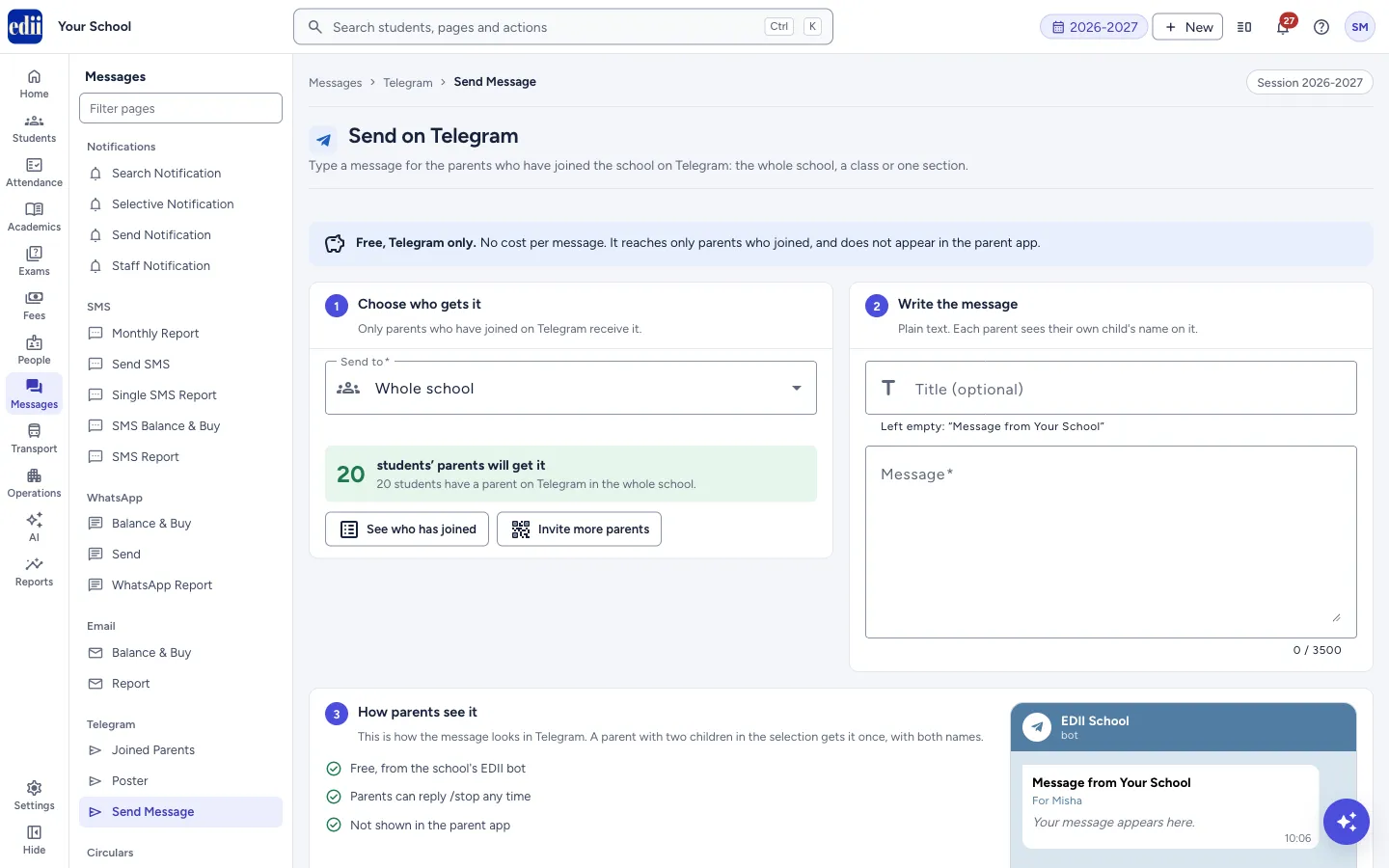
Send Message (the page is headed Send on Telegram) sends a plain-text message to the parents who have joined the school on Telegram. You choose who gets it, write the message and select Send on Telegram.
It is free and uses no SMS credits. The message goes on Telegram only. It does not appear in the parent app or in the app’s notification list, and a parent who has not joined does not get it. The page tells you how many students’ parents it will reach before you send.
Who uses it and when
Section titled “Who uses it and when”The office sends notices, reminders or announcements to parents who have joined on Telegram.
Before you start
Section titled “Before you start”- Parents must have joined first, using the poster from Poster. Check who has joined in Joined Parents.
Where to find it
Section titled “Where to find it”- In school.edii.in: Messages › Telegram › Send Message
- Or press Ctrl K (⌘ K on a Mac) and type Send Message.
- Address:
school.edii.in/view/telegram-send - Who can see it: Staff whose role includes Messages access. Shown only when your school uses Messages in EDII. If it is missing from your menu, ask your school admin.
 Open a bigger pictureतस्वीर बड़ी करें
Step by step
Section titled “Step by step”1. Choose who gets it
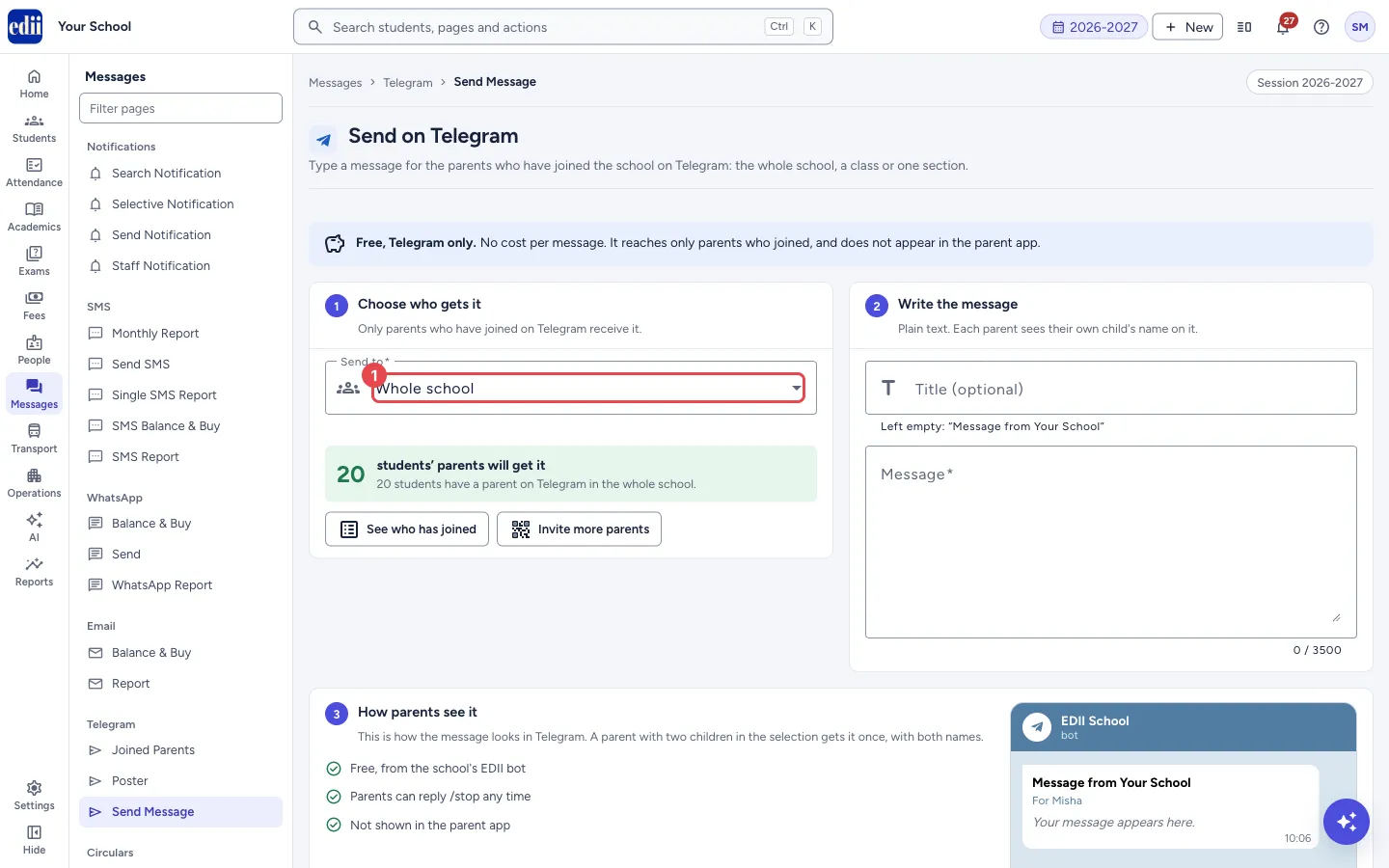
Section titled “1. Choose who gets it”Under Choose who gets it, open Send to and pick Whole school or a class. After you pick a class, a Section box appears; pick one section or keep All sections.
A figure shows how many students’ parents will get the message and how many students in the school have a parent on Telegram.
 Open a bigger pictureतस्वीर बड़ी करें
2. Write the message
Section titled “2. Write the message”Under Write the message, type the Message. It is required, and the counter shows how many of the 3500 allowed characters you have used.
Title (optional) can be up to 120 characters. If you leave it empty, the message gets the title Message from and your school’s name.
3. Check how it will look
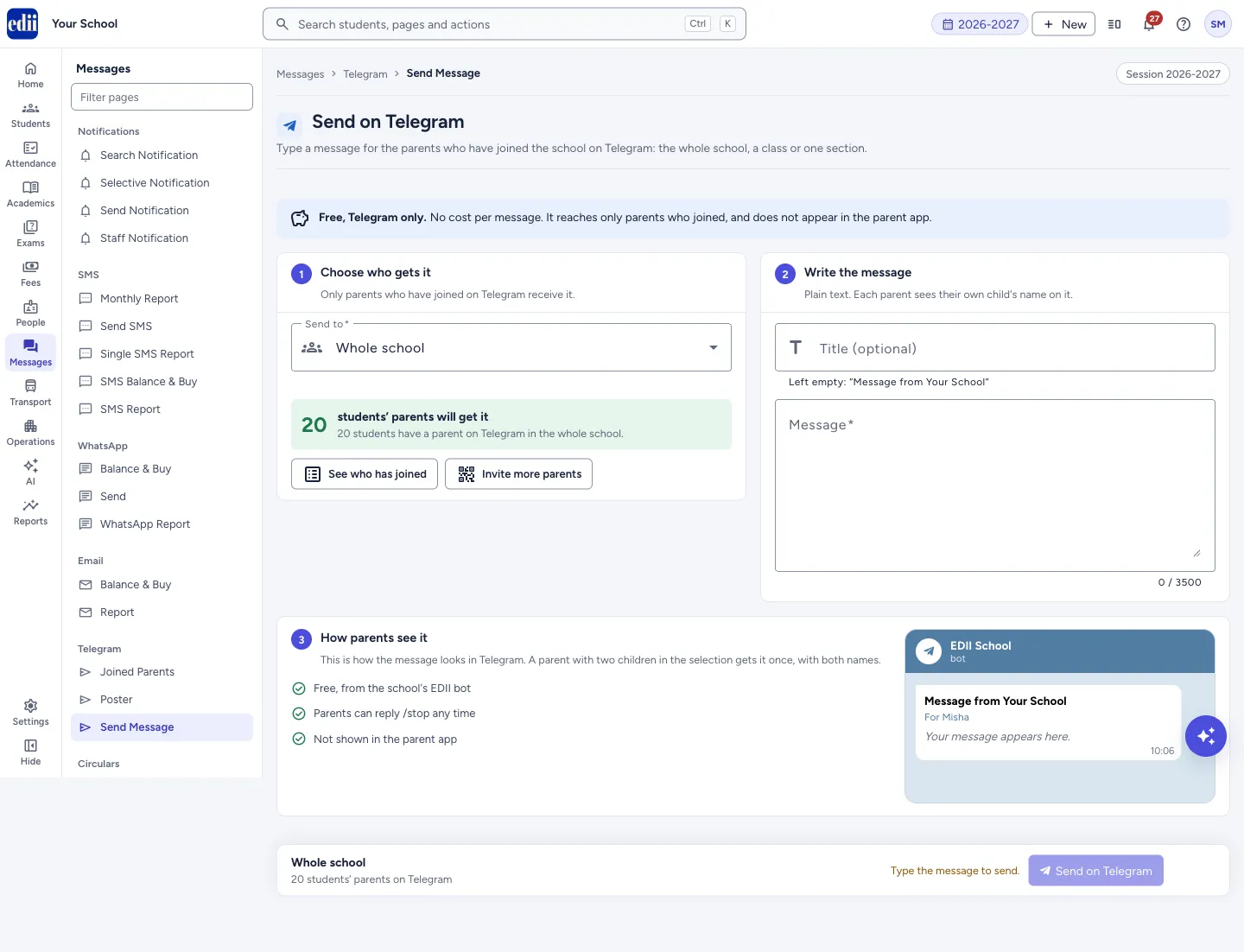
Section titled “3. Check how it will look”Under How parents see it a phone preview shows the title, the line For with a child’s first name, and your text. Each parent sees their own child’s name. A parent who has two children in your selection gets the message once, with both names.
4. Send
Section titled “4. Send”At the bottom, the bar names the selection and the count. Select Send on Telegram. There is no confirmation box: the message goes out at once.
A message says how many parent accounts it was sent to, for example Sent on Telegram to 12 parent accounts (parents of 10 students). The title and message are cleared and your class and section choice stays.
 Open a bigger pictureतस्वीर बड़ी करें
Fields and filters
Section titled “Fields and filters”| Field | What it is | Notes |
|---|---|---|
| Send to | Whole school, or one class. | Required. |
| Section | One section of the class, or all sections. | Shown after you choose a class. |
| Title (optional) | The bold first line of the message. | Up to 120 characters. |
| Message | The text parents will read. | Required. Up to 3500 characters. Error: Please type the message. |
Buttons
Section titled “Buttons”| Button | What it does | What happens next |
|---|---|---|
| Send on Telegram | Sends the message to the chosen parents. | A success message shows the number of parent accounts. The button is greyed out when the message is empty or nobody in the selection has joined. |
| See who has joined | Opens Joined Parents. | You see the parents who joined. |
| Invite more parents / Poster | Opens the Poster page. | You can print the poster. |
| Try again | Loads the list of joined parents again. It shows only when the list could not be loaded. | The form appears if the load works. |
After you save
Section titled “After you save”- The parents get the message in their Telegram chat with the school’s bot.
- This page does not keep a list of sent messages.
Good to know
Section titled “Good to know”- Free: no cost for each message, and no SMS credit is used.
- Only parents who have joined on Telegram receive it. It does not reach the parent app.
- A parent can send /stop to the bot at any time to stop the messages.
- The recipients are chosen again by the server when you send, so the final number can differ slightly from the number shown if parents joined or left in the meantime.
Messages you may see
Section titled “Messages you may see”| Message | What it means | What to do |
|---|---|---|
| No parent has joined on Telegram yet. | Nobody has joined, so there is nobody to send to. | Print the poster and ask parents to join. |
| No parent in this class or section has joined yet. | Nobody in your selection has joined. | Choose another class or section, or the whole school. |
| Type the message to send. | The message is empty. | Type the message. |
| Network issue. The message may or may not have gone out, so please check with a parent before sending it again. | The request did not finish, so EDII cannot tell whether it was sent. | Ask a parent in the selection before you send again, so no one gets it twice. |
| Network issue, could not load who has joined. Please try again. | The list of joined parents did not load. | Select Try again. |
- Send a short test to one section first, if you are not sure about the wording.
- Write the message so it reads well for every child: the child’s name is added by EDII.
Stuck? Try this
Section titled “Stuck? Try this”| Problem | Likely cause | What to do |
|---|---|---|
| Send on Telegram is greyed out | The message is empty, or no parent in the selection has joined (the count shows 0). | Type the message, or choose a class or section where parents have joined. |
| Parents say they did not see it in the parent app | This message goes on Telegram only. | Use Send Notification to reach the app. |
Did this page help?क्या इस पेज से मदद मिली?
Thanks! Glad it helped.धन्यवाद! अच्छा लगा कि काम बन गया।
Sorry about that. Ask in your own words, or write to us.माफ़ कीजिए। अपने शब्दों में पूछें, या हमें लिखें।