
Screen guide · Web app
Bulk Report
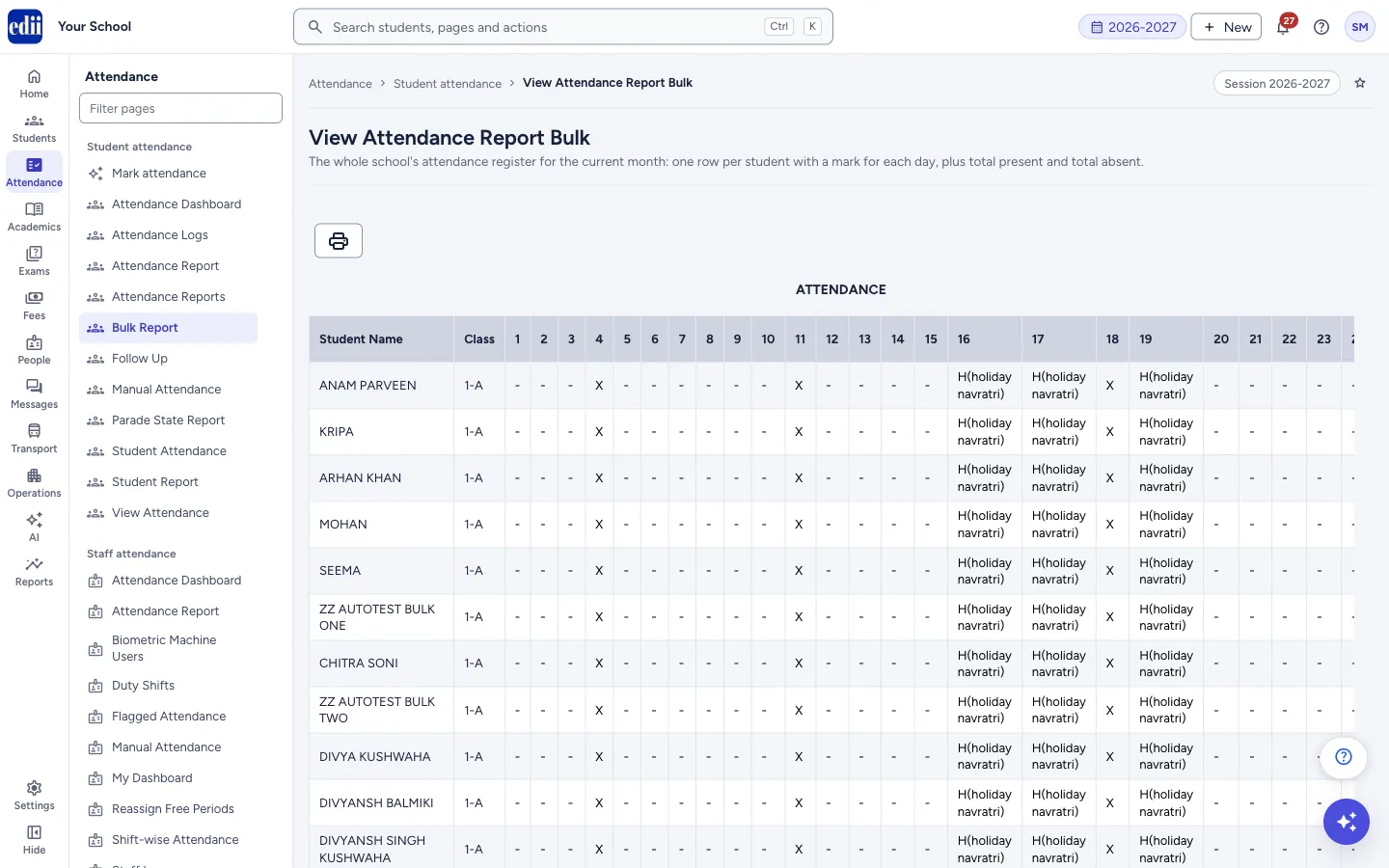
The whole school's attendance register for the current month: one row per student with a mark for every day, and the total present and total absent.
यह पेज अंग्रेज़ी में है। कुछ समझ न आए तो ।
The screen is headed View Attendance Report Bulk. It has no filters. When you open it, EDII builds the register of this month for every class and section of the school and shows it as one long table, with one row for each student and one column for each day.
Because it gathers every class, it can take a while. While it works the screen says Building This Month’s Report and asks you to leave the page open.
Use the printer button above the table to print the register.
Who uses it and when
Section titled “Who uses it and when”The principal or the office, when the whole school’s monthly register is needed on one page, for example for inspection or for the monthly review.
Before you start
Section titled “Before you start”- Teachers must have marked attendance for the month on Mark attendance. The report only reads what is saved.
Where to find it
Section titled “Where to find it”- In school.edii.in: Attendance › Student attendance › Bulk Report
- Or press Ctrl K (⌘ K on a Mac) and type Bulk Report.
- Address:
school.edii.in/view/student-attendance-report-bulk - Who can see it: Staff whose role includes Students or Attendance access. Shown only when your school uses Student in EDII. If it is missing from your menu, ask your school admin.
 Open a bigger pictureतस्वीर बड़ी करें
Step by step
Section titled “Step by step”1. Open the page and wait
Section titled “1. Open the page and wait”The report builds itself as soon as the page opens. When it is ready, a green message Attendance Report Fetched! shows and the table appears under the heading Attendance.
2. Read the register
Section titled “2. Read the register”Each row is a student: Student Name, Class (class and section, for example 1-A), then the days 1 to 31, then Total Present and Total Absent. Scroll right to see all days.
The marks are: P present (green), A absent (red), X Sunday, H followed by the name of the holiday in brackets, for example H(holiday navratri), and a dash - when attendance was not marked that day.
3. Print
Section titled “3. Print”Select the printer button above the table, then Print. The page is printed with the school name and the date, using the paper size and orientation set in the school’s print settings.
Buttons
Section titled “Buttons”| Button | What it does | What happens next |
|---|---|---|
| Printer button | Opens a menu with Print. | Appears only when the report has rows. |
| Retry | Builds the report again after a failure. | Appears with Attendance Report Not Available. |
Columns
Section titled “Columns”| Column | Meaning |
|---|---|
| Student Name | The student’s name. |
| Class | The class and section, for example 1-A. |
| 1 to 31 | One column per day of the month. Marks: P, A, X (Sunday), H(holiday name), - (not marked). |
| Total Present | Days the student was marked present this month. |
| Total Absent | Days the student was marked absent this month. |
Good to know
Section titled “Good to know”- The report always shows the current month. To see another month of one class, use Attendance Logs.
- A dash is a day on which nothing was marked. It is not counted as present or absent.
Messages you may see
Section titled “Messages you may see”| Message | What it means | What to do |
|---|---|---|
| Attendance Report Fetched! | The report is ready. | |
| No attendance has been marked for this month yet. | Nobody has marked attendance this month (screen title No Attendance Marked). | Mark attendance on Mark attendance, then open this page again. |
| Network Issue, Please Try Again. | The connection failed (screen title Attendance Report Not Available). | Check the internet connection and select Retry. |
| Too many requests right now. Please wait a moment and retry. | The server is busy. | Wait a moment and select Retry. |
| The attendance report could not be generated. | The server did not say why. | Select Retry; if it continues, try again later. |
- Open this page once and wait. Opening it again straight away only makes the server do the same work twice.
Did this page help?क्या इस पेज से मदद मिली?
Thanks! Glad it helped.धन्यवाद! अच्छा लगा कि काम बन गया।
Sorry about that. Ask in your own words, or write to us.माफ़ कीजिए। अपने शब्दों में पूछें, या हमें लिखें।