
Screen guide · Web app
Schedule Test
Schedules an online multiple-choice test for a class and section, and tells the students about it.
यह पेज अंग्रेज़ी में है। कुछ समझ न आए तो ।
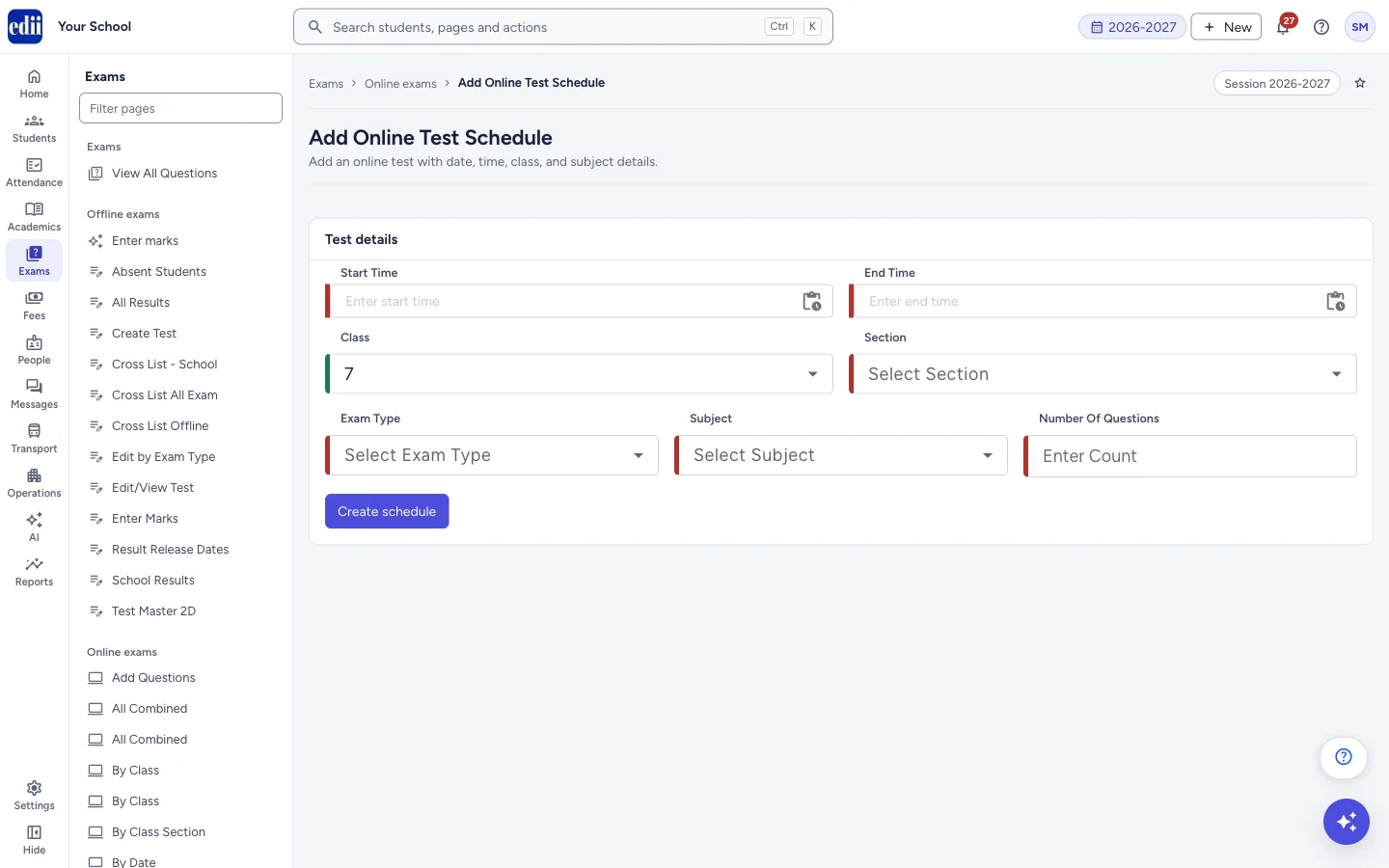
Add Online Test Schedule is the form for an online test made of multiple-choice questions from the question bank. You choose the start and end time, the class, the sections, the exam type, the subject and how many questions the test has.
When you select Create schedule, EDII saves the test and sends every student of the class and the chosen sections a notification: Dear <name>. You have a online Test Scheduled on: <date and time>. Please Visit Test Section on EDII to appear for the test. All the Best, with the title Online Test Notification.
Who uses it and when
Section titled “Who uses it and when”Teachers and the exam in-charge, before an online test.
Before you start
Section titled “Before you start”- The class, sections, exam type and subject must exist in the school.
- The question bank must have enough questions for the subject. The test takes its questions from the bank. Add them with Add Questions.
Where to find it
Section titled “Where to find it”- In school.edii.in: Exams › Online exams › Schedule Test
- Or press Ctrl K (⌘ K on a Mac) and type Schedule Test.
- Address:
school.edii.in/add/create-online-test-schedule - Who can see it: Staff whose role includes Exams access. Shown only when your school uses Exam in EDII. If it is missing from your menu, ask your school admin.
 Open a bigger pictureतस्वीर बड़ी करें
Step by step
Section titled “Step by step”1. Set the start and end time
Section titled “1. Set the start and end time”In Start Time and End Time, choose the date and time. Select the box to open the date and time picker. Pick the day on the calendar, set the time with the hour and minute arrows and AM or PM (or use a quick time: 9:00 AM, 12:00 PM, 3:00 PM or 6:00 PM), then select Apply. Today picks today and Clear empties the box.
2. Choose the class and the sections
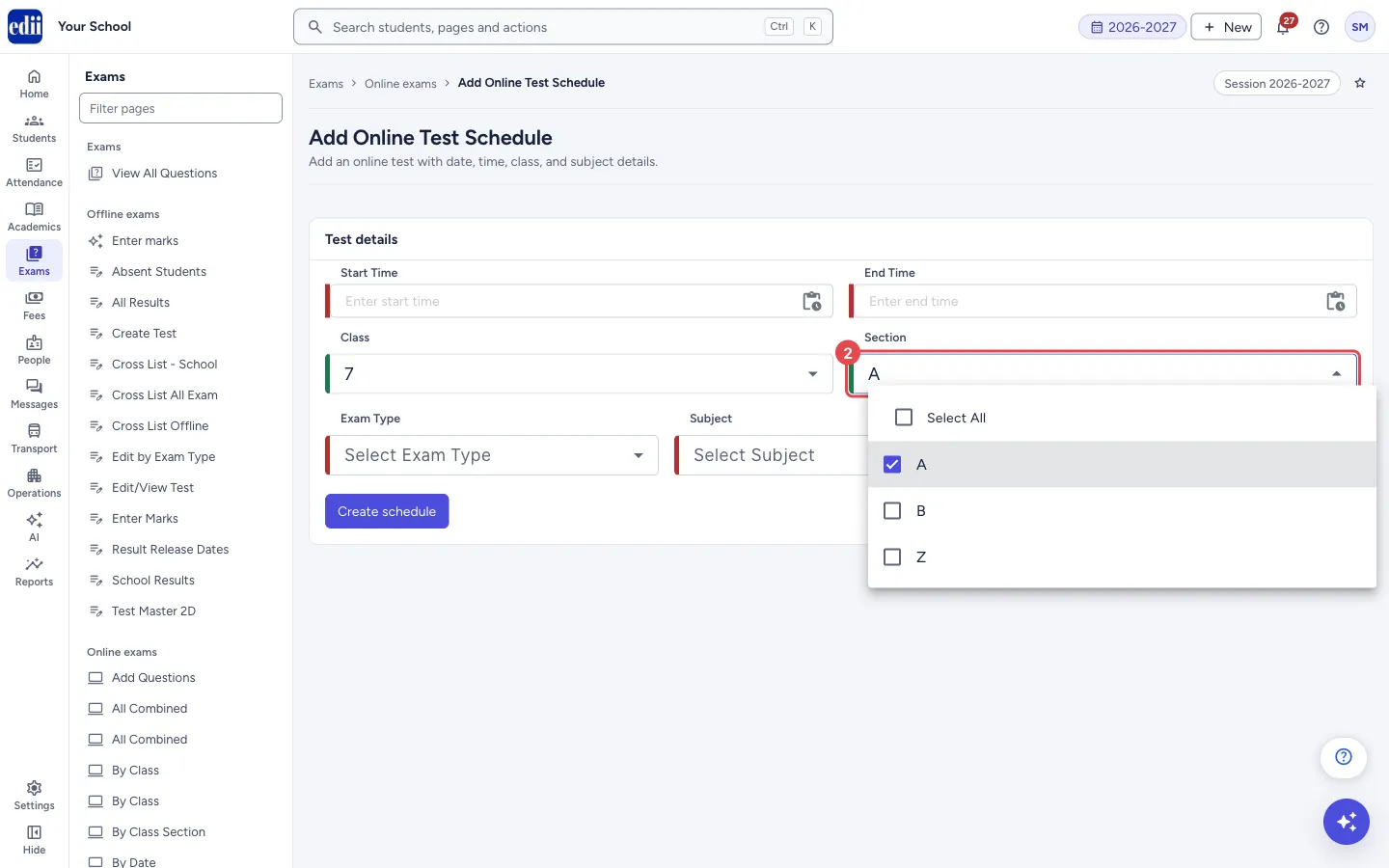
Section titled “2. Choose the class and the sections”In Class, choose the class. In Section, choose one or more sections, or tick Select All. The picture shows the Section list open, with Select All at the top.
 Open a bigger pictureतस्वीर बड़ी करें
3. Choose the subject
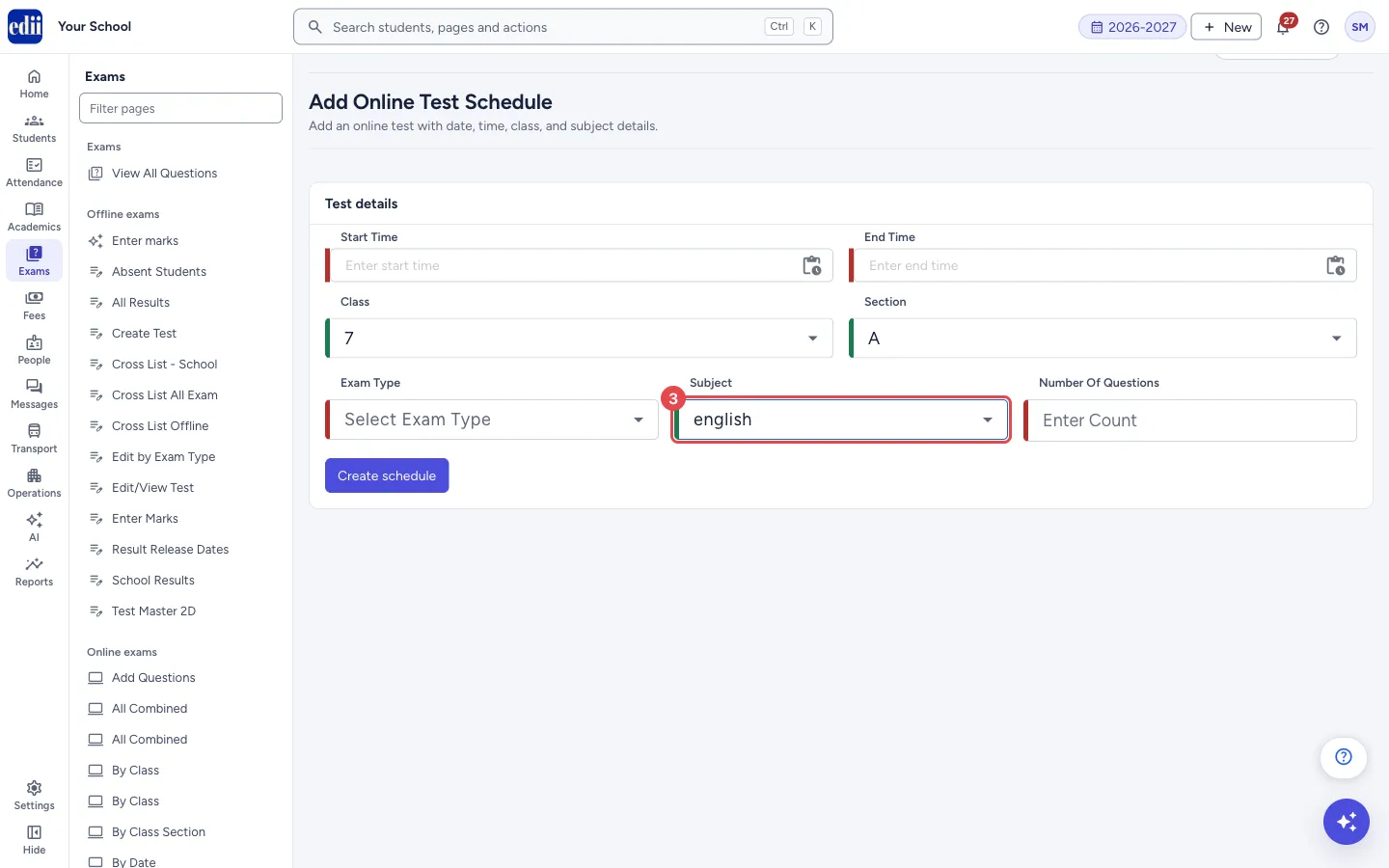
Section titled “3. Choose the subject”The Subject list fills after you choose the section. Choose Exam Type and Subject. In the picture the class and section are chosen and the subject is being set.
 Open a bigger pictureतस्वीर बड़ी करें
4. Enter the number of questions
Section titled “4. Enter the number of questions”In Number Of Questions, type how many questions the test has.
5. Select Create schedule
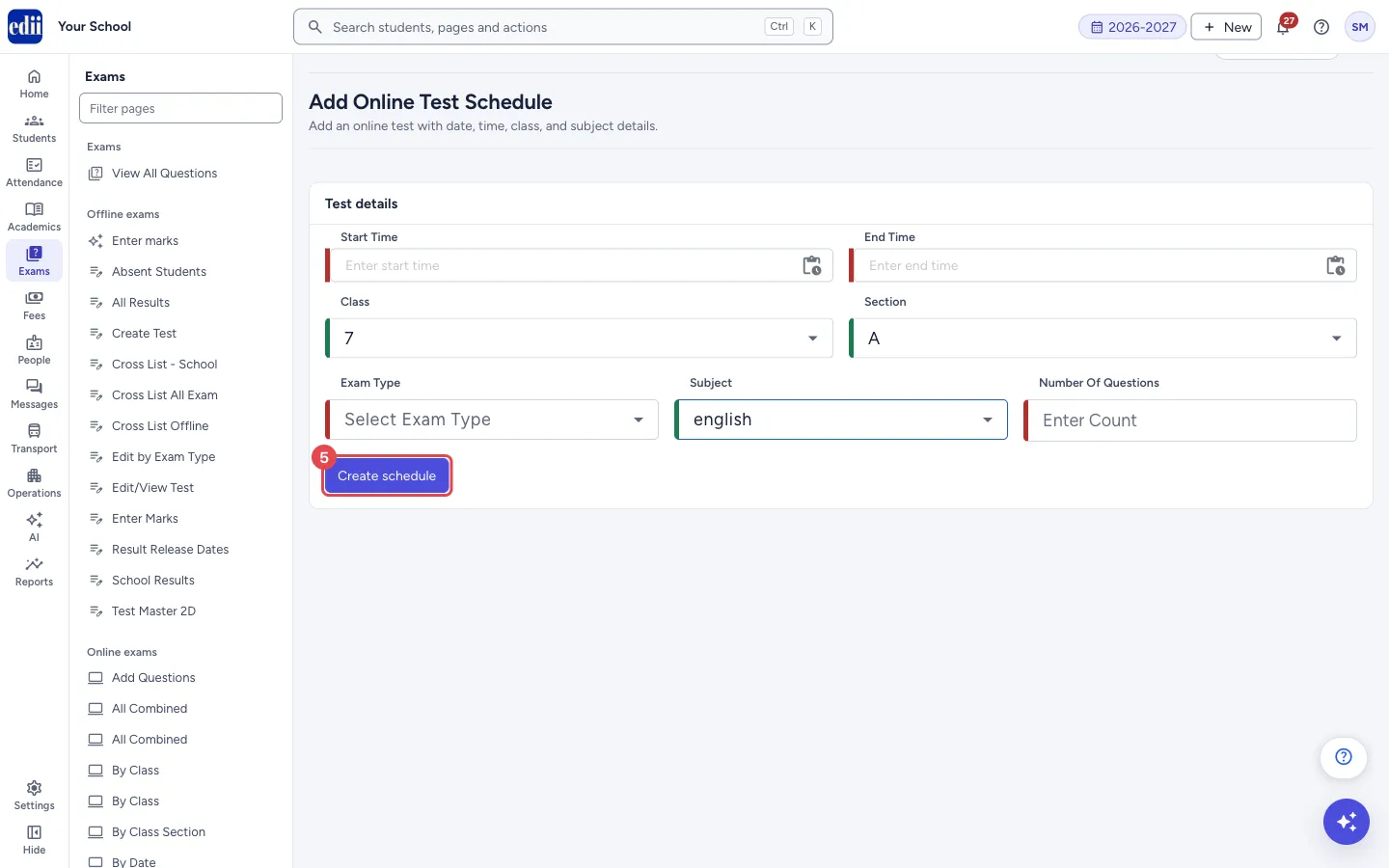
Section titled “5. Select Create schedule”Select Create schedule. If an active test of the same section, class and subject already starts on that day, EDII asks Replace the active test? first (see below). Otherwise EDII shows Schedule Added and empties the form so you can add the next test. The picture shows the button before any time is entered; boxes that are still empty are marked in red.
 Open a bigger pictureतस्वीर बड़ी करें
Fields and filters
Section titled “Fields and filters”| Field | What it is | Notes |
|---|---|---|
| Start Time | When the test opens. | Required. Date and time. |
| End Time | When the test closes. | Required. Must be after the start time. |
| Class | The class that takes the test. | Required. One class. |
| Section | The sections that take the test. | Required. One or more; Select All picks every section. |
| Exam Type | The exam type of the test. | Required. The exam types of the school. |
| Subject | The subject of the test. | Required. The list fills when you choose the section, after the class. |
| Number Of Questions | How many questions the test has. | Required. Type a number. |
Buttons
Section titled “Buttons”| Button | What it does | What happens next |
|---|---|---|
| Create schedule | Saves the online test and notifies the students. | EDII shows Schedule Added and the form is emptied. |
After you save
Section titled “After you save”- The test shows in the online test lists, for example By Date, By Month and By Class.
- Every student of the class and the chosen sections gets the notification Online Test Notification.
Good to know
Section titled “Good to know”- A new test replaces an earlier active test only when the section(s), the class, the subject and the day are the same. EDII lists the earlier test and asks you to confirm with Replace and schedule; choose Cancel to keep things as they are. If the earlier test also covers other sections, it stays active for those sections. Tests of other sections are not touched.
- The end time must be after the start time.
- The Subject list loads when you choose a section, and only if a class is already chosen. Choose the class first.
Messages you may see
Section titled “Messages you may see”| Message | What it means | What to do |
|---|---|---|
| Schedule Added | The test was saved. | Nothing to do. |
| Replace the active test? | A box shown when the class already has an active test of the same subject on that day for the same section. It lists that test and says students of those sections will see only the new test. Tests of other sections are not changed. | Select Replace and schedule to schedule the new test and switch off the earlier one for those sections, or Cancel to change nothing. |
| Schedule Added. The earlier test of the same section was replaced. | The new test was saved after you confirmed the replacement. | Nothing to do. |
| Start Time and End Time Cannot be same | Both times are the same. | Set an end time after the start time. |
| Start Time Cannot be More than or Equal to End Time | The start time is at or after the end time. | Set an end time after the start time. |
| Please Send the Class/Section/StartTime/EndTime/Duration / Question Count/ Subject | Something needed is empty. | Fill every box and try again. |
| Start Time is required | Shown under the box when it is empty. | Pick a date and time. |
| Bad/Slow Internet Connection, Please check your internet connection | The request did not reach EDII. | Check the internet connection and try again. |
- Check the date and the sections before you save. A new test replaces an earlier test of the same section, class and subject on the same day, but only after you confirm.
Stuck? Try this
Section titled “Stuck? Try this”| Problem | Likely cause | What to do |
|---|---|---|
| The Subject list is empty | The subjects load when you choose a section, and the class must be chosen first. | Choose the class, then choose the section; the subjects then appear. |
| An earlier test disappeared from the lists | You confirmed Replace and schedule for a new test of the same section, class and subject on the same day. | Schedule the two tests on different days, or for different sections, if you need both. |
Did this page help?क्या इस पेज से मदद मिली?
Thanks! Glad it helped.धन्यवाद! अच्छा लगा कि काम बन गया।
Sorry about that. Ask in your own words, or write to us.माफ़ कीजिए। अपने शब्दों में पूछें, या हमें लिखें।