
Screen guide · Web app
Add Video
Upload a video lesson for a whole class and section, or for chosen students, with a name, a description and an optional thumbnail.
यह पेज अंग्रेज़ी में है। कुछ समझ न आए तो ।
Add New Video uploads one video. First choose who can watch it: Full Class Video (every student of the class and section you pick) or Specific Students (only the students you add). Then type the Video Name and Video Description, add a thumbnail if you want, and choose the video file.
The video is uploaded only when you select Save Video. While it uploads, a progress bar shows the percentage. Stay on the page until it finishes.
Who uses it and when
Section titled “Who uses it and when”Teachers and the office use it to share a recorded lesson, a school function or a notice video with students.
Before you start
Section titled “Before you start”- Have the video file ready on your computer. The screen lists MP4, AVI, MOV and WMV.
- For a thumbnail, have an image ready (up to 10 MB), or use the computer’s camera.
Where to find it
Section titled “Where to find it”- In school.edii.in: Messages › Social media › Add
- Or press Ctrl K (⌘ K on a Mac) and type Add.
- Address:
school.edii.in/add/add-video - Who can see it: Staff whose role includes Messages or Meetings or Events access. Shown only when your school uses ELearning and Social Media in EDII. If it is missing from your menu, ask your school admin.
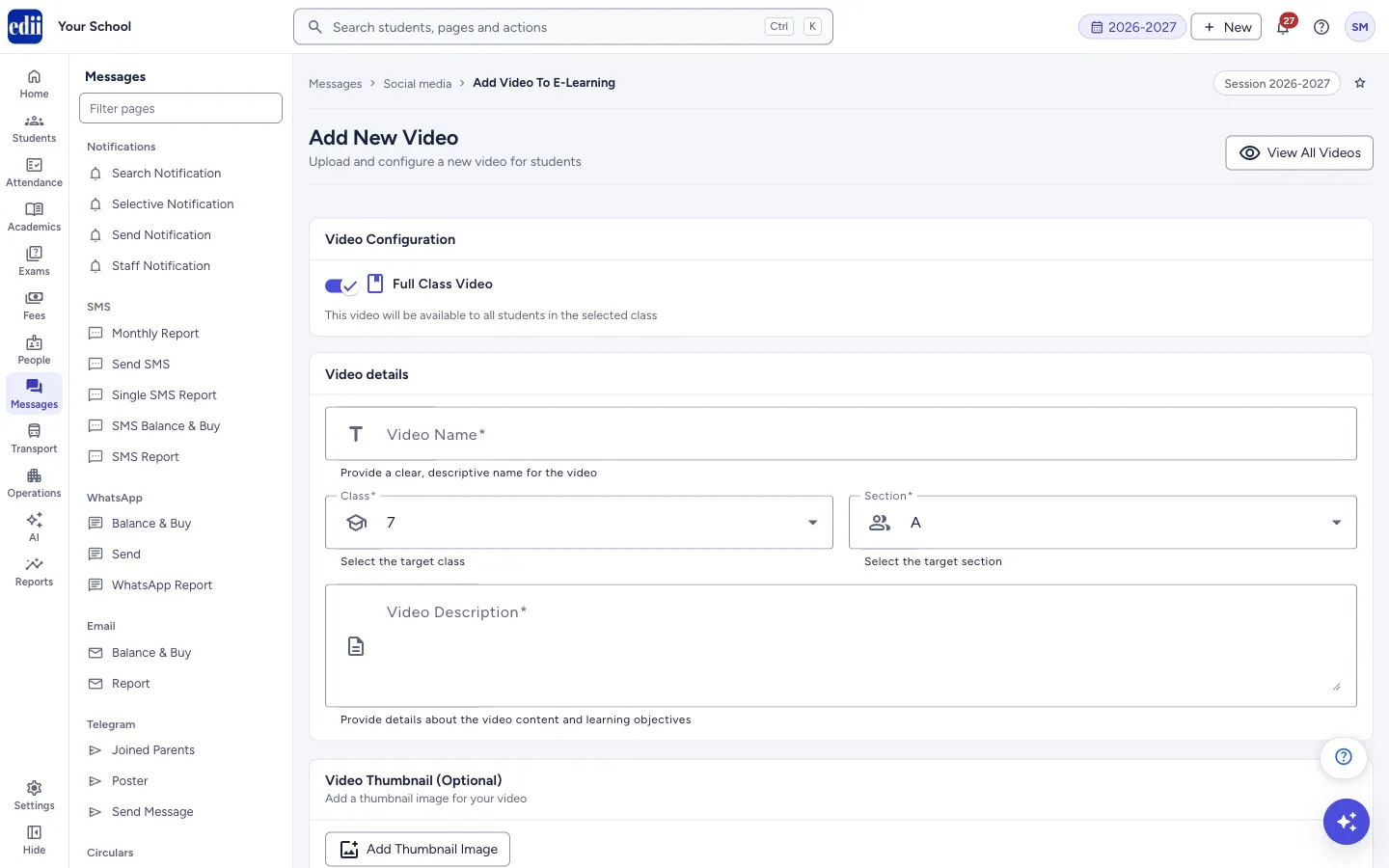 Open a bigger pictureतस्वीर बड़ी करें
Step by step
Section titled “Step by step”1. Choose who can watch
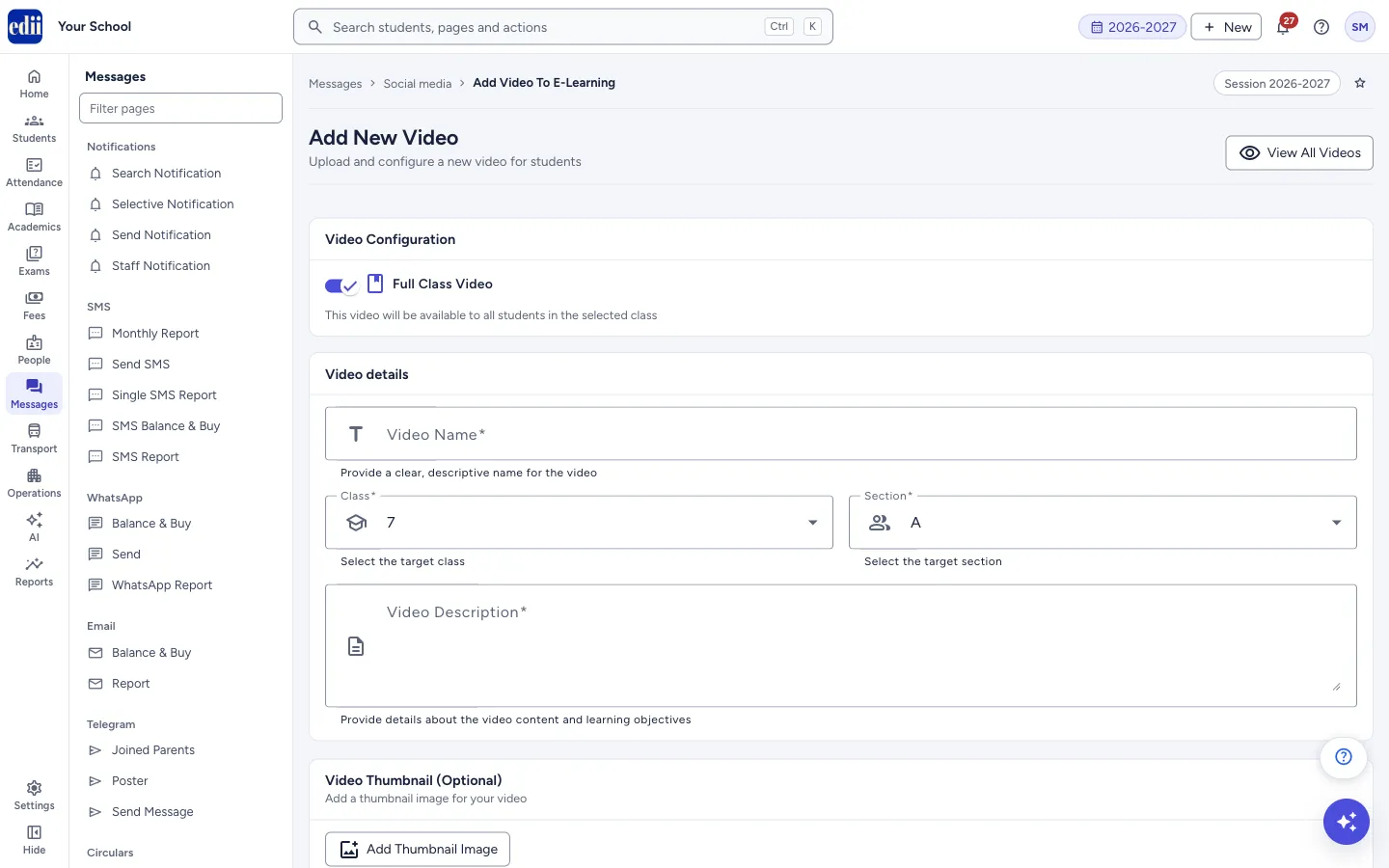
Section titled “1. Choose who can watch”In Video Configuration, the switch is on as Full Class Video: This video will be available to all students in the selected class. Switch it off to change it to Specific Students: Select specific students who can access this video.
 Open a bigger pictureतस्वीर बड़ी करें
2. Fill the video details
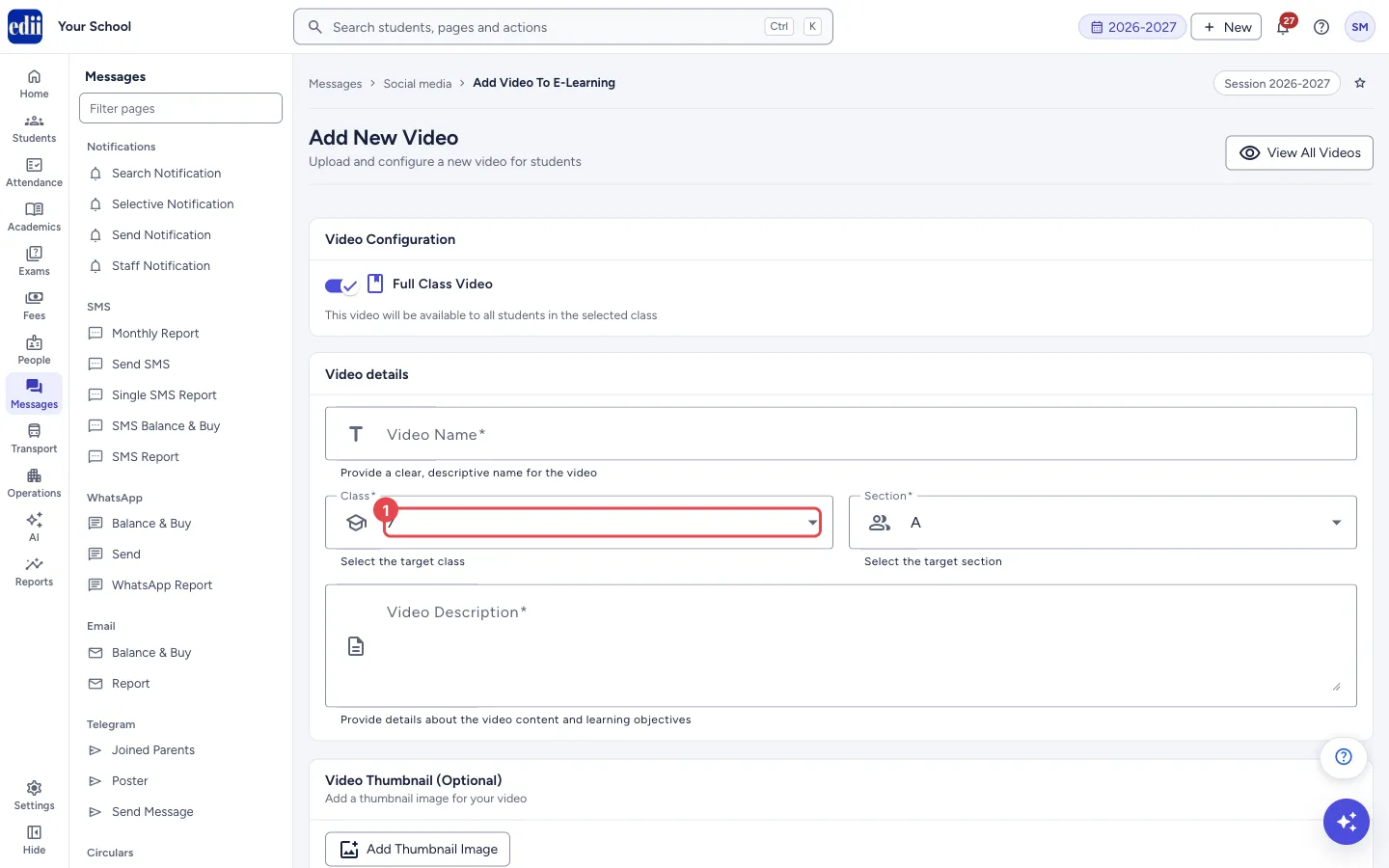
Section titled “2. Fill the video details”Type the Video Name and the Video Description. Both are required.
For a full class video, choose the Class and then the Section. For specific students, a Select Students box appears instead: type in Search and add students… and click a student to add; remove a student with the cross on the student’s chip.
 Open a bigger pictureतस्वीर बड़ी करें
3. Add a thumbnail (optional)
Section titled “3. Add a thumbnail (optional)”Select Add Thumbnail Image. The menu offers Capture from Camera and Upload from Device. An image from the device can be at most 10 MB.
4. Choose the video file
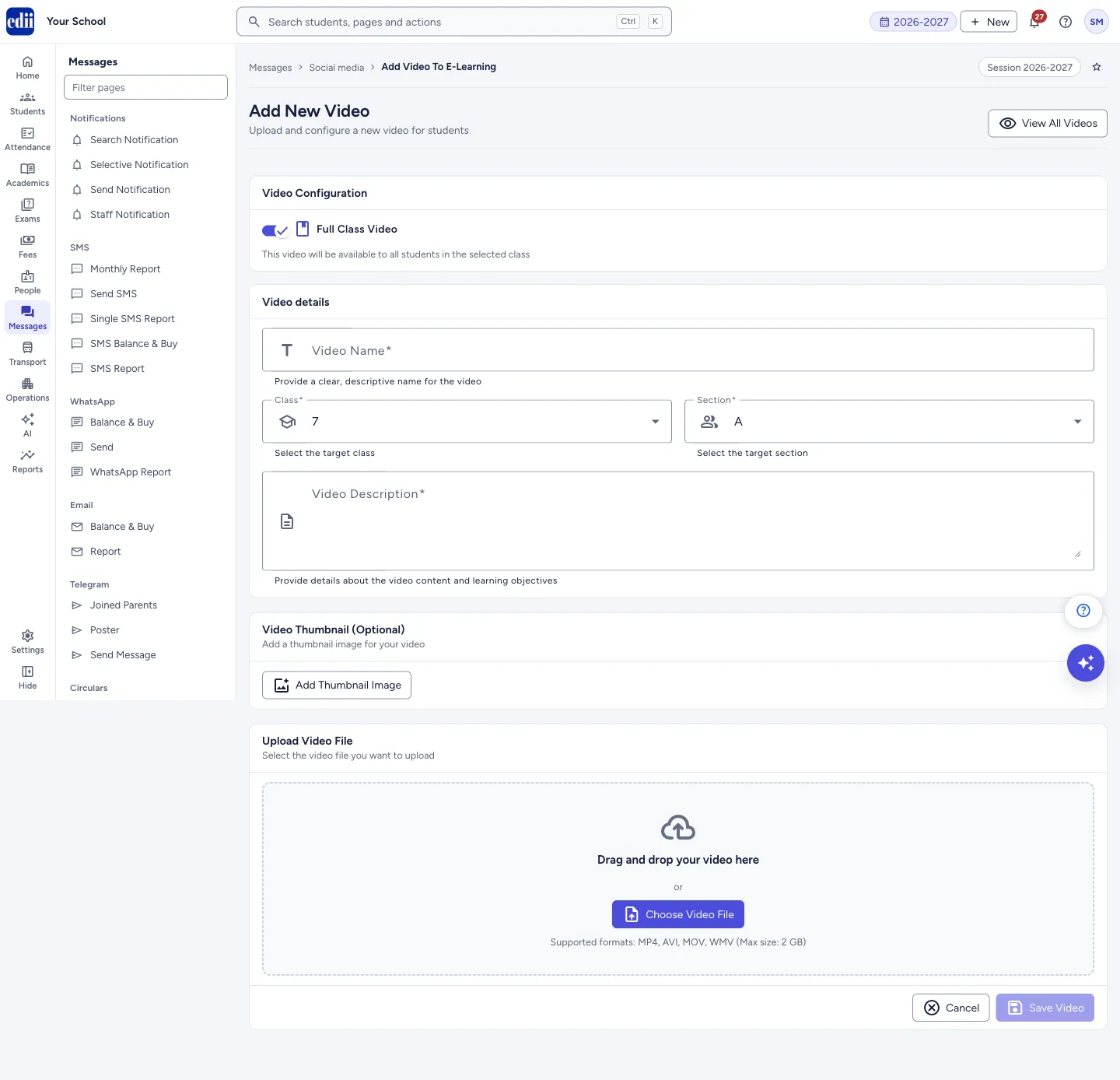
Section titled “4. Choose the video file”In Upload Video File, drag the video into the box that says Drag and drop your video here, or select Choose Video File.
When a file is chosen, EDII shows Video selected. Click “Save Video” to upload. and a green line Video file selected: with the file name.
 Open a bigger pictureतस्वीर बड़ी करें
5. Save the video
Section titled “5. Save the video”Select Save Video. It stays grey until the name, description, class and section (or students) are filled and a video file is chosen.
EDII warns Do Not Move Away from this page, Please check the Progress Below to know about the progress of the video uploaded. When the upload is complete, the message Video Added! shows and you are taken to the View page of videos.
Fields and filters
Section titled “Fields and filters”| Field | What it is | Notes |
|---|---|---|
| Full Class Video / Specific Students | Chooses whether the whole class and section or only chosen students can watch. | Starts as Full Class Video. |
| Video Name | The title of the video. | Required. Up to 1000 characters. Error: Video name is required. |
| Class, Section | The class and section whose students can watch. | Required. Shown for Full Class Video. |
| Students | The students who can watch. | Shown for Specific Students. Type to search and click to add. |
| Video Description | What the video is about and what students will learn. | Required. Error: Description is required. |
| Video Thumbnail (Optional) | A cover picture for the video. | Optional. Image up to 10 MB. |
| Upload Video File | The video itself. | Required. |
Buttons
Section titled “Buttons”| Button | What it does | What happens next |
|---|---|---|
| View All Videos | Opens the list of videos. | You go to the View page. Nothing on this form is saved. |
| Add Thumbnail Image | Opens a menu: Capture from Camera or Upload from Device. | The picture you choose becomes the video’s cover. |
| Choose Video File | Opens your computer’s file picker. | The file name shows in green. |
| Cancel | Leaves the form. | You go to the list of videos. Nothing is saved. |
| Save Video | Uploads the video and saves it. | A progress bar shows the upload. Then Video Added! shows and the list of videos opens. |
After you save
Section titled “After you save”- The video appears in the list on the View page, with its name, description and the students it is for.
Good to know
Section titled “Good to know”- The video file can be at most 2 GB. The box says Supported formats: MP4, AVI, MOV, WMV (Max size: 2 GB). Keep videos small so they upload and play quickly.
- If you need to upload a very big file, contact EDII support.
- If you drop a file that is not a video, image or document, EDII refuses it.
Messages you may see
Section titled “Messages you may see”| Message | What it means | What to do |
|---|---|---|
| Please fill in video name and description | The name or the description is empty. | Fill both and save again. |
| Please select a video file | No video file was chosen. | Choose or drop a video file. |
| Max Video Size is 2 GB, If you need to upload a Big file contact us | The video is larger than 2 GB. | Compress or shorten the video, or contact EDII support. |
| Max File Size is 10 MB, If you need to upload a Big file contact us | The thumbnail image is larger than 10 MB. | Choose a smaller image. |
| Please drop a valid video, image, or document file | The file you dropped is not a video, image or document. | Drop a video file. |
| Error in uploading video | The upload did not finish. | Check the internet and save again. |
| Bad/Slow Internet Connection, Please check your internet connection | EDII could not reach the server. | Check the internet and try again. |
- Keep the page open until the progress bar reaches 100% and Video Added! shows.
- Give the video a clear name; students see the name in the list.
Stuck? Try this
Section titled “Stuck? Try this”| Problem | Likely cause | What to do |
|---|---|---|
| Save Video stays grey. | A required box is empty or no video file is chosen. | Fill the name, description and class and section (or students), then choose the file. |
| The upload is slow. | A large file or a slow internet connection. | Use a smaller video and wait; do not close the page. |
Did this page help?क्या इस पेज से मदद मिली?
Thanks! Glad it helped.धन्यवाद! अच्छा लगा कि काम बन गया।
Sorry about that. Ask in your own words, or write to us.माफ़ कीजिए। अपने शब्दों में पूछें, या हमें लिखें।