
Screen guide · Web app
Expected student scores
Pick a student and see an approximate annual-exam percentage for each subject, worked out from that student's past results.
यह पेज अंग्रेज़ी में है। कुछ समझ न आए तो ।
Expected student scores shows an approximate percentage for each subject of a student, for the selected session. The estimate is made from the student’s earlier test and exam results. It is a simple estimate, not a result.
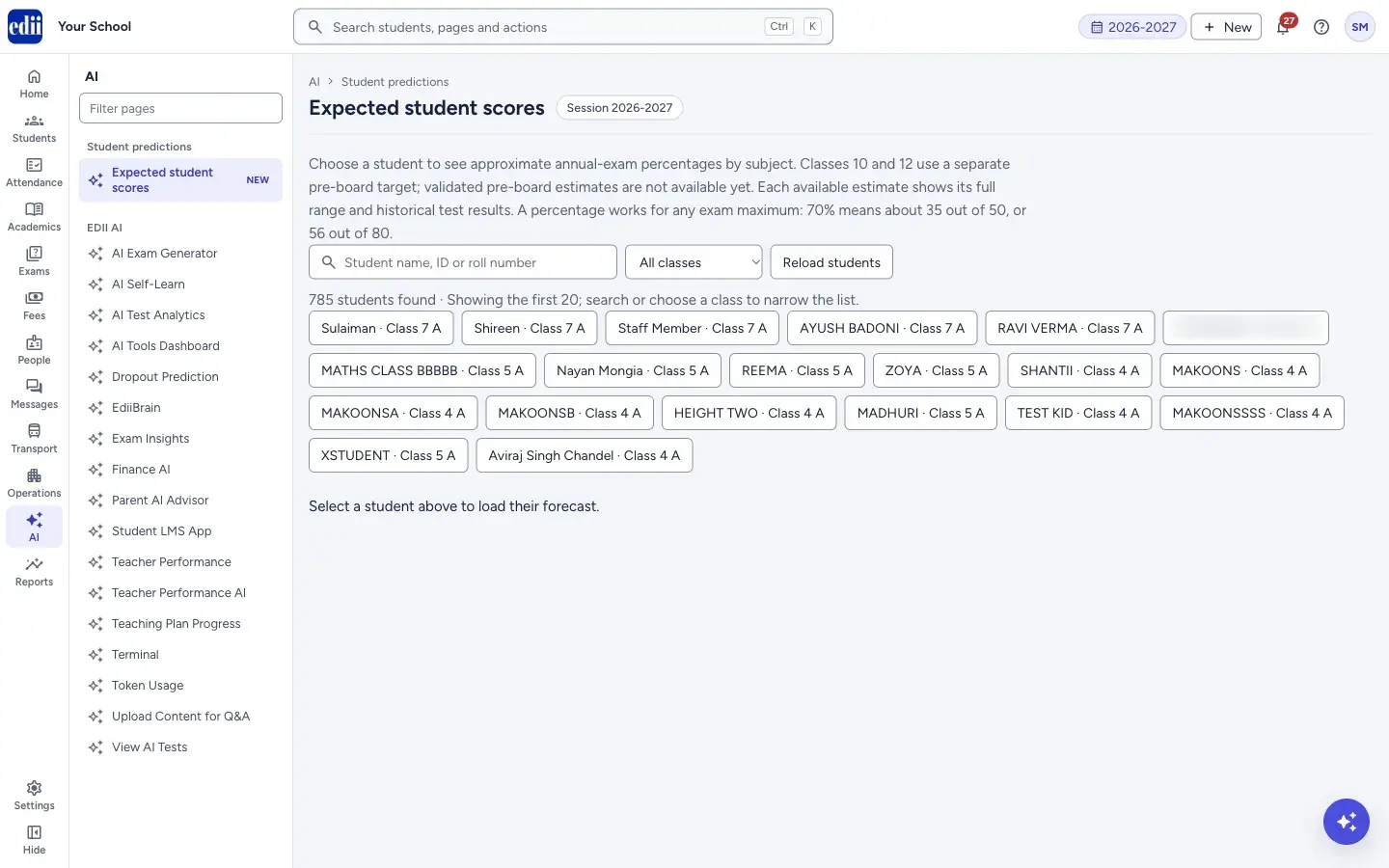
Choose a class or type a name, ID or roll number to find the student, then select the student’s button. The forecast opens under the list. Each subject card shows the approximate percentage, the estimated marks, an estimated range, and how many earlier assessments the estimate is based on.
A percentage works for any exam maximum: 70% means about 35 out of 50, or 56 out of 80.
Who uses it and when
Section titled “Who uses it and when”Class teachers, coordinators and the principal use it to spot students who may need extra help before the annual exam.
Before you start
Section titled “Before you start”- The student needs earlier marks in EDII. Without them the screen says an estimate is not available yet.
- The student must be active. Suspended or removed students are not listed.
Where to find it
Section titled “Where to find it”- In school.edii.in: AI › Student predictions › Expected student scores
- Or press Ctrl K (⌘ K on a Mac) and type Expected student scores.
- Address:
school.edii.in/ai/score-predictions - Who can see it: Staff whose role includes Students or Attendance or Reports access. Shown only when your school uses Student and Report in EDII. If it is missing from your menu, ask your school admin.
 Open a bigger pictureतस्वीर बड़ी करें
Step by step
Section titled “Step by step”1. Find the student
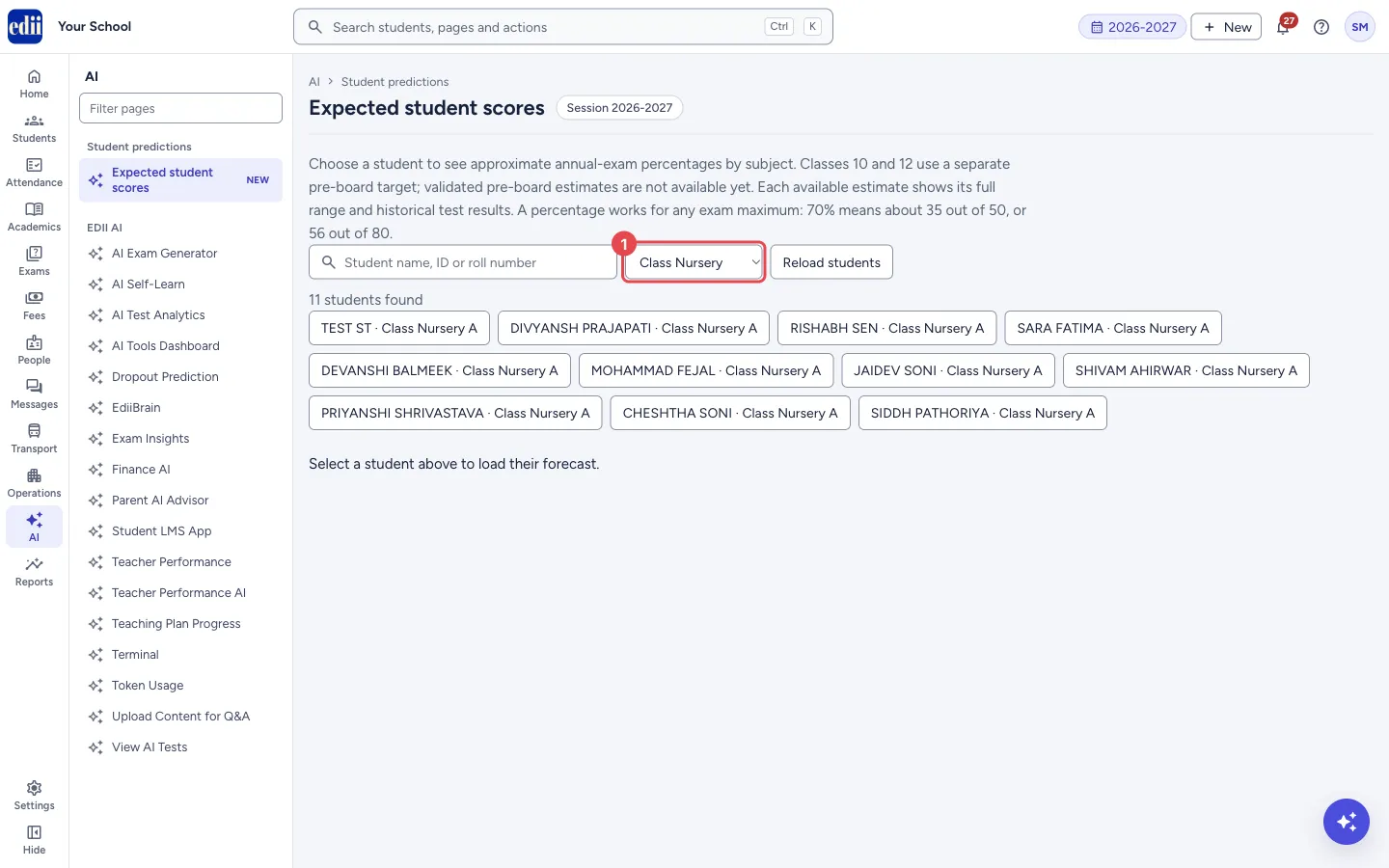
Section titled “1. Find the student”Type a student’s name, ID or roll number in the search box, or open the Class list and choose a class. You can do both.
The screen says how many students it found. It shows the first 20 only; search or choose a class to narrow the list.
 Open a bigger pictureतस्वीर बड़ी करें
2. Select the student
Section titled “2. Select the student”Select the student’s button. The student’s name, class and section show above the forecast, with an Open student profile button.
Until you select someone the screen says Select a student above to load their forecast.
3. Read the forecast
Section titled “3. Read the forecast”The Expected annual scores card opens with a note that these are AI predictions. Each subject has its own card with: Approx. percentage, Estimated marks, Estimated range and the number of earlier assessments used.
Below the subject cards, Approx. annual-exam overall shows one overall percentage when every required and opted subject has an estimate. If not, the screen says it shows subject forecasts only.
At the bottom you see when the predictions were last refreshed and when the next automatic refresh is due.
4. Reload when needed
Section titled “4. Reload when needed”Reload students loads the student list again. Reload saved predictions, at the bottom of a forecast, loads that student’s saved predictions again. Use it after new marks have been entered.
Fields and filters
Section titled “Fields and filters”| Field | What it is | Notes |
|---|---|---|
| Student name, ID or roll number | Search box for finding a student. | You can type several words; every word must match. |
| Class | Shows only students of one class. | Starts at All classes. |
Buttons
Section titled “Buttons”| Button | What it does | What happens next |
|---|---|---|
| Reload students | Loads the list of students again. | The list shows again and any open forecast is closed. |
| Student button | Opens the forecast for that student. | The forecast appears under the list. |
| Open student profile | Opens the selected student’s record. | The student’s profile page opens. |
| Retry | Tries to load the forecast again when it could not be loaded or is not available. | The forecast is checked again. |
| Reload saved predictions | Loads the student’s saved predictions again. | The cards are refreshed. |
Columns
Section titled “Columns”| Column | Meaning |
|---|---|
| Approx. | The estimated percentage for the subject. |
| Estimated marks | The percentage turned into marks out of the exam maximum. If the exam maximum is not confirmed, the card says the marks are unavailable until it is. |
| Estimated range | The lowest and highest percentage the estimate is likely to fall between, with the range width in percentage points. |
| Based on … earlier assessments | How many earlier test results were used for this subject. |
Good to know
Section titled “Good to know”- These are AI predictions and can be completely wrong. Do not treat them as actual exam results. Staff should check them against what they know of the student.
- The estimate uses the student’s recorded academic history before a cut-off date. Estimates can change as new results arrive, and actual marks may differ from the estimate and from the range.
- Where a card says the range was tested on past records, it gives how many results out of 10 fell inside the range in that test. This describes past testing; it is not a promise for this student.
- Where a subject has no personal history, the card says it uses a group average from historical results and that the figure is not personalised.
- Classes 10 and 12 use a separate pre-board target. A validated pre-board estimate is not available yet, so for these classes the screen says A validated pre-board estimate is not available for this student and session yet.
- The overall percentage is the estimated marks added up and divided by their maximum marks. It is separate from the official report-card result.
- Predictions refresh automatically on a schedule. The bottom of the card shows when they were last refreshed and when the next refresh is due.
Messages you may see
Section titled “Messages you may see”| Message | What it means | What to do |
|---|---|---|
| An estimate is not available for this student and session yet. | There is not enough earlier data for this student in the selected session. | Make sure earlier marks are entered, then select Retry later. |
| Expected marks could not be loaded. Please try again. | The forecast could not be fetched. | Select Retry. |
| The student list could not be loaded. Please try again. | The list of students did not load within 30 seconds. | Select Reload students. |
| No active students match these filters. | No active student fits the class and words you chose. | Clear the search box or choose All classes. |
| Automatic refresh is delayed. The service will retry. | The scheduled refresh did not run on time. | Nothing to do. Reload later. |
- Use the forecast to plan learning support, not to tell parents a result.
Stuck? Try this
Section titled “Stuck? Try this”| Problem | Likely cause | What to do |
|---|---|---|
| A student is missing from the list. | Only active students are listed, and only the first 20 matches show. | Search by name or roll number, or choose the class. |
Did this page help?क्या इस पेज से मदद मिली?
Thanks! Glad it helped.धन्यवाद! अच्छा लगा कि काम बन गया।
Sorry about that. Ask in your own words, or write to us.माफ़ कीजिए। अपने शब्दों में पूछें, या हमें लिखें।