
Screen guide · Web app
All reports
One searchable list of every report your login can open, from every part of EDII, grouped by subject.
यह पेज अंग्रेज़ी में है। कुछ समझ न आए तो ।
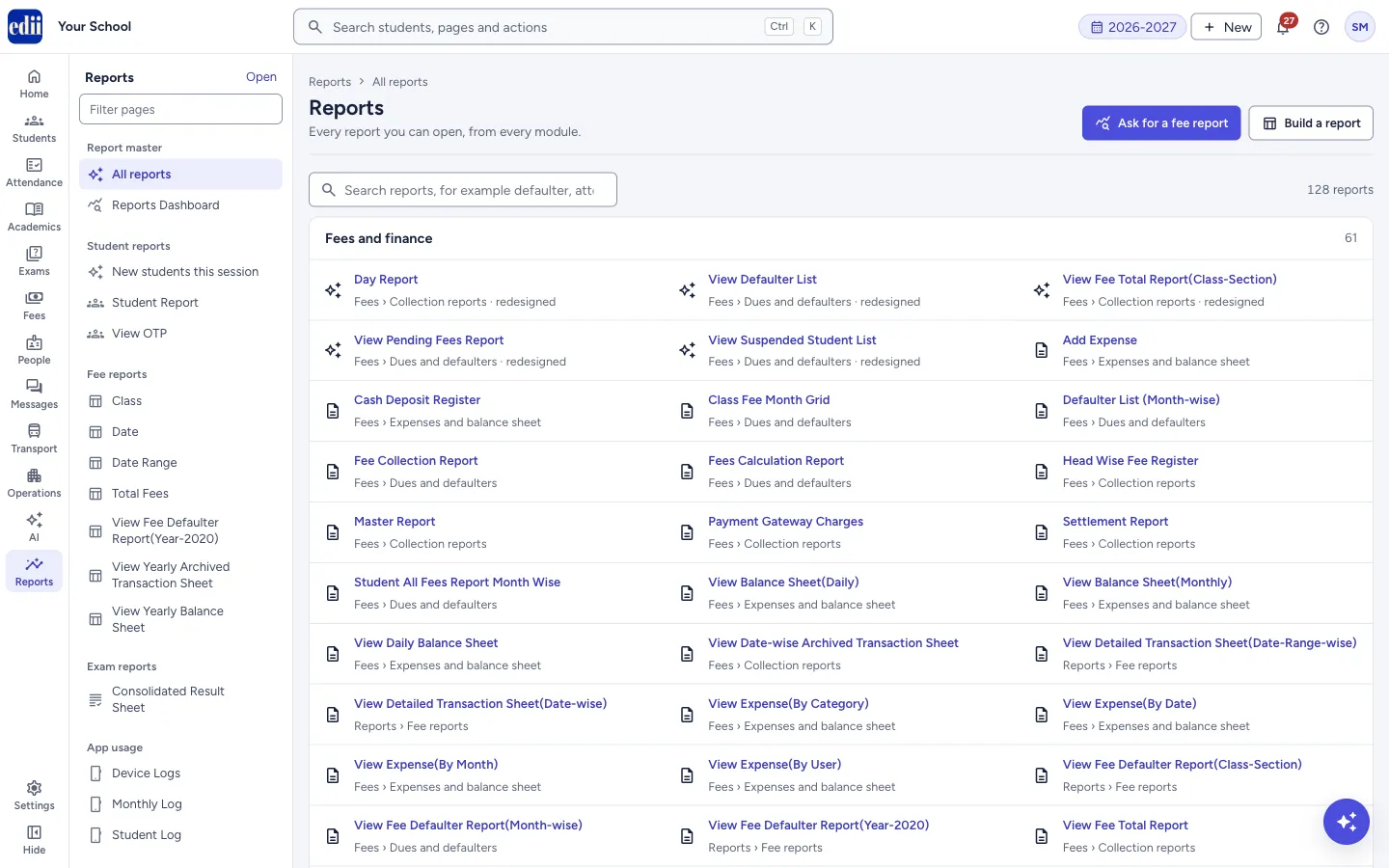
All reports (headed Reports: Every report you can open, from every module.) gathers the reports of fees, students, attendance, exams, staff, messages and EDII AI on one page. You do not have to remember which menu a report lives in: search for it here and open it.
The reports are grouped under Fees and finance, Students, Attendance, Exams and results, Staff, Messages, EDII AI and Other. Only the groups that have a report for you are shown, and each group shows its count. A line near the search box says how many reports match, for example 128 reports.
Each report shows its name, and under it the place where it also sits in the menu (for example Fees › Dues and defaulters). Reports that have a new design show a sparkle icon and the word redesigned, and are listed first in their group. The others open the screen they have always had.
Who uses it and when
Section titled “Who uses it and when”Anyone who needs a report and does not know where to find it: the office, the accountant, the principal.
Before you start
Section titled “Before you start”- What you see depends on your login. Only reports you have access to are listed. If none is available, the page says No reports available for your login and Ask your school administrator for report access.
Where to find it
Section titled “Where to find it”- In school.edii.in: Reports › Report master › All reports
- Or press Ctrl K (⌘ K on a Mac) and type All reports.
- Address:
school.edii.in/reports - Who can see it: Staff whose role includes Fees or Reports or Students or Attendance access. Shown only when your school uses Finance and Report and Student in EDII. If it is missing from your menu, ask your school admin.
 Open a bigger pictureतस्वीर बड़ी करें
Step by step
Section titled “Step by step”1. Search for the report
Section titled “1. Search for the report”Type in the search box (Search reports, for example defaulter, attendance, ledger). Every word you type must match the report’s name, its section or its tags, so fee defaulter narrows the list quickly. The count updates as you type. If nothing matches, the page says No report matches followed by what you typed.
Open a bigger pictureतस्वीर बड़ी करें2. Open a report
Section titled “2. Open a report”Select the report’s name. A redesigned report opens in the new report page for that report. Any other report opens its own screen.
3. Ask for a fee report or build one
Section titled “3. Ask for a fee report or build one”Two buttons at the top right go to other ways of getting a report. Ask for a fee report opens Master Report. Build a report opens Reports Dashboard.
Fields and filters
Section titled “Fields and filters”| Field | What it is | Notes |
|---|---|---|
| Search reports | Filters the list by words in the name, section or tags of a report. | All the words you type must match. |
Buttons
Section titled “Buttons”| Button | What it does | What happens next |
|---|---|---|
| Ask for a fee report | Opens Master Report. | |
| Build a report | Opens Reports Dashboard. |
Good to know
Section titled “Good to know”- The page opens only reports. It does not change any data.
- Some old reports that are no longer in use are left out of the list.
Messages you may see
Section titled “Messages you may see”| Message | What it means | What to do |
|---|---|---|
| No reports available for your login | Your login has no report access. | Ask your school administrator for report access. |
| No report matches | The words you typed match no report. | Try one word, or clear the box. |
- Search with one or two key words, such as defaulter, ledger or attendance.
Stuck? Try this
Section titled “Stuck? Try this”| Problem | Likely cause | What to do |
|---|---|---|
| A report I use is not in the list | Your login does not include it, or it belongs to a part of EDII your school has not switched on. | Ask your school administrator. |
Did this page help?क्या इस पेज से मदद मिली?
Thanks! Glad it helped.धन्यवाद! अच्छा लगा कि काम बन गया।
Sorry about that. Ask in your own words, or write to us.माफ़ कीजिए। अपने शब्दों में पूछें, या हमें लिखें।