
Screen guide · Web app
App Splash Screen
Choose the colours, tagline and optional animation of the screen parents see while your school's app starts up, and see a live preview before saving.
यह पेज अंग्रेज़ी में है। कुछ समझ न आए तो ।
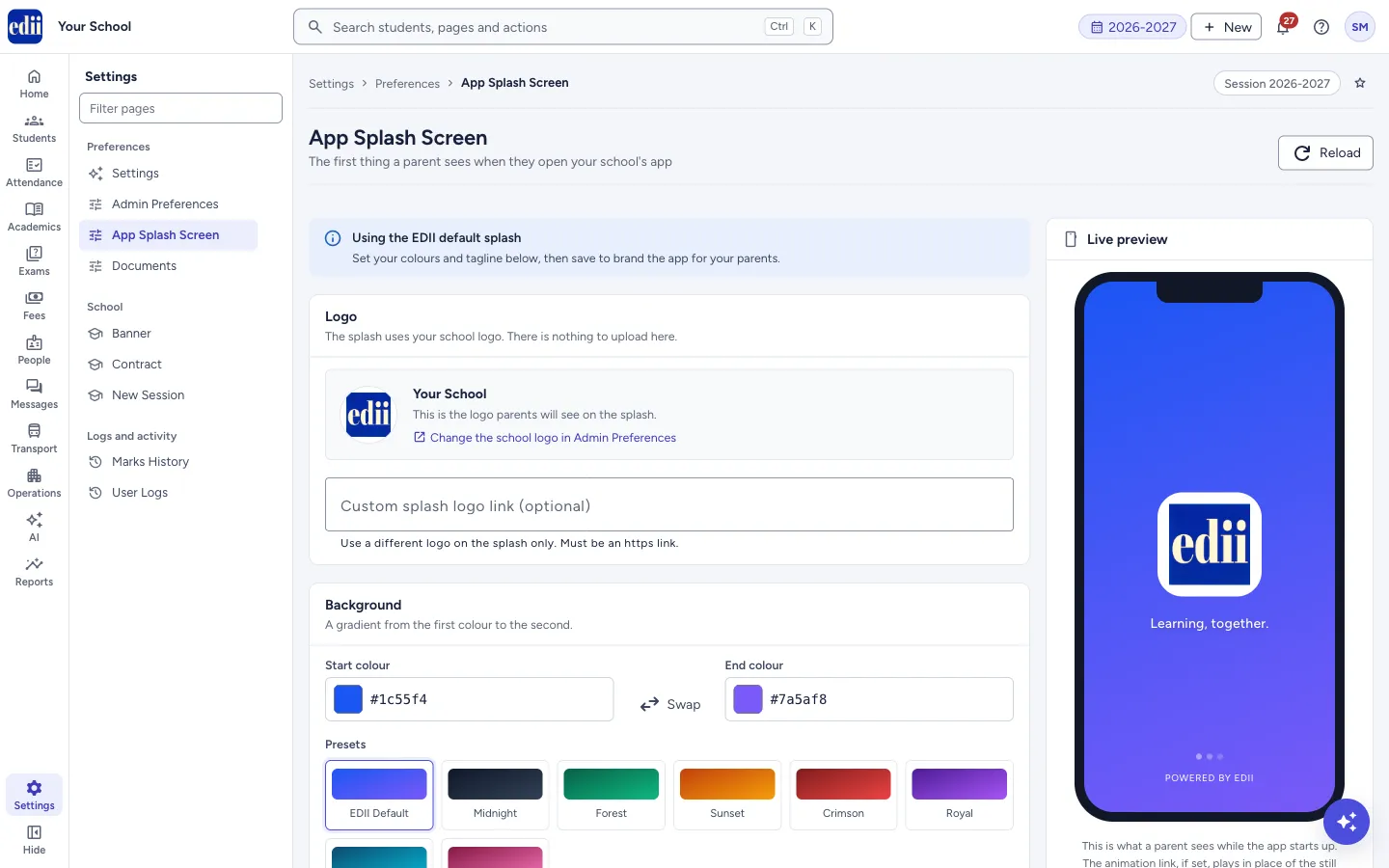
App Splash Screen is the first thing a parent sees when they open your school’s app: your school logo on a coloured background with a short line of words under it. This page lets you set the background colours, the tagline and an optional logo or animation, with a Live preview phone on the right that updates as you type.
A message at the top says which splash is in use: Using the EDII default splash until you save your own, then Custom splash is live with the time of the last save and the version.
The change applies to the school’s app for all parents. It does not change the school logo used on documents.
Who uses it and when
Section titled “Who uses it and when”The principal or the office administrator sets it once to brand the app, and changes it when the school logo or colours change.
Before you start
Section titled “Before you start”- Your school logo should already be uploaded in Admin Preferences (Menu › Logo). The splash uses that logo. Without one the page says No school logo uploaded yet. Add one, or set a custom splash logo below.
Where to find it
Section titled “Where to find it”- In school.edii.in: Settings › Preferences › App Splash Screen
- Or press Ctrl K (⌘ K on a Mac) and type App Splash Screen.
- Address:
school.edii.in/branding/splash - Who can see it: Staff whose role includes Users or Admin pages or Events access. Shown only when your school uses User and Social Media in EDII. If it is missing from your menu, ask your school admin.
 Open a bigger pictureतस्वीर बड़ी करें
Step by step
Section titled “Step by step”1. Check the logo
Section titled “1. Check the logo”The Logo box shows the logo parents will see. There is nothing to upload here; use the link Change the school logo in Admin Preferences to change it. If you want a different logo on the splash only, paste an https link in Custom splash logo link (optional). Clear puts the school logo back. A wrong link shows That doesn’t look like an https link. or That link didn’t load an image. Check it before saving.
2. Choose the background colours
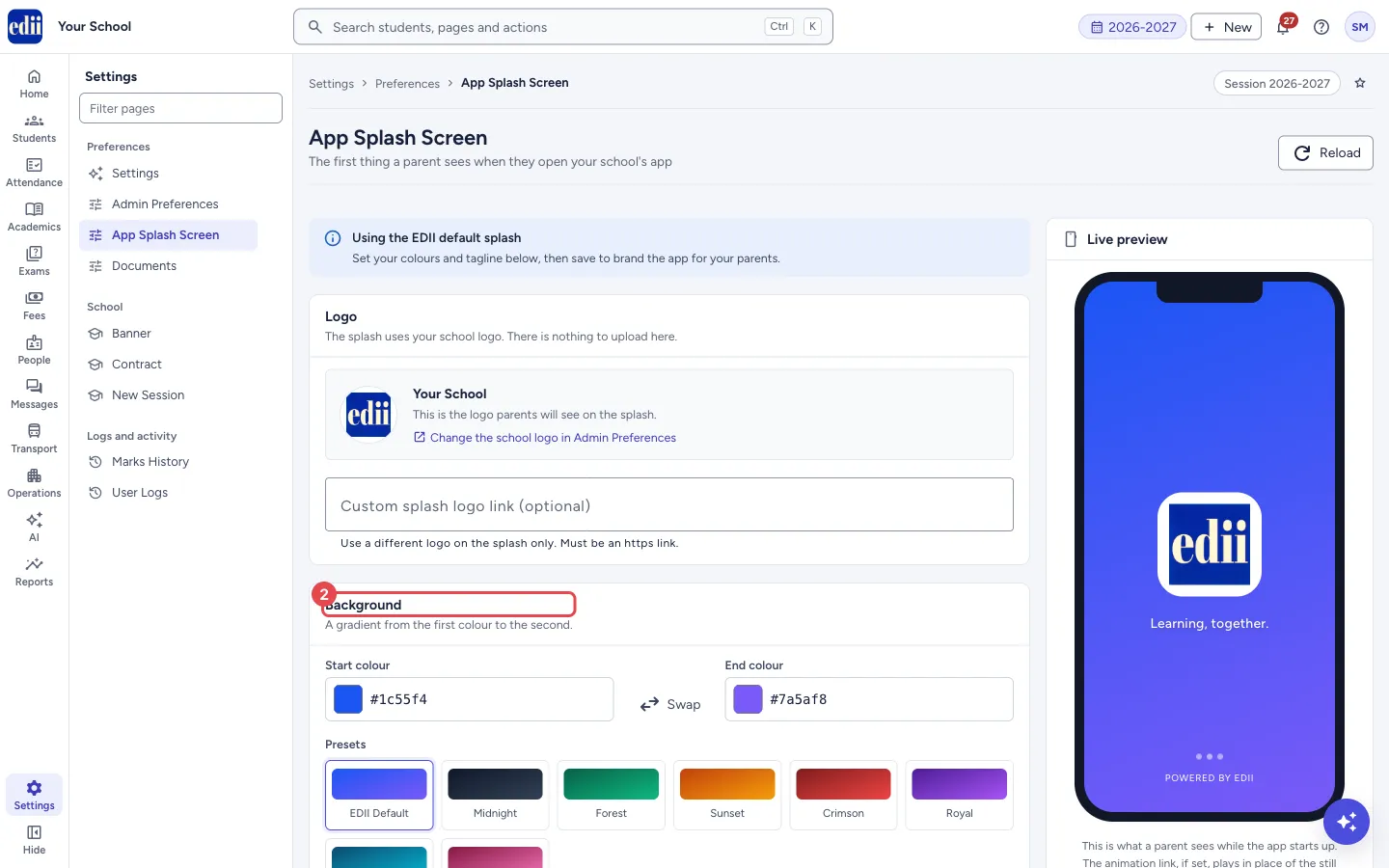
Section titled “2. Choose the background colours”In Background, set the Start colour and End colour with the colour pickers or by typing a code such as #1c55f4. The background is a gradient from the first colour to the second. Swap exchanges them. Or pick a ready-made Presets box: EDII Default, Midnight, Forest, Sunset, Crimson, Royal, Ocean or Rose.
If both colours are quite light, a warning says These colours are quite light. The tagline is printed in white, so it may be hard to read on a phone.
 Open a bigger pictureतस्वीर बड़ी करें
3. Write the tagline and add an animation
Section titled “3. Write the tagline and add an animation”In Words & motion, type a Tagline, up to 80 characters; a counter shows how many you used. Leave it blank to use Learning, together. Animation link (optional) takes an https link to an animated logo file, if you have one. The splash looks complete without it.
4. Look at the live preview
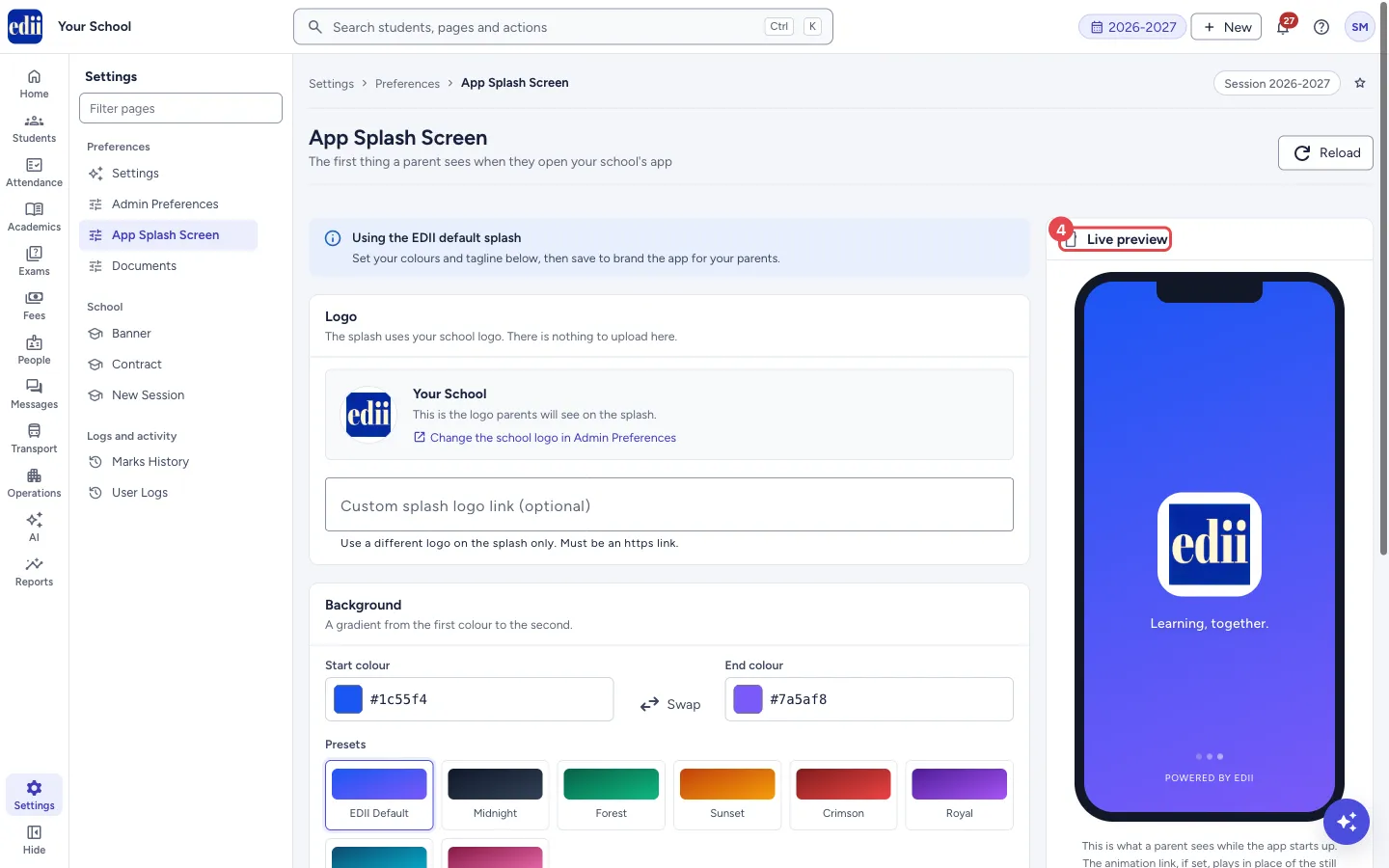
Section titled “4. Look at the live preview”The phone on the right shows the splash as a parent sees it while the app starts up: the logo, the tagline, three dots and powered by EDII at the bottom. If you set an animation link, the preview shows an Animation attached tag.
 Open a bigger pictureतस्वीर बड़ी करें
5. Save the splash screen
Section titled “5. Save the splash screen”Select Save splash screen. When it works you see Splash screen saved. Parents will see it the next time they open the app. The button stays off while a colour code or link is not valid. Reset to EDII default puts every box back to the EDII default; select Save splash screen after it to keep that.
Fields and filters
Section titled “Fields and filters”| Field | What it is | Notes |
|---|---|---|
| Custom splash logo link (optional) | A different logo for the splash only. | Must be an https link to an image. Leave blank to use the school logo. |
| Start colour, End colour | The two colours of the background gradient. | A colour picker and a code box such as #1c55f4. The code must be a valid colour code. |
| Tagline | One short line under the logo. | Up to 80 characters. Blank uses Learning, together. |
| Animation link (optional) | An animated logo file that plays in place of the still logo on phones that support it. | Must be an https link. |
Buttons
Section titled “Buttons”| Button | What it does | What happens next |
|---|---|---|
| Reload | Loads the saved splash settings again. | Unsaved changes on the page are replaced by the saved ones. |
| Swap | Exchanges the start and end colours. | The preview changes. |
| Presets | Fills both colours from a ready-made pair. | The preview changes. Nothing is saved yet. |
| Reset to EDII default | Puts the colours, tagline, logo link and animation link back to the EDII default. | The boxes change. Select Save splash screen to keep it. |
| Save splash screen | Saves the splash for the school’s app. | Splash screen saved. Parents will see it the next time they open the app. |
After you save
Section titled “After you save”- Saved changes reach parents the next time they open the app. An app that is already open keeps the earlier splash until its next launch.
Good to know
Section titled “Good to know”- The splash always uses the school logo unless you give a custom logo link.
- The tagline is printed in white, so choose colours that are not too light.
- Links must start with https.
Messages you may see
Section titled “Messages you may see”| Message | What it means | What to do |
|---|---|---|
| Splash screen saved. Parents will see it the next time they open the app. | The splash was saved. | Nothing to do. |
| Please fix the highlighted fields before saving | A colour code, the tagline or a link is not valid. | Correct the highlighted box. |
| Could not load the splash settings | The saved settings did not load. | Select Try again. |
| Could not save the splash settings | The save did not go through. | Try again. |
| Bad/Slow Internet Connection, Please check your internet connection | The request failed. | Check the connection and try again. |
- Pick dark or medium colours so that the white tagline is easy to read.
- Keep the tagline short; it sits under the logo on a small phone screen.
Stuck? Try this
Section titled “Stuck? Try this”| Problem | Likely cause | What to do |
|---|---|---|
| Parents still see the old splash. | The app is already open, or has not been restarted since you saved. | Ask them to close and open the app. |
| The logo shows a building icon. | The school has no logo uploaded, or the custom link did not load. | Upload the logo in Admin Preferences, or check the link. |
Did this page help?क्या इस पेज से मदद मिली?
Thanks! Glad it helped.धन्यवाद! अच्छा लगा कि काम बन गया।
Sorry about that. Ask in your own words, or write to us.माफ़ कीजिए। अपने शब्दों में पूछें, या हमें लिखें।