
Screen guide · Web app
Buildings
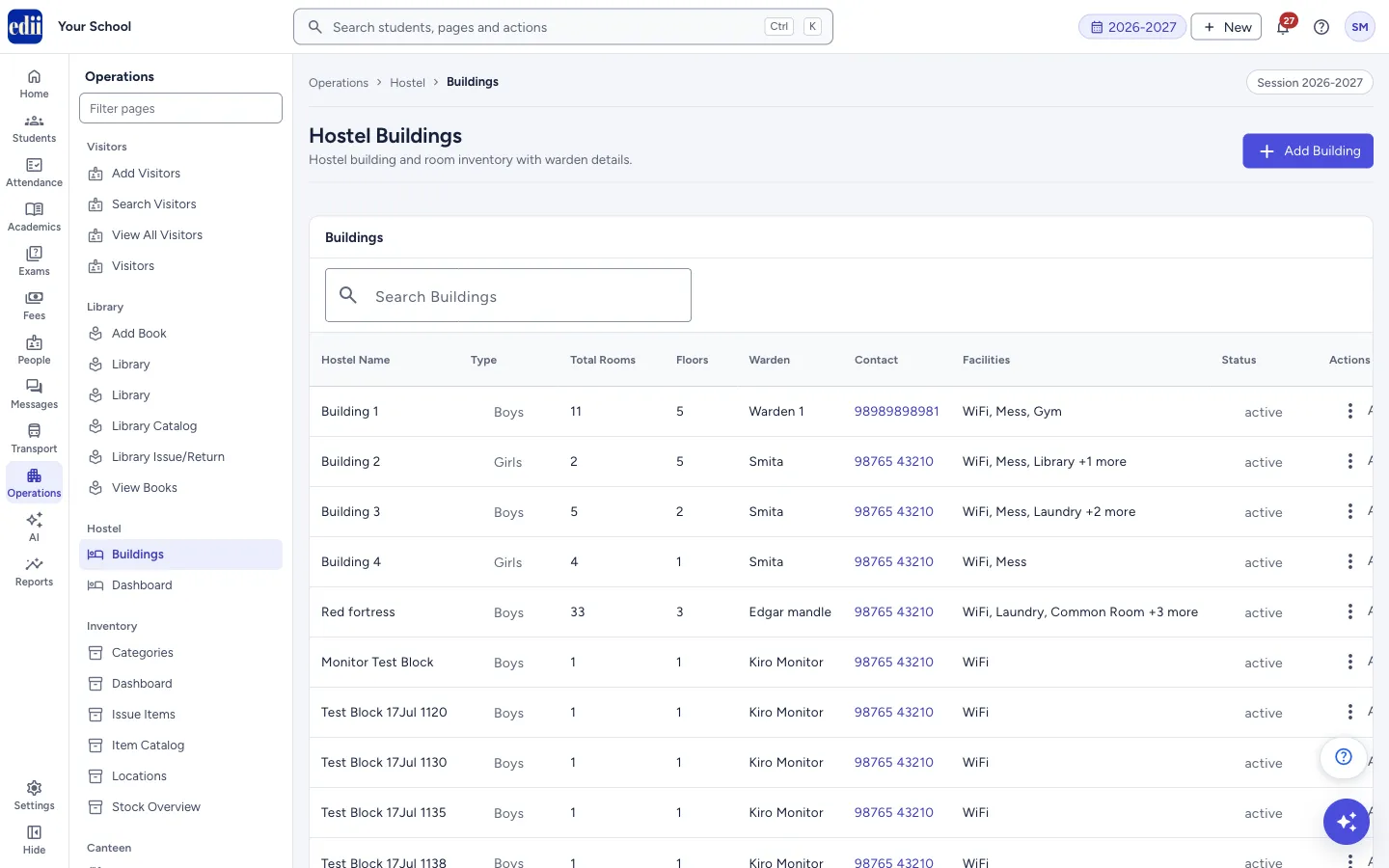
The list of hostel buildings with type, rooms, floors, warden and facilities, with a form to add a building and a menu to view its rooms, edit it or delete it.
यह पेज अंग्रेज़ी में है। कुछ समझ न आए तो ।
Buildings (the page heading is Hostel Buildings) lists every hostel building of the school. For each building you see the Hostel Name, Type (Boys, Girls or Mixed), Total Rooms, Floors, the Warden and the warden’s Contact, the Facilities and the Status.
Select Add Building to add one in a window on the same page. In the last column, Actions opens a menu with View Rooms, Edit and Delete.
The page is shown only when the school has the Hostel module switched on.
Who uses it and when
Section titled “Who uses it and when”The hostel office, when a hostel block is built or changed, or the warden is changed.
Where to find it
Section titled “Where to find it”- In school.edii.in: Operations › Hostel › Buildings
- Or press Ctrl K (⌘ K on a Mac) and type Buildings.
- Address:
school.edii.in/hostel/buildings - Who can see it: Shown only when your school uses Hostel and Inventory and Canteen and Health Records and Tracking in EDII. If it is missing from your menu, ask your school admin.
 Open a bigger pictureतस्वीर बड़ी करें
Step by step
Section titled “Step by step”1. Look at the buildings
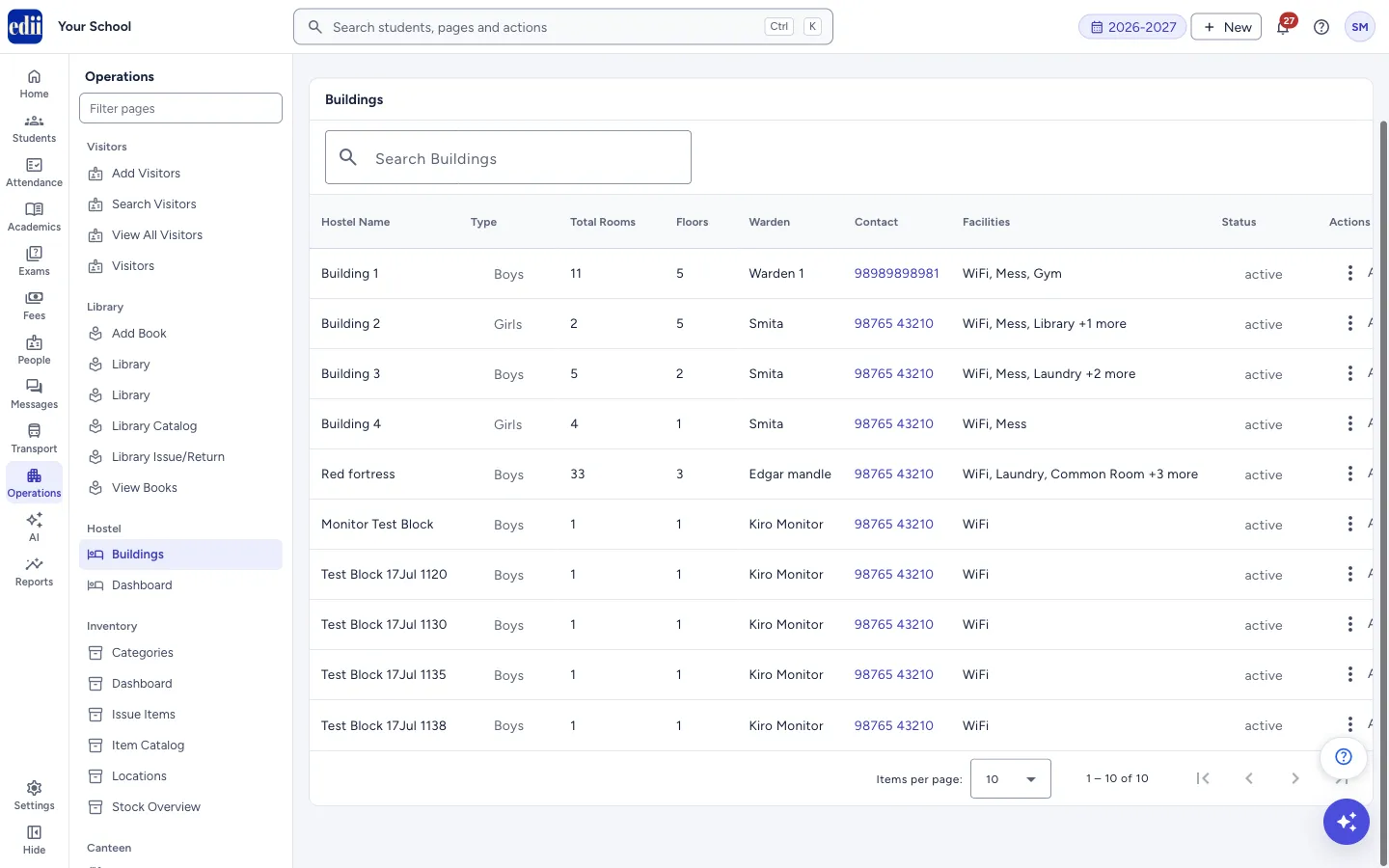
Section titled “1. Look at the buildings”The table loads by itself. Type in Search Buildings to find a building by name, type or warden. Select a heading to sort. The warden’s phone number is a link that calls on a phone. Long facility lists are cut after three names, with +N more; hold the mouse over it to see all.
 Open a bigger pictureतस्वीर बड़ी करें
2. Choose rows per page
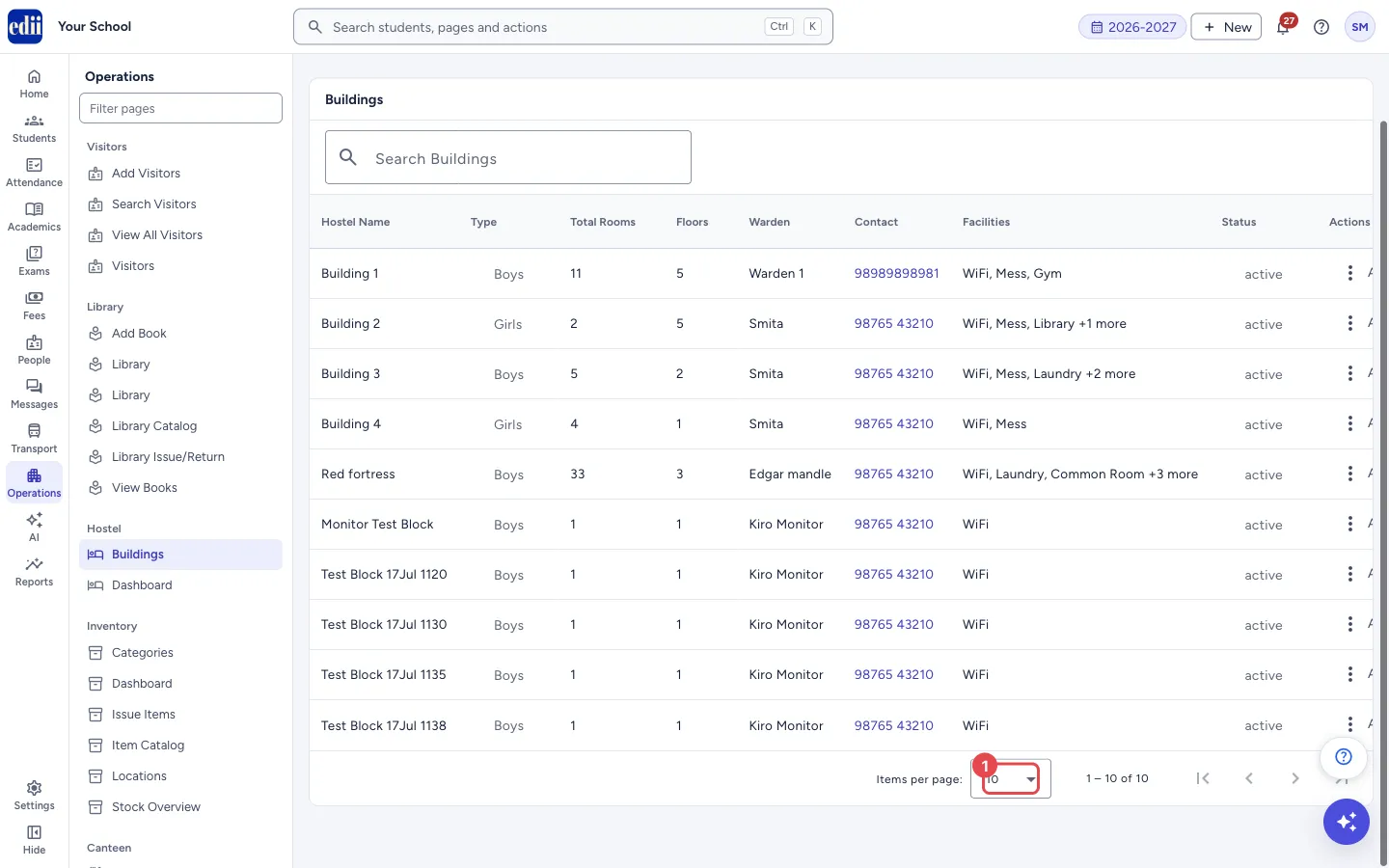
Section titled “2. Choose rows per page”At the bottom, Items per page can be 5, 10, 25 or 50. It starts at 10.
 Open a bigger pictureतस्वीर बड़ी करें
3. Add a building
Section titled “3. Add a building”Select Add Building. In the window Add New Building fill the Hostel Name (for example Boys Hostel A), choose the Building Type (Boys, Girls or Mixed), and give Total Rooms and Total Floors (each at least 1).
Fill the Warden Name, Warden Contact and, if you like, Warden Email, then the Address. Tick the Facilities the building has: WiFi, Laundry, Mess, Common Room, Sports, Gym, Library, Medical Room.
Select Add Building in the window. EDII shows Hostel building created successfully and the table is loaded again.
4. Edit, delete or open the rooms
Section titled “4. Edit, delete or open the rooms”Open Actions on a row. View Rooms opens the rooms of that building. Edit opens the same window, called Edit Building, with the details filled in; select Update Building to save, and EDII shows Hostel building updated successfully. Delete asks Delete building? and Are you sure you want to delete the building name; select Delete to confirm. EDII shows Hostel building deleted successfully.
Fields and filters
Section titled “Fields and filters”| Field | What it is | Notes |
|---|---|---|
| Search Buildings | Finds a building by name, type or warden. | Optional. |
| Hostel Name | The name of the building. | Required. Message: Hostel name is required. |
| Building Type | Boys, Girls or Mixed. | Required. Starts as Boys. |
| Total Rooms | How many rooms the building has. | Required, at least 1. Message: Total rooms must be at least 1. |
| Total Floors | How many floors it has. | Required, at least 1. Message: Total floors must be at least 1. |
| Warden Name | The warden in charge. | Required. Message: Warden name is required. |
| Warden Contact | The warden’s phone number. | Required. Message: Warden contact is required. |
| Warden Email | The warden’s email. | Optional. |
| Address | The address of the building. | Required. Message: Address is required. |
| Facilities | Tick boxes: WiFi, Laundry, Mess, Common Room, Sports, Gym, Library, Medical Room. | Optional. |
Buttons
Section titled “Buttons”| Button | What it does | What happens next |
|---|---|---|
| Add Building | Opens the window to add a building. | The window opens. Saving it adds a row. |
| Add Building / Update Building (in the window) | Saves the building. | Hostel building created successfully or Hostel building updated successfully. |
| Cancel (in the window) | Closes the window without saving. | The table is shown. |
| Actions | Menu with View Rooms, Edit and Delete. | The menu opens. |
Columns
Section titled “Columns”| Column | Meaning |
|---|---|
| Hostel Name | The name of the building. |
| Type | Boys, Girls or Mixed. |
| Total Rooms | Rooms entered for the building. |
| Floors | Floors entered for the building. |
| Warden, Contact | The warden and phone. A dash means no number. |
| Facilities | The ticked facilities. No facilities if none. |
| Status | active for a building in use. |
| Actions | View Rooms, Edit, Delete. |
Messages you may see
Section titled “Messages you may see”| Message | What it means | What to do |
|---|---|---|
| Hostel building created successfully | The building was added. | Nothing to do. |
| Hostel building updated successfully | The changes were saved. | Nothing to do. |
| Hostel building deleted successfully | The building was removed. | Nothing to do. |
| Failed to save hostel building | The building could not be saved. If the server gives a reason, that is shown instead. | Check the details and try again. |
| Failed to delete hostel building | The building could not be removed. A reason from the server may be shown instead. | Read the reason shown with the message. |
| Failed to load hostel buildings | The table could not be loaded. | Open the page again. |
| No hostel buildings found | There is no building yet. | Select Add Building. |
Stuck? Try this
Section titled “Stuck? Try this”| Problem | Likely cause | What to do |
|---|---|---|
| I cannot see the Actions button on the right | The table is wider than the screen. | Scroll the table to the right. |
| The window will not save | A required box is empty or the rooms or floors are below 1. | Read the red message that appears and fill the box it names. |
Did this page help?क्या इस पेज से मदद मिली?
Thanks! Glad it helped.धन्यवाद! अच्छा लगा कि काम बन गया।
Sorry about that. Ask in your own words, or write to us.माफ़ कीजिए। अपने शब्दों में पूछें, या हमें लिखें।