
Screen guide · Web app
Poster
A printable A4 poster with a QR code that parents scan to get the school's messages on Telegram.
यह पेज अंग्रेज़ी में है। कुछ समझ न आए तो ।
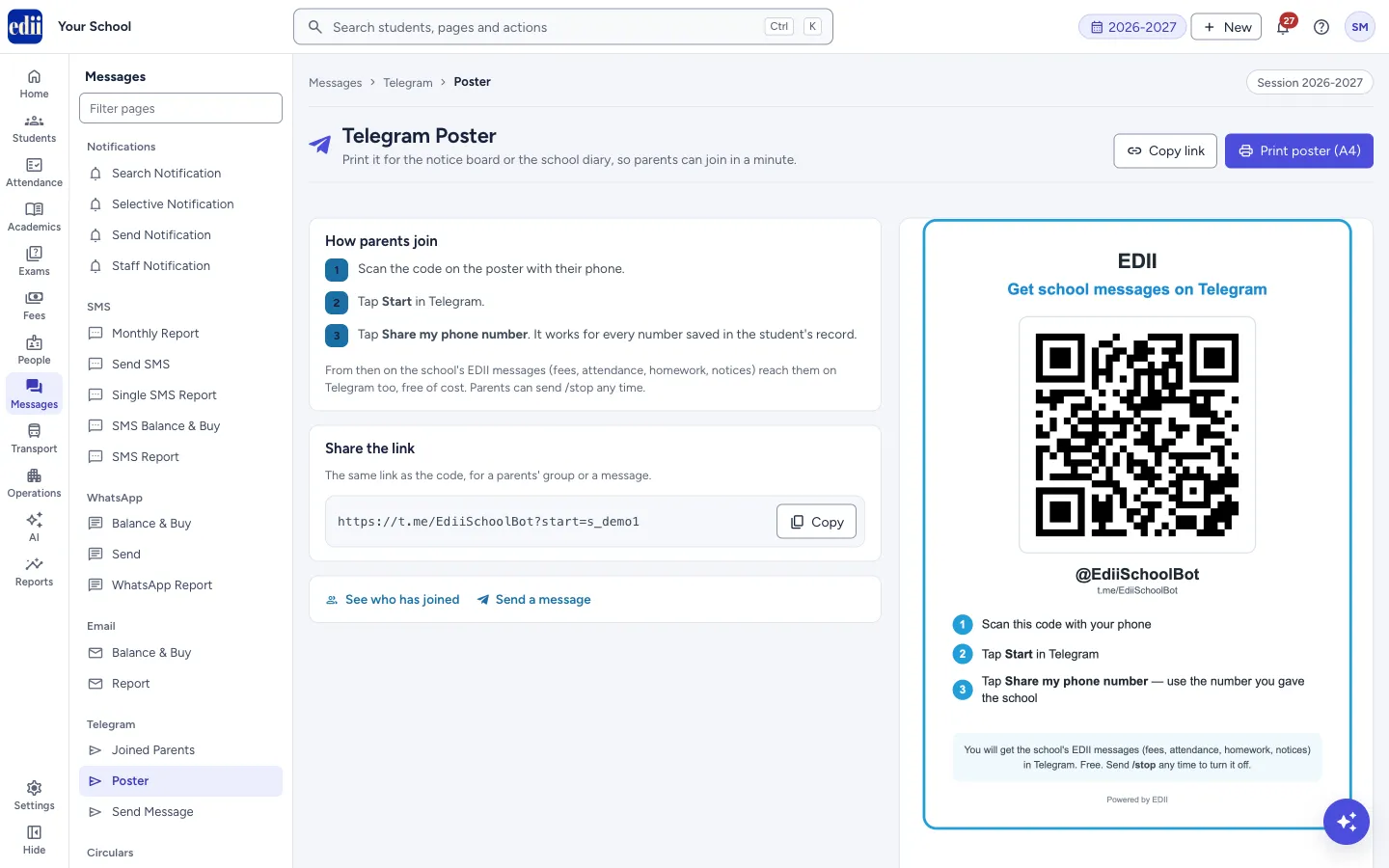
Poster (the page is headed Telegram Poster) makes a poster for the notice board or the school diary. A parent scans the QR code with the phone, taps Start in Telegram and shares the phone number. From then on the school’s EDII messages (fees, attendance, homework, notices) reach that parent on Telegram too, free of cost.
The page shows the poster as it will print, and the steps parents follow. There is also a link you can share instead of the code.
Who uses it and when
Section titled “Who uses it and when”The office prints it once, and again when new parents should be invited, for example at admission time or the start of a session.
Where to find it
Section titled “Where to find it”- In school.edii.in: Messages › Telegram › Poster
- Or press Ctrl K (⌘ K on a Mac) and type Poster.
- Address:
school.edii.in/view/telegram-poster - Who can see it: Staff whose role includes Messages access. Shown only when your school uses Messages in EDII. If it is missing from your menu, ask your school admin.
 Open a bigger pictureतस्वीर बड़ी करें
Step by step
Section titled “Step by step”1. Check the poster
Section titled “1. Check the poster”The page opens with a preview of an A4 sheet. It carries your school’s name, the headline Get school messages on Telegram, the QR code, the Telegram name of the school’s bot, three steps, and the note that the service is free and that a parent can send /stop to turn it off.
2. Print it
Section titled “2. Print it”Select Print poster (A4). A new window opens with the poster and the print box. Print it and put it on the notice board, or copy it into the school diary.
If nothing opens, your browser blocked the window. EDII shows Please allow pop-ups for this site to print the poster. Allow pop-ups for school.edii.in and try again.
3. Share the link instead (optional)
Section titled “3. Share the link instead (optional)”Under Share the link you see the same link as the QR code. Select Copy link (at the top or in this box) and paste it into a parents’ group or a message. EDII shows Link copied. You can share it with parents.
4. Follow up
Section titled “4. Follow up”Select See who has joined to open Joined Parents, or Send a message to open Send Message.
Buttons
Section titled “Buttons”| Button | What it does | What happens next |
|---|---|---|
| Print poster (A4) | Opens the poster in its own window and the print box. | Print it or save it as a PDF. |
| Copy link | Copies the join link to the clipboard. | Link copied. You can share it with parents. |
| See who has joined | Opens Joined Parents. | You see the parents who joined. |
| Send a message | Opens Send Message. | You can write a message for the parents who joined. |
| Try again | Loads the poster again. It shows only when the poster could not be loaded. | The poster appears if the load works. |
Good to know
Section titled “Good to know”- Messages on Telegram are free. They do not use SMS credits.
- A parent joins by sharing a phone number. It works for every number saved in the student’s record.
- A parent can send /stop to the bot at any time to stop the messages.
Messages you may see
Section titled “Messages you may see”| Message | What it means | What to do |
|---|---|---|
| Network issue, the poster could not be loaded. Please try again. | The poster did not load. | Select Try again. |
| The QR code could not be loaded. Please try again. | The poster loaded without a usable QR code. | Select Try again. If it keeps happening, tell EDII support. |
| Please allow pop-ups for this site to print the poster. | The browser blocked the print window. | Allow pop-ups for school.edii.in and select Print poster (A4) again. |
| The link could not be copied. | The browser did not allow copying. | Select the link text in the box and copy it by hand. |
- Print a few copies: one for each notice board and one for the front office.
- Tell parents to share the number the school has on record, or they will not be matched to the student.
Did this page help?क्या इस पेज से मदद मिली?
Thanks! Glad it helped.धन्यवाद! अच्छा लगा कि काम बन गया।
Sorry about that. Ask in your own words, or write to us.माफ़ कीजिए। अपने शब्दों में पूछें, या हमें लिखें।