
Screen guide · Web app
Master Report
Type what fee report you want in plain English, and EDII builds it with totals, a chart and a table, with a note of the filters it applied. You can compare periods, share a brief on WhatsApp and export CSV.
यह पेज अंग्रेज़ी में है। कुछ समझ न आए तो ।
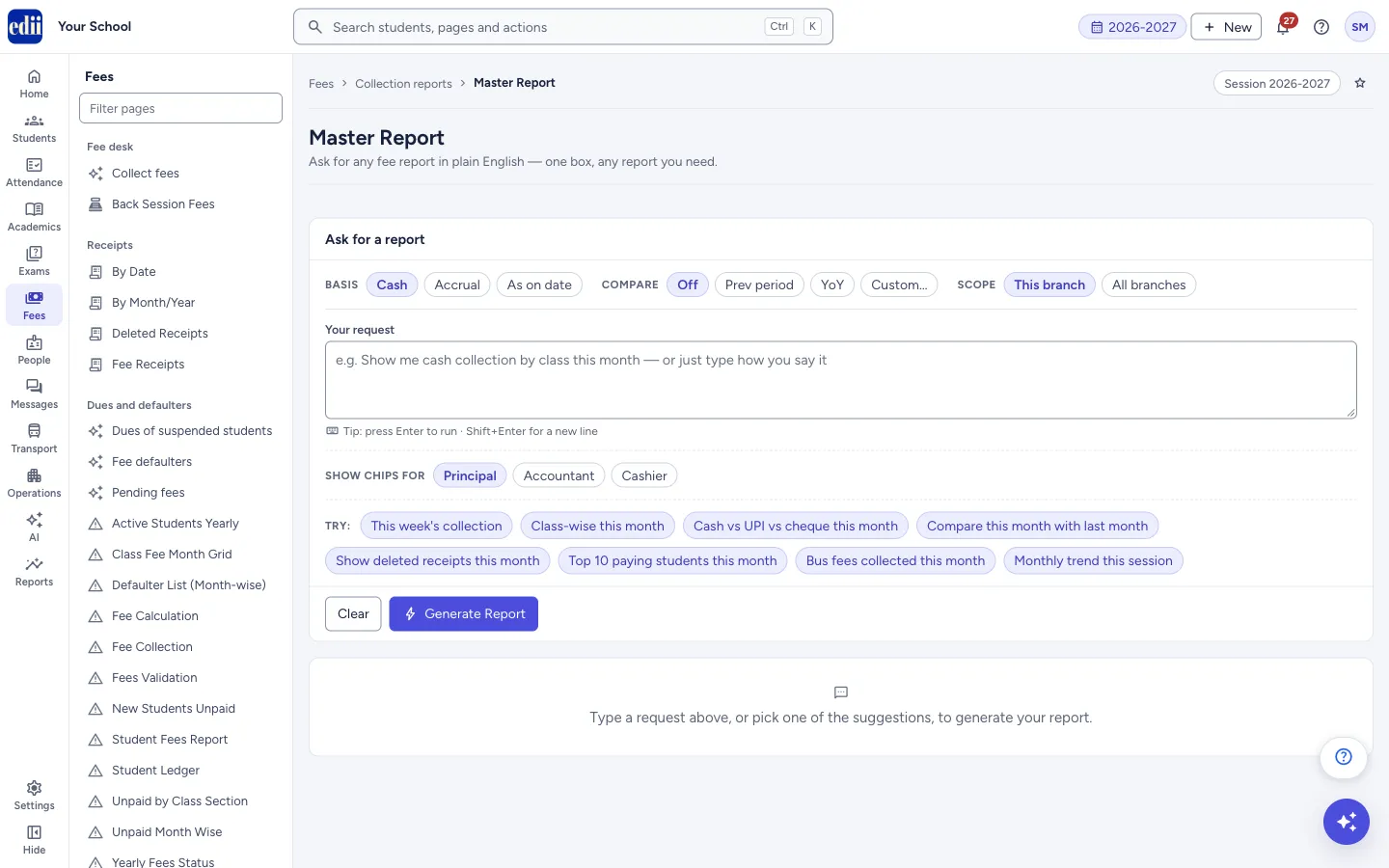
The page is headed Master Report with the line Ask for any fee report in plain English — one box, any report you need. You type a request in Your request, for example Show me cash collection by class this month, and select Generate Report. EDII reads the request, picks the period and the filters, and shows the result.
Three small switches sit above the box: Basis (Cash, Accrual, As on date), Compare (Off, Prev period, YoY, Custom…) and Scope (This branch, All branches). Below the box, Show chips for (Principal, Accountant, Cashier) changes the suggested requests under Try:. Select a suggestion to put it in the box.
Nothing is shown when the page opens. It shows Type a request above, or pick one of the suggestions, to generate your report. Because the request is read by EDII, check the Audit Footprint and the sentence at the top of the result to see how your request was understood.
Who uses it and when
Section titled “Who uses it and when”The principal, the accountant or the cashier, for a question that the fixed reports do not answer.
Before you start
Section titled “Before you start”- Fee receipts must already be entered. Write the request in simple words; mention the period, the class or the fee head you mean.
Where to find it
Section titled “Where to find it”- In school.edii.in: Fees › Collection reports › Master Report
- Or press Ctrl K (⌘ K on a Mac) and type Master Report.
- Address:
school.edii.in/view/master-report - Who can see it: Staff whose role includes Fees access. Shown only when your school uses Finance in EDII. Only some schools have this page. If it is missing from your menu, ask your school admin.
 Open a bigger pictureतस्वीर बड़ी करें
Step by step
Section titled “Step by step”1. Type a request or pick a suggestion
Section titled “1. Type a request or pick a suggestion”Type in Your request, or choose a suggestion under Try:. The suggestions depend on Show chips for; for the principal they include This week’s collection, Class-wise this month and Cash vs UPI vs cheque this month. Press Enter to run, or Shift+Enter for a new line.
2. Set the basis, comparison and scope (optional)
Section titled “2. Set the basis, comparison and scope (optional)”Basis starts as Cash. Compare starts as Off; Prev period and YoY (same period last year) add a comparison, and Custom… lets you type a period such as last quarter. Scope starts as This branch; All branches asks for the whole group.
3. Generate
Section titled “3. Generate”Select Generate Report. The button reads Generating… while it works, up to a minute. A request shorter than three letters shows Please type what report you need.
4. Check how the request was understood
Section titled “4. Check how the request was understood”Read the blue sentence at the top and the date chips. Audit Footprint shows the generated time, the period, how many rows were scanned and matched, how many deleted receipts were left out, the filters applied and any warnings. A filter with a warning sign was added by EDII’s reading of your words; confirm it is what you meant.
5. Read the result
Section titled “5. Read the result”The tiles show Total Collected, Transactions, Discount Given and Mode Mix; with a comparison on, each shows the earlier figure and the change. A chart and a table follow, and a Comparison table when you asked for one. The table’s last row is the total. Select a name in the first columns of a grouped row to open Underlying receipts in a side panel.
6. Share, print or export
Section titled “6. Share, print or export”L / Cr or Full numbers switches how big amounts are written. Share opens WhatsApp with a short summary ready to send. Print prints the page on A4. CSV opens a box where you state a Purpose and choose whether to Mask PII columns, then select Export.
7. Start again
Section titled “7. Start again”Select Clear to empty the request and the result. Your last requests are kept under Recent:; select one to run it again, or select Clear next to them to forget them.
Fields and filters
Section titled “Fields and filters”| Field | What it is | Notes |
|---|---|---|
| Your request | What report you want, in your own words. | Required, at least three letters. |
| Basis | Cash, Accrual or As on date. | Starts as Cash. The Audit Footprint shows the basis used. |
| Compare | Adds a comparison with an earlier period. | Off, Prev period, YoY or Custom… |
| Scope | This branch or All branches. | Starts as This branch. |
| Show chips for | Chooses which suggested requests are shown. | Principal, Accountant or Cashier. |
| Purpose (CSV box) | Why the file is being exported. It is kept for the audit. | Required. Annual audit, Board / committee paper, Parent query reply, Refund / TC processing, Internal review or Other. |
| Mask PII columns (CSV box) | Hides parent and student details in the file. | Ticked by default. |
Buttons
Section titled “Buttons”| Button | What it does | What happens next |
|---|---|---|
| Generate Report | Builds the report from your request. | The result shows. The button is off while it works. |
| Clear | Empties the request and the result. | The page returns to its first state. |
| L / Cr (Full numbers) | Switches big amounts between lakh and crore and full numbers. | The figures in the table change their look. |
| Share | Opens WhatsApp with a short summary of the report. | WhatsApp opens in a new tab. Nothing is sent until you send it there. |
| Prints the page on A4. | The print window opens. | |
| CSV | Exports the table. | A box asks for the Purpose and the masking choice; select Export to download. |
| WhatsApp (in a phone cell) | Opens WhatsApp for that parent with a fee reminder ready. | WhatsApp opens in a new tab. Nothing is sent until you send it there. |
Columns
Section titled “Columns”| Column | Meaning |
|---|---|
| Total Collected | The total collected for the request. |
| Transactions | How many receipts match. |
| Discount Given | The discount on those receipts. |
| Mode Mix | The collection by payment mode. |
| Table and chart | They come from your request, so the columns change with it. The last row is the total. |
| Audit Footprint | Generated time, period, rows scanned and matched, rows excluded as deleted with their total, filters applied and warnings. |
After you save
Section titled “After you save”- Reading and generating change nothing. Share and WhatsApp only open a message window; EDII sends nothing itself.
Good to know
Section titled “Good to know”- Deleted receipts are left out of the figures; the Audit Footprint says how many and for how much.
- If a table has more rows than are shown, a note says so. The totals cover all rows and the CSV has the full list.
- The CSV export asks for a purpose and, by default, masks parent names and phone numbers, student names and IDs, and cheque numbers.
- All branches is for school groups; if a branch is missing from a group total, a yellow note says so.
Messages you may see
Section titled “Messages you may see”| Message | What it means | What to do |
|---|---|---|
| Please type what report you need. | The request is empty or too short. | Type what you want, for example Today’s collection by cashier. |
| Could not generate the report. Please try rephrasing your request. | EDII could not build a report from the request. | Say it differently, with a period and what to group by. |
| The report service did not respond in time. Please try again or narrow the request. | The report took too long or the connection failed. | Try again, or ask for a shorter period. |
| No transactions found for this request. | The request matched no receipts. | Widen the period or remove a filter. |
| Please state a purpose before exporting. | The Purpose in the CSV box is empty. | Choose a purpose and select Export. |
| Nothing to export. | There is no table. | Generate a report first. |
| Nothing to share yet. | There is no result to share. | Generate a report first. |
| No phone number on this row. | The row has no phone number for the WhatsApp button. | Use the student’s record to find the number. |
| Could not load the underlying transactions. | The side panel could not load. | Try again. |
- Put the period and the grouping in the request, for example Class-wise collection this month.
- Compare this month with last month is on the Principal suggestions.
Stuck? Try this
Section titled “Stuck? Try this”| Problem | Likely cause | What to do |
|---|---|---|
| The report is not what I meant | EDII read the request differently. | Check the sentence at the top and the filters in Audit Footprint, then rephrase. |
Did this page help?क्या इस पेज से मदद मिली?
Thanks! Glad it helped.धन्यवाद! अच्छा लगा कि काम बन गया।
Sorry about that. Ask in your own words, or write to us.माफ़ कीजिए। अपने शब्दों में पूछें, या हमें लिखें।