
Screen guide · Web app
Attendance Dashboard (students)
Today's student attendance for the whole school, with charts for the session, the most absent students, students below 75 percent, and the state of absence follow-ups.
यह पेज अंग्रेज़ी में है। कुछ समझ न आए तो ।
This is the Attendance Dashboard under Student attendance. The staff version has the same menu name; see Attendance Dashboard under Staff attendance for teachers.
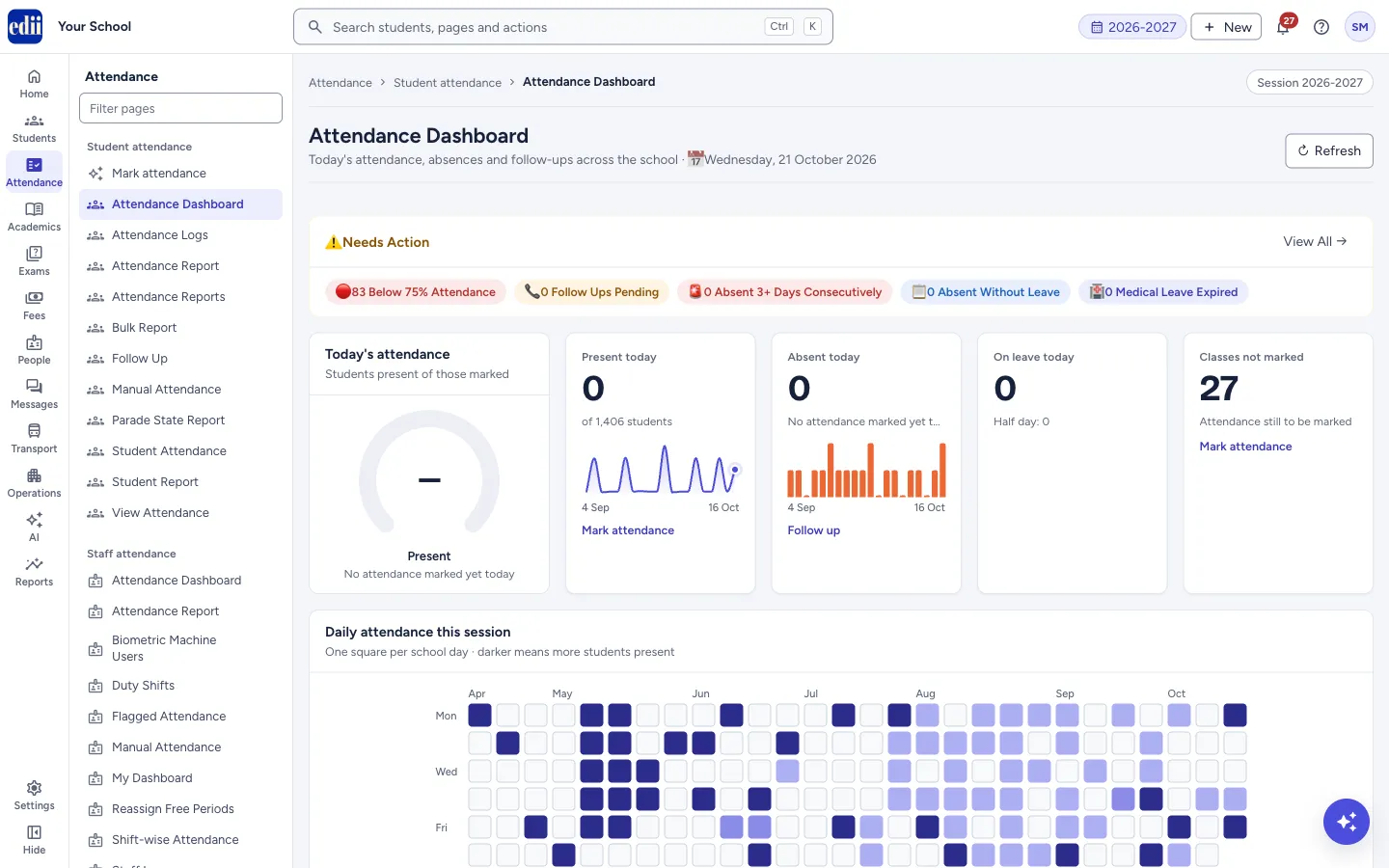
The top of the page shows Needs Action, a row of counts that each open the screen where you can act. Below it are today’s numbers, the attendance of the session month by month, a class-wise table, the most absent students, students below 75 percent, students with perfect attendance, and the follow-up status of today’s absences.
The dashboard only shows saved data. Select Refresh to load it again.
Who uses it and when
Section titled “Who uses it and when”The principal, the vice principal and the attendance in-charge, every morning after the teachers have marked attendance, and for the weekly review.
Before you start
Section titled “Before you start”- Teachers must have marked attendance on Mark attendance. Classes that are not marked yet count under Classes not marked.
Where to find it
Section titled “Where to find it”- In school.edii.in: Attendance › Student attendance › Attendance Dashboard
- Or press Ctrl K (⌘ K on a Mac) and type Attendance Dashboard.
- Address:
school.edii.in/view/attendance-dashboard-new - Who can see it: Staff whose role includes Students or Attendance access. Shown only when your school uses Student in EDII. If it is missing from your menu, ask your school admin.
 Open a bigger pictureतस्वीर बड़ी करें
Step by step
Section titled “Step by step”1. Start with Needs Action
Section titled “1. Start with Needs Action”The five chips are counts: Below 75% Attendance, Follow Ups Pending, Absent 3+ Days Consecutively, Absent Without Leave and Medical Leave Expired. Select Below 75% Attendance to open Attendance Reports on its Below 75% tab. Select any other chip, or View All, to open Follow Up.
2. Read today’s boxes
Section titled “2. Read today’s boxes”Today’s attendance shows the share of marked students who are present, with a line such as No attendance marked yet today before any class is marked. Present today, Absent today, On leave today (with Half day: N below) and Classes not marked give the counts. The small chart in a box shows the last days. The link under Present today and Classes not marked opens Mark attendance; the link under Absent today opens Follow Up.
3. Look at the session
Section titled “3. Look at the session”Daily attendance this session has one square per school day; a darker square means more students were present, and a hollow square means attendance was not marked that day. School Attendance Trend is a line by month: choose Last 5 months, Last 12 months or Whole session. The chart marks the 75 percent line.
Today’s Class Snapshot shows attendance percentage for each class today. Absence by Day of Week and Monthly Attendance Overview show the same data by weekday and by month. Monthly Highlights names the Best Month, Lowest Month, Current Month and Year Average.
4. Check classes and the most absent students
Section titled “4. Check classes and the most absent students”Class-wise Attendance Summary lists every class and section with Total, Present, Absent, Monthly % and whether attendance is Marked today. Open Reports → opens the class-wise report.
Most Absent Students ranks students by days absent. Choose Last Week, This Month or This Year. Follow up next to a student opens Follow Up.
5. Look at students below 75 percent
Section titled “5. Look at students below 75 percent”Below 75% Attendance counts the students in three groups: Critical <65%, Warning 65-70% and Border 70-75%, and lists the first six with how many more days they need to reach 75 percent. View All opens the report. Next to Perfect Attendance you see students at 100 percent so far this year (up to 12 names).
Follow Up Status shows today’s absent students by stage: Not Contacted, Contacted / Awaiting, Reason Received, and Escalated and Resolved when there are any. Go to Follow Up Module → opens Follow Up.
Buttons
Section titled “Buttons”| Button | What it does | What happens next |
|---|---|---|
| Refresh | Loads the dashboard again. | The numbers update. |
| View All → (Needs Action) | Opens Follow Up. | |
| Last 5 months / Last 12 months / Whole session | Chooses how many months the trend chart shows. | Only the chart changes. |
| Last Week / This Month / This Year | Chooses the period of the Most Absent Students list. | Only the list changes. |
| Open Reports → | Opens Attendance Reports. | |
| Open Follow Up → | Shown under the list of students below 75 percent, when there are any. It opens Follow Up. | Nothing is sent from the dashboard. Contact the families from Follow Up. |
| Mark Attendance → | Shown in the yellow bar Attendance Not Marked Yet: when some classes are unmarked. It opens Mark attendance. | Nothing is sent from the dashboard. Remind the teachers in person or by message. |
| Class chips in the yellow bar | Each chip names a class that is not marked yet. | Opens Mark attendance. |
Columns
Section titled “Columns”| Column | Meaning |
|---|---|
| Class | Class and section. |
| Total | Students on the roll. |
| Present | Students present today. |
| Absent | Students absent today. |
| Monthly % | Attendance percentage of the class this month, with a bar: green from 85%, amber from 75% to below 85%, red below 75%. |
| Marked | Yes when attendance of this class was marked today, No when not. |
Good to know
Section titled “Good to know”- The percentage of today is the students present out of the students whose attendance is marked. A class that is not marked is not counted in it.
- The dashboard changes nothing and sends nothing. Open Follow Up → and Mark Attendance → only open those screens.
- Students below 75 percent are the ones the 75% rule line on the charts refers to.
Messages you may see
Section titled “Messages you may see”| Message | What it means | What to do |
|---|---|---|
| Could not load attendance dashboard | The numbers could not be fetched. | Check the internet connection and select Refresh. |
- Check Classes not marked after the first period. The sooner absences are marked, the sooner parents are told.
- Use Most Absent Students › This Month in the weekly review to catch students who may drop out.
Stuck? Try this
Section titled “Stuck? Try this”| Problem | Likely cause | What to do |
|---|---|---|
| Today’s boxes show zero or a dash, and many classes are not marked. | Teachers have not marked attendance yet, or today is a holiday. | Check Classes not marked, ask those teachers to mark, then select Refresh. |
| A class is missing from the Class-wise table. | The class has no students for the session shown at the top of the screen. | Check the session and the class on the student screens. |
Did this page help?क्या इस पेज से मदद मिली?
Thanks! Glad it helped.धन्यवाद! अच्छा लगा कि काम बन गया।
Sorry about that. Ask in your own words, or write to us.माफ़ कीजिए। अपने शब्दों में पूछें, या हमें लिखें।