
Screen guide · Web app
Add Homework
Set homework for one class and section: a title, the date, the subject, a priority, instructions (which AI can draft in English or Hindi) and, if you want, image or PDF files.
यह पेज अंग्रेज़ी में है। कुछ समझ न आए तो ।
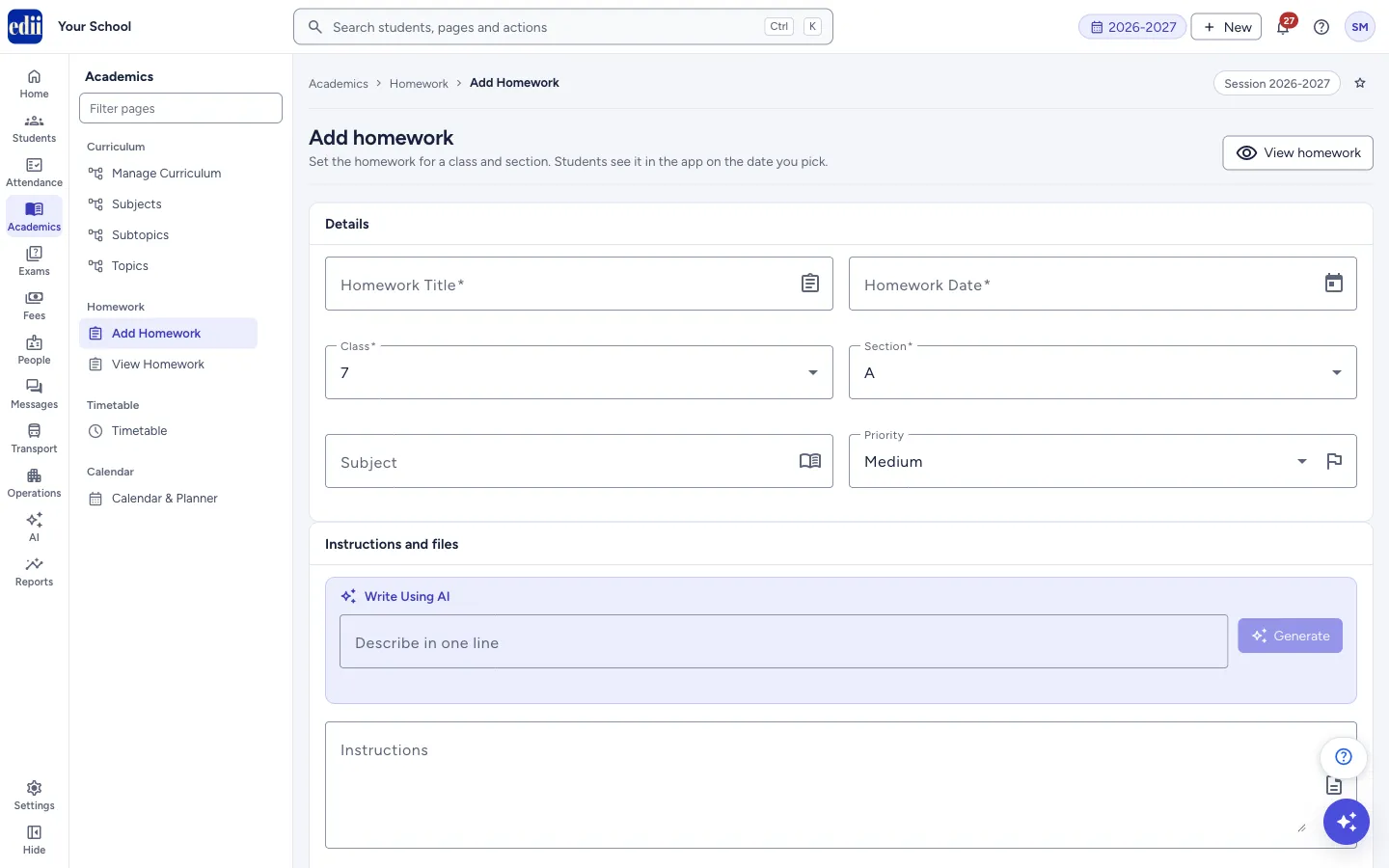
Add Homework is the form a teacher or the office uses to give homework to a class and section. The line under the heading says it: Students see it in the app on the date you pick.
The form has two boxes: Details and Instructions and files. At the bottom are Reset and Add Homework.
When the homework is saved, EDII opens View Homework.
Who uses it and when
Section titled “Who uses it and when”Subject teachers and the office, every day homework is given.
Before you start
Section titled “Before you start”- Classes and sections must exist. Students see homework in the EDII app of their class and section.
Where to find it
Section titled “Where to find it”- In school.edii.in: Academics › Homework › Add Homework
- Or press Ctrl K (⌘ K on a Mac) and type Add Homework.
- Address:
school.edii.in/add/add-homework - Who can see it: Staff whose role includes Students or Attendance access. Shown only when your school uses Student in EDII. If it is missing from your menu, ask your school admin.
 Open a bigger pictureतस्वीर बड़ी करें
Step by step
Section titled “Step by step”1. Fill the Details box
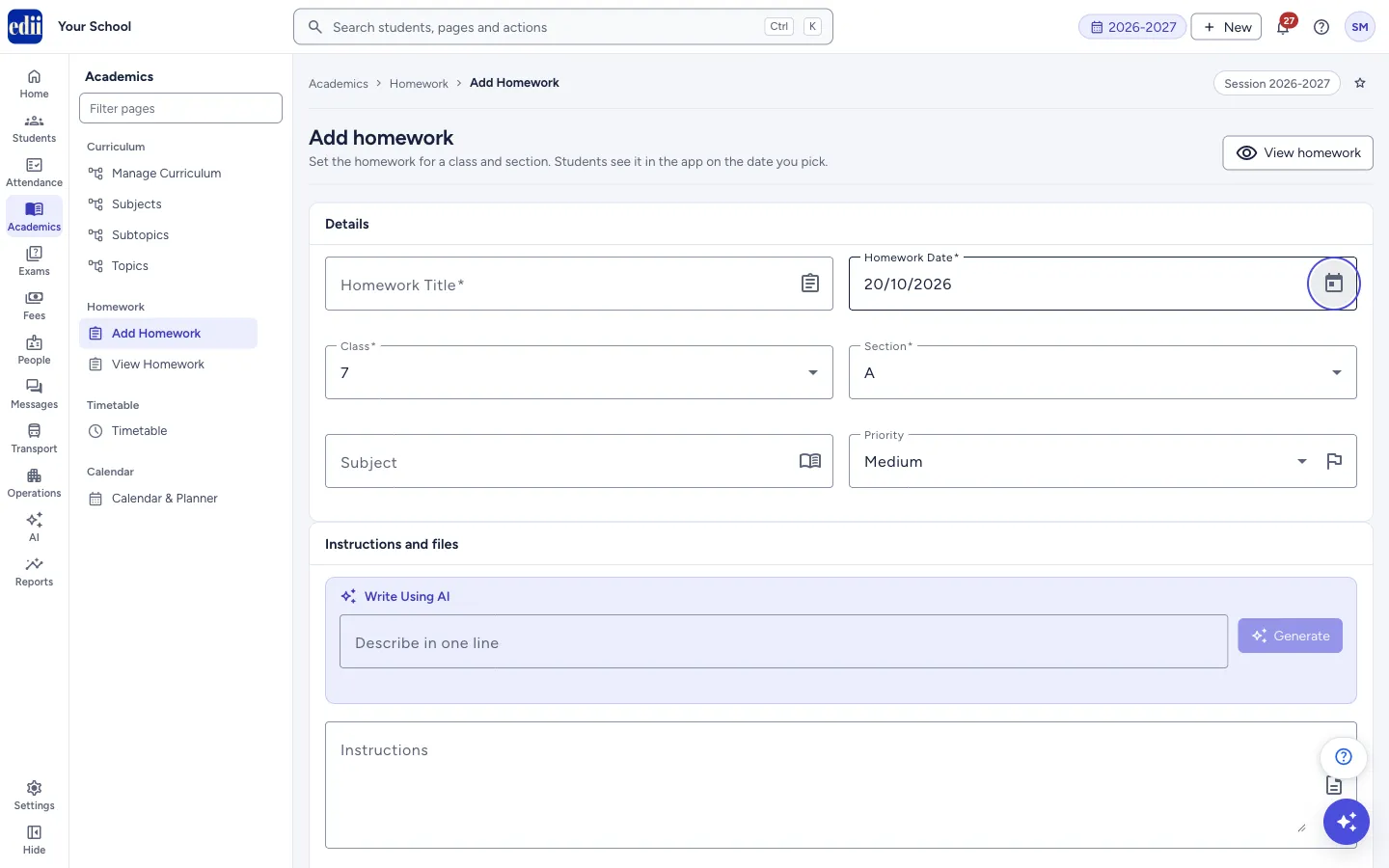
Section titled “1. Fill the Details box”Type the Homework Title (required). Choose the Homework Date (required; it starts as today and an earlier day cannot be picked). Choose the Class and Section (both required). Add the Subject if you wish, for example Mathematics, and the Priority: High, Medium (the default) or Low.
 Open a bigger pictureतस्वीर बड़ी करें
2. Write the instructions
Section titled “2. Write the instructions”Type what students must do in Instructions, for example Solve Q1–Q10 and upload a photo.
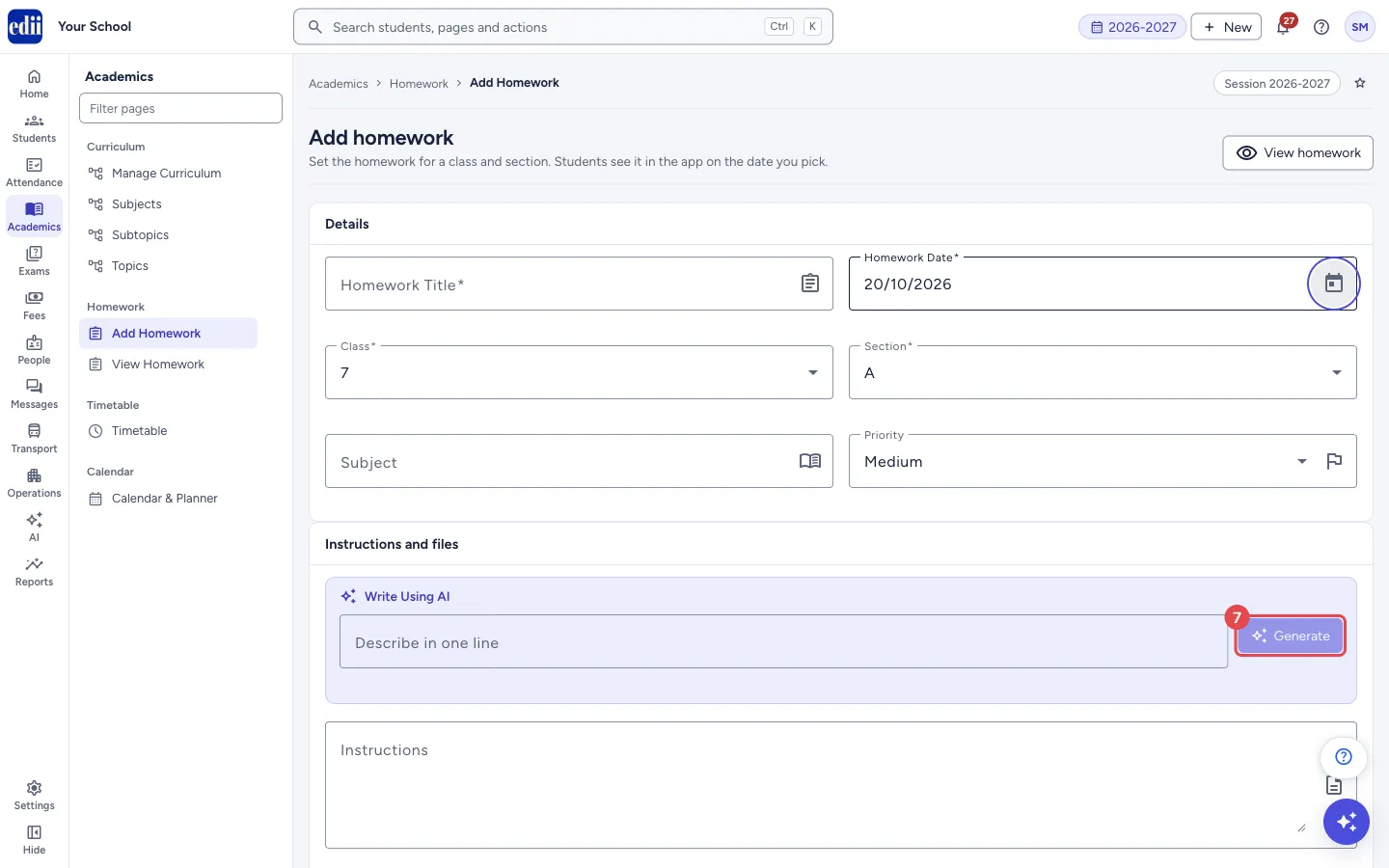
To get a draft, type one line in Describe in one line in the Write Using AI box and select Generate. The text appears in Instructions and a switch Language: English / Hindi lets you change the draft’s language. The title you typed is copied into Describe in one line when you leave the title box, but nothing is generated until you select Generate. Always read the draft and correct it before you save.
 Open a bigger pictureतस्वीर बड़ी करें
3. Attach files (optional)
Section titled “3. Attach files (optional)”Under Upload Files (Images, PDFs) click the box and choose one or more images or PDF files. Each file is listed with a cross to remove it. When there is no file, the note Attach the question image if you want AI grading. shows: a homework with no file is never AI-graded.
4. Add the homework
Section titled “4. Add the homework”Select Add Homework. The button reads Uploading… while files go up and Saving… while it saves. The message Home Work Added shows and the View Homework page opens.
Reset clears the whole form. It is greyed out while a save is in progress.
Fields and filters
Section titled “Fields and filters”| Field | What it is | Notes |
|---|---|---|
| Homework Title | A short name for the homework. | Required. Error: Homework title is required. |
| Homework Date | The day students see the homework. | Required. Starts as today. Earlier days cannot be picked. Error: Date is required. |
| Class, Section | Who the homework is for. | Required. |
| Subject | The subject, typed in. | Optional. |
| Priority | High, Medium or Low. | Medium by default. |
| Describe in one line | The line AI uses to write the instructions. | Needed before Generate is available. |
| Instructions | What students must do. | Needed unless you attach a file. |
| Upload Files (Images, PDFs) | Question images or PDFs. | Optional. Several files can be chosen. |
Buttons
Section titled “Buttons”| Button | What it does | What happens next |
|---|---|---|
| View homework | Opens View Homework. | Nothing you typed is kept. |
| Generate | Writes a draft of the instructions with AI from your one line. | The draft fills Instructions. Content generated successfully shows. |
| Reset | Clears the form. | Priority goes back to Medium. |
| Add Homework | Saves the homework. | Home Work Added, then the View Homework page. |
After you save
Section titled “After you save”- The homework appears in View Homework for that class, section and date, and students see it in the app on the date you picked.
Good to know
Section titled “Good to know”- A homework needs either instructions or a file. With neither, you see Add instructions or attach a file.
- A homework with no file is saved, but it cannot be AI-graded.
- Class, section, title and date are required. When one is missing, the message names it, for example Please fill a valid Homework Title, Class.
Messages you may see
Section titled “Messages you may see”| Message | What it means | What to do |
|---|---|---|
| Add instructions or attach a file. | There is no text and no file. | Write the instructions or attach a file. |
| Please fill a valid Homework Title, Homework Date, Class, Section. | One or more required boxes are empty (only the ones missing are named). | Fill them. |
| Please enter a description first | You selected Generate with the one-line box empty. | Type one line first. |
| AI generation failed / Failed to generate content | The AI draft could not be written. | Try again, or type the instructions yourself. |
| Could not upload the attached file(s). Please check your internet connection and try again. | A file did not go up. | Check the connection and select Add Homework again. |
| Bad/Slow Internet Connection, Please check your internet connection | The homework could not be saved. | Check the connection and try again. |
- Use the AI draft as a start only. Check the facts and the level before saving.
- Attach the question image if you want AI grading.
Stuck? Try this
Section titled “Stuck? Try this”| Problem | Likely cause | What to do |
|---|---|---|
| Students in the class did not see the homework. | The wrong class or section was chosen, or the date is a later day. | Open View Homework for that class and date and check. |
Did this page help?क्या इस पेज से मदद मिली?
Thanks! Glad it helped.धन्यवाद! अच्छा लगा कि काम बन गया।
Sorry about that. Ask in your own words, or write to us.माफ़ कीजिए। अपने शब्दों में पूछें, या हमें लिखें।