
Screen guide · Web app
Templates
The built-in certificate designs for student and occasion certificates, each with a preview that shows a sample certificate.
यह पेज अंग्रेज़ी में है। कुछ समझ न आए तो ।
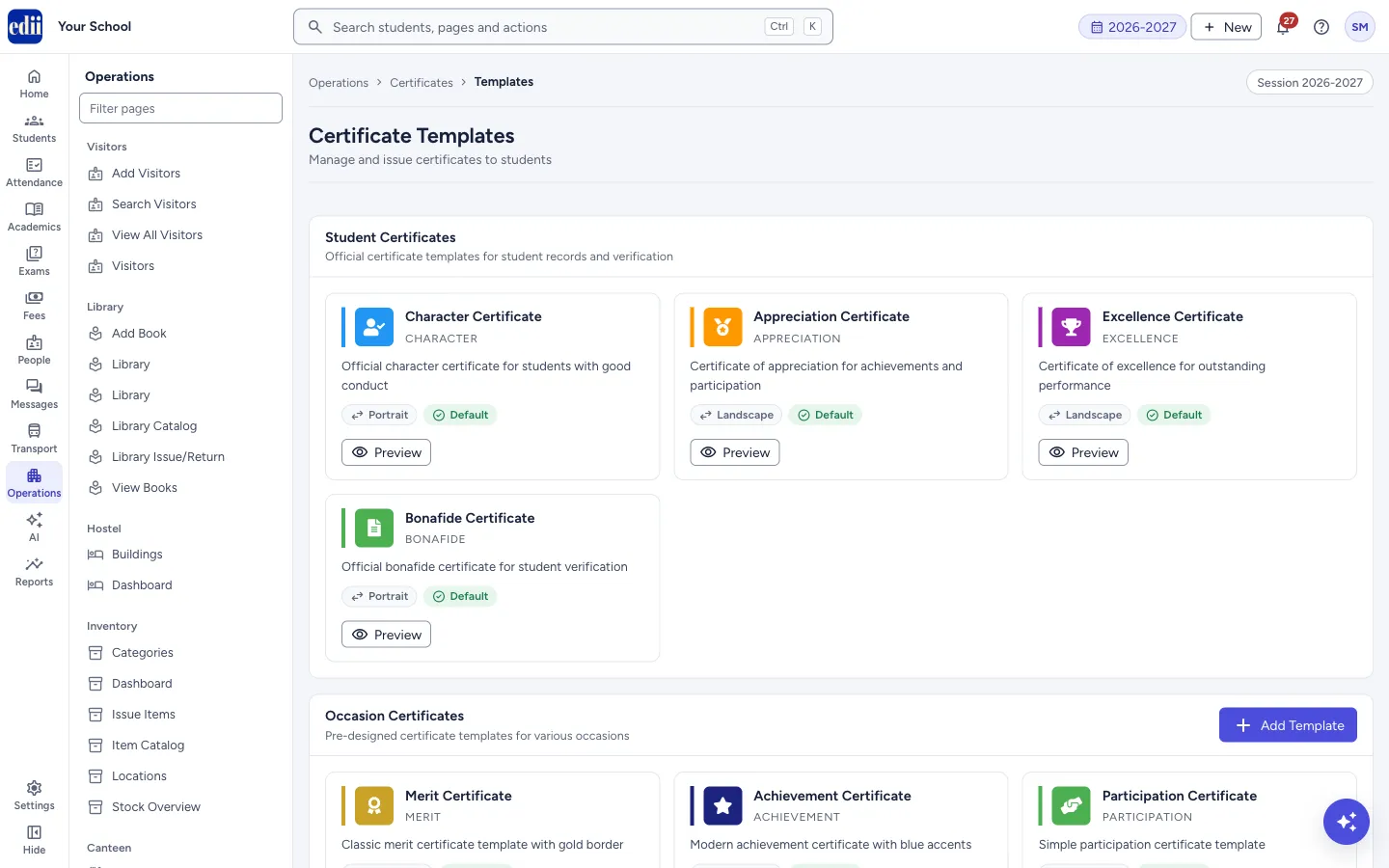
Templates (the page heading is Certificate Templates) shows the certificate designs EDII has ready. They are in two groups. Student Certificates has Character Certificate, Appreciation Certificate, Excellence Certificate and Bonafide Certificate. Occasion Certificates has Merit Certificate, Achievement Certificate, Participation Certificate, Sports Certificate and Good Conduct Certificate.
Each card shows the template’s name and type, a short description, whether the page is Portrait or Landscape, and a Default tag. Select Preview to see the design with sample details.
The built-in templates cannot be edited or deleted, and a new template cannot be added yet. Select Add Template and EDII only shows Template editor coming soon!. The page is shown only when the school has the Certificates module switched on.
Who uses it and when
Section titled “Who uses it and when”The school office, to choose the design before issuing a certificate.
Where to find it
Section titled “Where to find it”- In school.edii.in: Operations › Certificates › Templates
- Or press Ctrl K (⌘ K on a Mac) and type Templates.
- Address:
school.edii.in/certificate/templates - Who can see it: Shown only when your school uses Certificates in EDII. If it is missing from your menu, ask your school admin.
 Open a bigger pictureतस्वीर बड़ी करें
Step by step
Section titled “Step by step”1. Find the design you need
Section titled “1. Find the design you need”Look through the two groups. Portrait templates (for example Character Certificate and Bonafide Certificate) are letters; landscape templates are decorated certificates.
2. Preview a template
Section titled “2. Preview a template”Select Preview on a card. A window shows the certificate with sample details (a sample student, class 10-A, a sample school name and the date of today). Close the window when you are done. Nothing is saved.
3. Use a template
Section titled “3. Use a template”To give a certificate, open Issue Certificate and choose the certificate type and the template there.
Buttons
Section titled “Buttons”| Button | What it does | What happens next |
|---|---|---|
| Preview | Shows the template with sample details. | A window opens. |
| Add Template | Meant to add your own template. | EDII shows Template editor coming soon!. |
| Edit, Delete | Shown only on templates that are not built in. The built-in ones do not show them. | Delete asks Delete template? first. |
Good to know
Section titled “Good to know”- All the templates now on the page are built in and marked Default, so none of them can be edited or deleted.
Messages you may see
Section titled “Messages you may see”| Message | What it means | What to do |
|---|---|---|
| Template editor coming soon! | Adding or editing a template is not available yet. | Use one of the ready templates. |
| Default templates cannot be deleted | You tried to delete a built-in template. | Nothing to do. |
Did this page help?क्या इस पेज से मदद मिली?
Thanks! Glad it helped.धन्यवाद! अच्छा लगा कि काम बन गया।
Sorry about that. Ask in your own words, or write to us.माफ़ कीजिए। अपने शब्दों में पूछें, या हमें लिखें।