
Screen guide · Web app
Fees Master
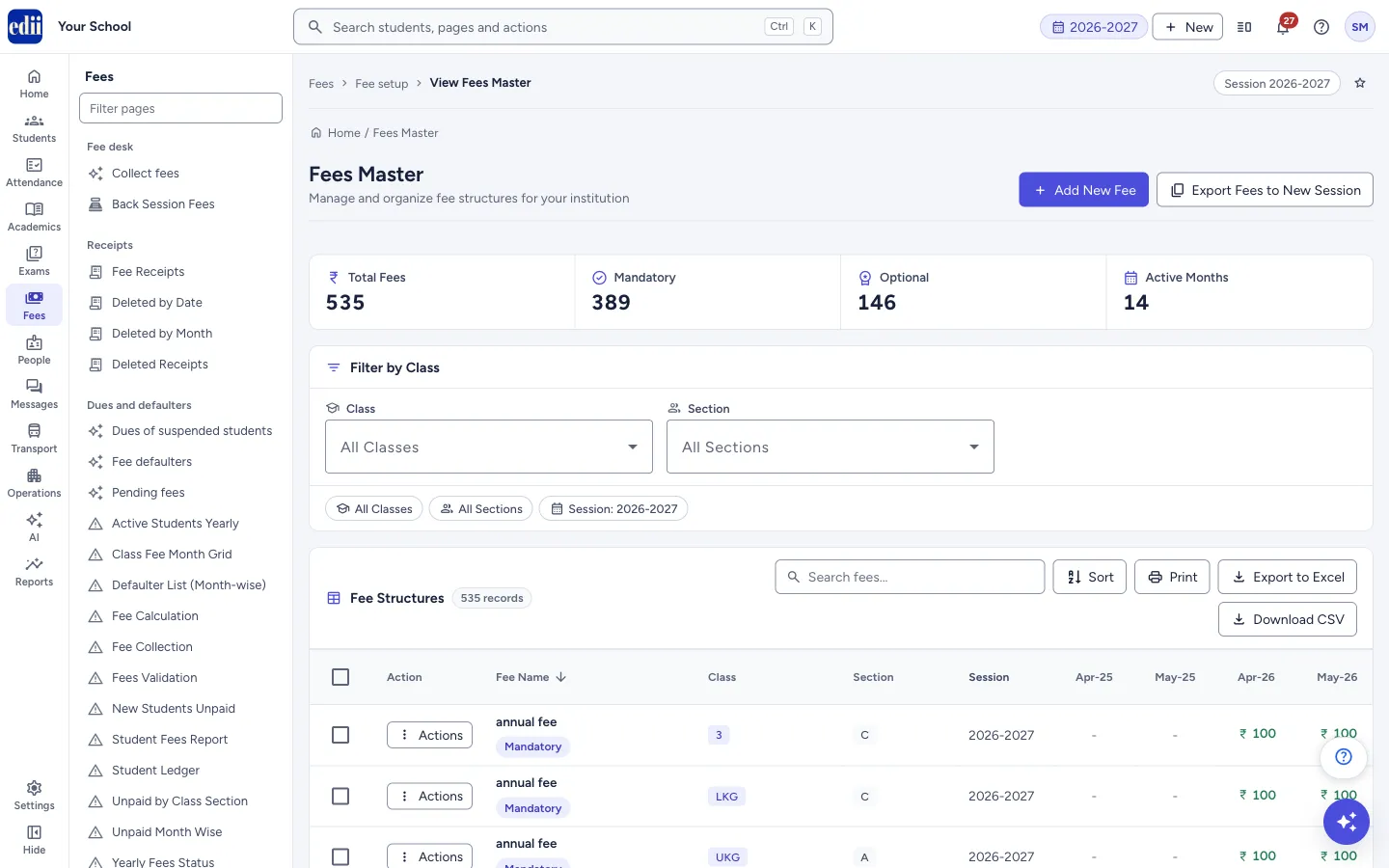
The school's fee structure for the open session in one table: every fee with its class, section, session and the amount in each month, with editing, copying, deleting, export to a new session, print and download.
यह पेज अंग्रेज़ी में है। कुछ समझ न आए तो ।
Fees Master (menu name Fees Master, breadcrumb View Fees Master) lists every fee head created in Add Fees Master for the session that is open in EDII. Four counters at the top show Total Fees, how many are Mandatory, how many are Optional, and the number of Active Months found in the list.
Each row is one fee for a class and section: the fee name with a badge for its type (Mandatory or Optional, a special category or a stream if it has one), the Class, Section, Session, one column for each month with the amount, and Last Modified and Modified By. A month the fee does not cover shows a dash.
From the Actions button of a row you can Edit, Duplicate or Delete the fee. You can also tick several rows to change or delete them together, and copy a whole session’s fees to a new session.
Who uses it and when
Section titled “Who uses it and when”The accounts office uses it when the fee structure of a session is set up or reviewed, when an amount changes, and when a fee is no longer charged.
Before you start
Section titled “Before you start”- Check the session at the top right of the page. The table, the counters and every change you make here are for that session.
- Fees Master decides what students are charged. Check the amounts and months before you save an edit or a bulk change.
Where to find it
Section titled “Where to find it”- In school.edii.in: Fees › Fee setup › Fees Master
- Or press Ctrl K (⌘ K on a Mac) and type Fees Master.
- Address:
school.edii.in/edit/edit-fees-master-v2 - Who can see it: Staff whose role includes Fees access. Shown only when your school uses Finance in EDII. If it is missing from your menu, ask your school admin.
 Open a bigger pictureतस्वीर बड़ी करें
Step by step
Section titled “Step by step”1. Filter the list
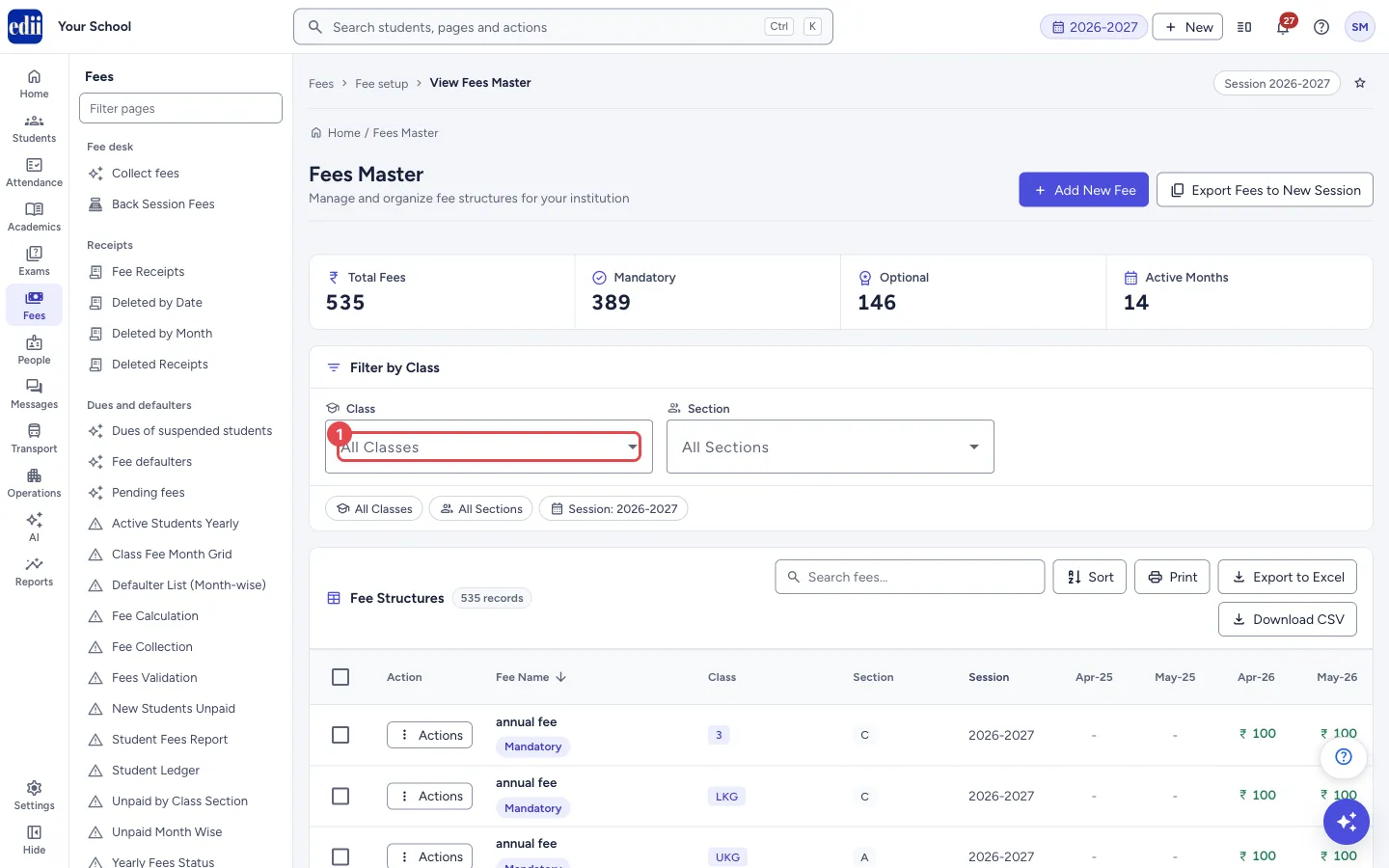
Section titled “1. Filter the list”Under Filter by Class, open Class to see only the fees of one class. Open Section to see only one section. The chips below show the filters that are on, and Clear Filters (or the remove button on a chip) switches them off.
Type in Search fees… to keep the rows whose fee name, type, special category or stream contains what you typed. Sort (or the heading Fee Name) sorts the rows by fee name, A to Z and back.
 Open a bigger pictureतस्वीर बड़ी करें
2. Edit one fee
Section titled “2. Edit one fee”Select Actions in the row and choose Edit. The window Edit Fees Master (Update fee details and configurations) opens with these parts: Fees Name and Amount; Class, Section and Fees For; Additional Options (Fees Sub Type, Skip Fees (Special Category), Add Fees Category, Print Priority, Select Stream); Students Selection; and Applicable Months.
Change what is needed and select Update Fee. When it is saved you see Fees: <name> Successfully Updated and the list reloads. Fees Name, Amount (digits only, up to 7), Class, Fees For and Applicable Months are required.
3. Change who is charged
Section titled “3. Change who is charged”In the Edit window, Fees For shows All or Selected. Changing a fee for All students to Selected makes it an optional fee, and EDII shows a note: you must then pick every student the fee applies to. For a Selected fee, use Search & Add Students to add students and the cross on a tag to remove one. Remove Other Classes removes the chosen students whose class is not one of the fee’s classes.
4. Copy a fee with Duplicate
Section titled “4. Copy a fee with Duplicate”Choose Duplicate in the Actions menu. Add Fees Master opens with the details of that fee already filled in. Change the class, section, amount or months and select Add Fees to create the new fee. The original is not changed.
5. Change or delete many fees
Section titled “5. Change or delete many fees”Tick the box in front of each fee, or the box in the heading to tick every fee in the list. Bulk Edit (N) and Delete Selected (N) then appear above the table.
Bulk Edit (N) opens a window with four choices: Change Amount, Change Applicable Months, Change Skip Special Category and Change Print Priority. Tick only what you want to change, fill it in, and select Apply to N Fee(s). Everything you do not tick stays as it is for each fee.
Delete Selected (N) asks Are you sure you want to delete N selected fee(s)? This action cannot be undone! and deletes them one by one after you select Delete all fees.
6. Delete one fee
Section titled “6. Delete one fee”Choose Delete in the Actions menu. A window asks Are You Sure You Want to Delete ?. Select Delete fee to delete, or Cancel. When it is done you see Successfully deleted fee details.
7. Copy all fees to a new session
Section titled “7. Copy all fees to a new session”Select Export Fees to New Session. In the window Bulk Export Fees to New Session, choose Source Session (Copy From) and Target Session (Copy To). The two must be different. EDII warns that it will create new fee entries in the target session based on the fees of the source session, and that duplicate fees (same name, class, section) are skipped.
Select Export Fees. The window then says Export Completed Successfully! with the number of fees exported and their names. Each copy is a new fee; the original fee stays as it is. To see the copies, change the session at the top right to the target session.
8. Print or download the list
Section titled “8. Print or download the list”Print prints the table, Export to Excel saves it as an Excel file and Download CSV saves it as a CSV file. They use the rows that are shown now. The printout is titled Fees Master followed by the class (only when you filtered by a class) and the session. In the Excel and CSV files a month the fee does not cover shows 0.
Buttons
Section titled “Buttons”| Button | What it does | What happens next |
|---|---|---|
| Add New Fee | Opens Add Fees Master. | You leave this page. |
| Export Fees to New Session | Copies the fees of one session to another session. | The window Bulk Export Fees to New Session opens. After a successful export, Fees exported successfully! Refreshing list… shows. |
| Actions > Edit | Changes one fee. | The window Edit Fees Master opens. |
| Actions > Duplicate | Starts a new fee from this one. | Add Fees Master opens with the details filled in. |
| Actions > Delete | Deletes the fee after you confirm. | The list reloads. |
| Bulk Edit (N) / Delete Selected (N) | Change or delete all the ticked fees. | A summary message shows and the list reloads. |
| Sort, Print, Export to Excel, Download CSV | Sort the rows by fee name, print the table, or save it as a file. | The rows are reordered, or the print window or the file opens. |
Columns
Section titled “Columns”| Column | Meaning |
|---|---|
| Fee Name | The name of the fee, with badges: Mandatory (for all students) or Optional (for selected students), a special category, or a stream. |
| Class, Section | The classes and sections the fee row covers. Only the first few are shown, then a +N tag. |
| Session | The session of the fee. |
| Month columns (for example Apr-26) | The fee amount for that month. A dash means the fee is not charged in that month. The columns are the months found in the fees on the screen. |
| Last Modified, Modified By | When the fee was last changed and by whom. |
After you save
Section titled “After you save”- Fee collection and the fee reports read the fees from this table. This page does not tell you what happens to dues already worked out for students, so after a big change open a student’s ledger and check the amounts.
- A fee that has payments against it cannot be deleted (see Messages).
Good to know
Section titled “Good to know”- Everything on this page is for the session open in EDII.
- Deleting a fee cannot be undone from this page. EDII refuses to delete a fee head that already has payments.
- When the school has locked fees in Preferences, a fee cannot be edited, deleted or exported.
- In Bulk Edit, only the choices you tick are changed. The Print Priority choices there run from 1 to 10.
- The Print Priority list in the Edit window runs from 1 to 20, the same as Add Fees Master.
- In the export to a new session, a fee that already exists in the target session with the same name, class and section is skipped, not overwritten. If all of them already exist, nothing is exported.
Messages you may see
Section titled “Messages you may see”| Message | What it means | What to do |
|---|---|---|
| Fees: <name> Successfully Updated | The edit was saved. | Nothing to do. |
| Updated N fee(s) successfully | The bulk edit finished. If some fees failed, the message adds how many failed. | Check the fees that failed and change them one by one. |
| No fees selected | You selected a bulk action with no fee ticked. | Tick at least one fee. |
| Please enter a valid amount | Change Amount is ticked in Bulk Edit but the amount is empty. | Type the new amount. |
| Please select at least one month | Change Applicable Months is ticked in Bulk Edit but no month is chosen. | Choose the months. |
| Successfully deleted fee details | The fee was deleted. | Nothing to do. |
| Successfully deleted all N fees | All the ticked fees were deleted. If some failed, you see Deleted N fees, M failed instead. | Check the list for the fees that remain. |
| There are fees payment done on this fees Head, Thus this fees cannot be deleted | A payment was already taken against this fee. | Keep the fee. You can still edit it. |
| Fees Is Locked, Please Ask the admin to unlock by navigating to the preference section | The school has locked fees. | Ask the school admin to unlock fees in Preferences. |
| Please Note that this is a Fees for ALL the students, Selecting the option as “Selected” will change te fees to a Optional Fees. Select all the students on which this fees is to be applied. | You changed Fees For from All to Selected in the Edit window. | Add every student who should pay the fee, or change Fees For back to All. |
| Please select at least one class first | Remove Other Classes was used with no class chosen. | Choose the class first. |
| No data to print / No data to export | There are no rows to print or save. | Clear the filters or the search. |
| Source and target sessions cannot be the same | The two sessions in the export window are the same. | Choose different sessions. |
| All fees already exist in target session. Skipped fees: <names> | Every fee of the source session is already in the target session. | Nothing was copied. Check the target session. |
| Bad/Slow Internet Connection, Please check your internet connection | The request did not reach EDII. | Check the internet and try again. |
- Use the Class filter before Bulk Edit so that you tick only the fees of that class.
- At the start of a session, use Export Fees to New Session and then correct the amounts of the new session here, instead of adding every fee again.
- Download the list to Excel before a bulk change so you have a record of the old amounts.
Stuck? Try this
Section titled “Stuck? Try this”| Problem | Likely cause | What to do |
|---|---|---|
| A month column shows a month of the previous year | At least one fee on the screen is set for that month. The columns are made from the months found in the fees shown. | Filter by class to see which fee has it, and correct its months with Edit. |
| The list is empty | The open session has no fees, or the filters and search remove every row. | Clear the filters and the search. If the session is new, use Export Fees to New Session or Add New Fee. |
| I cannot delete a fee | Payments were already taken against it, or fees are locked in Preferences. | Read the message shown. A fee with payments can only be edited. |
Did this page help?क्या इस पेज से मदद मिली?
Thanks! Glad it helped.धन्यवाद! अच्छा लगा कि काम बन गया।
Sorry about that. Ask in your own words, or write to us.माफ़ कीजिए। अपने शब्दों में पूछें, या हमें लिखें।