
Screen guide · Web app
ID Card
Make student ID cards, in EDII's standard layout or on your school's own artwork, and download the finished PDF files from the list of generated files.
यह पेज अंग्रेज़ी में है। कुछ समझ न आए तो ।
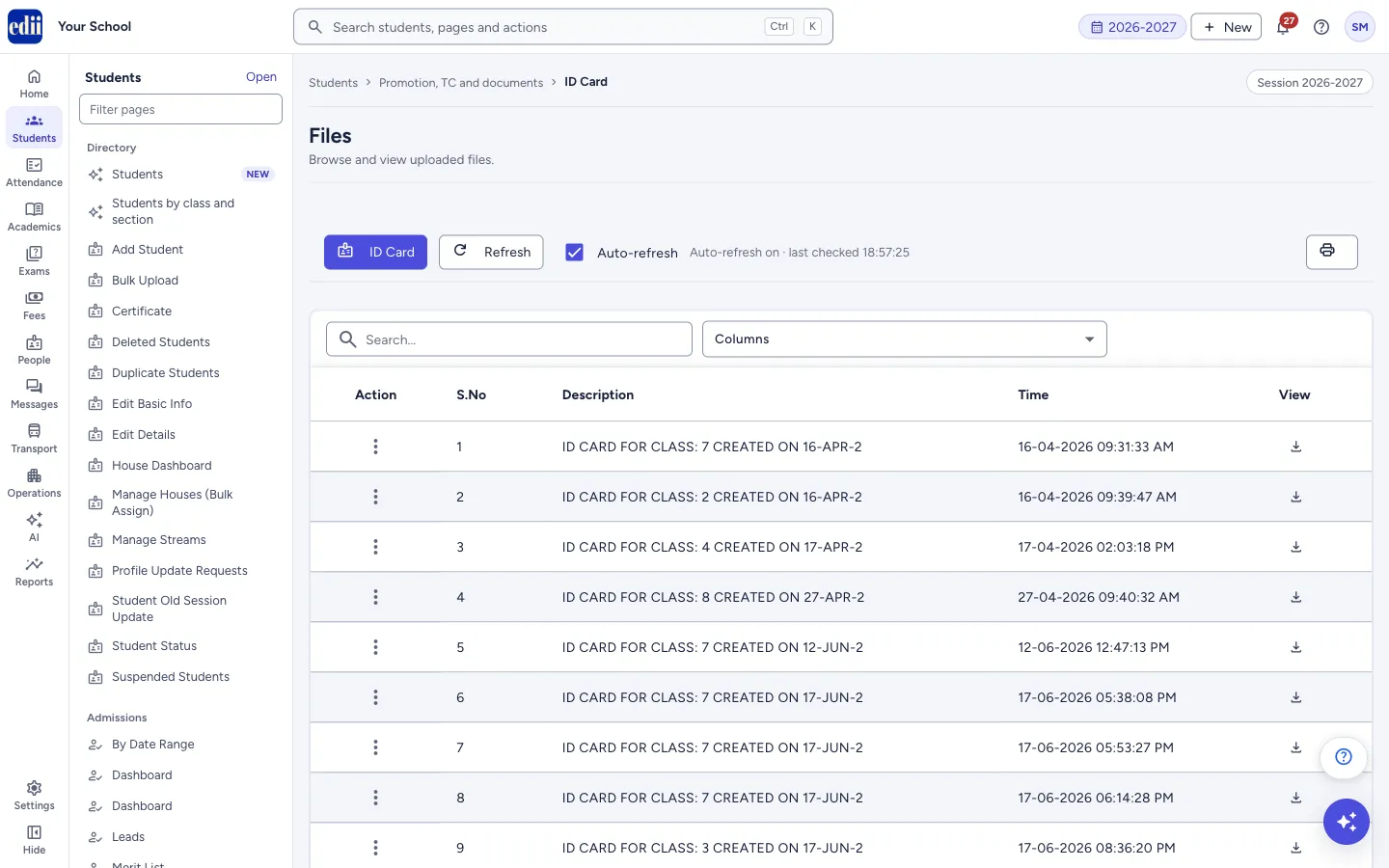
The screen is headed Files. At the top, the ID Card button opens a window to create ID cards. Below it, a table lists the files EDII has made for your school, such as ID card PDFs, with a description and the time each was made.
ID cards are made in the background. After you ask for them, the file appears in the list in a few minutes. Auto-refresh is on at the start, so you do not need to press Refresh. A message tells you when a new file is ready.
Who uses it and when
Section titled “Who uses it and when”The office, before the session starts or when new students need cards.
Before you start
Section titled “Before you start”- Student photos and details should be added in the student records. A student without a photo gets a card without a photo.
- For a custom card, keep a blank background picture ready. It must have no text, no labels and no photo frame, and it must be the exact size shown in the window.
Where to find it
Section titled “Where to find it”- In school.edii.in: Students › Promotion, TC and documents › ID Card
- Or press Ctrl K (⌘ K on a Mac) and type ID Card.
- Address:
school.edii.in/view/file-data - Who can see it: Staff whose role includes Students or Attendance or Reports access. Shown only when your school uses Student and Report in EDII. If it is missing from your menu, ask your school admin.
 Open a bigger pictureतस्वीर बड़ी करें
Step by step
Section titled “Step by step”1. Open the ID card window
Section titled “1. Open the ID card window”Select ID Card. The window Create ID cards opens with two choices at the top: Standard ID Card (existing EDII or school format) and Custom ID Card (your artwork, fixed safe layout).
2. Standard cards: choose the class
Section titled “2. Standard cards: choose the class”With Standard ID Card chosen, pick Select class. In ID cards per page choose School default or 4, 6, 8, 9, 10 or 12 per page. Then select Generate cards.
A message says “Queued”. The current ID card template is not changed. The window closes and the file appears in the list after a few minutes.
3. Custom cards: upload the background
Section titled “3. Custom cards: upload the background”With Custom ID Card chosen, step 1 is Upload blank background artwork. First choose Landscape (8 cards per A4 page) or Portrait (9 cards per A4 page). The window shows the exact Canvas size and print size for it. Landscape is 1011 × 638 px (85.6 × 53.98 mm). Portrait is 638 × 1011 px (53.98 × 85.6 mm).
Select the upload box and choose a PNG, JPG or JPEG file of exactly that size, up to 5 MB. Student text and the photo are placed by EDII in fixed zones, so keep those areas quiet in your design. The preview on the right shows the photo zone, the data zone and the branding area.
4. Custom cards: choose the fields and text size
Section titled “4. Custom cards: choose the fields and text size”In step 2, tick what should print on the card: School name, Student photo, Student name, Class / Section, Roll number, Admission number, Father name, Mother name, Date of birth, Phone, Address, Academic year, Blood group.
Each text field has its own Text size in px (school name 10 to 22, others 7 to 14). At most 7 detail fields can be ticked. The counter shows, for example, 5/7 details. School name and photo do not count.
5. Custom cards: choose who to print and generate
Section titled “5. Custom cards: choose who to print and generate”In step 3 choose All students, One class or Specific student, and then the Class and Student if asked. The window shows the number of students and the estimated pages.
Select Save template to keep the artwork and field choices for next time. Select Generate ID cards to queue the cards. If the artwork or the fields changed, the template is saved first.
6. Download the file
Section titled “6. Download the file”When the file appears in the list, select the download icon in the View column. The file opens in a new tab as a download. Select Refresh to check by hand.
 Open a bigger pictureतस्वीर बड़ी करें
Fields and filters
Section titled “Fields and filters”| Field | What it is | Notes |
|---|---|---|
| Standard ID Card / Custom ID Card | Which layout to use. | Standard keeps the EDII layout and needs only a class. |
| Select class | The class to make cards for (standard cards). | Required. |
| ID cards per page | How many cards go on a page (standard cards). | School default, 4, 6, 8, 9, 10 or 12. |
| Landscape / Portrait | The direction of the custom card. | Landscape gives 8 cards per A4 page, portrait gives 9. Changing it needs a new background. |
| Background artwork | The blank card picture for custom cards. | PNG, JPG or JPEG, exact size, up to 5 MB. |
| Fields and Text size | What prints on a custom card and how big. | At least one field. At most 7 detail fields. |
| All students / One class / Specific student | Who gets a custom card. | A class is needed for One class and Specific student. A student is needed for Specific student. |
| Auto-refresh | Checks for new files by itself. | On at the start. The text next to it shows the time of the last check. |
| Search… | Filters the files in the list. | Type part of the description or time. |
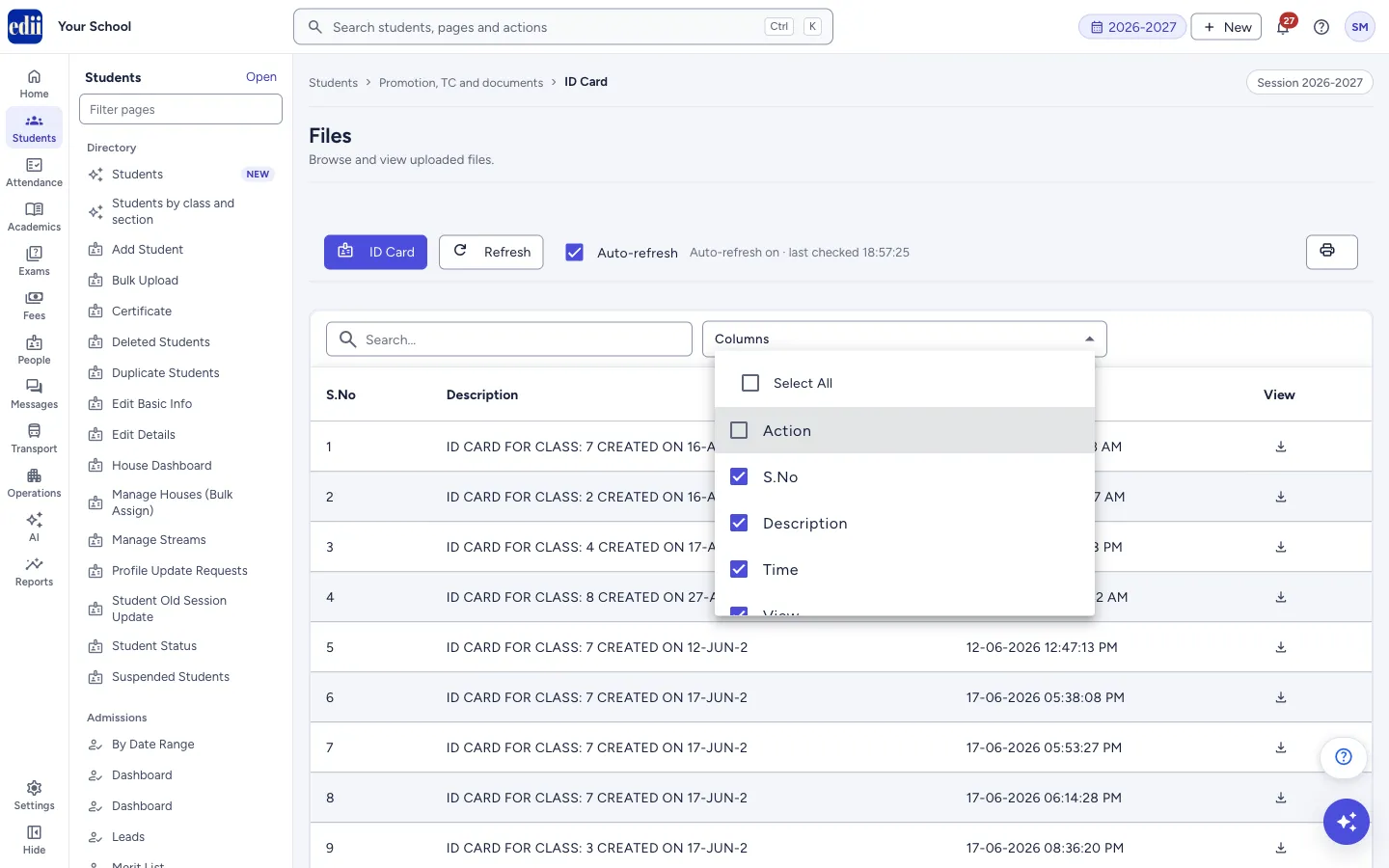
| Columns | Chooses which columns of the list to show. | Your choice is remembered. |
Buttons
Section titled “Buttons”| Button | What it does | What happens next |
|---|---|---|
| ID Card | Opens the window to create ID cards. | After cards are queued, the page checks for the new file more often for five minutes. |
| Refresh | Loads the list of files again. | The list shows the latest files. Your search and sort stay. |
| Generate cards | Queues standard ID cards for the class. | A message says Queued and the window closes. |
| Save template | Saves the custom artwork, fields and text sizes. | The message “Custom ID-card template saved.” shows. The button is disabled when there is nothing new to save. |
| Generate ID cards | Queues custom ID cards. | The message “Custom ID cards are queued and will appear in Files.” shows and the window closes. |
| Print (printer icon) | Prints the list of files. | The print window opens. |
| Action (three dots) > Delete | Deletes a generated file from the list. | A box asks “Are you Sure You Want to Delete ? This Action is non revertable.” Choose CANCEL or CONFIRM. |
Columns
Section titled “Columns”| Column | Meaning |
|---|---|
| Action | A three-dot menu with Delete. |
| S.No | Row number. |
| Description | What the file is, for example the class the ID cards are for and the date. |
| Time | When the file was made. |
| View | A download icon that opens the file. |
After you save
Section titled “After you save”- Cards are made in the background and listed here. Nothing is printed by itself.
- A saved custom template is used again next time until you change it.
Good to know
Section titled “Good to know”- A deleted file cannot be brought back. Only the file is deleted; student records are not touched.
- A custom background must match the canvas size exactly.
- A custom card has room for 7 detail fields at most.
Messages you may see
Section titled “Messages you may see”| Message | What it means | What to do |
|---|---|---|
| Please select a class. | No class is chosen. | Choose a class. |
| Please select a student. | Specific student is chosen but no student. | Choose a student. |
| Please upload the blank ID-card background. | No background picture yet. | Upload it. |
| Please upload a PNG, JPG or JPEG image. | The file type is not allowed. | Use one of those types. |
| Maximum background size is 5 MB. | The picture is too large. | Make it smaller. |
| Background must be exactly 1011 × 638 px. | The picture is not the exact size. The numbers change with the direction chosen. | Resize it to the size shown. |
| Please select at least one field. | No field is ticked. | Tick a field. |
| The fixed card has space for up to 7 detail fields. | You tried to tick an eighth detail field. | Untick another field first. |
| Custom ID-card template saved. | The template is saved. | Nothing to do. |
| A new file is ready to download | A new file arrived in the list. For several files the text reads “N new files are ready to download”. | Download it from the View column. |
| File Deleted! | The file was deleted. | Nothing to do. |
| Network Issue, Please Try Again. | A request failed. | Check the internet and try again. |
- Make one class first and check the PDF before you make cards for the whole school.
- The window has a link to a public video on making a design with custom dimensions.
Stuck? Try this
Section titled “Stuck? Try this”| Problem | Likely cause | What to do |
|---|---|---|
| My file is not in the list | It is still being made. | Keep Auto-refresh on, or select Refresh after a few minutes. |
| A card has no photo | The student has no photo in the record. | Add the photo and make the card again. |
| The Action column is missing | It was switched off in Columns. | Open Columns and tick Action. |
Did this page help?क्या इस पेज से मदद मिली?
Thanks! Glad it helped.धन्यवाद! अच्छा लगा कि काम बन गया।
Sorry about that. Ask in your own words, or write to us.माफ़ कीजिए। अपने शब्दों में पूछें, या हमें लिखें।