
Screen guide · Web app
Dashboard
The Hostel Management Dashboard: counts of buildings, rooms, hostel students, attendance and complaints, with quick buttons for the daily hostel tasks.
यह पेज अंग्रेज़ी में है। कुछ समझ न आए तो ।
Dashboard (the page heading is Hostel Management Dashboard) is the starting page of the hostel. It shows seven number cards, a Quick Actions box with buttons for the daily tasks, and an Occupancy Overview.
Some cards are also links. Total Buildings and Available Rooms open Buildings, Total Students opens the hostel students list, Present Today opens hostel attendance, and Pending Complaints opens the complaints list. The page is shown only when the school has the Hostel module switched on.
Who uses it and when
Section titled “Who uses it and when”The hostel warden and the hostel office, at the start of the day and whenever a student joins, leaves or goes out.
Before you start
Section titled “Before you start”- Add at least one hostel building in Buildings (or with Add Building here) before you allocate students.
Where to find it
Section titled “Where to find it”- In school.edii.in: Operations › Hostel › Dashboard
- Or press Ctrl K (⌘ K on a Mac) and type Dashboard.
- Address:
school.edii.in/hostel/dashboard - Who can see it: Shown only when your school uses Hostel and Inventory and Canteen and Health Records and Tracking in EDII. If it is missing from your menu, ask your school admin.
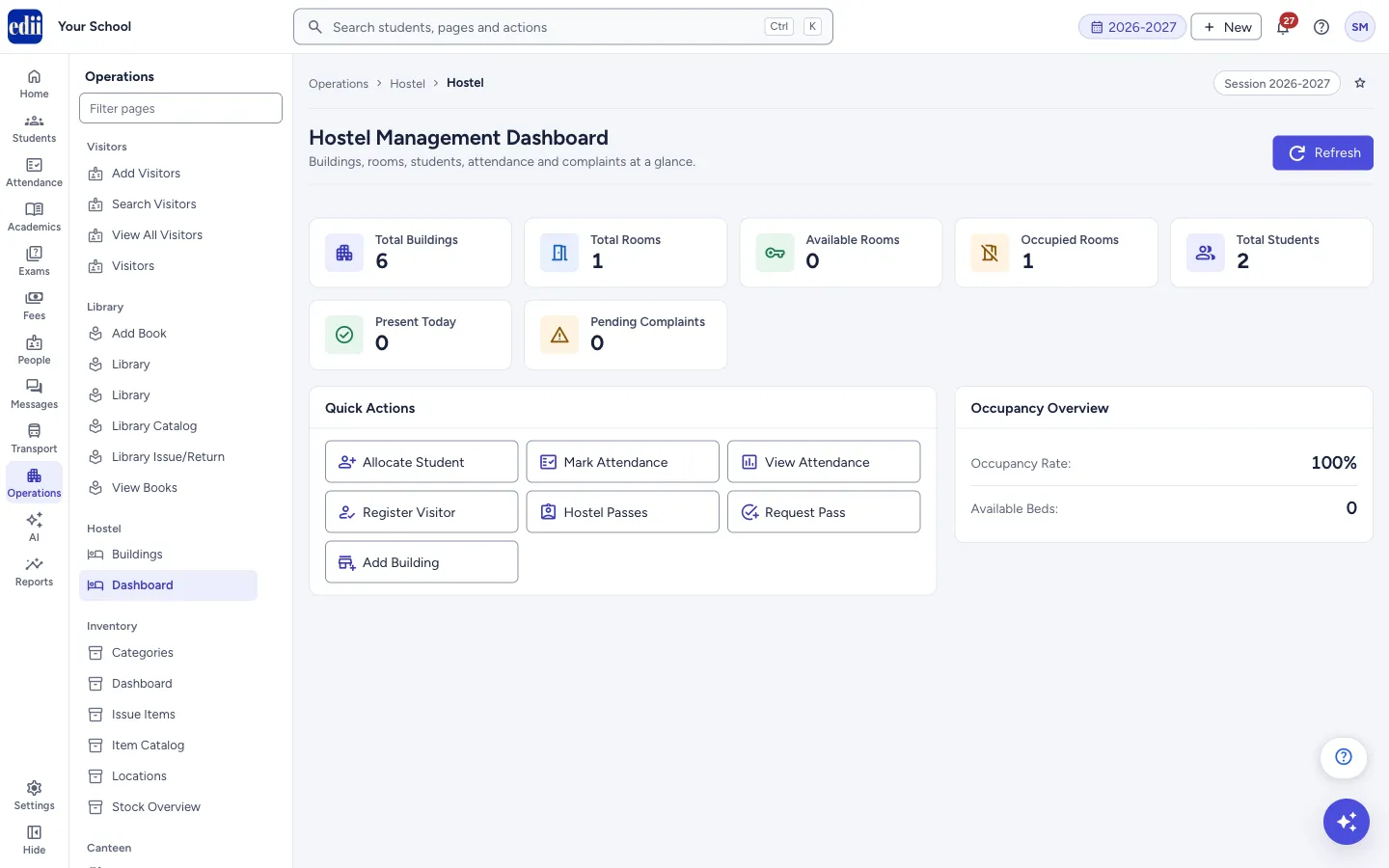 Open a bigger pictureतस्वीर बड़ी करें
Step by step
Section titled “Step by step”1. Read the cards
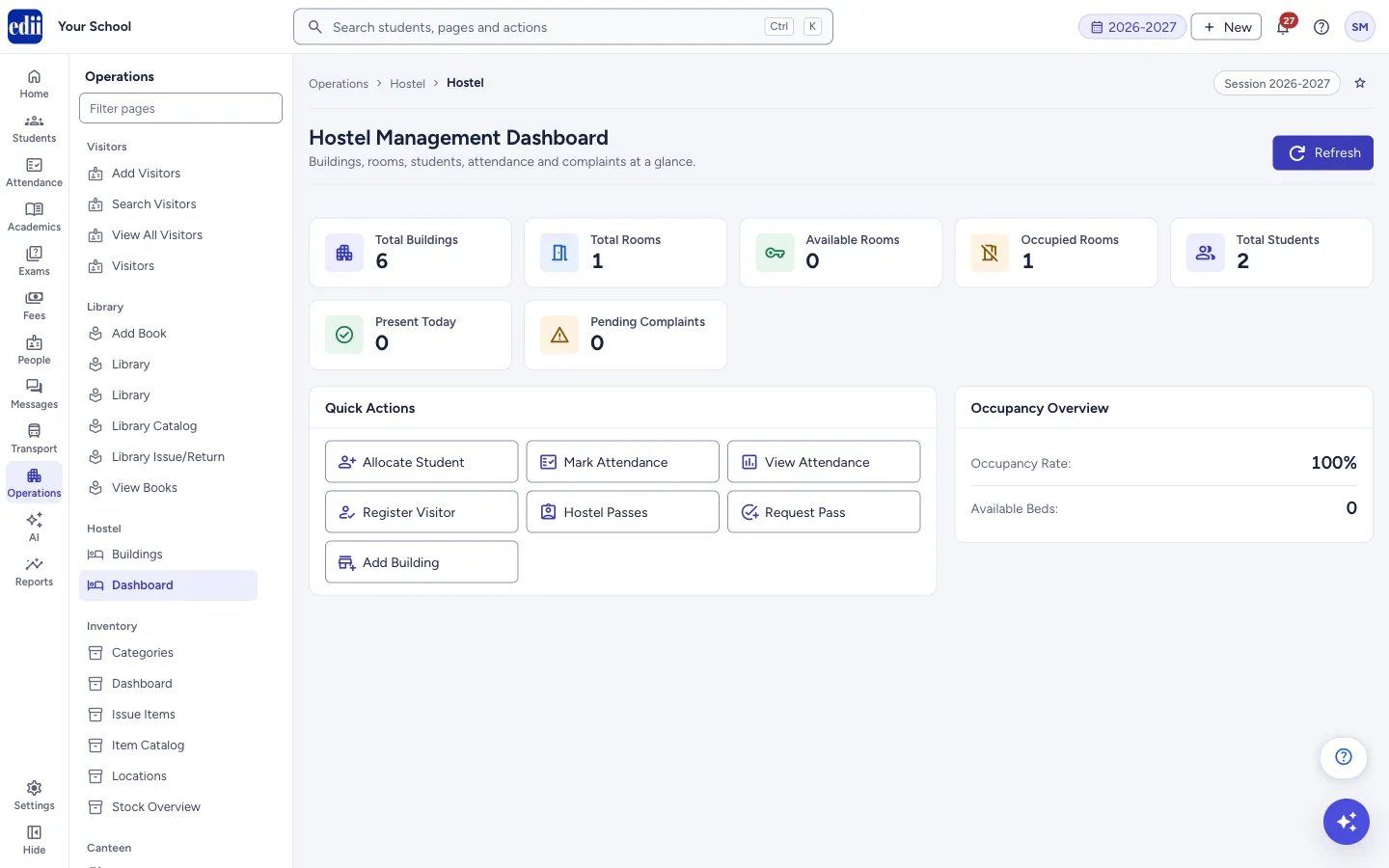
Section titled “1. Read the cards”Total Buildings, Total Rooms, Available Rooms, Occupied Rooms, Total Students (students living in the hostel), Present Today and Pending Complaints. Select a card that opens a page to go to it.
 Open a bigger pictureतस्वीर बड़ी करें
2. Check the occupancy
Section titled “2. Check the occupancy”Occupancy Rate is the occupied rooms divided by the total rooms, shown as a percentage (it is 0% when there are no rooms). The line under it is called Available Beds and shows the number of available rooms.
3. Use Quick Actions
Section titled “3. Use Quick Actions”Allocate Student gives a hostel room to a student. Mark Attendance opens the hostel attendance. View Attendance shows past attendance. Register Visitor opens the hostel visitors page. Hostel Passes shows the passes, and Request Pass starts a new pass request. Add Building opens the page to add a building.
4. Refresh the figures
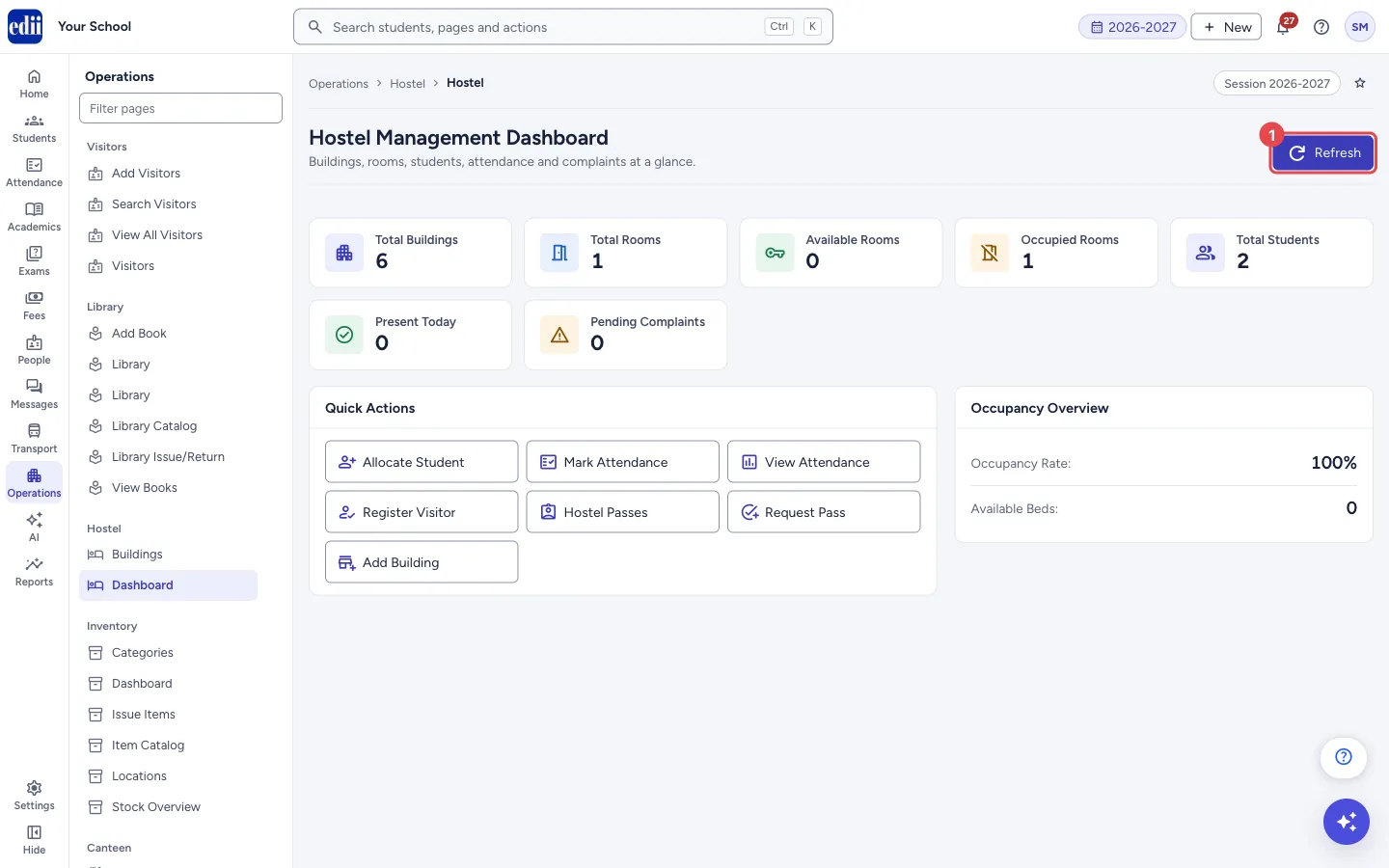
Section titled “4. Refresh the figures”Select Refresh at the top right to read the numbers again.
 Open a bigger pictureतस्वीर बड़ी करें
Buttons
Section titled “Buttons”| Button | What it does | What happens next |
|---|---|---|
| Refresh | Loads the dashboard again. | The cards show the latest figures. |
| Allocate Student | Opens the page to allocate a student to a room. | The allocation page opens. |
| Mark Attendance | Opens the hostel attendance page. | The attendance page opens. |
| View Attendance | Opens the attendance records. | The records open. |
| Register Visitor | Opens the hostel visitors page. | The visitors page opens. |
| Hostel Passes, Request Pass | Open the passes list or the pass request form. | The page opens. |
| Add Building | Opens the page to create a building. | The building form opens. |
Good to know
Section titled “Good to know”- Every number comes from the hostel records; the page does not change any data.
- Occupancy is counted in rooms, not in beds.
Messages you may see
Section titled “Messages you may see”| Message | What it means | What to do |
|---|---|---|
| Failed to load dashboard data | The numbers could not be read. | Select Refresh. |
| Error loading dashboard data | The request did not finish. | Check the internet and select Refresh. |
Stuck? Try this
Section titled “Stuck? Try this”| Problem | Likely cause | What to do |
|---|---|---|
| Hostel is not in the menu | The Hostel module is not switched on for the school. | Ask the school’s EDII administrator. |
| The numbers look too small or do not match the Buildings list | The cards are counted from the hostel records separately from the buildings table. | Select Refresh. Check the details in Buildings and in the students list. |
Did this page help?क्या इस पेज से मदद मिली?
Thanks! Glad it helped.धन्यवाद! अच्छा लगा कि काम बन गया।
Sorry about that. Ask in your own words, or write to us.माफ़ कीजिए। अपने शब्दों में पूछें, या हमें लिखें।