
Screen guide · Web app
Add User
Create a staff account: sign-in ID and password, role, personal, job, identity and bank details, photo and permissions.
यह पेज अंग्रेज़ी में है। कुछ समझ न आए तो ।
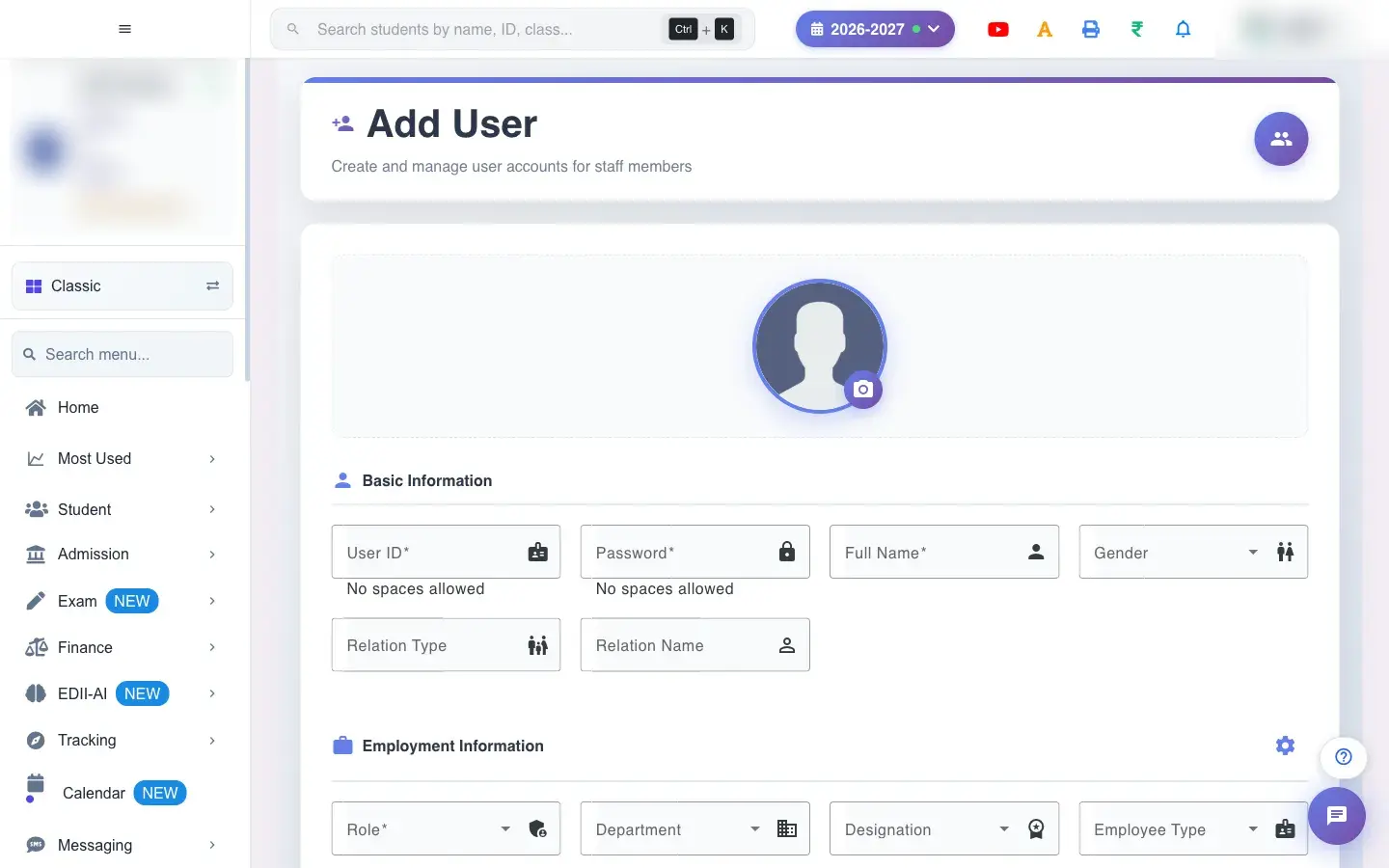
Add User (User › Add) creates a staff member who can sign in. Fill the sections Basic Information, Employment Information, Contact Information and Identity & Personal Details (plus bank details). The User ID must be unique (the page checks it) and cannot contain spaces, and the Password cannot contain spaces. Choose the Role; permissions by class, section and subject can be added in the permissions table, and a photo can be taken after the user ID is entered (Please enter User ID first). Select Add User.
On success you see User Added Successfully (or User Added & Permissions Saved Successfully).
Who uses it and when
Section titled “Who uses it and when”The administrator onboards each new staff member.
Before you start
Section titled “Before you start”- Decide the user ID and role; collect the mobile number. Never share a password in writing.
Where to find it
Section titled “Where to find it”- Menu: User › Add
- Address:
/add/add-user - If it is missing from your menu, your role does not include it. Ask your school admin.
 Open a bigger pictureतस्वीर बड़ी करें
Step by step
Section titled “Step by step”1. Enter sign-in details
Section titled “1. Enter sign-in details”Type a unique User ID and a Password (no spaces), the Full Name and Mobile Number.
2. Choose the role
Section titled “2. Choose the role”Pick the Role that matches the job.
3. Fill the other details
Section titled “3. Fill the other details”Department, designation, dates, qualifications, identity and bank details as available.
4. Add permissions (teachers)
Section titled “4. Add permissions (teachers)”Add rows of class, section and subject the teacher may use.
5. Save
Section titled “5. Save”Select Add User.
With data
Section titled “With data”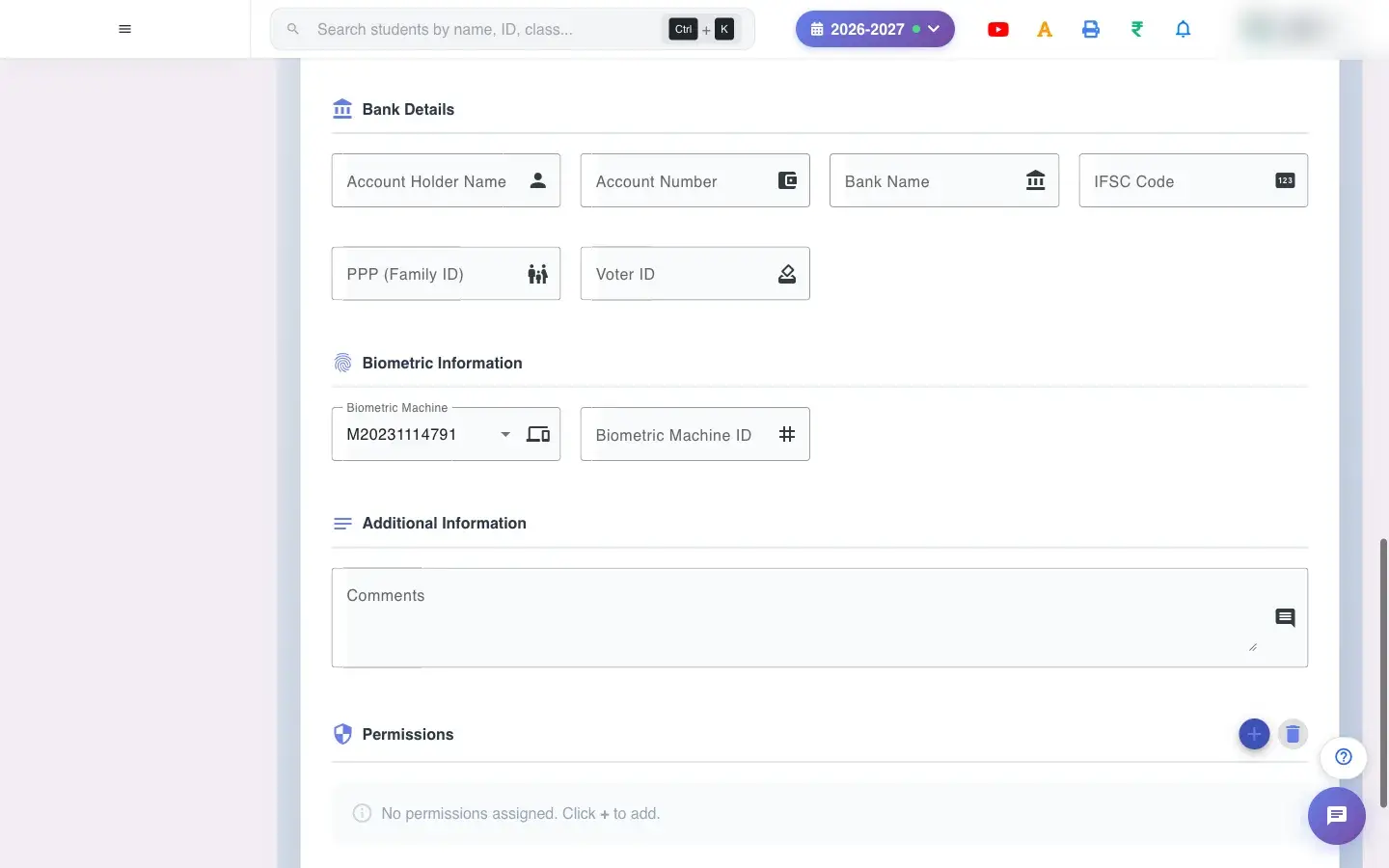 Open a bigger pictureतस्वीर बड़ी करें
Fields and filters
Section titled “Fields and filters”| Field | What it is | Notes |
|---|---|---|
| User ID / Password | The sign-in name and password. | Required; no spaces; the ID must be unique. |
| Full Name / Mobile Number / Email | Who they are and how to reach them. | Name, role and mobile required. |
| Role / Department / Designation / Employee Type / Staff Type | Job and access. | Role required. |
| Gender, Nationality, Religion, Blood Group | Personal details. | Lists. |
| Aadhar, PAN, Voter ID, PPP (Family ID) | Identity numbers. | Optional. |
| Date of Birth / Joining / Exit | Dates. | DD-MM-YYYY. |
| Academic / Professional Qualification, Previous Experience | Background. | Optional. |
| Temporary / Permanent Address, Relation Type and Name | Address and relation. | Optional. |
| Salary Amount, bank account details | Pay information. | Optional. |
| Biometric Machine ID | The staff member’s attendance-device ID. | Optional. |
| Serial No. (Display Order) | Order on the faculty list. | Optional. |
Buttons
Section titled “Buttons”| Button | What it does | What happens next |
|---|---|---|
| Add User | Creates the account. | User Added Successfully. |
| Cancel | Leaves without saving. | Nothing is saved. |
After you save
Section titled “After you save”- The staff member can sign in with the ID and password, with the access of their role.
Good to know
Section titled “Good to know”- User ID, password, full name, role and mobile are required.
- The User ID must be new and without spaces.
Messages you may see
Section titled “Messages you may see”| Message | What it means | What to do |
|---|---|---|
| User ID cannot contain spaces | Spaces typed. | Remove them. |
| Password cannot contain spaces | Spaces typed. | Remove them. |
| User Added Successfully | Created. | Share the sign-in details safely. |
| Please enter User ID first | Photo needs an ID. | Type the ID first. |
| Bad/Slow Internet Connection, Please check your internet connection | A request failed. | Try again. |
- Use the staff member’s mobile number to help recall IDs.
- Give the minimum role they need.
Stuck? Try this
Section titled “Stuck? Try this”| Problem | Likely cause | What to do |
|---|---|---|
| User ID is taken | Another user has it. | Pick a different ID. |
Did this page help?क्या इस पेज से मदद मिली?
Thanks! Glad it helped.धन्यवाद! अच्छा लगा कि काम बन गया।
Sorry about that. Ask in your own words, or write to us.माफ़ कीजिए। अपने शब्दों में पूछें, या हमें लिखें।