
Screen guide · Web app
Student Search
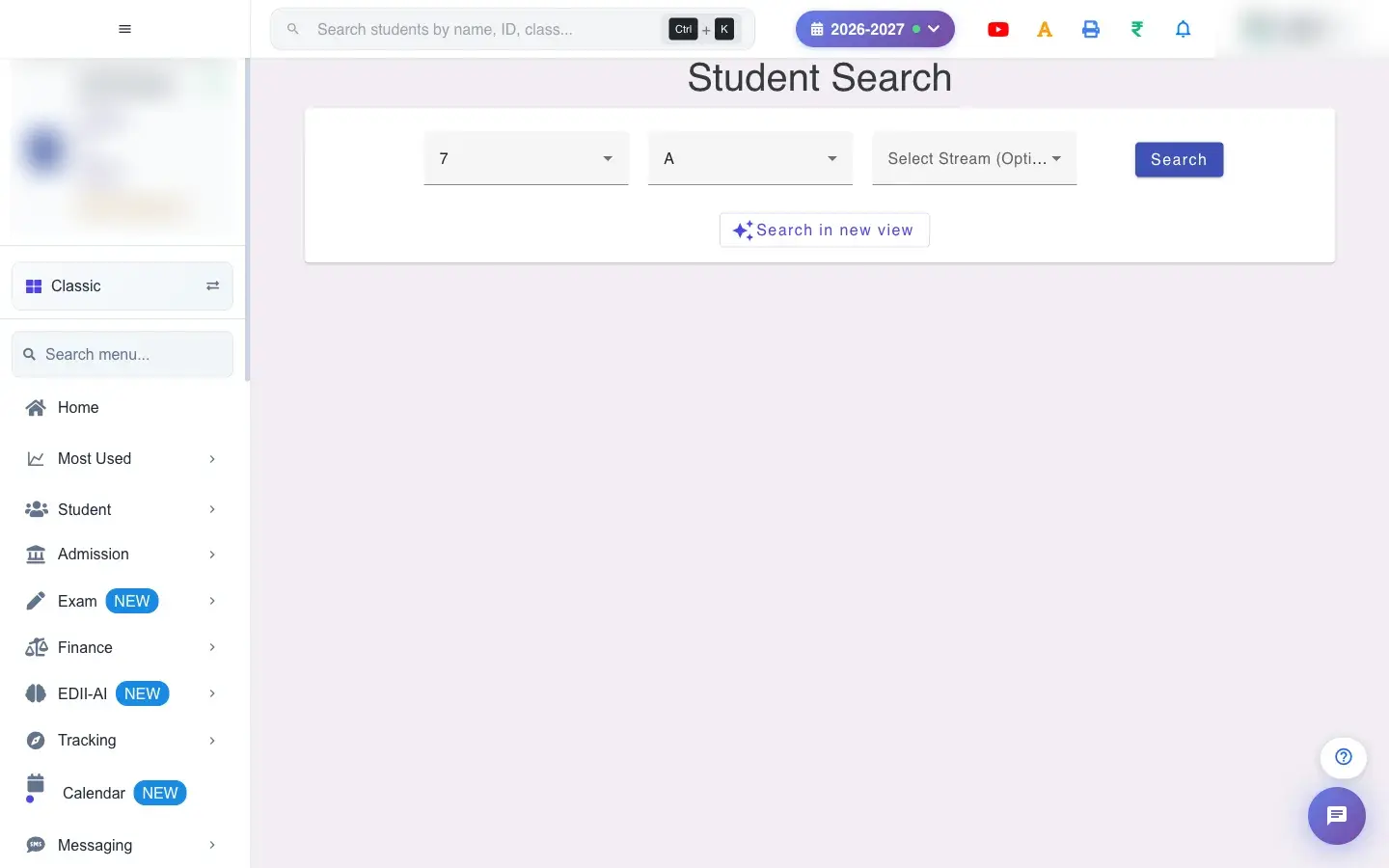
Pick a class, section and optional stream and open the list of students with every detail you may need, in the classic or the new student view.
यह पेज अंग्रेज़ी में है। कुछ समझ न आए तो ।
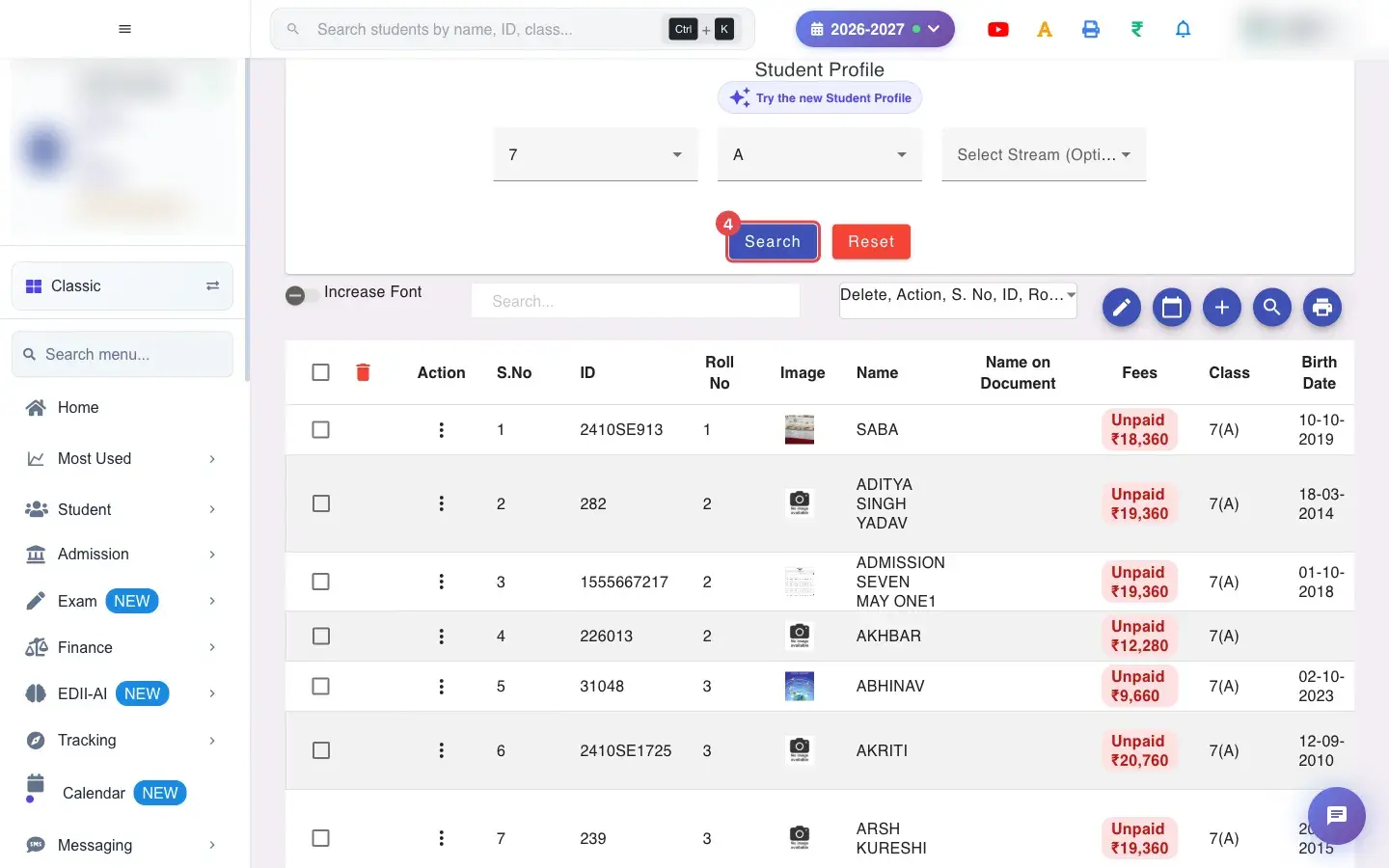
Student Search (Student › View) is the front door to the student list. Choose a Class, a Section and, if your school uses streams, a Stream (Optional), then open the list. You have two buttons: Search opens the classic student list and Search in new view opens the newer student list.
The student list can show up to 50 columns: ID, roll number, photo, names, fees, birth date, parents, phone numbers, address, identifiers (State ID, GR No, UID, PEN, Aadhaar), admission status, category, blood group, height and weight, and more. You pick which columns to show with Filter Columns.
Who uses it and when
Section titled “Who uses it and when”Teachers and the office use it dozens of times a day to find a student, check a detail, or open a profile.
Before you start
Section titled “Before you start”- Class and section are required.
Where to find it
Section titled “Where to find it”- Menu: Student › View
- Address:
/view/student-profile-search - If it is missing from your menu, your role does not include it. Ask your school admin.
 Open a bigger pictureतस्वीर बड़ी करें
Step by step
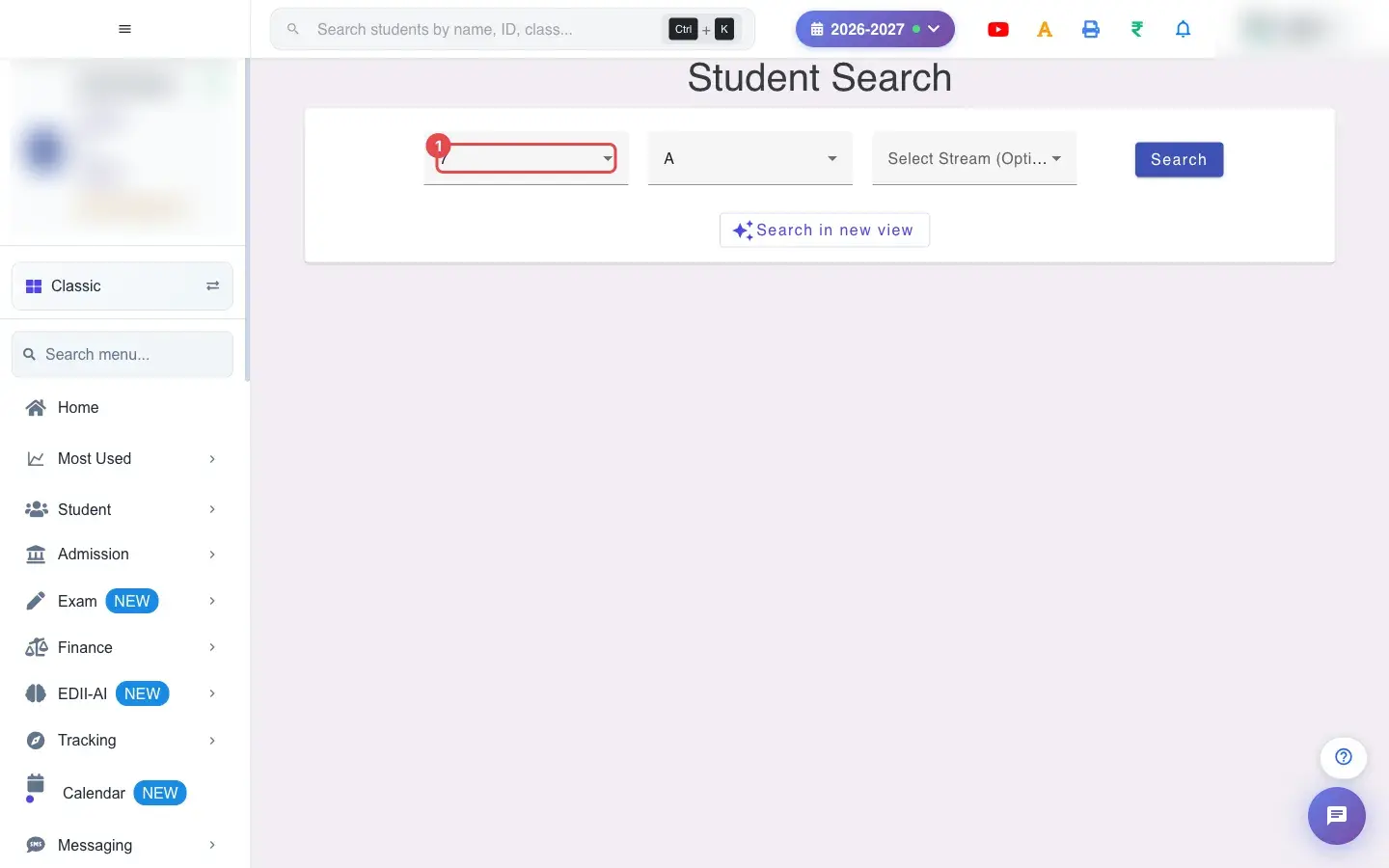
Section titled “Step by step”1. Choose Select Class (for example 7)
Section titled “1. Choose Select Class (for example 7)”Choose the Class.
 Open a bigger pictureतस्वीर बड़ी करें
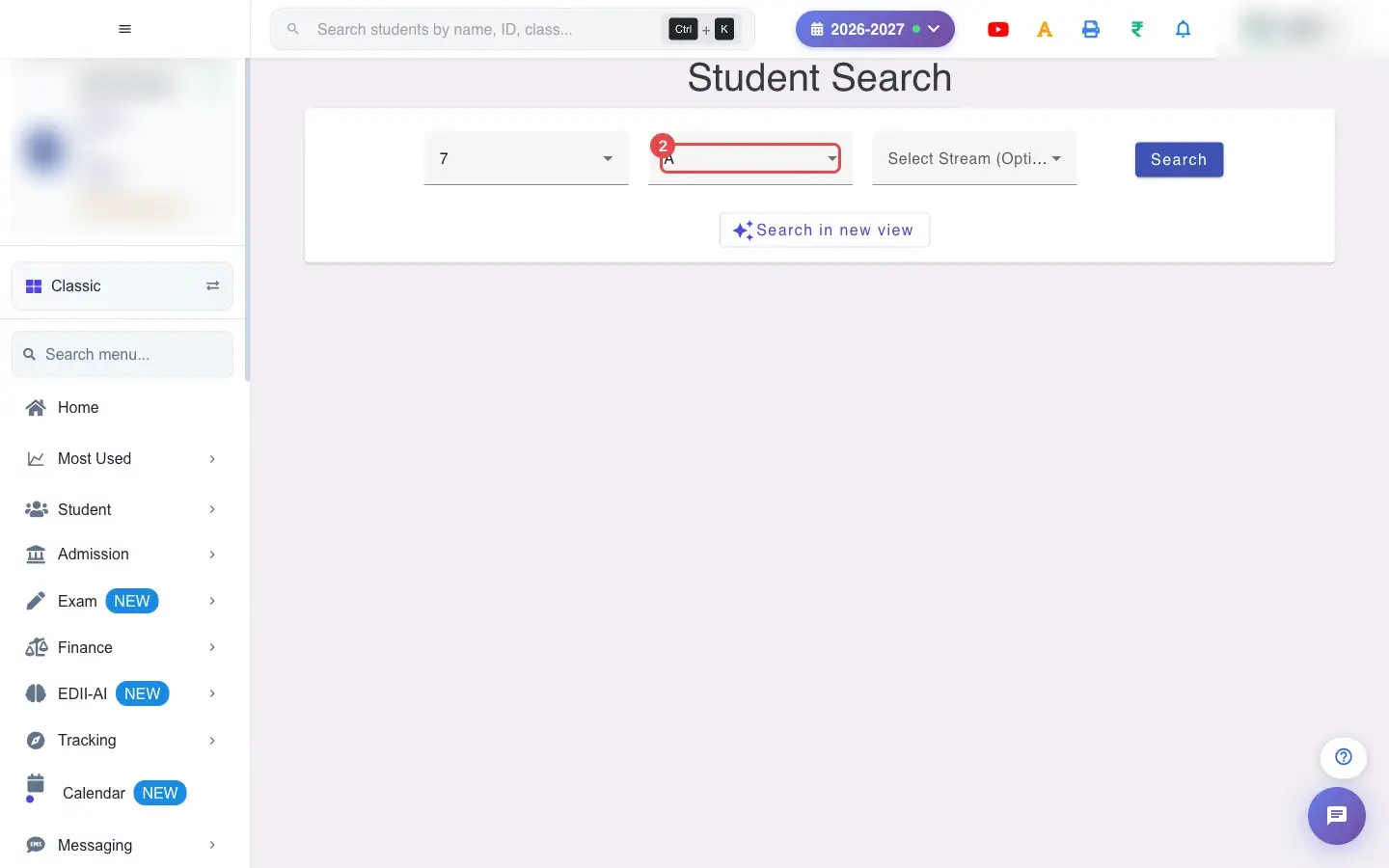
2. Choose Select Section (for example A)
Section titled “2. Choose Select Section (for example A)”Choose the Section.
 Open a bigger pictureतस्वीर बड़ी करें
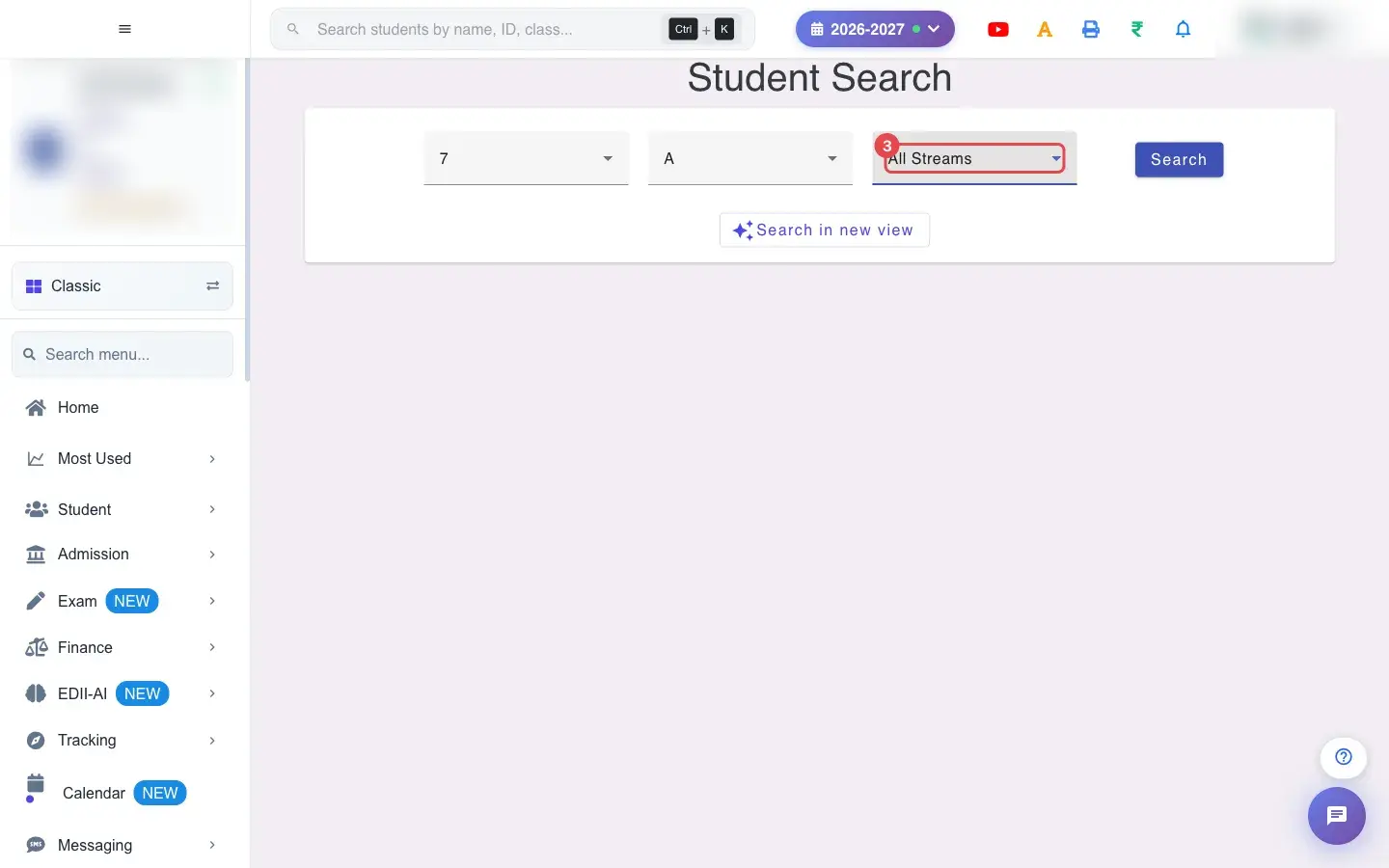
3. Choose Select Stream (Optional) (for example All Streams)
Section titled “3. Choose Select Stream (Optional) (for example All Streams)”Choose a Stream only if the class has streams; otherwise leave it on All Streams.
 Open a bigger pictureतस्वीर बड़ी करें
4. Select Search
Section titled “4. Select Search”Select Search for the classic list, or Search in new view for the new one.
 Open a bigger pictureतस्वीर बड़ी करें
5. Choose the columns
Section titled “5. Choose the columns”On the student list, Filter Columns shows every available column: Delete, Action, S. No, ID, Roll No, Image, Name, Name on Document, Fees, Class, Date Of Birth, Father Name, Mother Name, Email, Phone No, Mobile No, Fathers No, Mothers No, Address, State Id, GR No, UID, Admission Status, Enrollment No, Gender, Category, Student Type, TC Provided, Blood Group, Weight, Height, Created By, Comments, Religion, Community, Annual Income, Subject Stream, 10th Roll, 10th Board, 10th RegNo, Date Of Admission, Aadhaar, PEN, Family ID, Allergy, Udise No, Mother Tongue, End Date Of School, SMID, FMID, SCH. NO., Apaar Id and PRN. Untick what you do not need.
6. Find a student
Section titled “6. Find a student”Type in Search… to filter by name or other shown columns. Choose how many students to show per page (50 up to 5000).
7. Open or edit a student
Section titled “7. Open or edit a student”Use the row’s Action menu to open the student’s profile or edit it, and the Fees column to jump to their fees.
With data
Section titled “With data”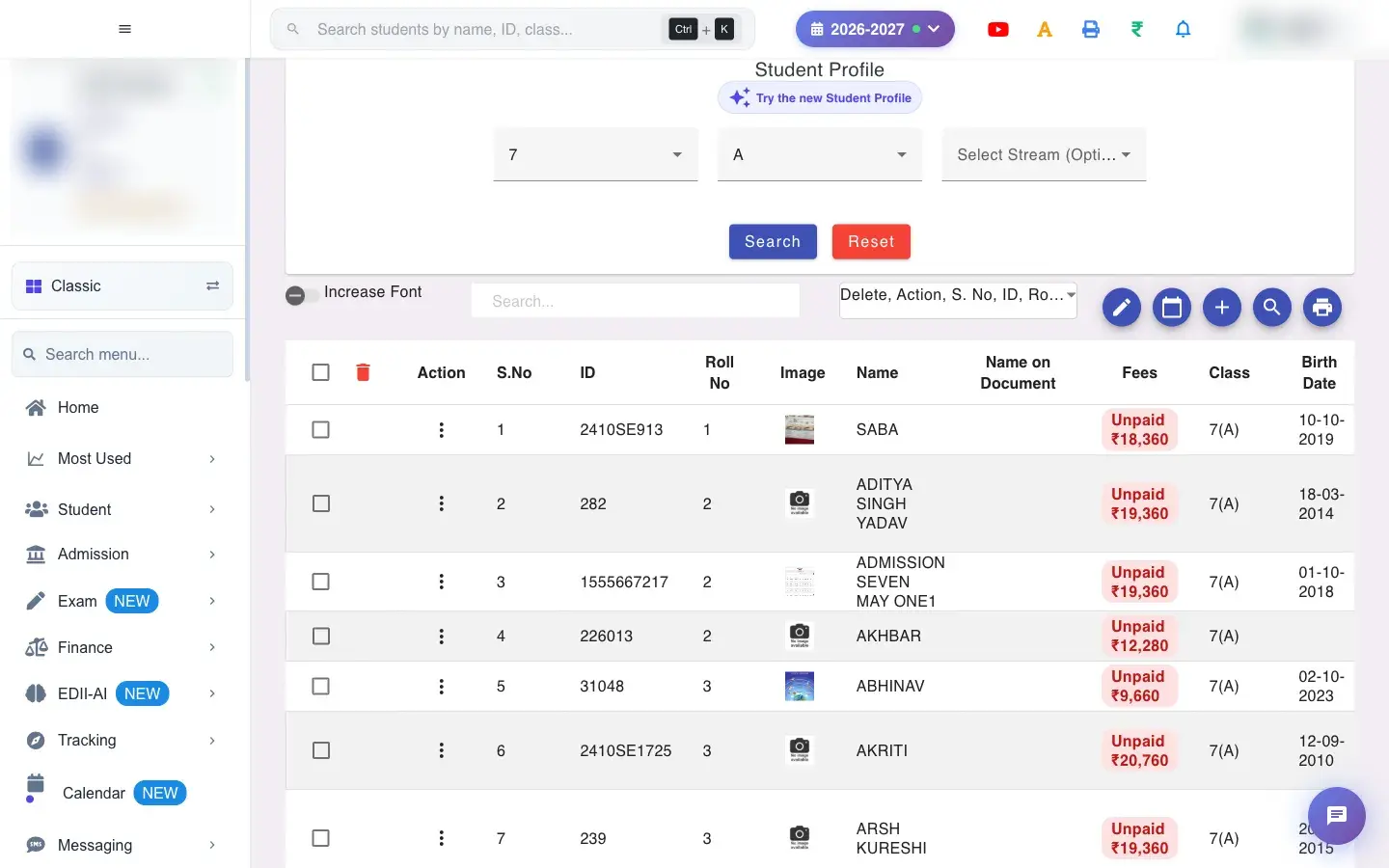 Open a bigger pictureतस्वीर बड़ी करें
Fields and filters
Section titled “Fields and filters”| Field | What it is | Notes |
|---|---|---|
| Select Class / Select Section | The class and section. | Required. |
| Select Stream (Optional) | Stream such as Science or Commerce. | Shown only if the school has streams. |
| Filter Columns | Which columns to show. | Your choice is applied to this list. |
| Search… | Filter by typing. | Only filters the list. |
Buttons
Section titled “Buttons”| Button | What it does | What happens next |
|---|---|---|
| Search | Opens the classic student list. | Takes you to the student profile list. |
| Search in new view | Opens the new student list. | Takes you to the redesigned student list. |
| Reset | Clears the choices. | No data changes. |
Columns
Section titled “Columns”| Column | Meaning |
|---|---|
| Action / S.No / ID / Roll No / Image / Name | Who the student is and how to open them. |
| Class / Birth Date / Father Name / Mother Name | Class and family details. |
| Phone No. / Mobile No. / Email / Address | How to reach the family. |
| State Id / GR no / UID / PEN / Aadhaar / Enrollment No | Government and school identifiers. |
| Admission Status / Student Type / TC Provided | Admission details. |
| Fees | Opens the student’s fees. |
After you save
Section titled “After you save”- This screen only reads data. Nothing is saved or sent.
Good to know
Section titled “Good to know”- Class and section are required.
- Stream appears only when the school has streams.
Messages you may see
Section titled “Messages you may see”| Message | What it means | What to do |
|---|---|---|
| Select class and section | A required choice is missing. | Choose both and search again. |
- Keep only the columns you need; the list loads and prints faster.
- Use the new view for everyday work and the classic list when you need a column it does not show.
Stuck? Try this
Section titled “Stuck? Try this”| Problem | Likely cause | What to do |
|---|---|---|
| A student is missing | They are suspended, deleted, or in another section. | Check View Suspended Students and View Deleted Students, or search another section. |
Did this page help?क्या इस पेज से मदद मिली?
Thanks! Glad it helped.धन्यवाद! अच्छा लगा कि काम बन गया।
Sorry about that. Ask in your own words, or write to us.माफ़ कीजिए। अपने शब्दों में पूछें, या हमें लिखें।