
Screen guide · Teacher app
Timetable
Any class's weekly timetable with the teaching plan alongside; the current period is marked NOW.
यह पेज अंग्रेज़ी में है। कुछ समझ न आए तो ।
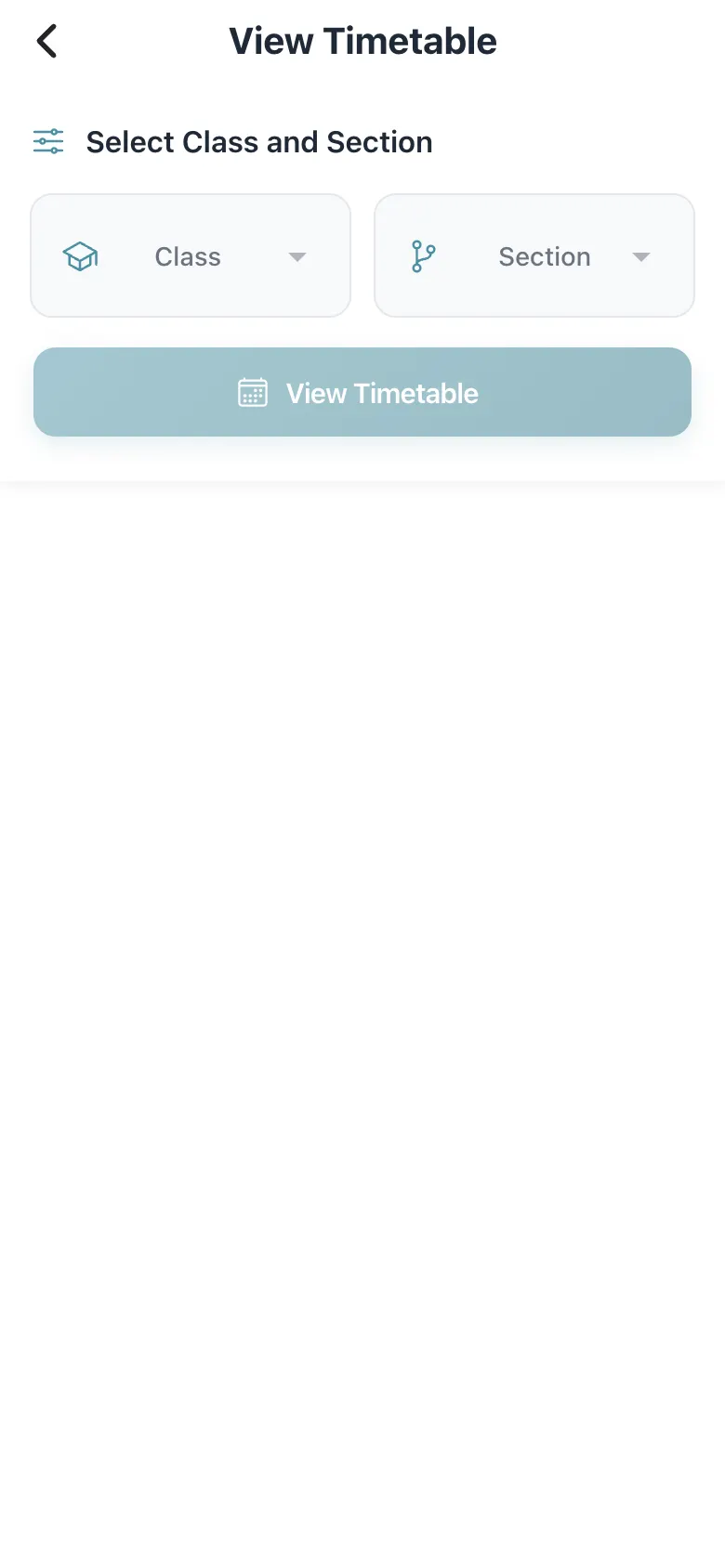
View Timetable asks you to Select Class and Section and select View Timetable. The grid shows Period, Start, End and Mon to Sat with a hint to scroll horizontally. The running period is marked NOW and the following one UP NEXT / NEXT. Teaching Plan loads alongside (This Week; Pending, In Progress, Completed, Skipped). When Period end gong is active the app sounds a tone at period end (a school setting).
Who uses it and when
Section titled “Who uses it and when”Teachers checking a class’s day.
Before you start
Section titled “Before you start”- The school must have published the timetable.
Where to find it
Section titled “Where to find it”- Open Timetable from Schedule or My Day (Full timetable).
 Open a bigger pictureतस्वीर बड़ी करें
Step by step
Section titled “Step by step”1. Choose the class
Section titled “1. Choose the class”Pick the class and section.
Fields and filters
Section titled “Fields and filters”| Field | What it is | Notes |
|---|---|---|
| Class / Section | Which timetable. | Required. |
Buttons
Section titled “Buttons”| Button | What it does | What happens next |
|---|---|---|
| View Timetable | Loads the timetable. | The grid appears. |
After you save
Section titled “After you save”- This screen only shows information.
Messages you may see
Section titled “Messages you may see”| Message | What it means | What to do |
|---|---|---|
| No Timetable Found | None set for that class and section. | Ask the school. |
| No topics planned for this subject this week | No teaching plan topics. | Nothing to do. |
| No subjects scheduled for this week | Empty week. | Ask the school. |
- Scroll sideways to see Friday and Saturday.
Stuck? Try this
Section titled “Stuck? Try this”| Problem | Likely cause | What to do |
|---|---|---|
| Timetable is empty | Not published. | Ask the timetable coordinator. |
Did this page help?क्या इस पेज से मदद मिली?
Thanks! Glad it helped.धन्यवाद! अच्छा लगा कि काम बन गया।
Sorry about that. Ask in your own words, or write to us.माफ़ कीजिए। अपने शब्दों में पूछें, या हमें लिखें।