
Screen guide · Admin app
Students
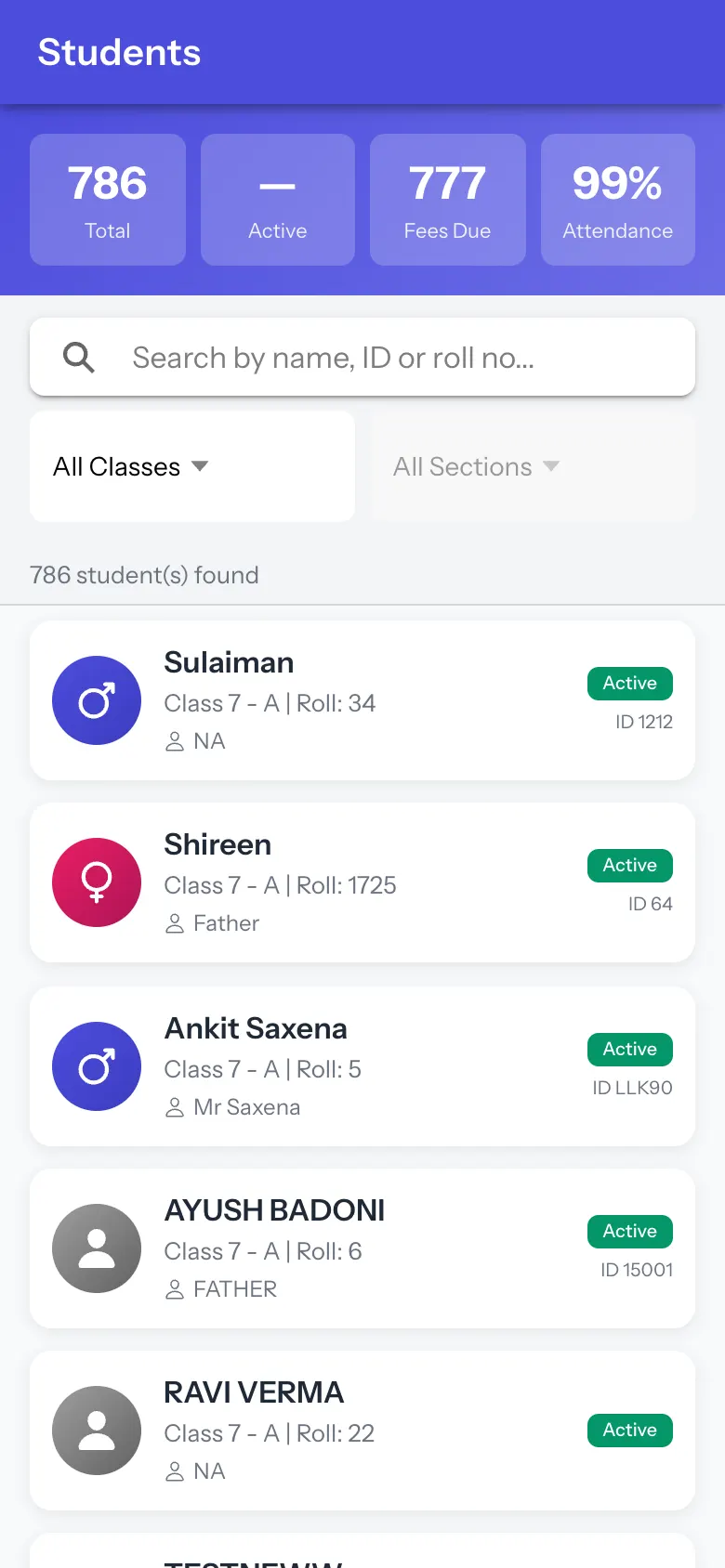
The student list for the session: search, filter by class and section, and see each student's status, fees due and attendance.
यह पेज अंग्रेज़ी में है। कुछ समझ न आए तो ।
Students shows the totals Total, Active, Fees Due and Attendance, then the list (N student(s) found): each row has the student’s name, class and section, roll number, parent, status (Active) and the student’s ID number (ID 1212) when the school has given one. Search by name, ID or roll no… and the All Classes and Section filters narrow it. Selecting a student opens their details; a call or message shortcut needs a parent number (No parent phone number available). If the class list cannot load the page says so and shows every student.
Who uses it and when
Section titled “Who uses it and when”Principals looking up a student.
Before you start
Section titled “Before you start”- Students are added in the web app.
Where to find it
Section titled “Where to find it”- Open More › Students.
 Open a bigger pictureतस्वीर बड़ी करें
Step by step
Section titled “Step by step”1. Search or filter
Section titled “1. Search or filter”Type a name or choose a class.
2. Open a student
Section titled “2. Open a student”Select a row.
Fields and filters
Section titled “Fields and filters”| Field | What it is | Notes |
|---|---|---|
| Search by name, ID or roll no… | Finds a student. | Filters. |
| All Classes / Section | Filters by class and section. | Optional. |
After you save
Section titled “After you save”- This screen only shows information.
Good to know
Section titled “Good to know”- Only students of the current session are shown.
Messages you may see
Section titled “Messages you may see”| Message | What it means | What to do |
|---|---|---|
| No Students Found | Nothing matches. | Adjust the search. |
| No parent phone number available | No number on record. | Add one in the web app. |
| Couldn’t Load Students | The list failed. | Pull down to retry. |
| Class list unavailable - showing every student | The class filter list failed. | Retry later. |
- Use roll number plus class to find common names.
Stuck? Try this
Section titled “Stuck? Try this”| Problem | Likely cause | What to do |
|---|---|---|
| A student is missing | They are suspended or in another session. | Check the session and status in the web app. |
Did this page help?क्या इस पेज से मदद मिली?
Thanks! Glad it helped.धन्यवाद! अच्छा लगा कि काम बन गया।
Sorry about that. Ask in your own words, or write to us.माफ़ कीजिए। अपने शब्दों में पूछें, या हमें लिखें।