
Screen guide · Web app
Leave Types & Balances
Define the school's leave types with their yearly quota and whether they are paid, and see every staff member's allocated, used, pending and remaining leave balance for the session.
यह पेज अंग्रेज़ी में है। कुछ समझ न आए तो ।
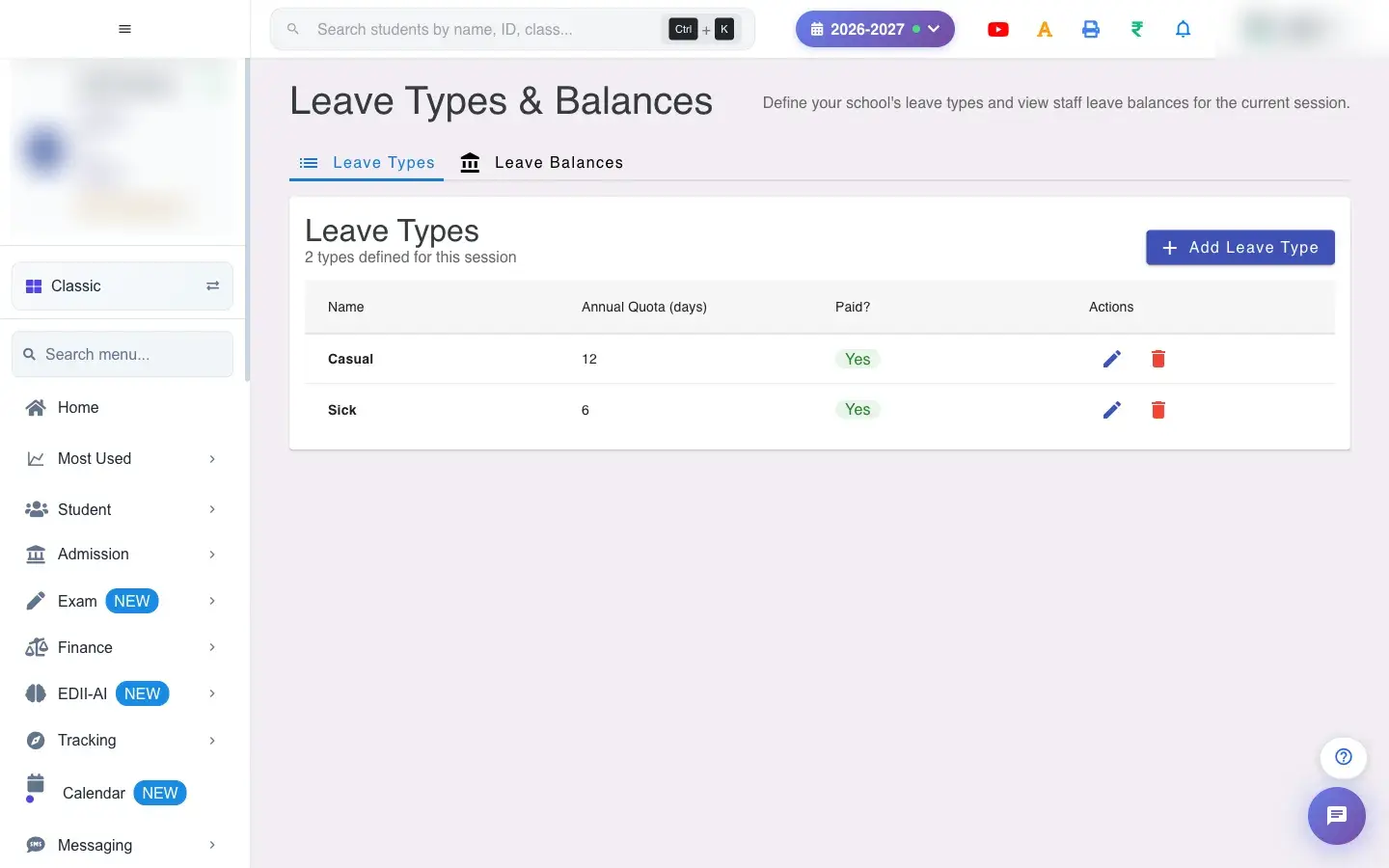
Leave Types & Balances (HRMS › Leave Types) has two tabs. Leave Types is where you create the kinds of leave your school allows (for example Casual, Sick, Paid, Unpaid) with an Annual Quota (days) and a Paid? flag. Leave Balances shows, per staff member and leave type, how much was Allocated, Used, Pending and what is left as Balance for the current session.
Who uses it and when
Section titled “Who uses it and when”The administrator or HR sets leave types once at the start of the session, and checks balances before approving leave.
Before you start
Section titled “Before you start”- Decide your leave policy: names, yearly quotas, and which types are paid.
Where to find it
Section titled “Where to find it”- Menu: HRMS › Leave Types
- Address:
/add/manage-leave-types - If it is missing from your menu, your role does not include it. Ask your school admin.
 Open a bigger pictureतस्वीर बड़ी करें
Step by step
Section titled “Step by step”1. Open Leave Types
Section titled “1. Open Leave Types”The first tab lists the types defined for the session, with the count (N types defined for this session). If there are none you see No leave types defined yet and a prompt to add one.
2. Add a leave type
Section titled “2. Add a leave type”Select Add Leave Type, enter the Name, the Annual Quota (days) and whether it is Paid, and save. A confirmation reads Leave type “<name>” ….
3. Edit or delete
Section titled “3. Edit or delete”The pencil icon edits a type (Leave type updated.). The bin icon deletes it after you confirm.
4. View balances
Section titled “4. View balances”Open Leave Balances to see Staff ID, Leave Type, Allocated, Used, Pending and Balance for every staff member. Select Refresh to reload. If nothing exists you see No leave balance data available for this session.
Fields and filters
Section titled “Fields and filters”| Field | What it is | Notes |
|---|---|---|
| Name | The leave type’s name. | Shown to staff when they apply. |
| Annual Quota (days) | Days allowed per session. | Used for each staff member’s allocation. |
| Paid? | Whether the leave is paid. | Shown in the table. |
Buttons
Section titled “Buttons”| Button | What it does | What happens next |
|---|---|---|
| Add Leave Type | Creates a type. | Appears in the table and in Apply for Leave. |
| Edit / Delete | Changes or removes a type. | Staff cannot choose a deleted type for new requests. |
| Refresh | Reloads balances. | Shows Network Issue, Please Try Again. if it fails. |
Columns
Section titled “Columns”| Column | Meaning |
|---|---|
| Name / Annual Quota (days) / Paid? / Actions | Leave type definition. |
| Staff ID / Leave Type | Whose balance and which type. |
| Allocated / Used / Pending / Balance | Quota given, days taken, days awaiting approval, and days left. |
After you save
Section titled “After you save”- Leave types are stored for the session and appear in Apply for Leave.
- Balances update when requests are approved.
Good to know
Section titled “Good to know”- Types and balances are for the current session.
- Pending requests are counted separately from used days.
Messages you may see
Section titled “Messages you may see”| Message | What it means | What to do |
|---|---|---|
| Leave type updated. | The change was saved. | Nothing to do. |
| Network Issue, Please Try Again. | The request failed. | Check the internet and try again. |
- Create types before the session starts so staff can apply from day one.
- Check Pending before approving a new request to avoid over-allocating.
Stuck? Try this
Section titled “Stuck? Try this”| Problem | Likely cause | What to do |
|---|---|---|
| Balances are empty | No quotas were allocated or no leave types exist. | Add leave types with quotas, then refresh. |
Did this page help?क्या इस पेज से मदद मिली?
Thanks! Glad it helped.धन्यवाद! अच्छा लगा कि काम बन गया।
Sorry about that. Ask in your own words, or write to us.माफ़ कीजिए। अपने शब्दों में पूछें, या हमें लिखें।