
Get started · Web app
Find your way around
मेन्यू कैसे चलाएँ
The menu (Classic or Modern), the menu search, the student search, the notification bell and your profile menu.
यह पेज अंग्रेज़ी में है। कुछ समझ न आए तो ।
Every EDII page has the same frame: the menu on the left, the student search, the session chip, shortcut icons and your name at the top right.
Before you start
Section titled “Before you start”- Sign in first.
1. The menu
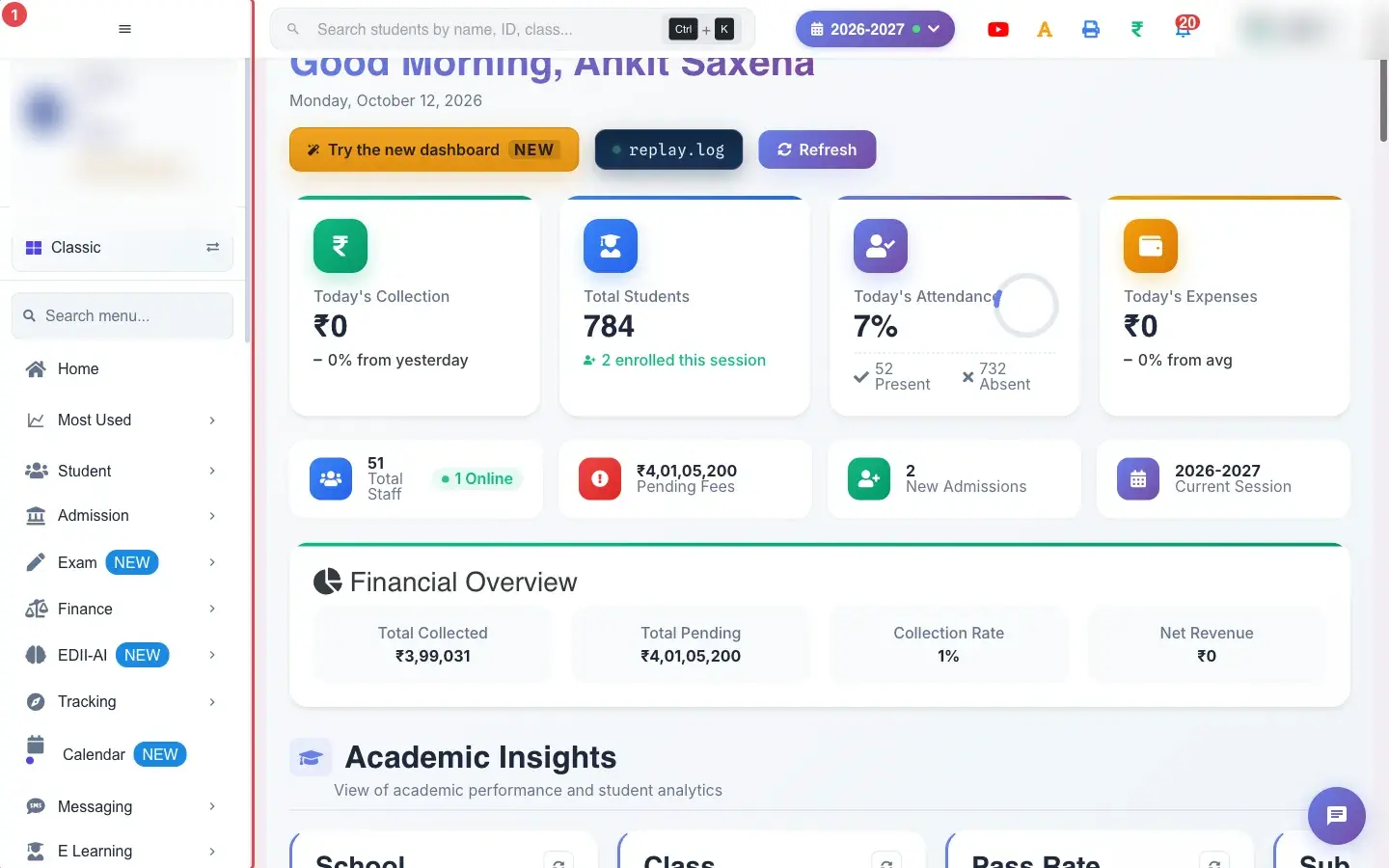
Section titled “1. The menu”The left menu lists the modules (Student, Admission, Exam, Finance and more). Select a module to expand it and pick a screen.
 Open a bigger pictureतस्वीर बड़ी करें
2. Switch between Classic and Modern
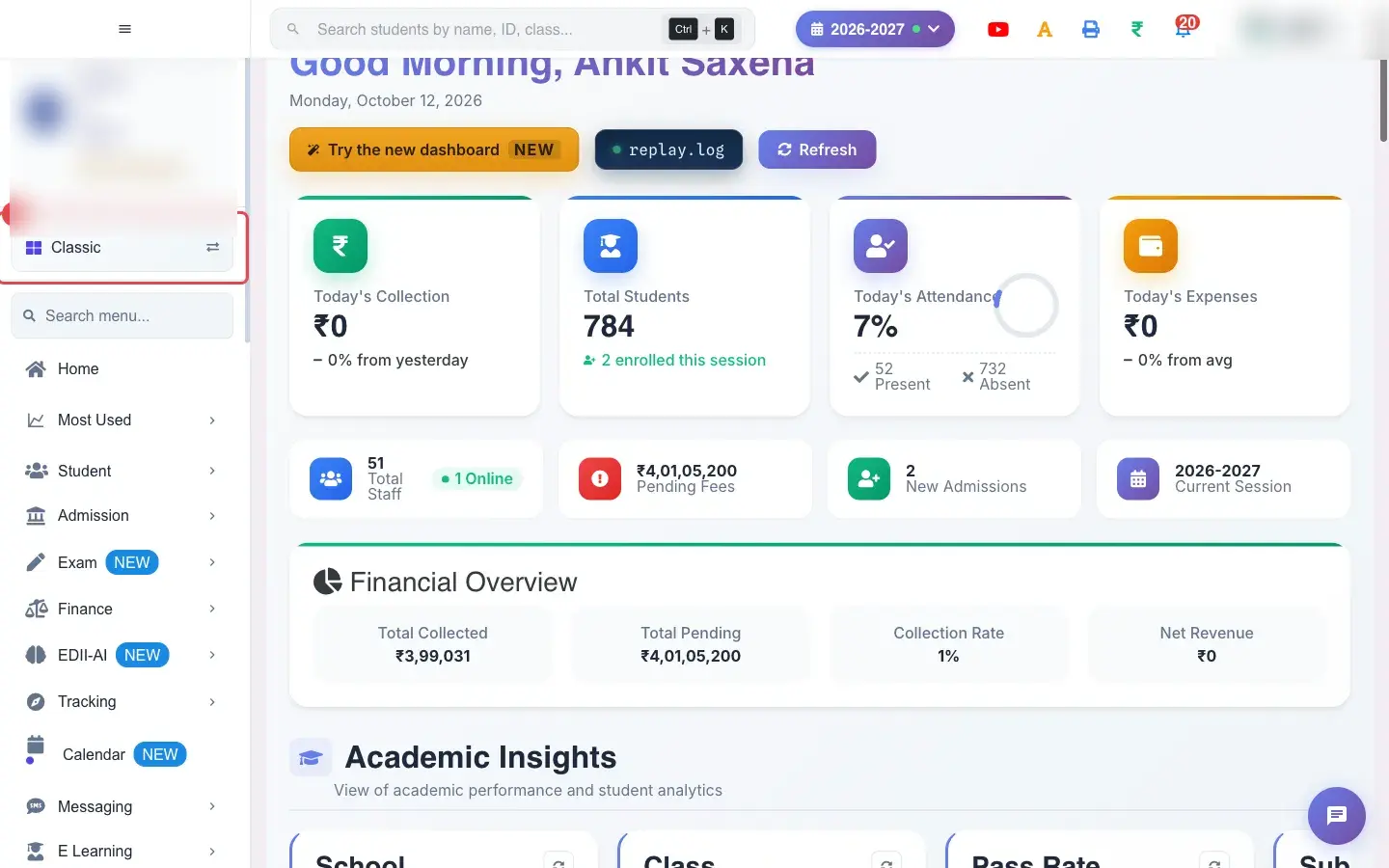
Section titled “2. Switch between Classic and Modern”The button above the menu shows the current style (Classic or Modern); hover to see Switch to Modern View. Select it to change the menu layout. Modern shows quick-access groups under Quick access and Academic.
 Open a bigger pictureतस्वीर बड़ी करें
3. The Modern layout
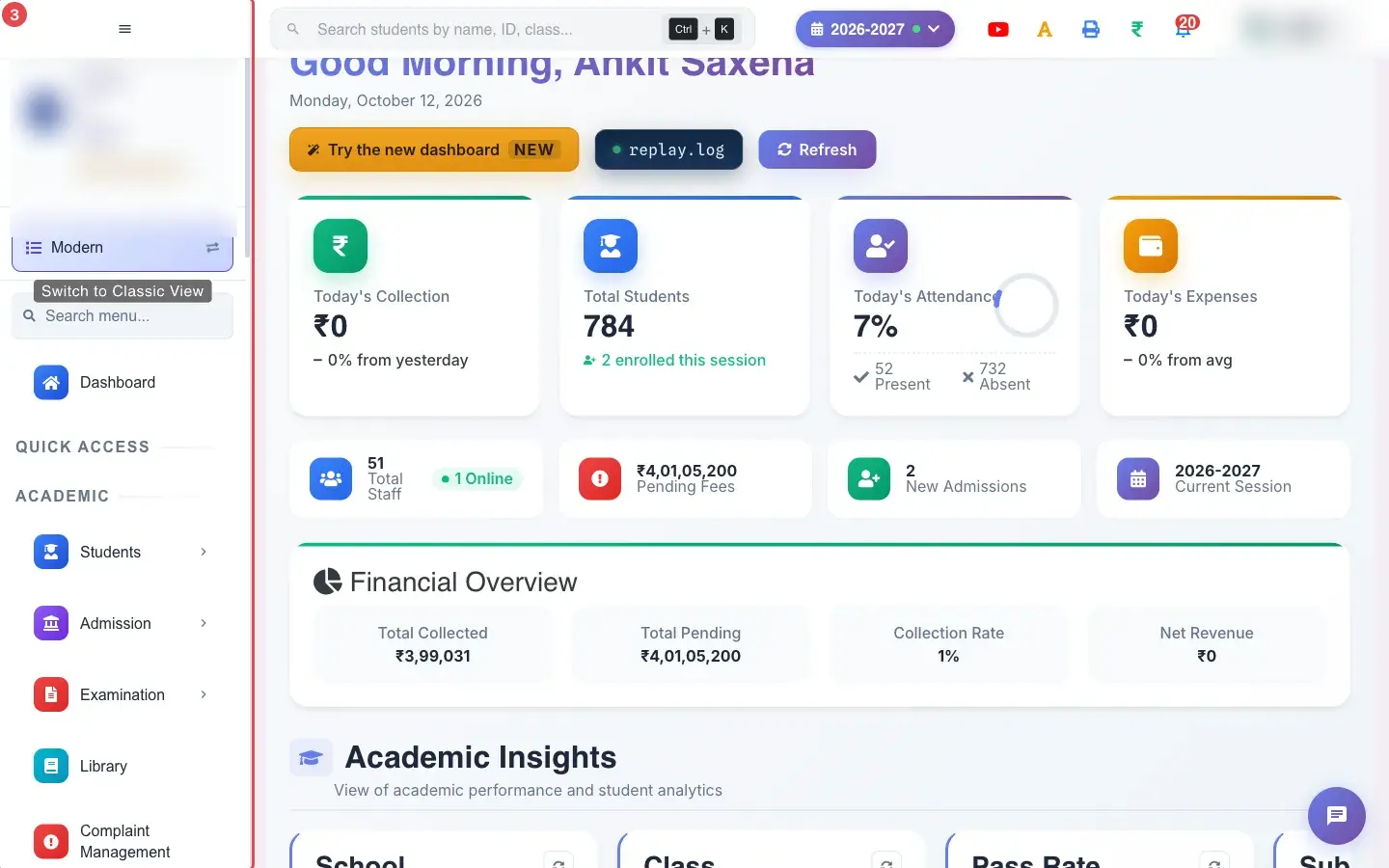
Section titled “3. The Modern layout”In Modern view the menu begins with Dashboard and grouped sections.
 Open a bigger pictureतस्वीर बड़ी करें
4. Back to Classic
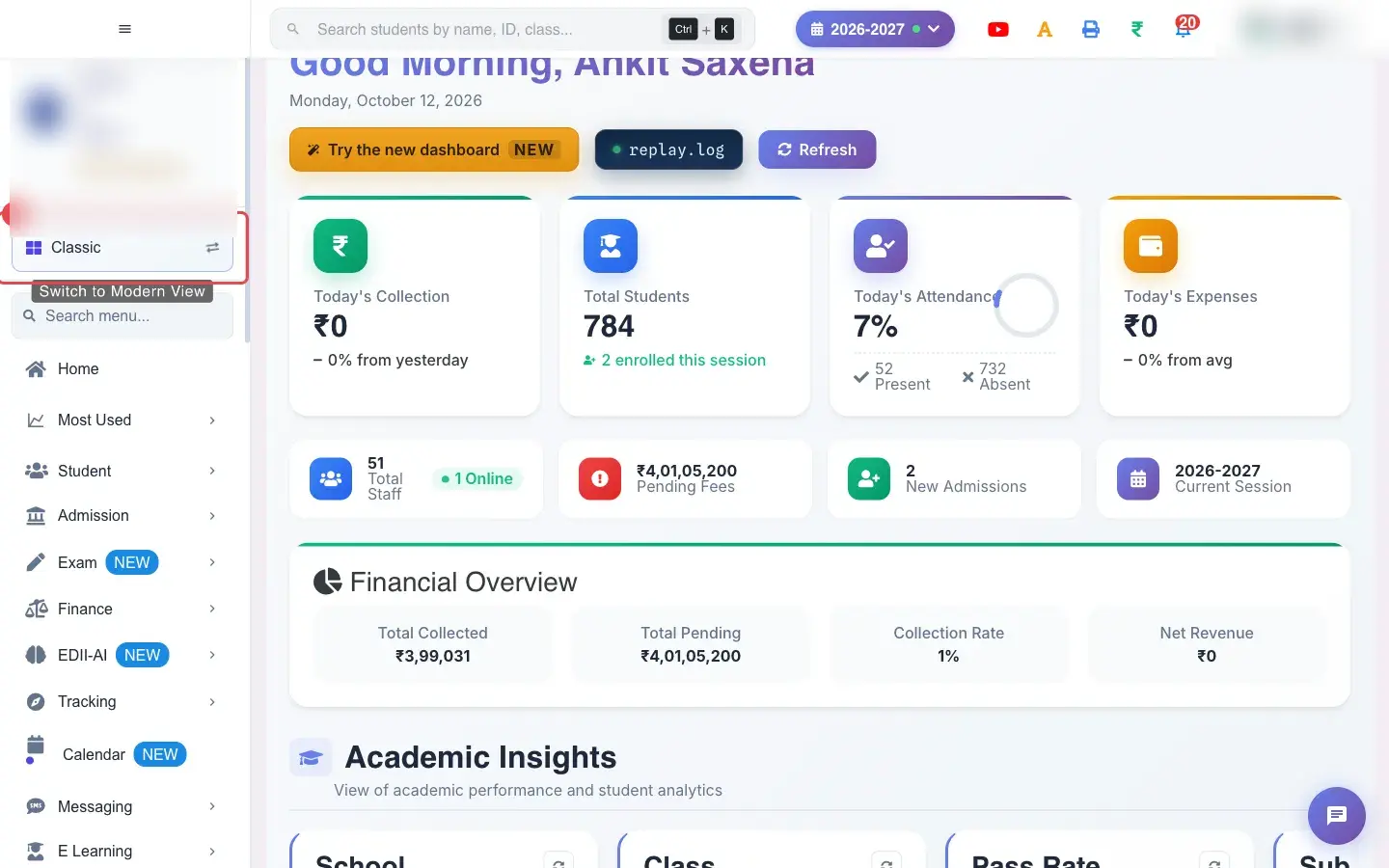
Section titled “4. Back to Classic”Select the button again to return to Classic.
 Open a bigger pictureतस्वीर बड़ी करें
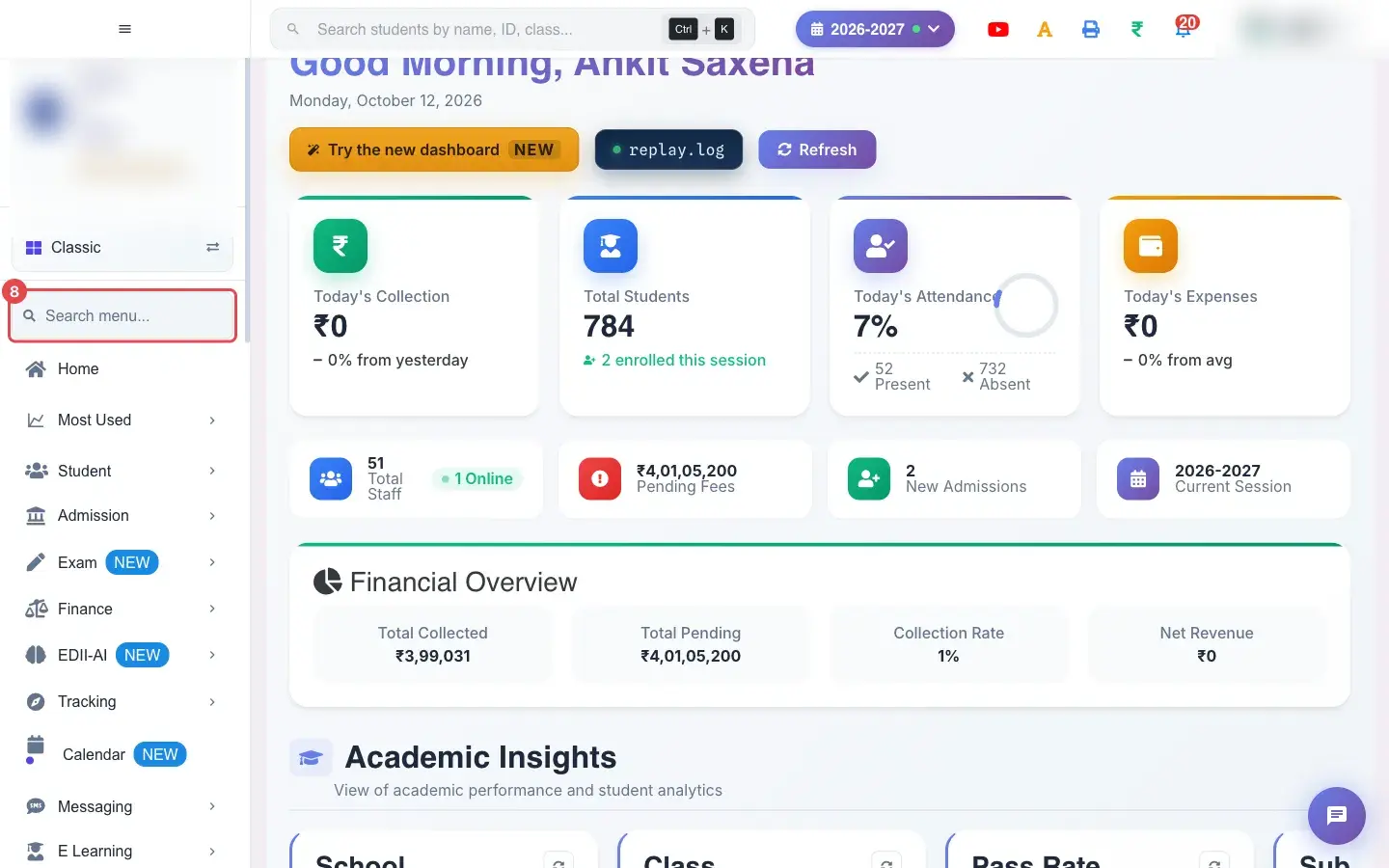
5. Search the menu
Section titled “5. Search the menu”Type in Search menu… to find a screen by name.
 Open a bigger pictureतस्वीर बड़ी करें
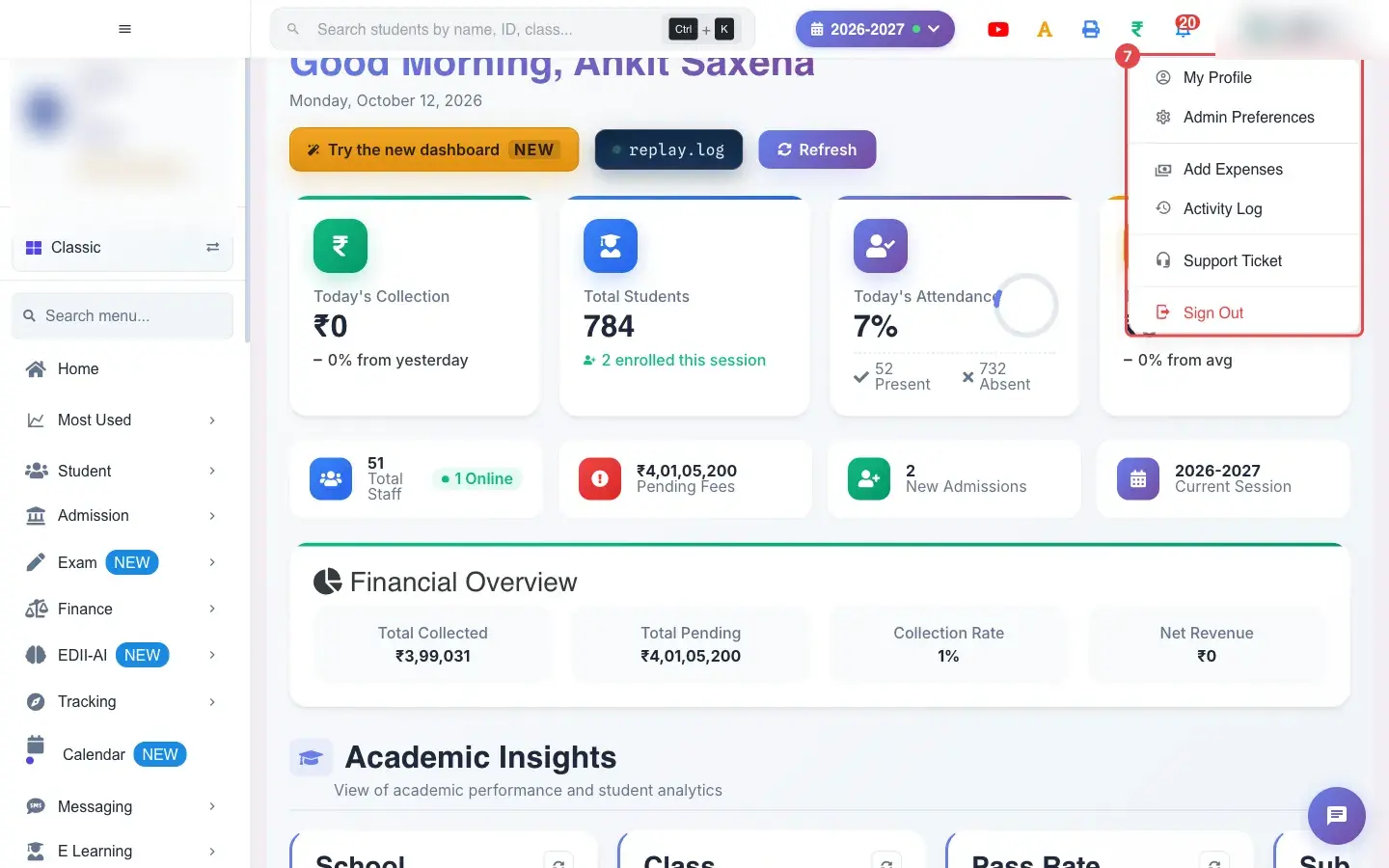
6. Your profile menu
Section titled “6. Your profile menu”Select your name at the top right for My Profile, Admin Preferences, Add Expenses, Activity Log, Support Ticket and Sign Out.
 Open a bigger pictureतस्वीर बड़ी करें
What happens next
Section titled “What happens next”- Your choice of Classic or Modern is remembered.
Stuck? Try this
Section titled “Stuck? Try this”| You see | Why | What to do |
|---|---|---|
| I cannot find a screen | Your role may not include it. | Use Search menu…, or ask your administrator. |
Did this page help?क्या इस पेज से मदद मिली?
Thanks! Glad it helped.धन्यवाद! अच्छा लगा कि काम बन गया।
Sorry about that. Ask in your own words, or write to us.माफ़ कीजिए। अपने शब्दों में पूछें, या हमें लिखें।