
How-to · Teacher app
Post on Buzz
Share a post and tag students.
यह पेज अंग्रेज़ी में है। कुछ समझ न आए तो ।
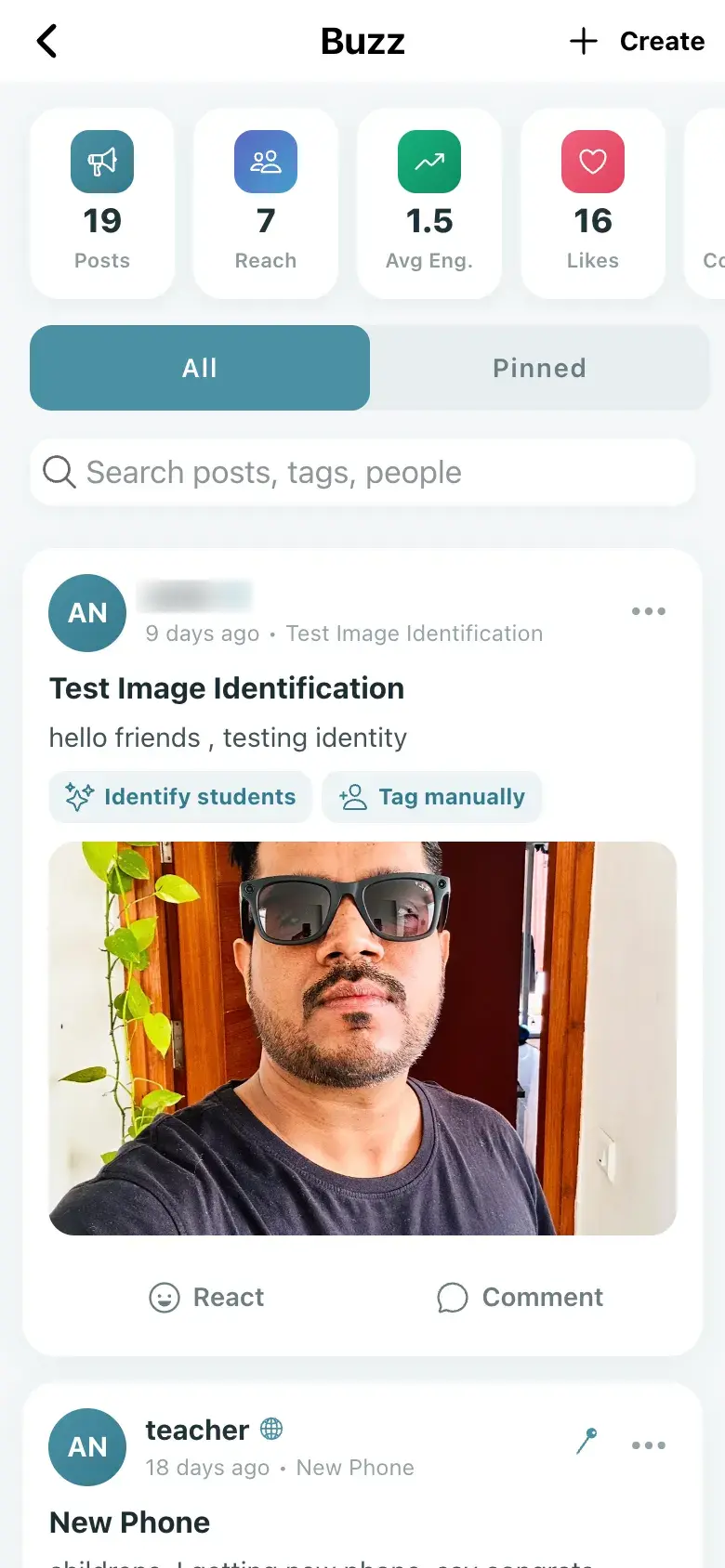
Buzz shows the numbers Posts, Reach, Avg Eng., Likes and Comments, and tabs All and Pinned (No pinned posts. Pin one from its menu.). Search with Search posts, tags, people. Create opens Create Buzz: Title (optional), What’s happening?, Audience (Whole school or Specific classes and sections), Tags (optional, comma separated) and Photos; select Post (Posted). Each post offers React and Comment.
Before you start
Section titled “Before you start”- Choose photos that are suitable for parents.
1. See the feed
Section titled “1. See the feed”Open All or Pinned.
 Open a bigger pictureतस्वीर बड़ी करें
2. Create a post
Section titled “2. Create a post”Select Create, write, choose the audience and add photos, then Post.
3. Tag students
Section titled “3. Tag students”Use Identify students or Tag manually.
Full details of this screen Post on Buzz
What happens next
Section titled “What happens next”- The post shows to its audience in the student app.
Good to know
Section titled “Good to know”- Choose an audience before posting.
- Tag suggestions need confirming.
Stuck? Try this
Section titled “Stuck? Try this”| You see | Why | What to do |
|---|---|---|
| No identify option | Auto-tag is off for the school. | Ask the administrator. |
Did this page help?क्या इस पेज से मदद मिली?
Thanks! Glad it helped.धन्यवाद! अच्छा लगा कि काम बन गया।
Sorry about that. Ask in your own words, or write to us.माफ़ कीजिए। अपने शब्दों में पूछें, या हमें लिखें।