
Screen guide · Teacher app
Exam Schedule
Every scheduled exam, filtered by class, section, exam type and subject, with details and the students who have appeared.
यह पेज अंग्रेज़ी में है। कुछ समझ न आए तो ।
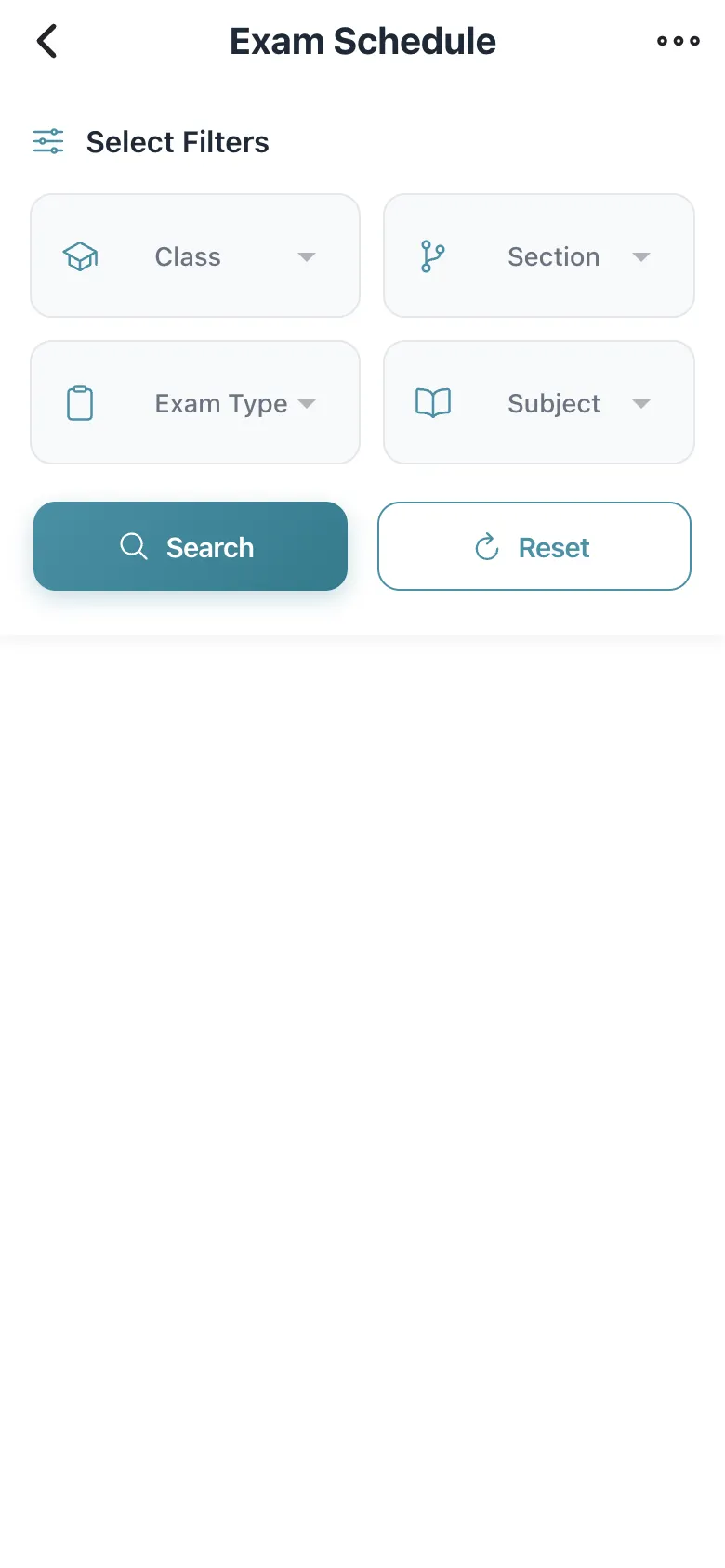
Exam Schedule: use Select Filters (Class, Section, Exam Type such as UT1, UT2, UT3, Half Yearly or Annual, and Subject), then Search (or Reset). Each exam opens Exam Details (class/section, subject, Max. Marks) with Update Exam and Students Appeared, where you can enter marks; a mark above the maximum is flagged Exceeds maximum marks. Add Exam creates a new one. Empty: No Exams Found — No exams match your selected filters.
Who uses it and when
Section titled “Who uses it and when”Teachers managing exams.
Before you start
Section titled “Before you start”- Choose filters.
Where to find it
Section titled “Where to find it”- Open Exams › View all scheduled exams.
 Open a bigger pictureतस्वीर बड़ी करें
Step by step
Section titled “Step by step”1. Set filters
Section titled “1. Set filters”Choose class, section, exam type and subject.
2. Open an exam
Section titled “2. Open an exam”Select an exam to see its details and students.
Fields and filters
Section titled “Fields and filters”| Field | What it is | Notes |
|---|---|---|
| Class / Section / Exam Type / Subject | Filters. | Optional. |
Buttons
Section titled “Buttons”| Button | What it does | What happens next |
|---|---|---|
| Search / Reset | Applies or clears the filters. | The list updates. |
| Update Exam | Opens the exam for editing. | Edit Exam opens. |
After you save
Section titled “After you save”- This screen only shows information.
Messages you may see
Section titled “Messages you may see”| Message | What it means | What to do |
|---|---|---|
| No Exams Found | No exam matches. | Change the filters. |
| Exceeds maximum marks | A mark is above the exam’s maximum. | Correct the mark. |
| Not Saved | A change was not saved. | Retry. |
- Check Max. Marks before entering results.
Stuck? Try this
Section titled “Stuck? Try this”| Problem | Likely cause | What to do |
|---|---|---|
| An exam is missing | It is for another class. | Change the class filter. |
Did this page help?क्या इस पेज से मदद मिली?
Thanks! Glad it helped.धन्यवाद! अच्छा लगा कि काम बन गया।
Sorry about that. Ask in your own words, or write to us.माफ़ कीजिए। अपने शब्दों में पूछें, या हमें लिखें।