
Screen guide · Web app
Website Settings
Set up the school's public website: basic info, address, about, academics, infrastructure, facilities, social links, contacts, SEO and a pop-up.
यह पेज अंग्रेज़ी में है। कुछ समझ न आए तो ।
Website Settings (School Website › Settings) controls what the school’s public website shows. Tabs: Basic Info (school name, theme colour, website URL, email, up to four phone numbers, type, board, affiliation, affiliation number, established year, UDISE, GST, branch, motto), Address, About School (description, vision, mission, principal and manager with their messages), Academic, Infrastructure (classrooms, labs, staff rooms, area, parking, garden), Facilities, Social Media, Contact Person, SEO (page title and description for search engines), Popup (an announcement shown on the site) and Why Choose Us.
Many boxes can be pre-filled from School Preferences (Data prefilled from School Preferences. Please review and save.). Images must be JPG, PNG, GIF or WEBP under 5 MB. Preview Website shows the result and Save Website Settings publishes it (Website Settings Saved Successfully).
Who uses it and when
Section titled “Who uses it and when”The administrator or marketing in-charge.
Before you start
Section titled “Before you start”- Collect the logo, photos, messages and contact details.
Where to find it
Section titled “Where to find it”- Menu: School Website › Settings
- Address:
/view/website - If it is missing from your menu, your role does not include it. Ask your school admin.
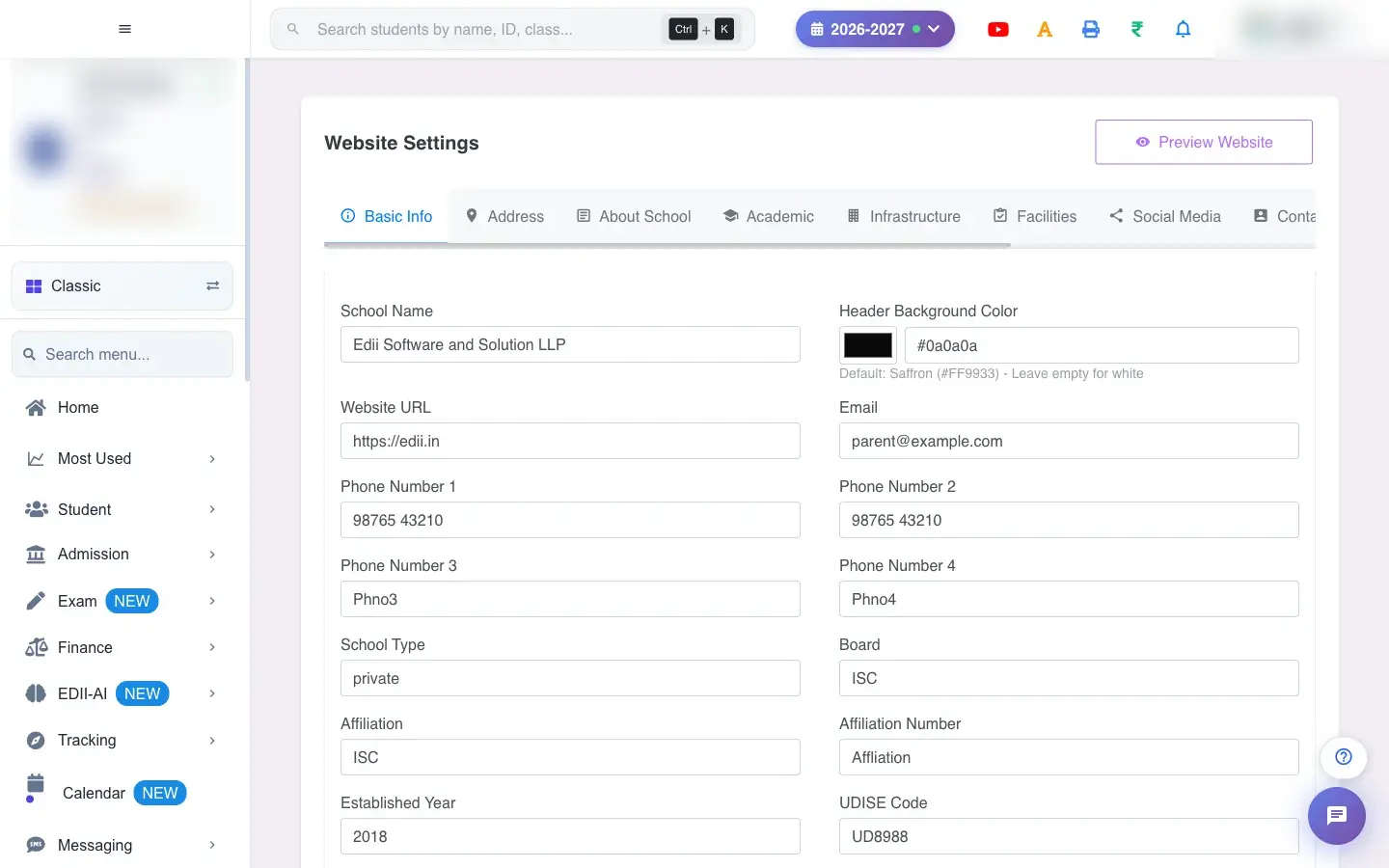 Open a bigger pictureतस्वीर बड़ी करें
Step by step
Section titled “Step by step”1. Fill each tab
Section titled “1. Fill each tab”Go tab by tab; use pre-filled values from Preferences where offered.
2. Preview
Section titled “2. Preview”Select Preview Website to check how it looks.
3. Save
Section titled “3. Save”Select Save Website Settings.
Fields and filters
Section titled “Fields and filters”| Field | What it is | Notes |
|---|---|---|
| Basic Info | Name, URL, contact, board, affiliation, motto. | Name recommended. |
| Address | Full address, city, state, pincode, map position. | Optional. |
| About School | Description, vision, mission, principal and manager. | Optional. |
| Academic / Infrastructure / Facilities | Details visitors want. | Optional. |
| Social Media / Contact Person | Links and contacts. | Optional. |
| SEO | Title and description for search engines. | 150–160 characters for the description. |
| Popup | An announcement with title, description, image and link. | Switch on to show. |
Buttons
Section titled “Buttons”| Button | What it does | What happens next |
|---|---|---|
| Preview Website | Opens a preview. | A preview opens. |
| Save Website Settings | Publishes the settings. | Website Settings Saved Successfully. |
After you save
Section titled “After you save”- The public website shows the new information.
Good to know
Section titled “Good to know”- Images must be JPG, PNG, GIF or WEBP under 5 MB.
Messages you may see
Section titled “Messages you may see”| Message | What it means | What to do |
|---|---|---|
| Website Settings Saved Successfully | Saved. | Preview the site. |
| Image size should be less than 5MB | Image too big. | Use a smaller image. |
| Network Issue, Please Try Again. | A request failed. | Try again. |
- Keep contact details current.
- Write the SEO description for parents searching your school.
Stuck? Try this
Section titled “Stuck? Try this”| Problem | Likely cause | What to do |
|---|---|---|
| Changes not on the website | Not saved. | Select Save Website Settings. |
Did this page help?क्या इस पेज से मदद मिली?
Thanks! Glad it helped.धन्यवाद! अच्छा लगा कि काम बन गया।
Sorry about that. Ask in your own words, or write to us.माफ़ कीजिए। अपने शब्दों में पूछें, या हमें लिखें।