
Screen guide · Web app
Deleted Student
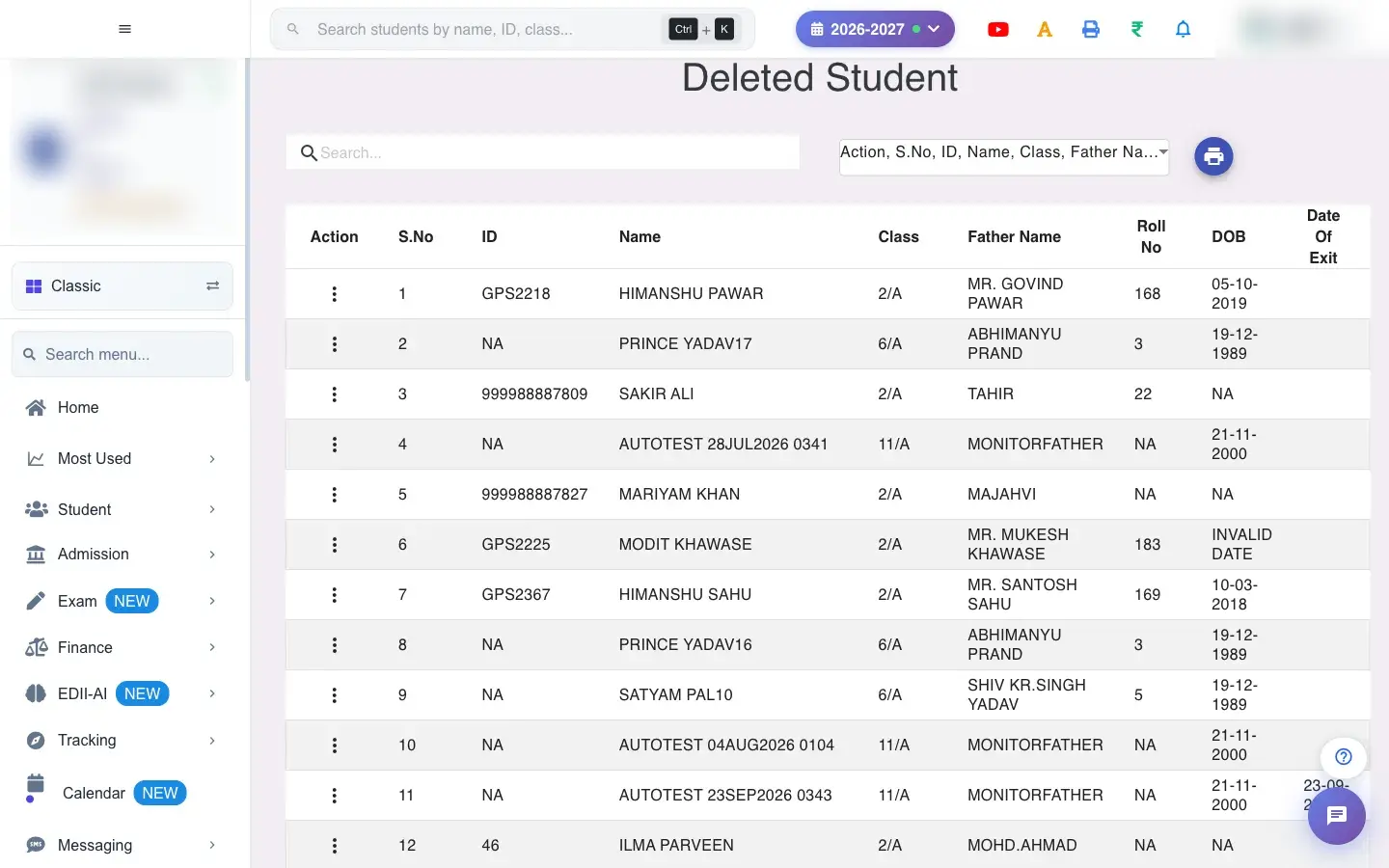
The list of students who were deleted, with their class and exit date, where an authorised user can restore any of them.
यह पेज अंग्रेज़ी में है। कुछ समझ न आए तो ।
Deleted Student (Student › View Delete Student) lists every student removed from the school’s roll: ID, name, class and section, father’s name, roll number, date of birth and Date Of Exit. Deleting a student does not destroy the record immediately; this screen is where you can Restore one if it was done by mistake.
Who uses it and when
Section titled “Who uses it and when”Administrators use it after a wrong deletion or when a student returns after leaving.
Before you start
Section titled “Before you start”- Restoring needs permission. Choose how many rows to show per page; the list loads on its own.
Where to find it
Section titled “Where to find it”- Menu: Student › View Delete Student
- Address:
/view/view-deleted-student - If it is missing from your menu, your role does not include it. Ask your school admin.
 Open a bigger pictureतस्वीर बड़ी करें
Step by step
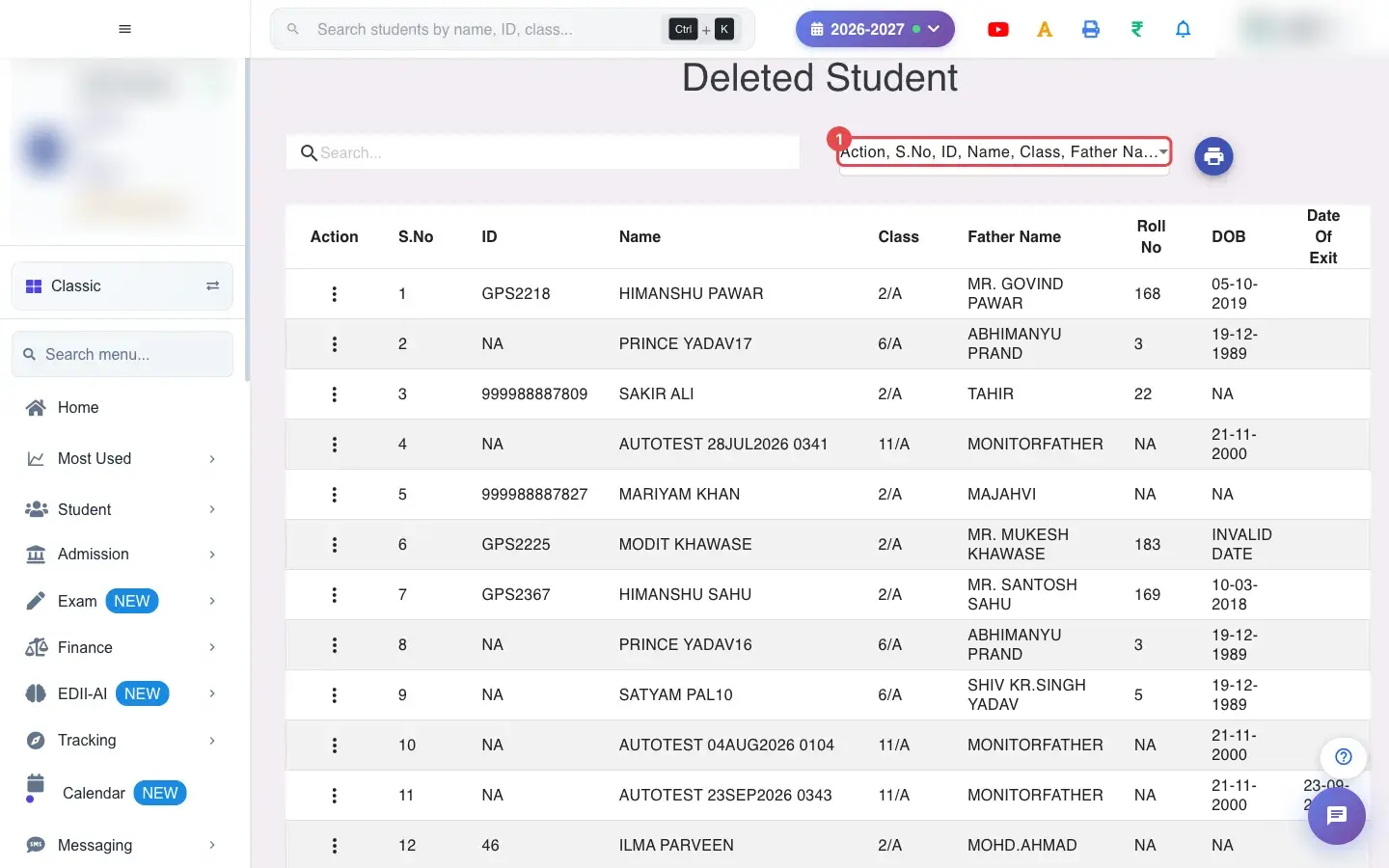
Section titled “Step by step”1. Choose Deleted Student (for example Action, S.No, ID, Name, Class, Father Name, Roll No, DOB, Date of Exit)
Section titled “1. Choose Deleted Student (for example Action, S.No, ID, Name, Class, Father Name, Roll No, DOB, Date of Exit)”Select Fields to Display chooses the columns: Action, S.No, ID, Name, Class, Father Name, Roll No, DOB, Date of Exit.
 Open a bigger pictureतस्वीर बड़ी करें
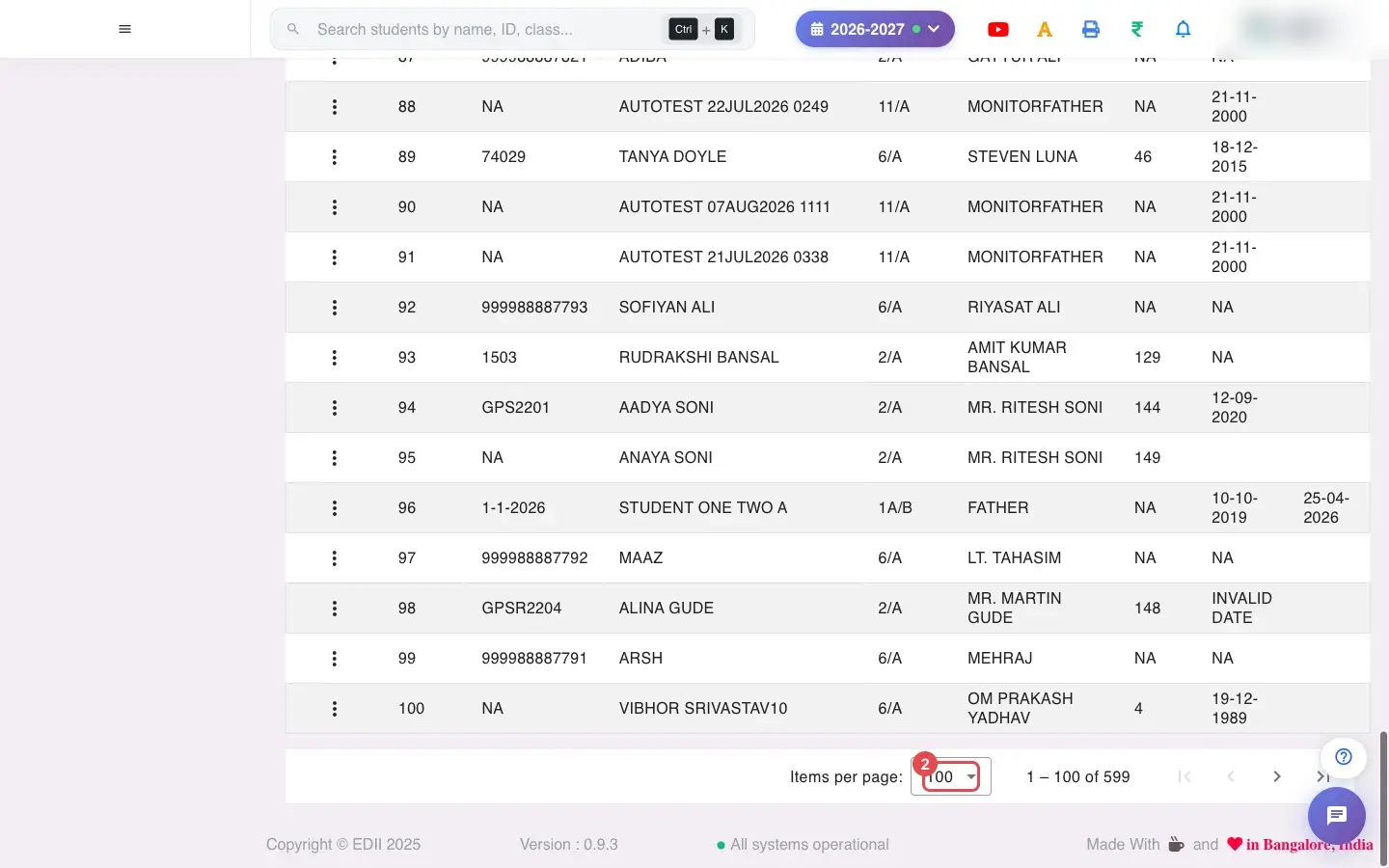
2. Choose 100 (for example 100)
Section titled “2. Choose 100 (for example 100)”Choose how many students to show per page.
 Open a bigger pictureतस्वीर बड़ी करें
3. Find the student
Section titled “3. Find the student”Type in Search… to filter by name or other shown columns.
4. Restore a student
Section titled “4. Restore a student”Open the three-dot menu in Action and choose Restore. The student returns to their class and appears in the student list again.
5. Print or download
Section titled “5. Print or download”Select All ticks every row; the menu offers Download Excel File, Download Text File, Download CSV File and Print with Report Generated On.
With data
Section titled “With data”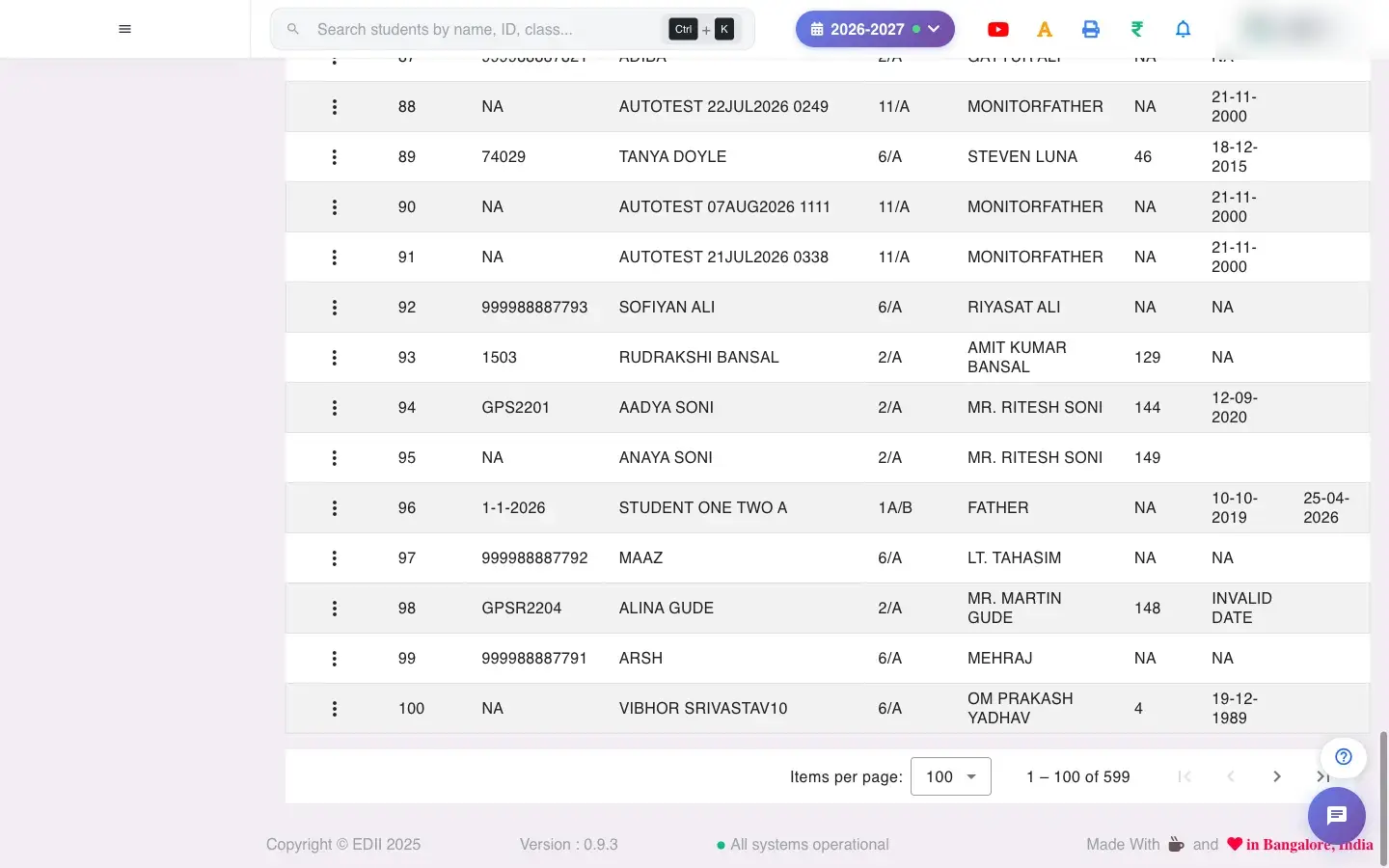 Open a bigger pictureतस्वीर बड़ी करें
Fields and filters
Section titled “Fields and filters”| Field | What it is | Notes |
|---|---|---|
| Select Fields to Display | Columns to show. | Only changes the view. |
| Items per page | Rows per page. | 50 to 5000. |
| Search… | Find by typing. | Filters the list. |
Buttons
Section titled “Buttons”| Button | What it does | What happens next |
|---|---|---|
| Restore | Brings a deleted student back. | The student returns to the class list. |
| Print / Download | Prints or exports the list. | Opens the print window or a file. |
Columns
Section titled “Columns”| Column | Meaning |
|---|---|
| ID / Name / Class / Father Name / Roll No / DOB | Who the student was. |
| Date Of Exit | When the student was deleted. |
| Action | Restore. |
After you save
Section titled “After you save”- Restore puts the student back on the roll for their class so fees, attendance and reports include them again.
Good to know
Section titled “Good to know”- Only deleted students appear here.
- Restoring is for authorised users.
Messages you may see
Section titled “Messages you may see”| Message | What it means | What to do |
|---|---|---|
| Network Issue, Please Try Again. | The list could not be fetched. | Check the internet and reopen. |
- Check the Date Of Exit to be sure you restore the right student.
Stuck? Try this
Section titled “Stuck? Try this”| Problem | Likely cause | What to do |
|---|---|---|
| A student is missing here and in the class list | They may be suspended instead of deleted. | Check Suspended Student. |
Did this page help?क्या इस पेज से मदद मिली?
Thanks! Glad it helped.धन्यवाद! अच्छा लगा कि काम बन गया।
Sorry about that. Ask in your own words, or write to us.माफ़ कीजिए। अपने शब्दों में पूछें, या हमें लिखें।