
Screen guide · Web app
Add Exam Details
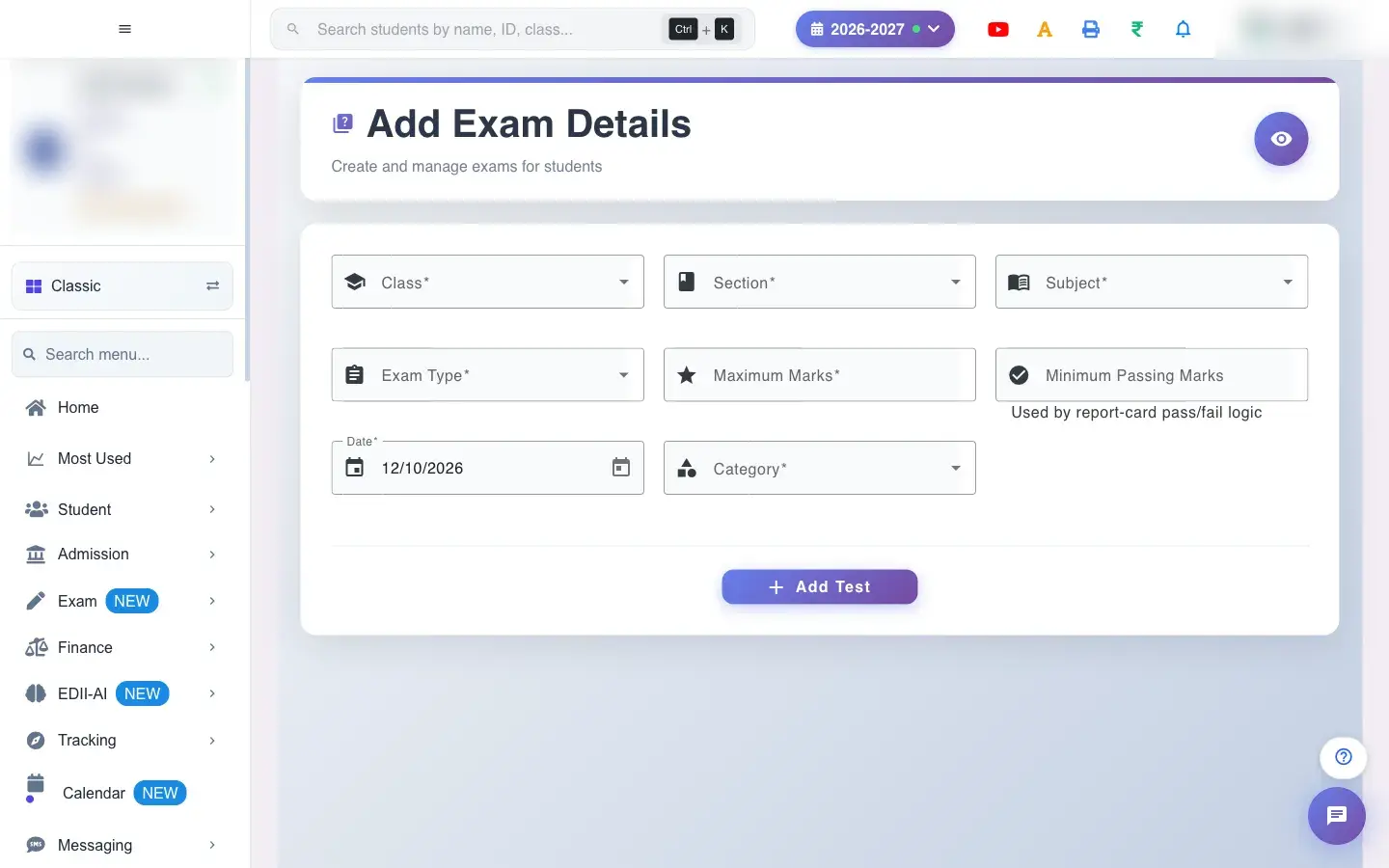
Create an offline exam (test) for a class, section and subject: set the exam type, category, maximum and passing marks and the date.
यह पेज अंग्रेज़ी में है। कुछ समझ न आए तो ।
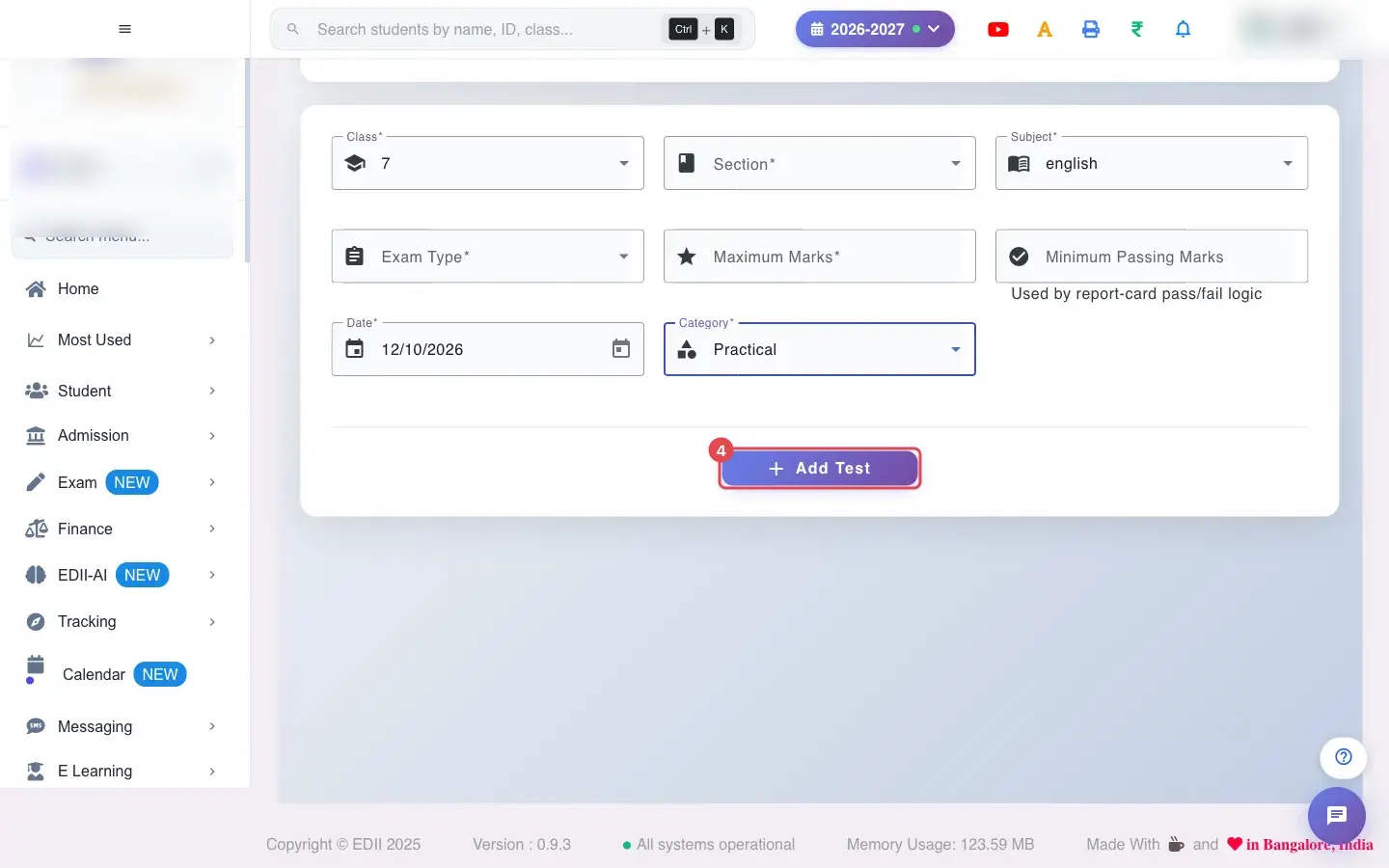
Add Exam Details (Exam › Create Test) creates an offline test, that is, an exam written on paper whose marks you enter later. You choose the class(es), section(s), subject, Exam Type (for example UT1 or Half Yearly), a Category (such as Theory or Practical), the Maximum Marks, the Minimum Passing Marks and the Date.
The minimum passing marks are used by the report card to decide pass or fail, so set them carefully. Once the test exists you enter marks on Enter Marks.
Who uses it and when
Section titled “Who uses it and when”The exam in-charge creates tests at the start of each exam cycle.
Before you start
Section titled “Before you start”- Subjects must be added for the class (Exam › Subjects). Exam types are set up in the school’s academic details.
Where to find it
Section titled “Where to find it”- Menu: Exam › Create Test
- Address:
/add/add-test - If it is missing from your menu, your role does not include it. Ask your school admin.
 Open a bigger pictureतस्वीर बड़ी करें
Step by step
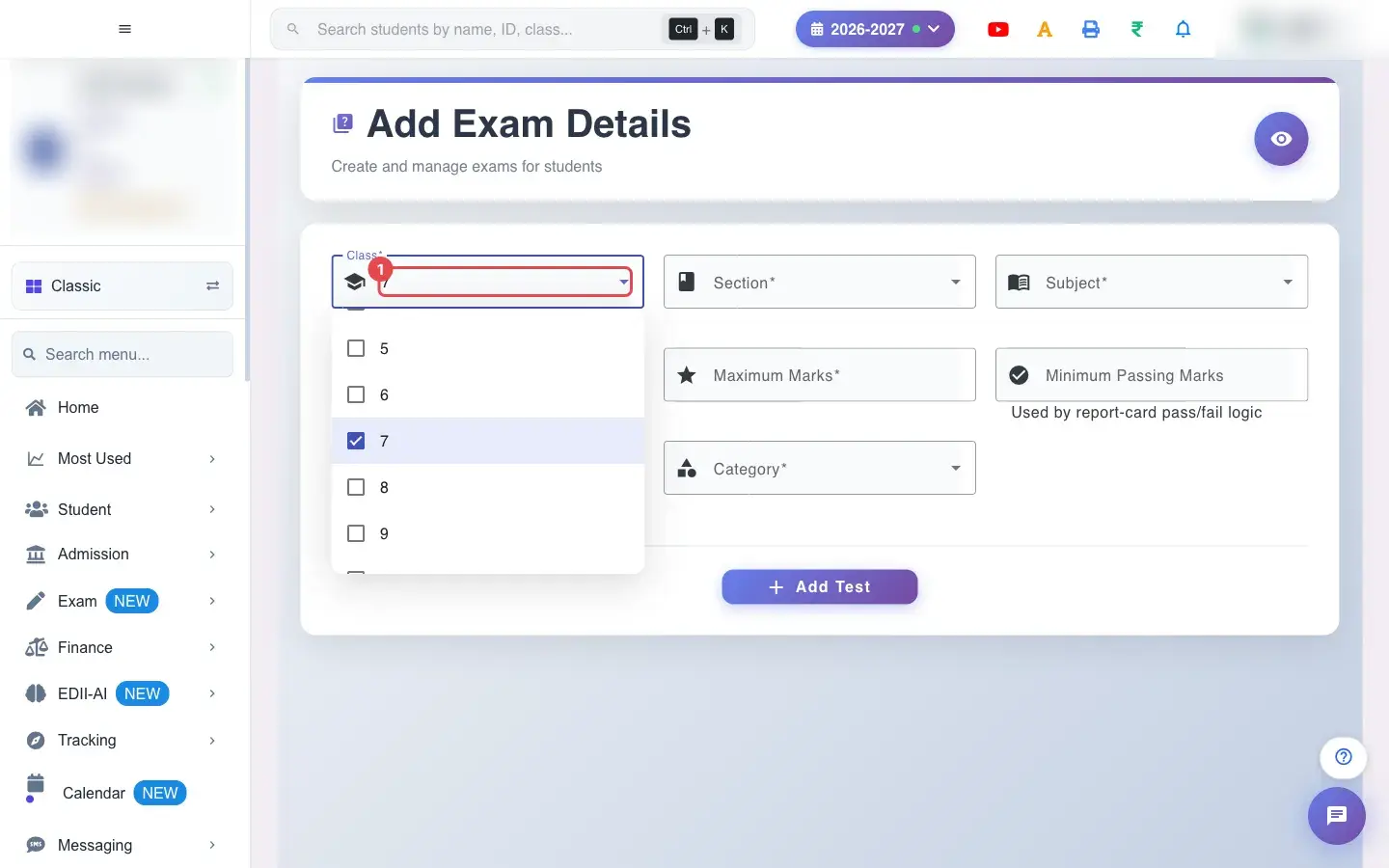
Section titled “Step by step”1. Choose Class (for example 7)
Section titled “1. Choose Class (for example 7)”Choose the Class (or Select All).
 Open a bigger pictureतस्वीर बड़ी करें
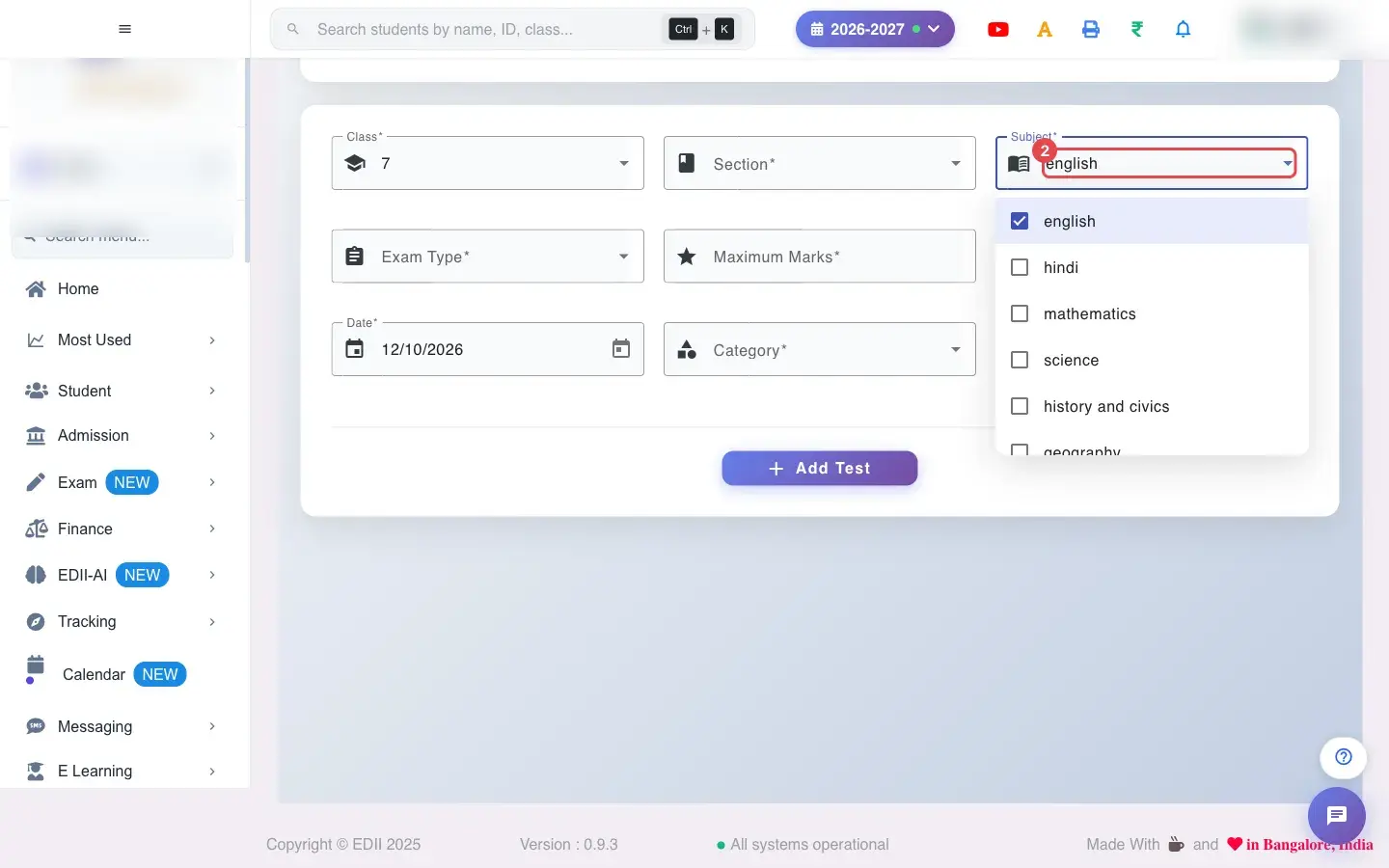
2. Choose Subject (for example english)
Section titled “2. Choose Subject (for example english)”Choose the Subject.
 Open a bigger pictureतस्वीर बड़ी करें
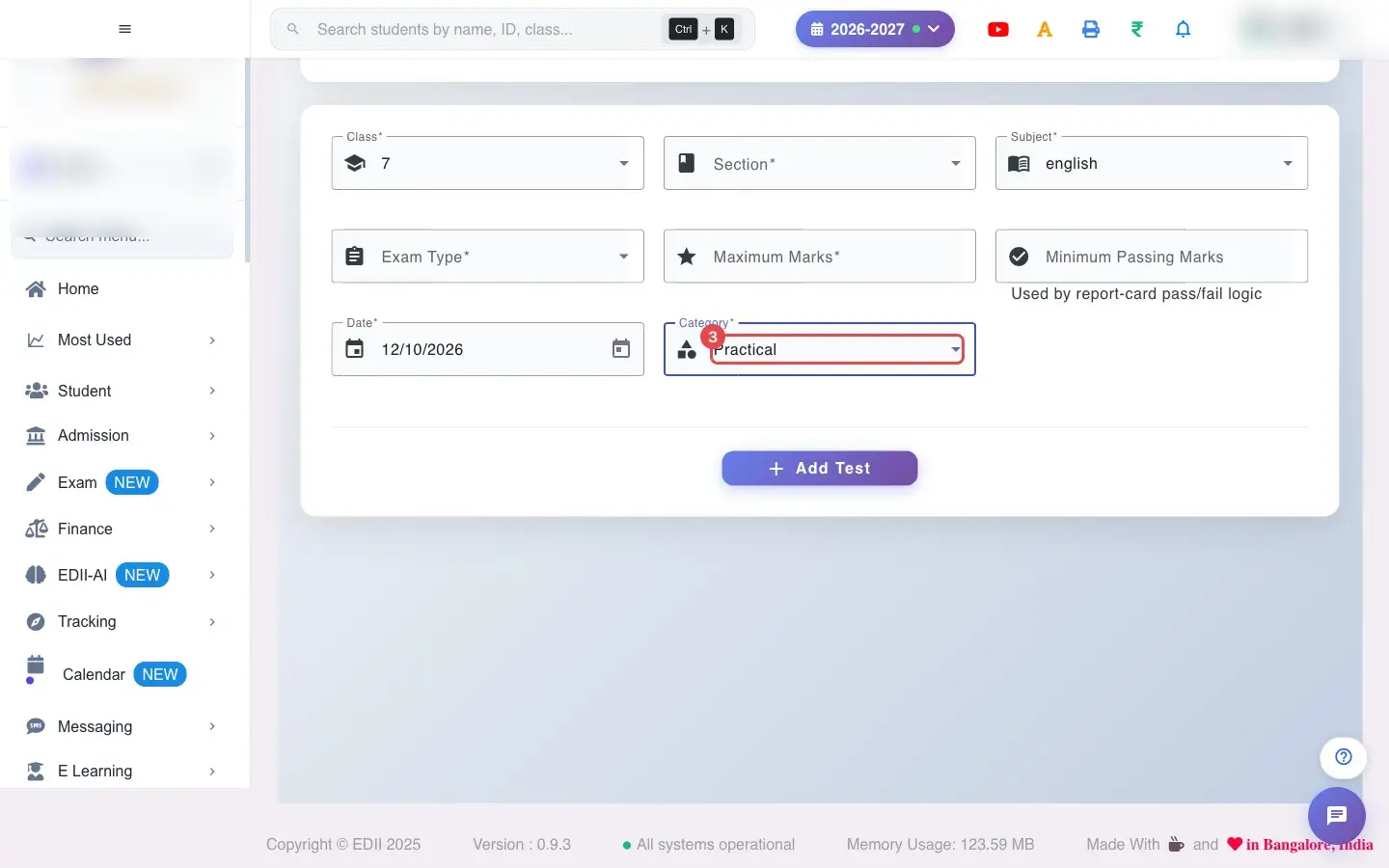
3. Choose Category (for example Practical)
Section titled “3. Choose Category (for example Practical)”Choose the Category, such as Theory or Practical.
 Open a bigger pictureतस्वीर बड़ी करें
4. When you are done, select Add Test
Section titled “4. When you are done, select Add Test”Select Add Test.
 Open a bigger pictureतस्वीर बड़ी करें
5. Choose section and exam type
Section titled “5. Choose section and exam type”Pick the Section and the Exam Type. All are required. If the class has no subjects you see Subjects Unavailable For The Class Selected.
6. Set the marks and date
Section titled “6. Set the marks and date”Enter Maximum Marks (required) and Minimum Passing Marks, and pick the Date (required).
7. Add the test
Section titled “7. Add the test”Select Add Test. The message Test Successfully Added confirms it.
With data
Section titled “With data”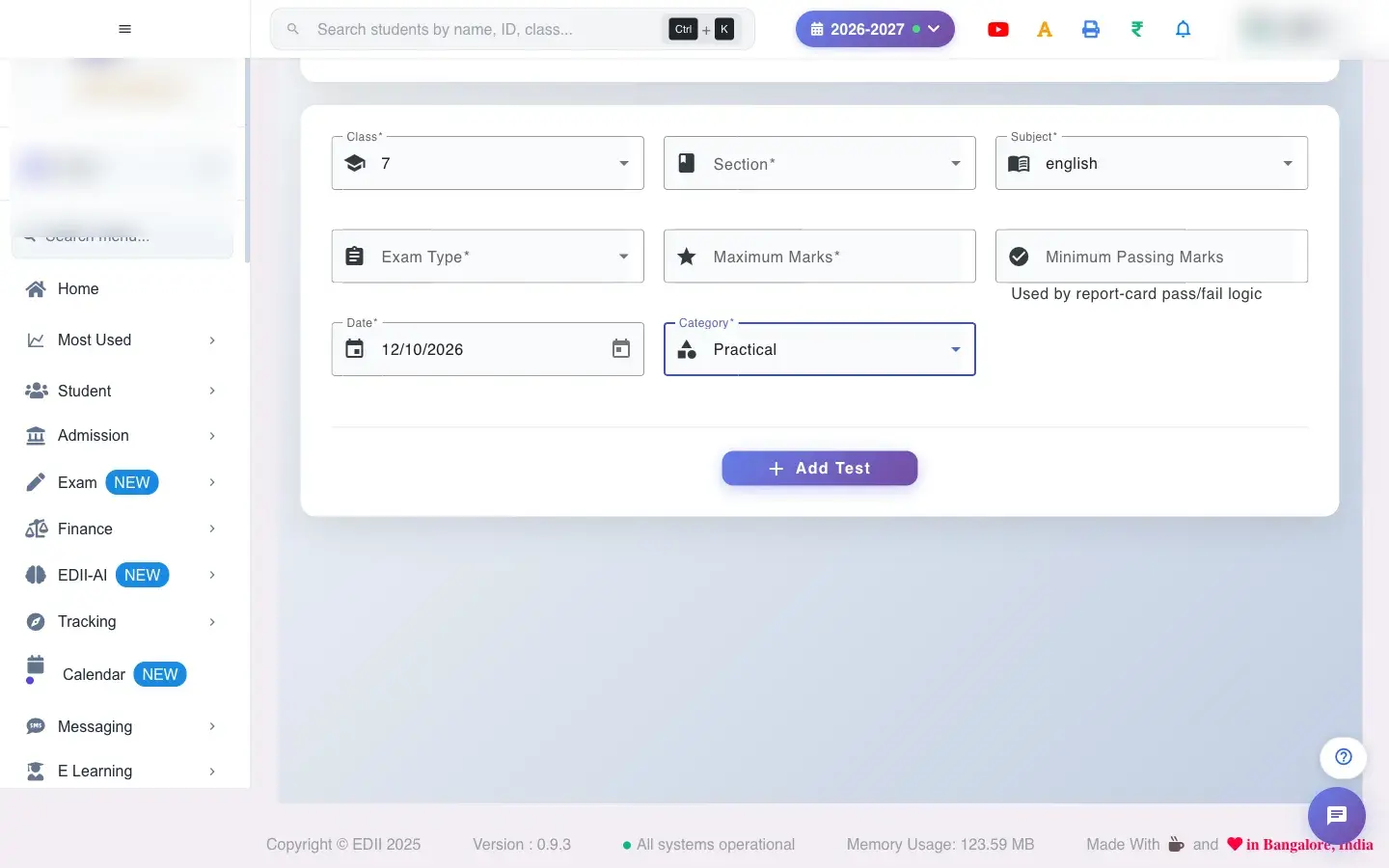 Open a bigger pictureतस्वीर बड़ी करें
Fields and filters
Section titled “Fields and filters”| Field | What it is | Notes |
|---|---|---|
| Class / Section / Subject | Who takes the exam in what. | Required. |
| Exam Type / Category | The exam cycle and kind. | Required. |
| Maximum Marks | Total marks. | Required. |
| Minimum Passing Marks | The pass mark. | Used by report-card pass/fail. |
| Date | Exam date. | Required. |
Buttons
Section titled “Buttons”| Button | What it does | What happens next |
|---|---|---|
| Add Test | Creates the test. | It appears in Edit/View Test and Enter Marks. |
After you save
Section titled “After you save”- The test is created for every chosen class and section and becomes available for marks entry, admit cards and report cards.
Good to know
Section titled “Good to know”- Class, section, subject, exam type, category, maximum marks and date are required.
- Minimum passing marks drive pass or fail on report cards.
Messages you may see
Section titled “Messages you may see”| Message | What it means | What to do |
|---|---|---|
| Test Successfully Added | The test was created. | Enter marks later. |
| Subjects Unavailable For The Class Selected | No subjects exist for the class. | Add subjects first. |
| Bad/Slow Internet Connection, Please check your internet connection | A request failed. | Try again. |
- Create tests for all sections together by selecting all sections.
- Set the passing marks now to avoid correcting report cards later.
Stuck? Try this
Section titled “Stuck? Try this”| Problem | Likely cause | What to do |
|---|---|---|
| The subject list is empty | The class has no subjects. | Add them in Exam › Subjects. |
Did this page help?क्या इस पेज से मदद मिली?
Thanks! Glad it helped.धन्यवाद! अच्छा लगा कि काम बन गया।
Sorry about that. Ask in your own words, or write to us.माफ़ कीजिए। अपने शब्दों में पूछें, या हमें लिखें।