
Screen guide · Web app
Question For
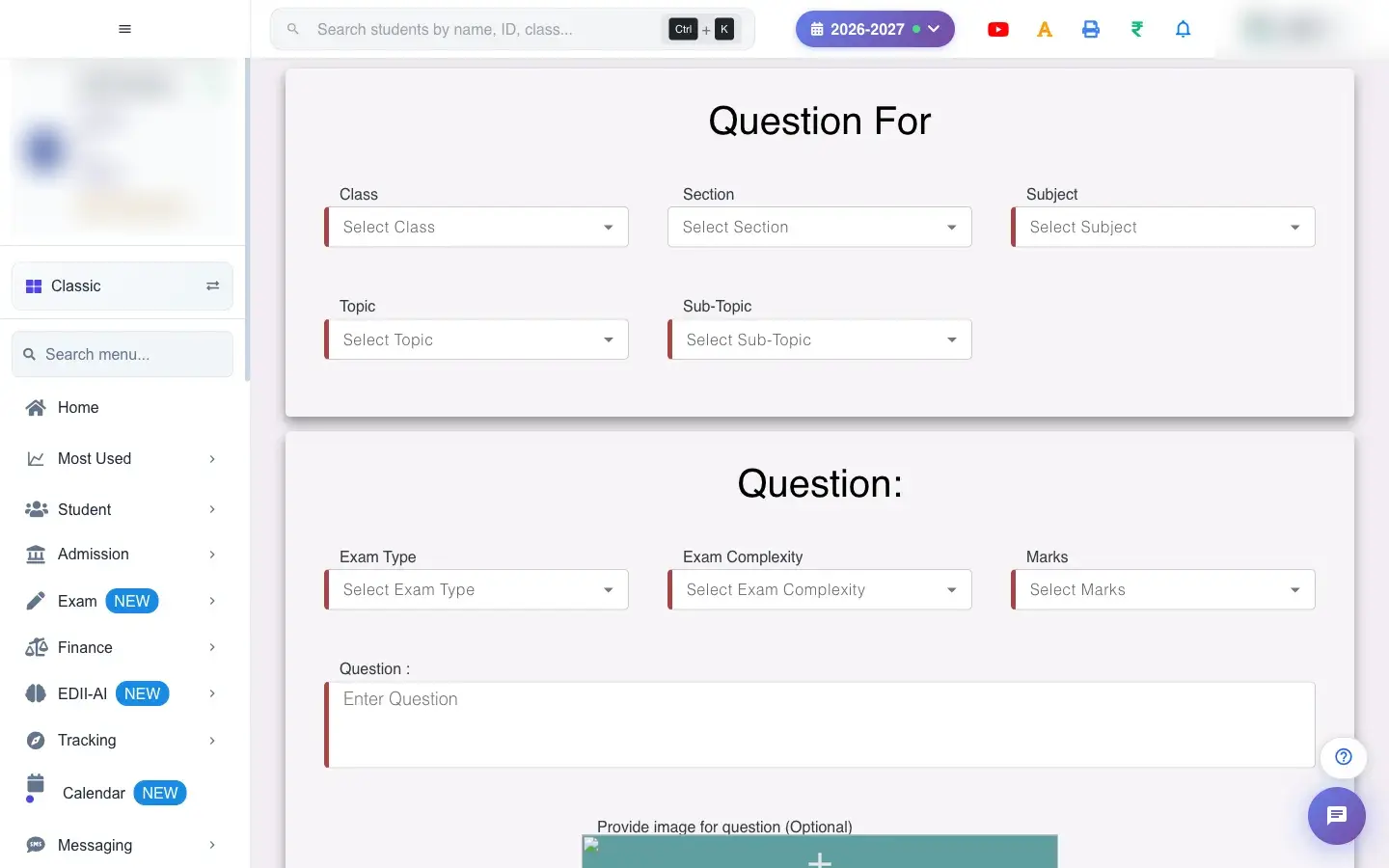
Add a question to the question bank: choose class, subject, topic and sub-topic, write the question and options, mark the correct answer and set marks and difficulty.
यह पेज अंग्रेज़ी में है। कुछ समझ न आए तो ।
Question For (Exam › Questions) adds a question to the school’s question bank. Choose the Class, Section, Subject, Topic and Sub-Topic, then the Exam Type, Exam Complexity (difficulty) and Marks. Write the Question, optionally add an image, add the Options and choose the correct Answers. The questions can later be used in online tests and question papers.
Who uses it and when
Section titled “Who uses it and when”Teachers and the exam in-charge build the question bank.
Before you start
Section titled “Before you start”- The subject, topic and sub-topic must exist (Exam › Subjects, Topics, Sub Topics).
Where to find it
Section titled “Where to find it”- Menu: Exam › Questions
- Address:
/add/add-questions - If it is missing from your menu, your role does not include it. Ask your school admin.
 Open a bigger pictureतस्वीर बड़ी करें
Step by step
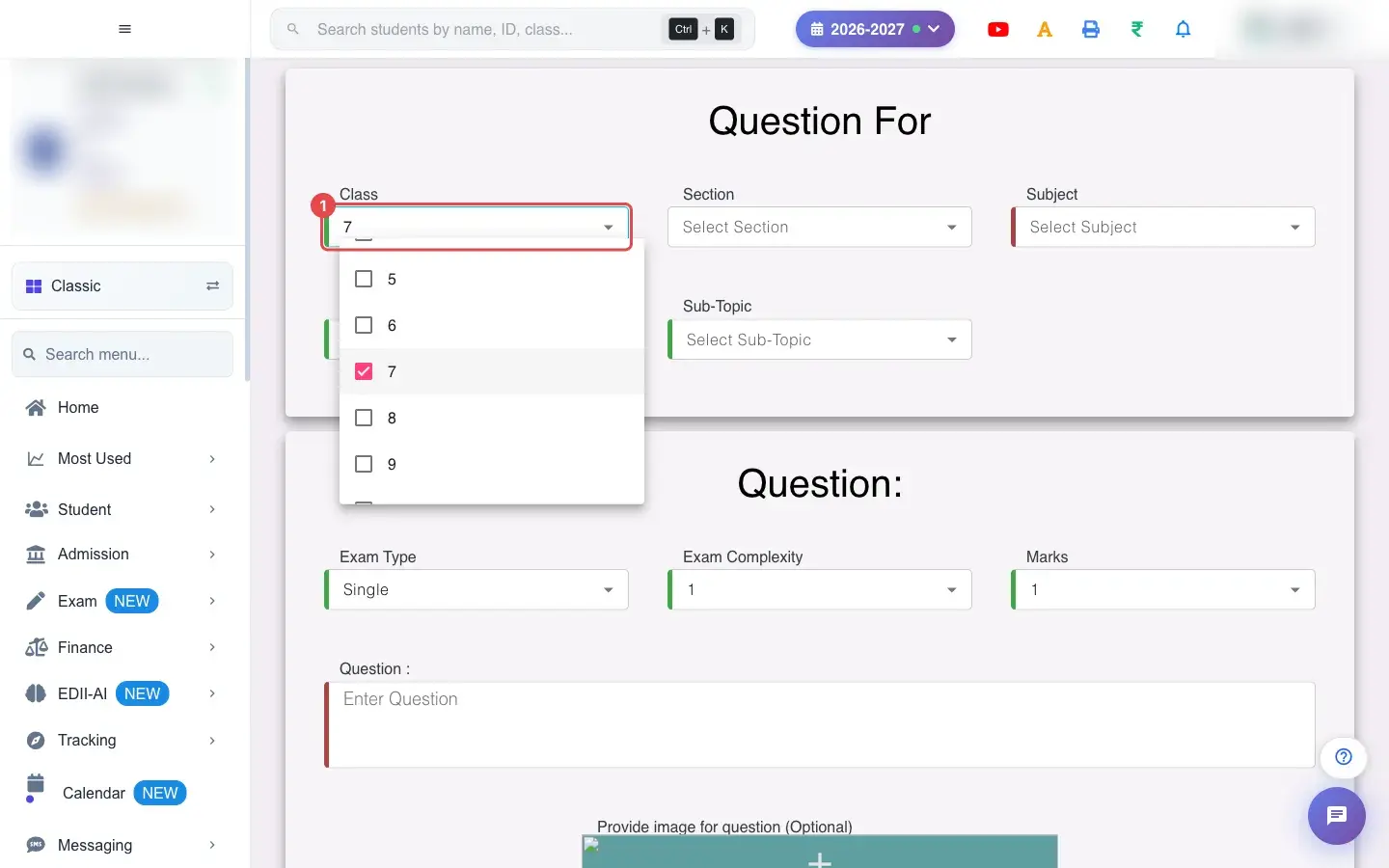
Section titled “Step by step”1. Choose Class (for example 7)
Section titled “1. Choose Class (for example 7)”Choose the Class.
 Open a bigger pictureतस्वीर बड़ी करें
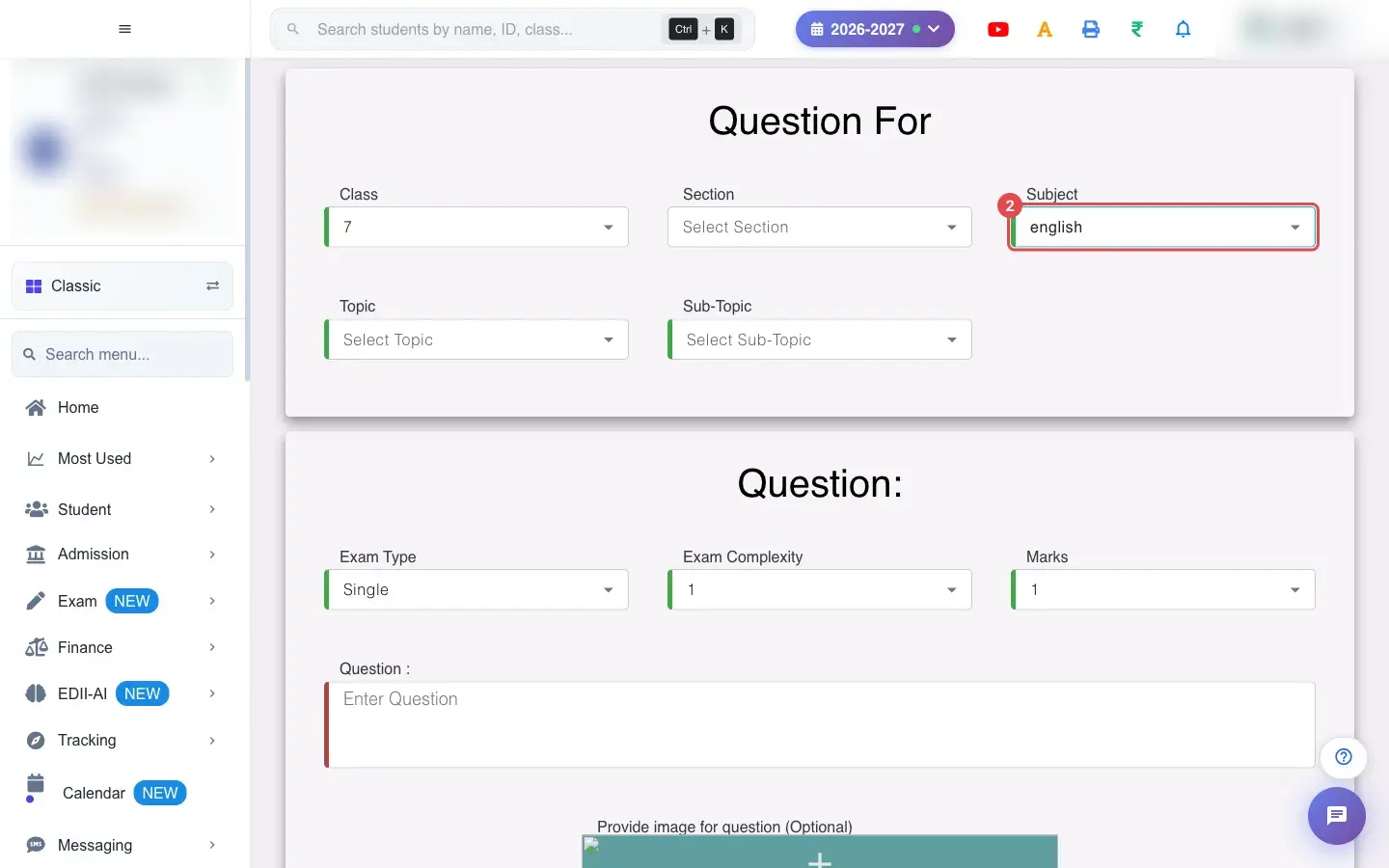
2. Choose Subject (for example english)
Section titled “2. Choose Subject (for example english)”Choose the Subject.
 Open a bigger pictureतस्वीर बड़ी करें
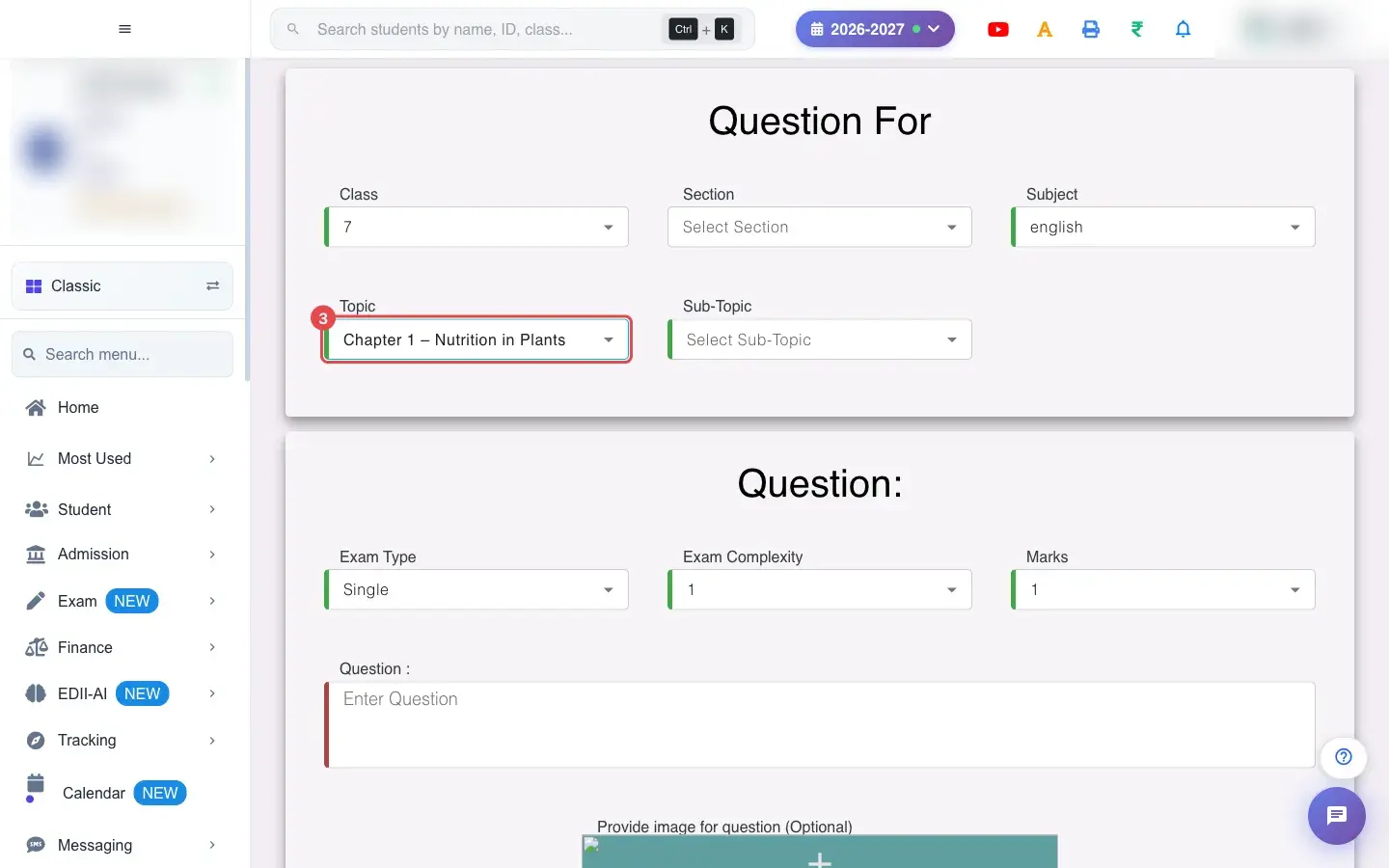
3. Choose Topic (for example Chapter 1 – Nutrition in Plants)
Section titled “3. Choose Topic (for example Chapter 1 – Nutrition in Plants)”Choose the Topic.
 Open a bigger pictureतस्वीर बड़ी करें
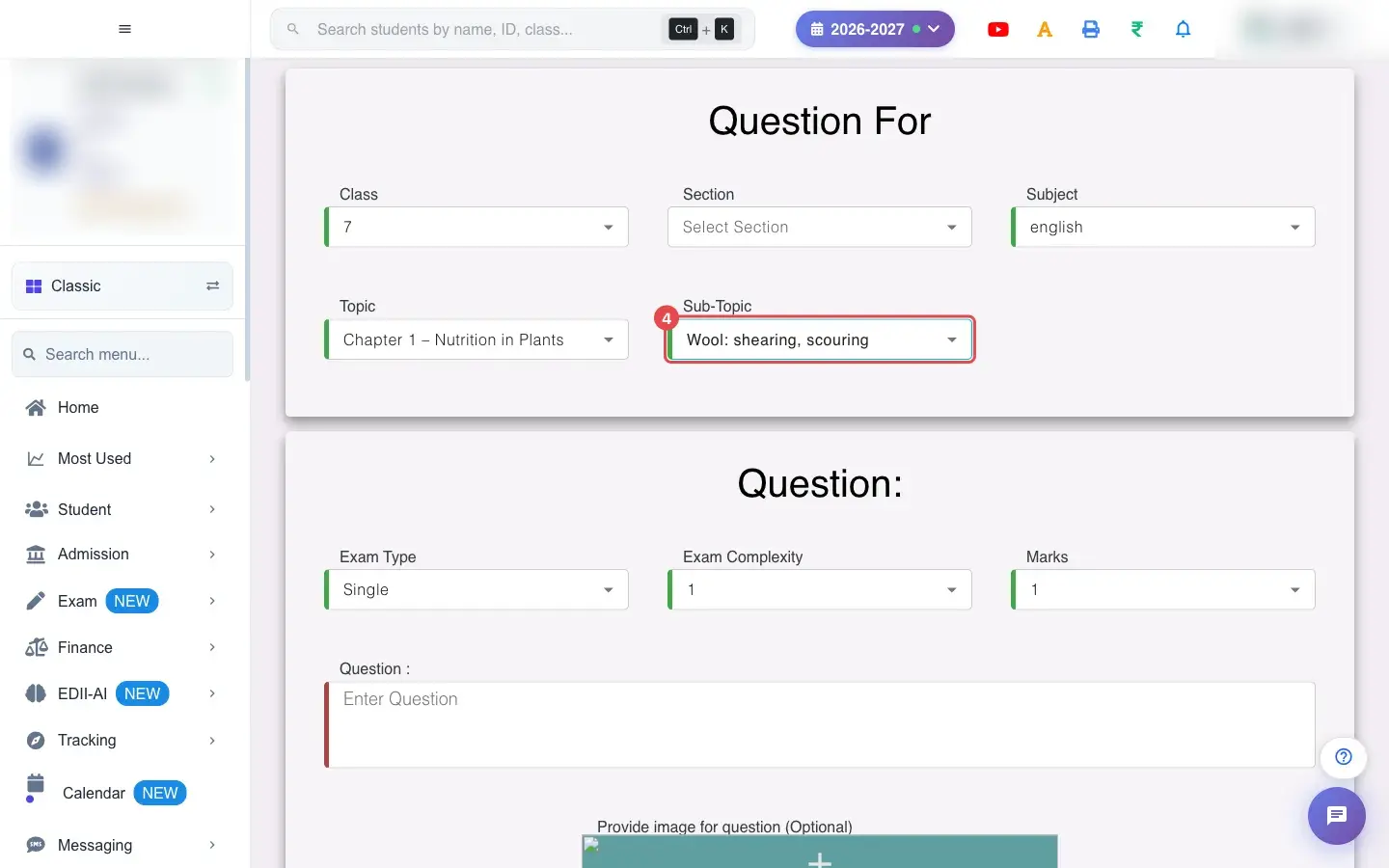
4. Choose Sub-Topic (for example Wool: shearing, scouring)
Section titled “4. Choose Sub-Topic (for example Wool: shearing, scouring)”Choose the Sub-Topic.
 Open a bigger pictureतस्वीर बड़ी करें
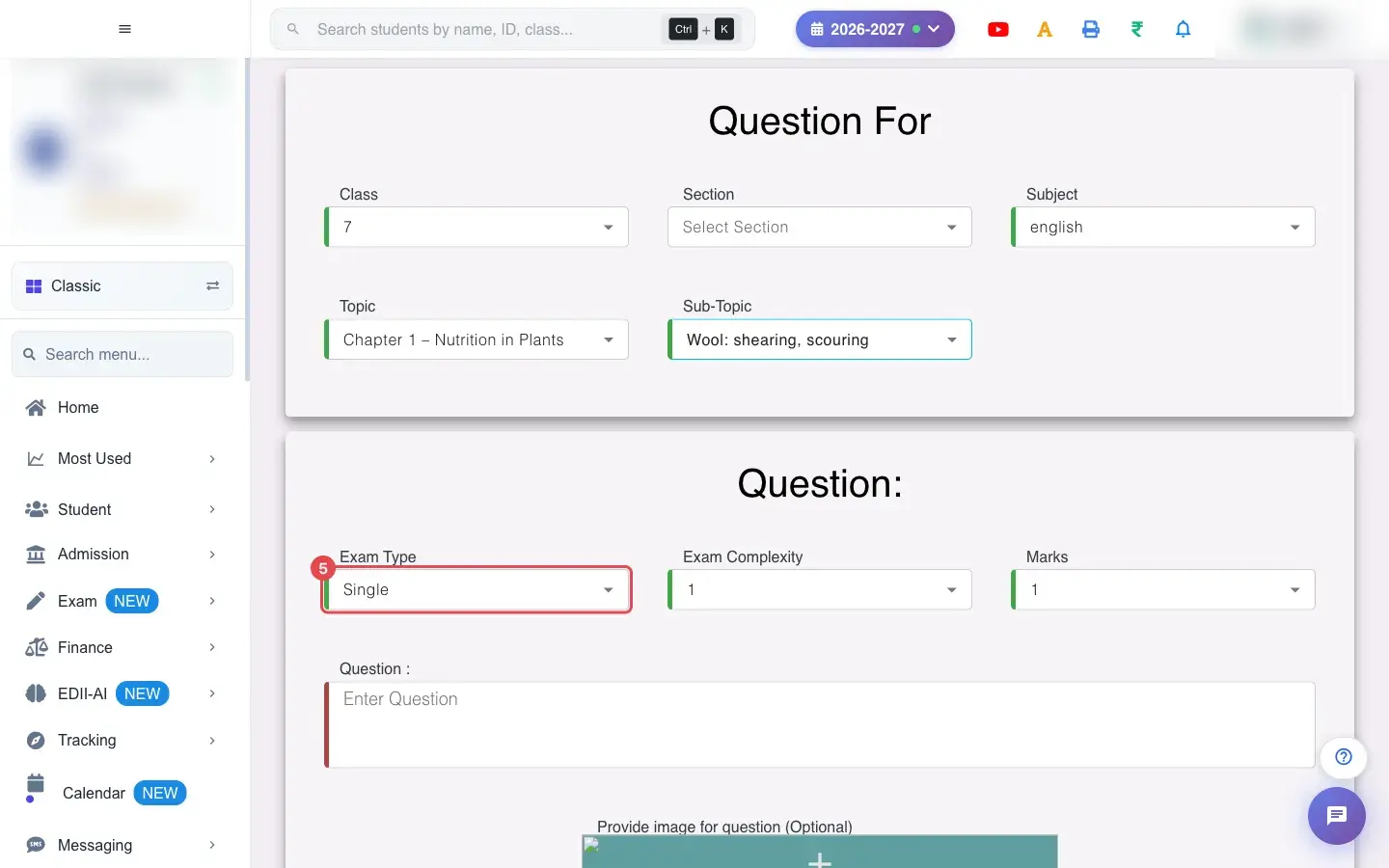
5. Choose Exam Type (for example Single)
Section titled “5. Choose Exam Type (for example Single)”Choose the Exam Type (for example Single answer).
 Open a bigger pictureतस्वीर बड़ी करें
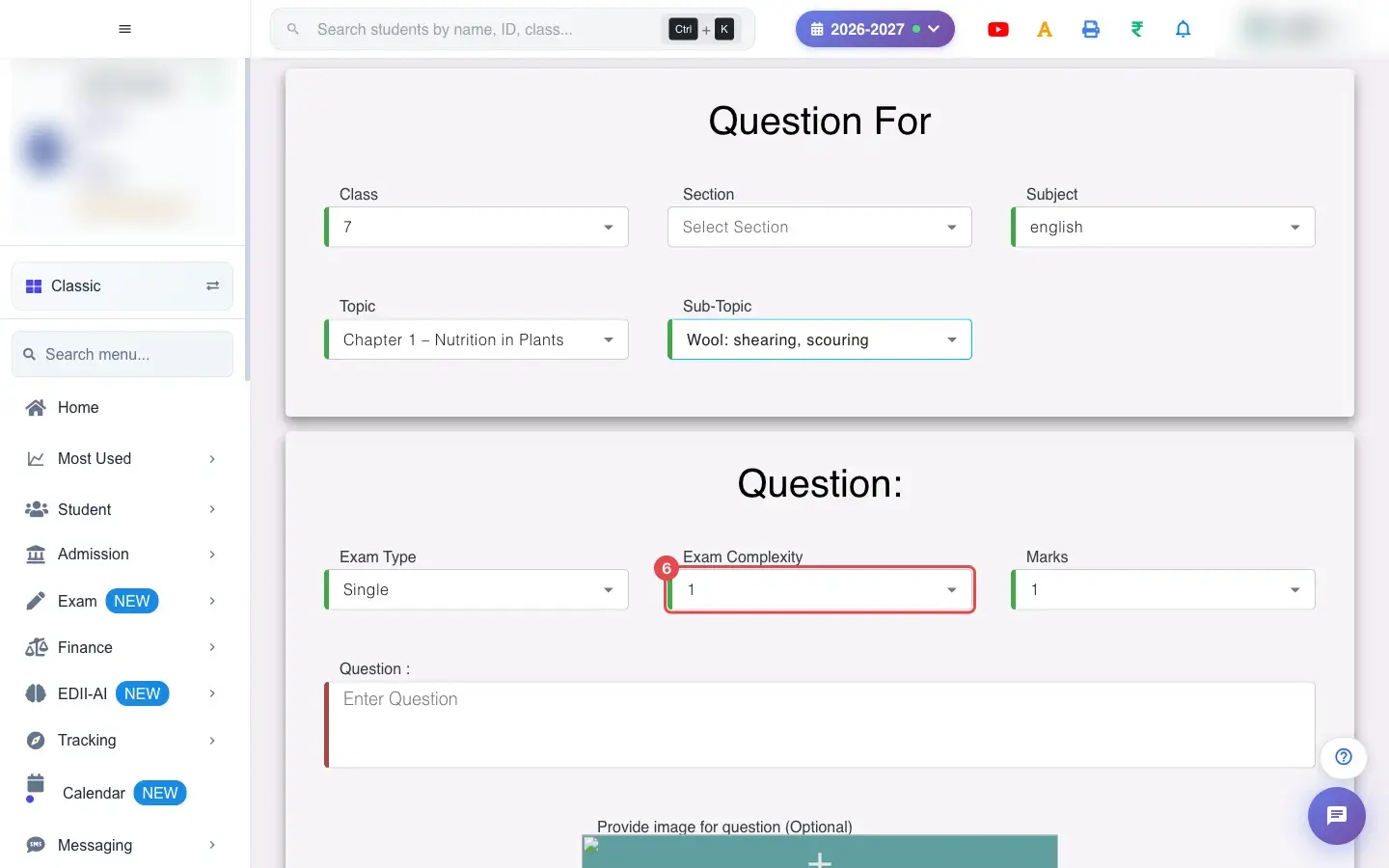
6. Choose Exam Complexity (for example 1)
Section titled “6. Choose Exam Complexity (for example 1)”Choose the Exam Complexity from 1 (easy) upwards.
 Open a bigger pictureतस्वीर बड़ी करें
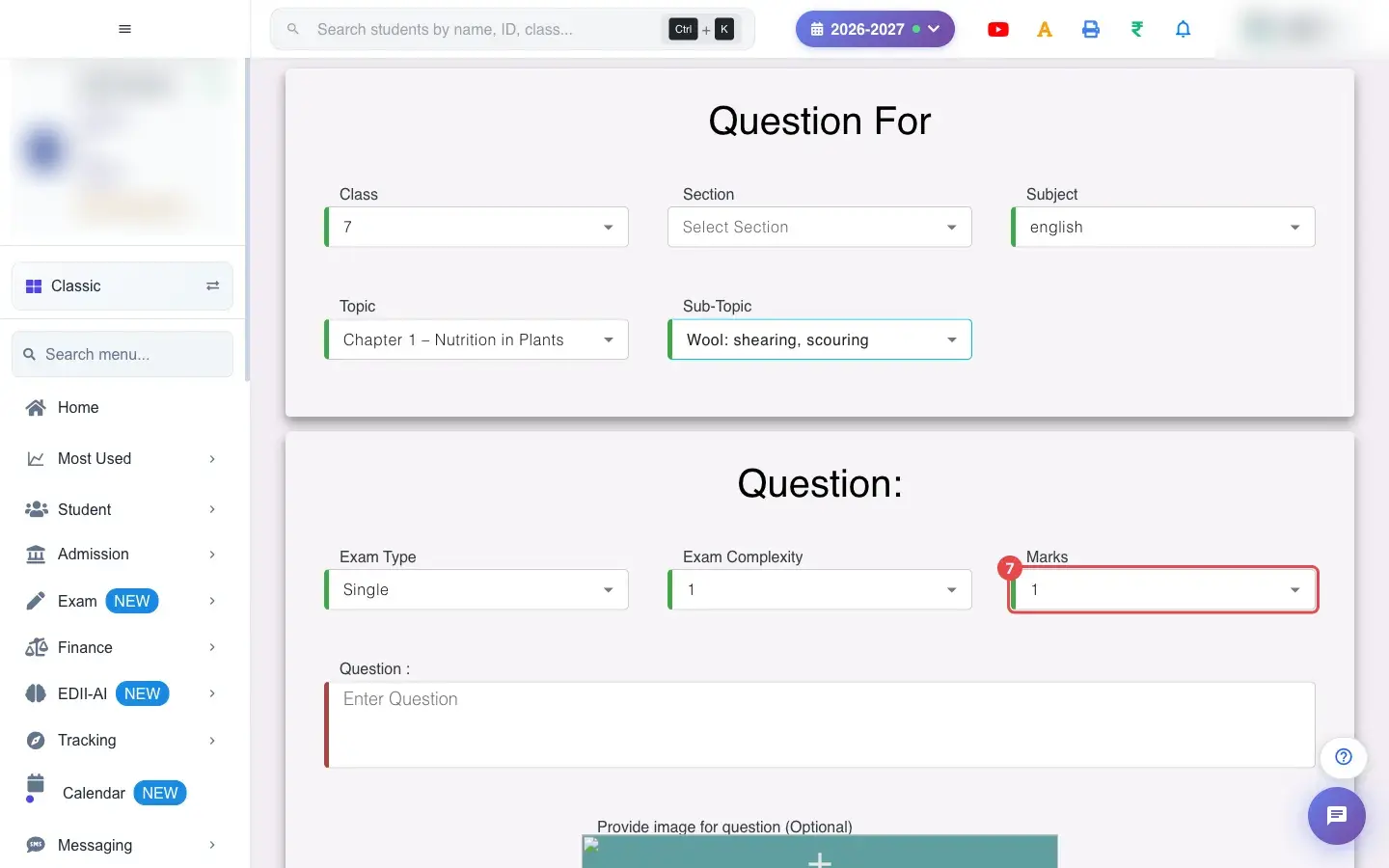
7. Choose Marks (for example 1)
Section titled “7. Choose Marks (for example 1)”Choose the Marks for the question.
 Open a bigger pictureतस्वीर बड़ी करें
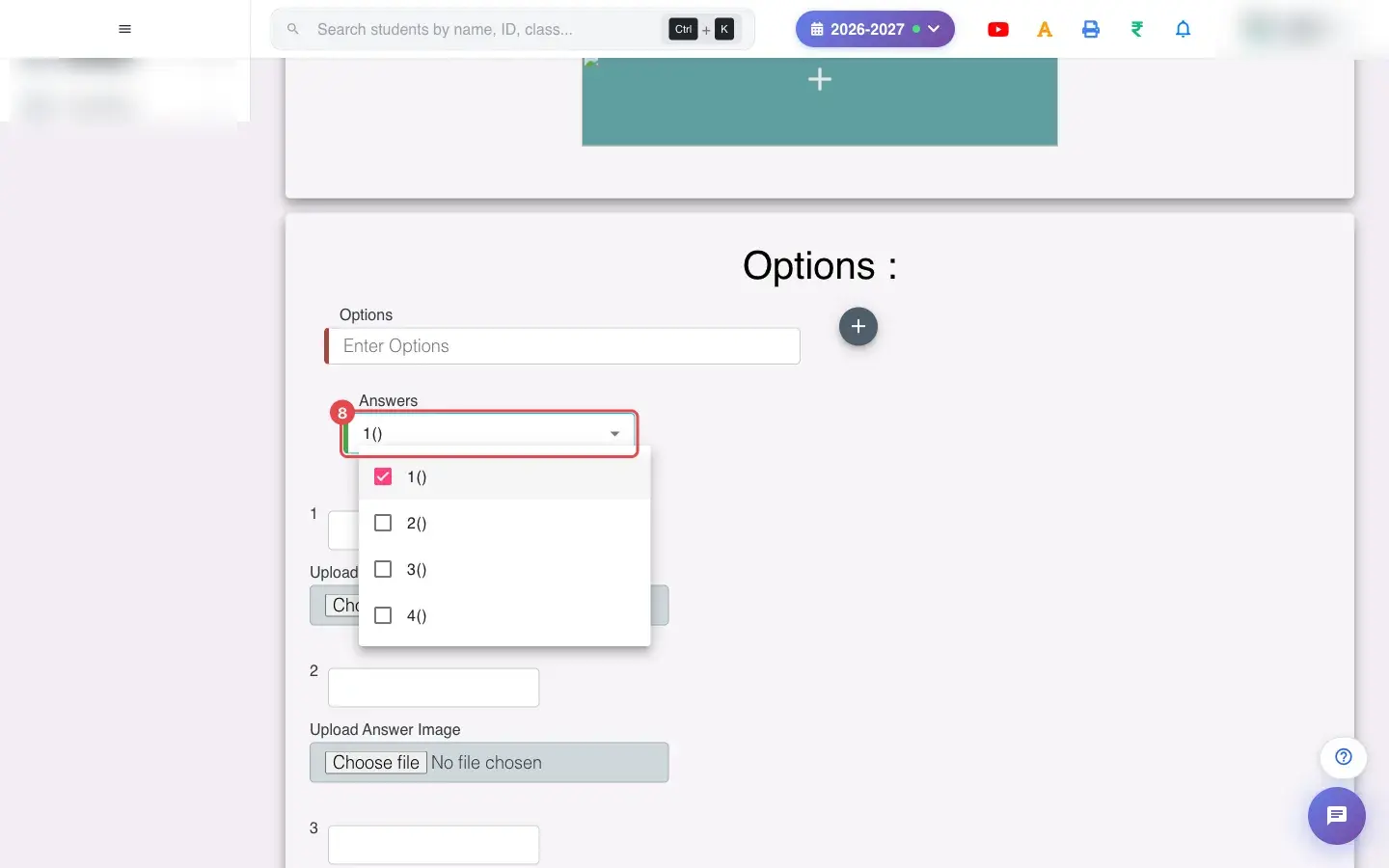
8. Choose Answers (for example 1())
Section titled “8. Choose Answers (for example 1())”Choose the number of Answers that are correct.
 Open a bigger pictureतस्वीर बड़ी करें
9. Write the question
Section titled “9. Write the question”Type the Question (required). You may add an image for the question (optional).
10. Add the options
Section titled “10. Add the options”Type each Option and use Add. A duplicate shows Option already Exists. Tick the correct answer(s) and give each answer its number. Use Upload Answer Image to attach a picture to an option.
11. Save the question
Section titled “11. Save the question”Select Add Question. The message Question Successfully Added confirms it. Question images are limited to 1 MB (Max File Size is 1 MB) and answer images to 10 MB.
With data
Section titled “With data”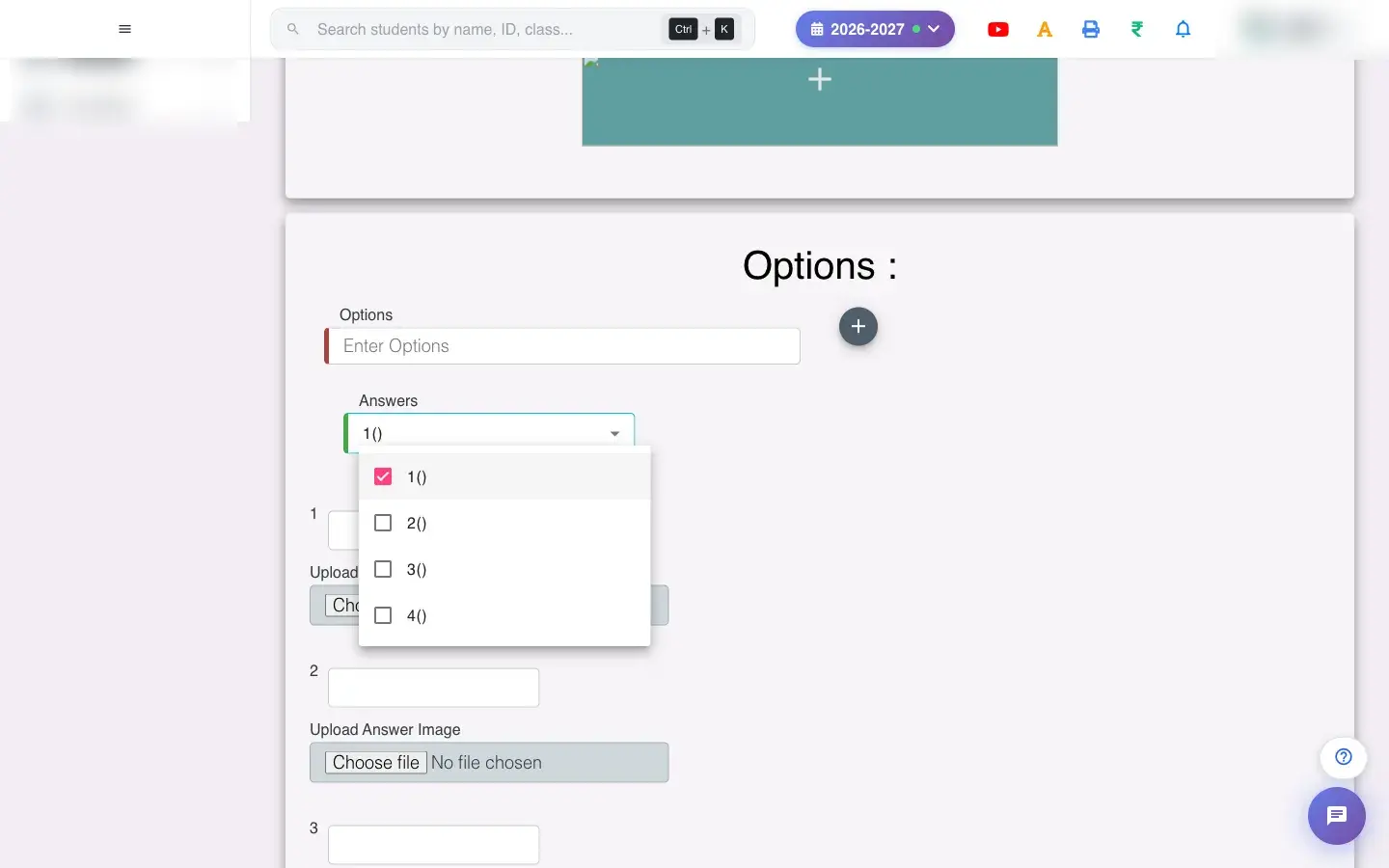 Open a bigger pictureतस्वीर बड़ी करें
Fields and filters
Section titled “Fields and filters”| Field | What it is | Notes |
|---|---|---|
| Class / Section / Subject / Topic / Sub-Topic | Where the question belongs. | Required. |
| Exam Type / Exam Complexity / Marks | Kind, difficulty and marks. | Required. |
| Question / Options / Correct Answer | The content. | Required. |
| Images | Optional pictures. | Up to 1 MB for the question, 10 MB for answers. |
Buttons
Section titled “Buttons”| Button | What it does | What happens next |
|---|---|---|
| Add Question | Saves the question. | It appears in the question bank. |
| Add (option) | Adds an option. | Duplicates are refused. |
After you save
Section titled “After you save”- The question is saved in the bank under its class, subject, topic and sub-topic and can be used in online tests and papers.
Good to know
Section titled “Good to know”- The correct answer must be chosen.
- Images have size limits.
- Option text must be unique for the question.
Messages you may see
Section titled “Messages you may see”| Message | What it means | What to do |
|---|---|---|
| Question Successfully Added | Saved. | Nothing to do. |
| Max File Size is 1 MB | The question image is too large. | Use a smaller image. |
| Max File Size is 10 MB, If you need to upload a Big file contact us | The answer image is too large. | Use a smaller image. |
| Option already Exists. | A duplicate option. | Change it. |
| Network Issue, Please Try Again. | A request failed. | Try again. |
- Tag every question with the right sub-topic so it is easy to find.
Stuck? Try this
Section titled “Stuck? Try this”| Problem | Likely cause | What to do |
|---|---|---|
| The topic list is empty | No topics exist for the subject. | Add topics first. |
Did this page help?क्या इस पेज से मदद मिली?
Thanks! Glad it helped.धन्यवाद! अच्छा लगा कि काम बन गया।
Sorry about that. Ask in your own words, or write to us.माफ़ कीजिए। अपने शब्दों में पूछें, या हमें लिखें।