
Screen guide · Web app
Apply for Leave
A staff member applies for leave: choose the leave type, the dates and the reason, then submit the request for approval.
यह पेज अंग्रेज़ी में है। कुछ समझ न आए तो ।
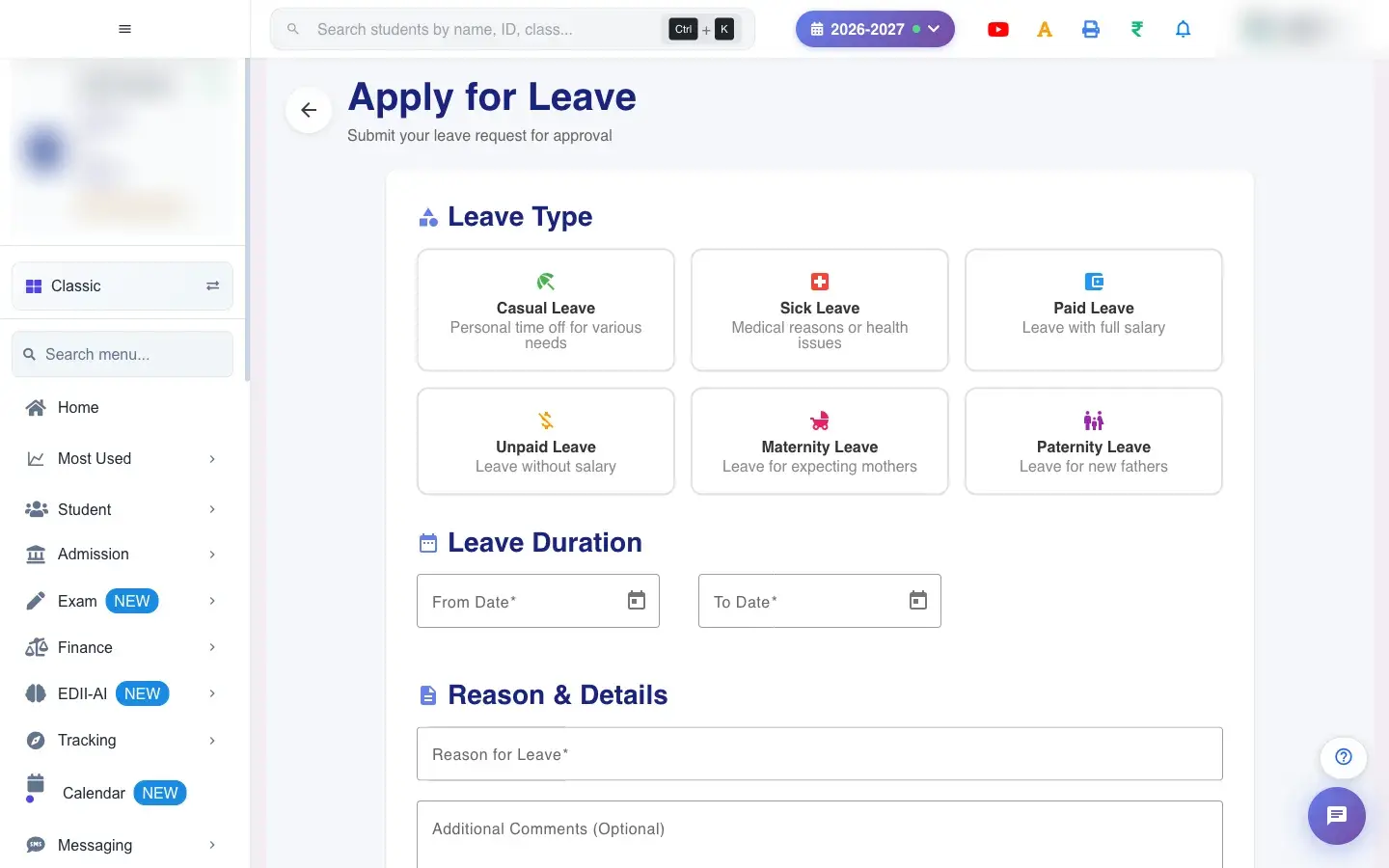
Apply for Leave (HRMS › Apply Leave) is the form a teacher or other staff member fills in to ask for leave. It has three parts: Leave Type, Leave Duration (from and to dates, with the number of days worked out for you) and Reason & Details.
Submitting creates a leave request that goes to the leave administrator. It then shows in My Leave with the status Pending until it is approved or rejected.
Who uses it and when
Section titled “Who uses it and when”Any staff member, before taking leave, or on the day for unplanned leave.
Before you start
Section titled “Before you start”- Your school must have defined at least one leave type in Leave Types. Leave types and the yearly quota are set by the administrator.
Where to find it
Section titled “Where to find it”- Menu: HRMS › Apply Leave
- Address:
/add/add-leave - If it is missing from your menu, your role does not include it. Ask your school admin.
 Open a bigger pictureतस्वीर बड़ी करें
Step by step
Section titled “Step by step”1. Fill in Leave Type
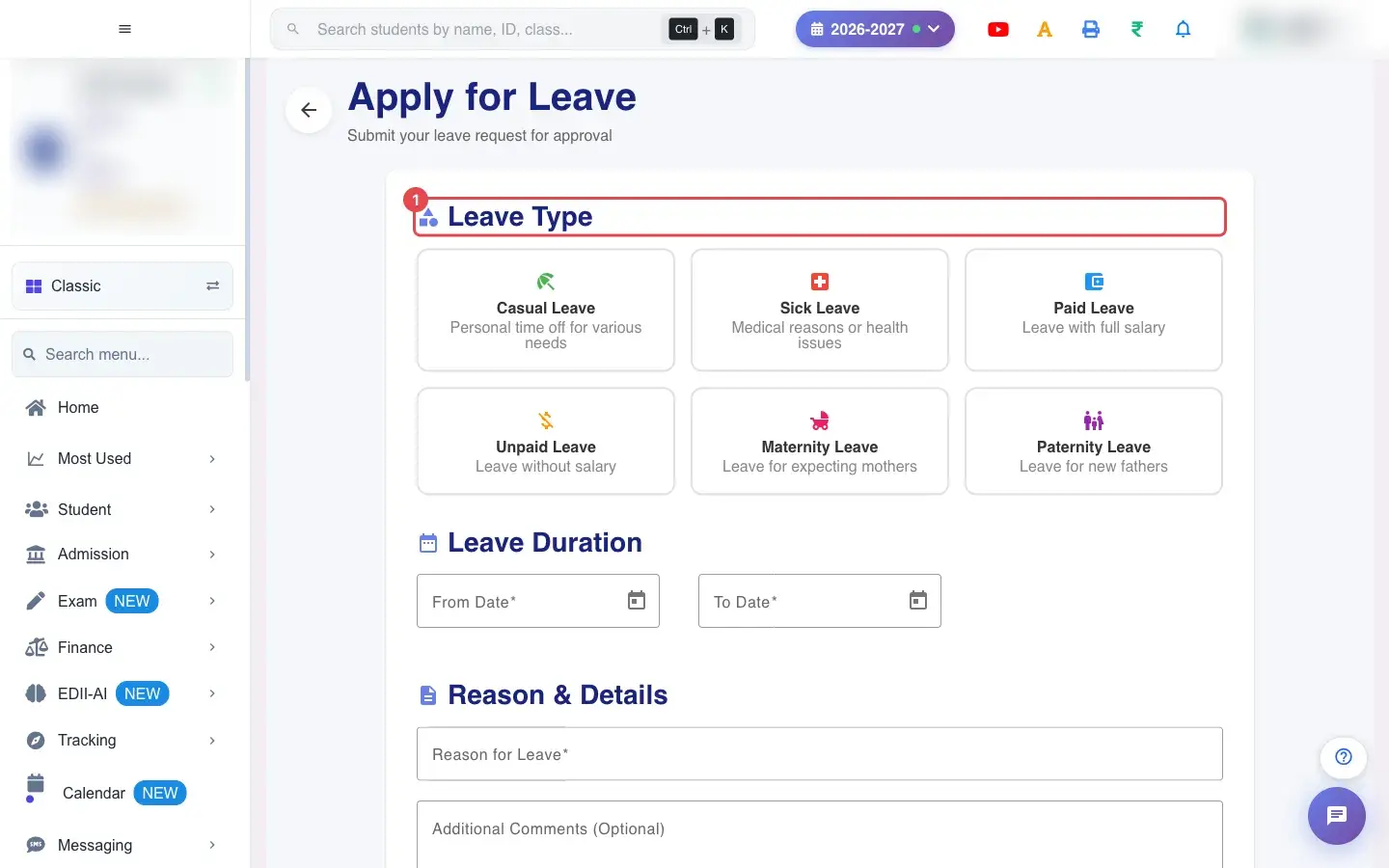
Section titled “1. Fill in Leave Type”Choose the Leave Type from the list. You must choose one (Please select a leave type).
 Open a bigger pictureतस्वीर बड़ी करें
2. Fill in Leave Duration
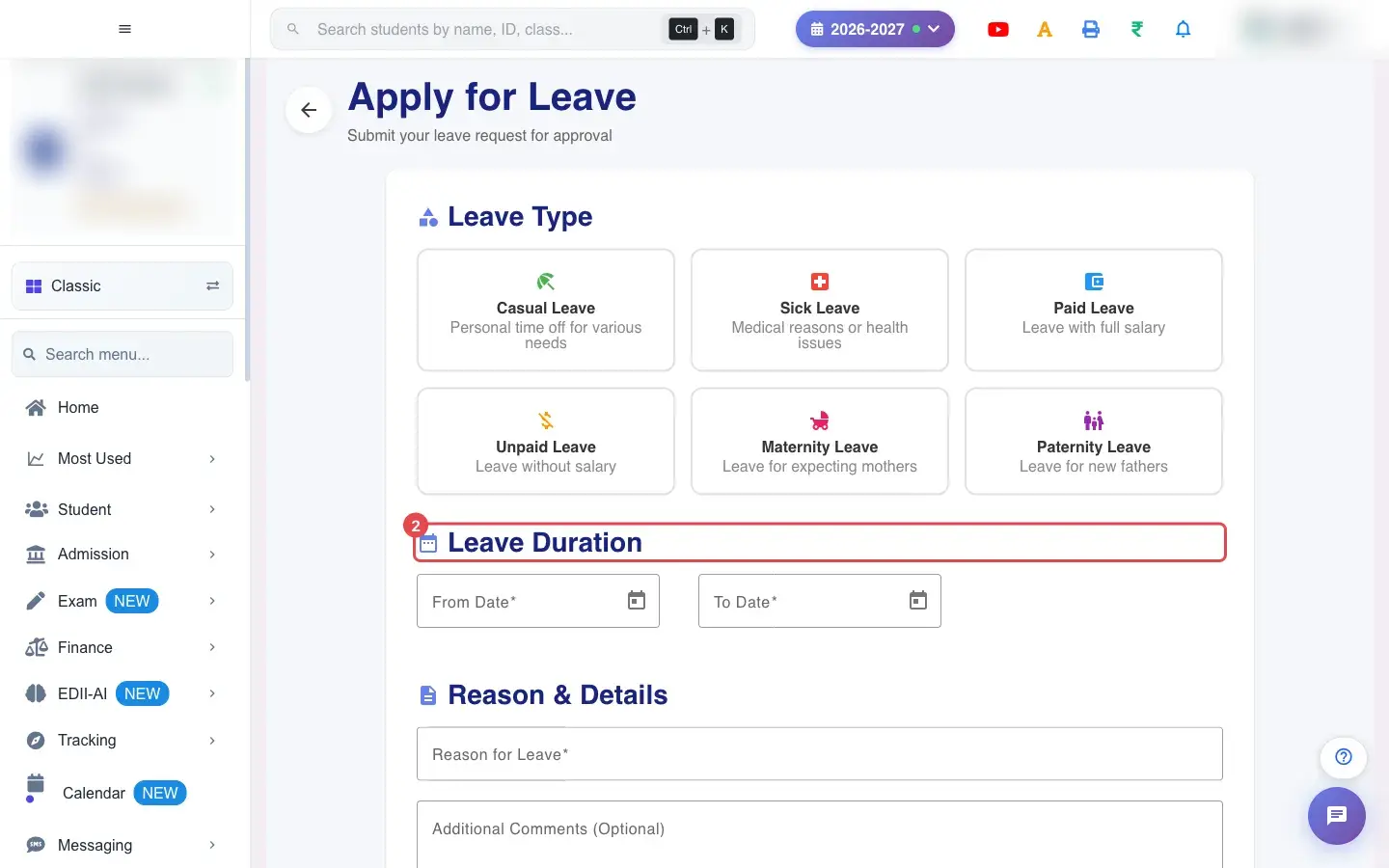
Section titled “2. Fill in Leave Duration”Pick From Date and To Date. Both are required, and the number of Day(s) is shown.
 Open a bigger pictureतस्वीर बड़ी करें
3. Fill in Reason & Details
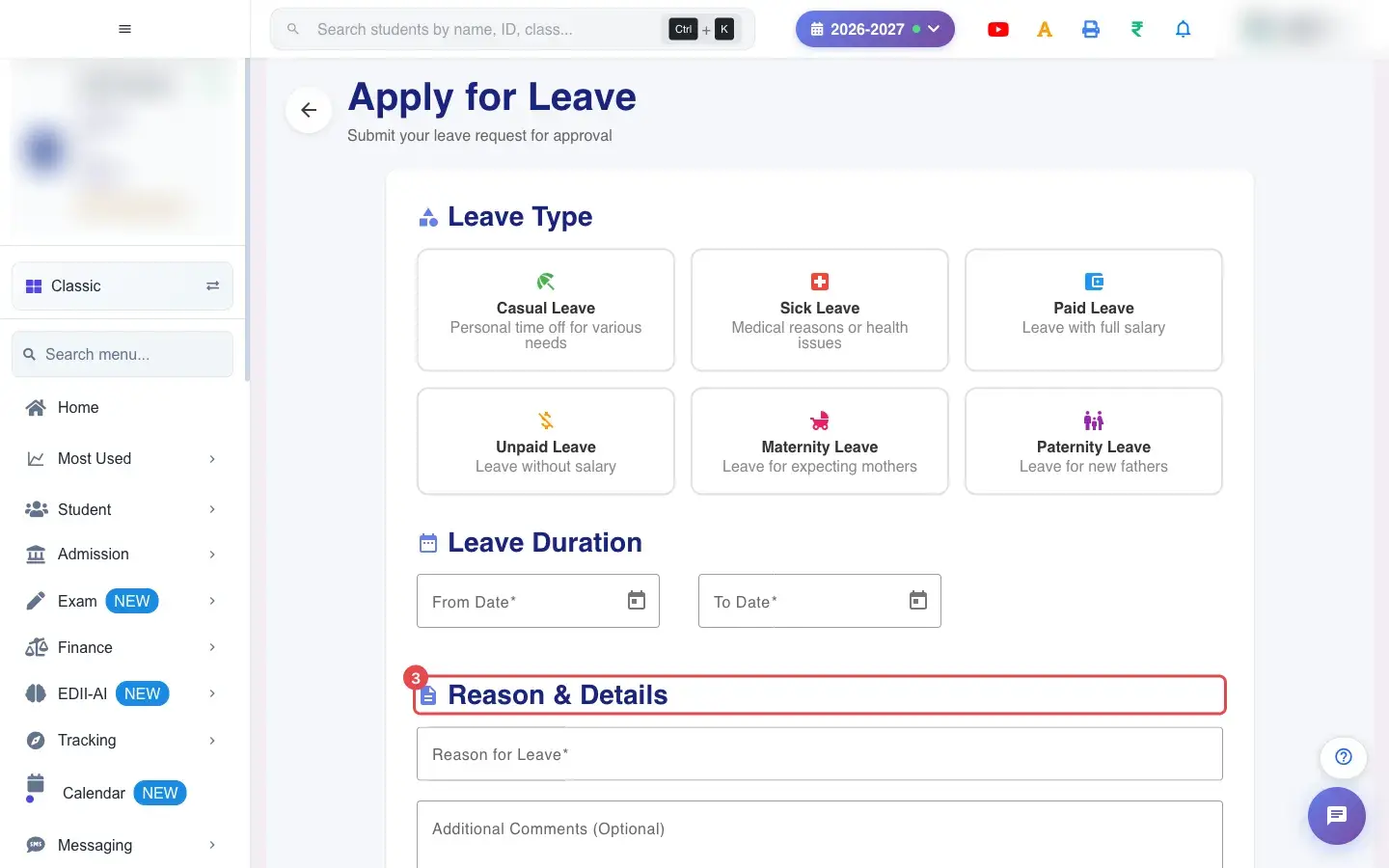
Section titled “3. Fill in Reason & Details”Write the Reason for Leave (required) and, if useful, Additional Comments (Optional).
 Open a bigger pictureतस्वीर बड़ी करें
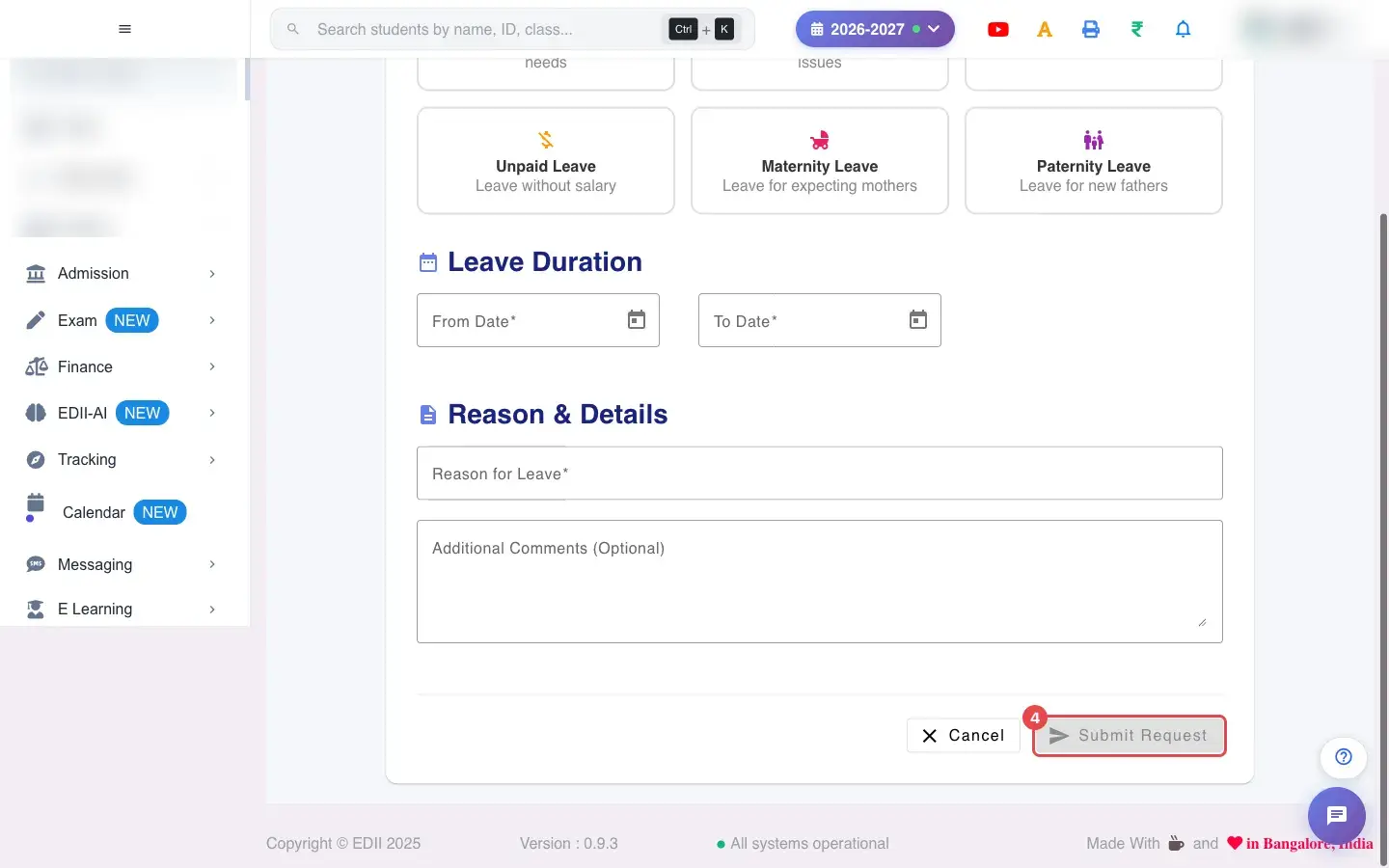
4. When you are done, select Submit Request
Section titled “4. When you are done, select Submit Request”Select Submit Request. The request is sent for approval.
 Open a bigger pictureतस्वीर बड़ी करें
Fields and filters
Section titled “Fields and filters”| Field | What it is | Notes |
|---|---|---|
| Leave Type | The kind of leave. | Required. From the school’s leave types. |
| From Date / To Date | First and last day. | Both required. |
| Reason for Leave | Why you need leave. | Required. |
| Additional Comments (Optional) | Anything else the approver should know. | Optional. |
Buttons
Section titled “Buttons”| Button | What it does | What happens next |
|---|---|---|
| Submit Request | Sends the request. | Leave request submitted successfully! and the request appears in My Leave as Pending. |
| Cancel | Leaves the form without sending. | Nothing is saved. |
After you save
Section titled “After you save”- A leave request is created with status Pending.
- The leave administrator sees it on Leave Management.
- You can edit or cancel it from My Leave while it is still pending.
Good to know
Section titled “Good to know”- Leave type, both dates and the reason are required.
- Only pending requests can be edited later.
Messages you may see
Section titled “Messages you may see”| Message | What it means | What to do |
|---|---|---|
| Leave request submitted successfully! | The request was sent. | Track it in My Leave. |
| Connection error. Please try again. | The request did not reach EDII. | Check the internet and submit again. |
| From date is required / To date is required / Reason is required | A required field is empty. | Fill it in. |
- Apply as early as you can so a substitute can be arranged.
- Use Additional Comments for a handover note.
Stuck? Try this
Section titled “Stuck? Try this”| Problem | Likely cause | What to do |
|---|---|---|
| The leave type list is empty | No leave types were defined. | Ask the administrator to add them in Leave Types. |
Did this page help?क्या इस पेज से मदद मिली?
Thanks! Glad it helped.धन्यवाद! अच्छा लगा कि काम बन गया।
Sorry about that. Ask in your own words, or write to us.माफ़ कीजिए। अपने शब्दों में पूछें, या हमें लिखें।