
How-to · Web app
Record and review expenses
Add expenses and read expense reports.
यह पेज अंग्रेज़ी में है। कुछ समझ न आए तो ।
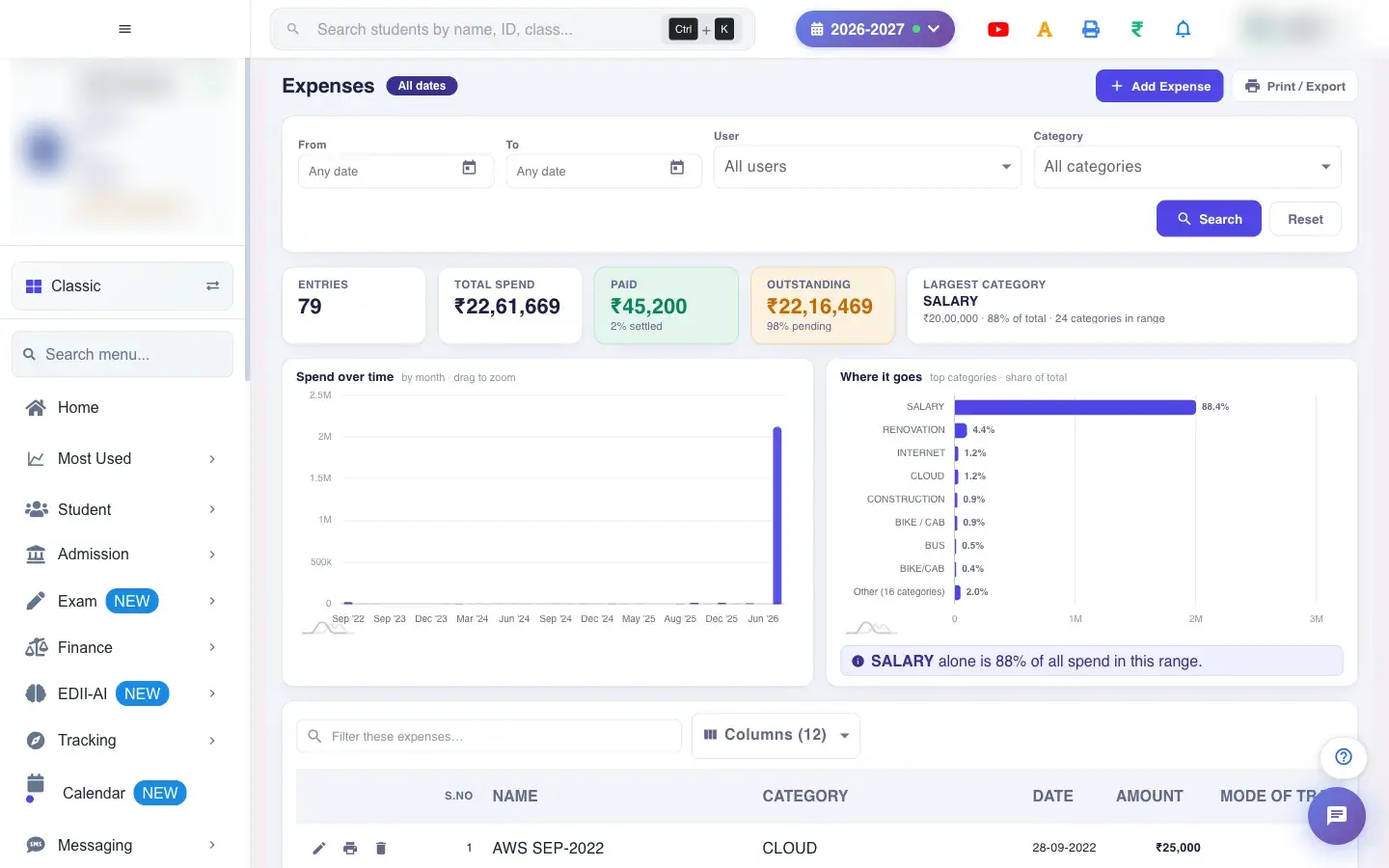
Expenses (Finance › Expense) is where the school’s spending is kept. At the top, summary tiles show the Entries count, Total Spend, Paid (and the percentage settled), Outstanding (and the percentage pending) and the Largest Category with its share of the total.
Before you start
Section titled “Before you start”- Choose a date range (the table starts on today). A wider range gives meaningful charts.
1. Choose the range and filters
Section titled “1. Choose the range and filters”Pick From and To dates, a User (who recorded it; All users by default) and a Category (All categories by default). Select Search to load, Reset or Clear Filters to start again.
 Open a bigger pictureतस्वीर बड़ी करें
2. Read the tiles and charts
Section titled “2. Read the tiles and charts”The tiles show how much was spent, how much is paid and outstanding, and which category is largest (for example alone is 40% of all spend in this range). Hover a chart for details.
3. Choose the columns
Section titled “3. Choose the columns”Columns (N) shows or hides columns: S.No, Name, Gross Total, Date, Amount, Mode of Transaction, Status, Bus Name, Method, Odometer and Diesel / Fuel (L) (the last four are for vehicle expenses). Columns that have no data are listed as hidden. Select All shows them all.
4. Edit, view the attachment or delete
Section titled “4. Edit, view the attachment or delete”Each row has an edit pencil, an attachment icon and a delete bin. If an expense has no attachment you see No attachments available for this expense.
5. Add an expense
Section titled “5. Add an expense”Add Expense opens the expense form to record the name, category, amount, date, payment mode and any attachment.
6. Print or export
Section titled “6. Print or export”Print / Export offers Download Excel File, Download Text File, Download CSV File and Print with Report Generated On.
Full details of this screen Record and review expenses
What happens next
Section titled “What happens next”- Viewing changes nothing. Adding, editing or deleting an expense changes the totals here and on the Day Report and balance sheets.
Good to know
Section titled “Good to know”- Totals follow the filters you set.
- Deleting an expense removes it from every report.
Stuck? Try this
Section titled “Stuck? Try this”| You see | Why | What to do |
|---|---|---|
| An expense is missing | It is outside the date range or filtered by user or category. | Clear the filters and widen the dates. |
Did this page help?क्या इस पेज से मदद मिली?
Thanks! Glad it helped.धन्यवाद! अच्छा लगा कि काम बन गया।
Sorry about that. Ask in your own words, or write to us.माफ़ कीजिए। अपने शब्दों में पूछें, या हमें लिखें।