
Screen guide · Web app
Student Edit (Basic Info)
Edit student details for a whole class in one table, change them one student at a time, or download everything as a CSV, edit it in Excel and upload it back; also auto-assign roll numbers and update photos and attachments.
यह पेज अंग्रेज़ी में है। कुछ समझ न आए तो ।
Student Edit (Basic Info) (Student › Class Section) is the quickest way to correct or complete the details of many students at once. After you choose a class and section, every student appears as a row of editable boxes: names, identifiers, dates, parents, address, category, stream, house, income, Aadhaar, PEN, blood group, height, weight and more.
You can change values directly in the table, or use Download CSV to take the class into Excel, edit it, and Upload CSV to bring the changes back. A check on the hidden ediiid column makes sure every row still belongs to the right student.
Two helpers save time: Auto-assign Roll Numbers gives roll numbers to students who do not have one yet, and Edit Image changes a student’s photo.
Who uses it and when
Section titled “Who uses it and when”The admission office uses it after admissions to complete details, at the start of the session to fix data, and before ID cards or reports to correct names and dates.
Before you start
Section titled “Before you start”- Choose a class and a section. Bulk edits change real records, so download a CSV as a backup before you upload changes.
Where to find it
Section titled “Where to find it”- Menu: Student › Class Section
- Address:
/view/student-edit-basicinfo - If it is missing from your menu, your role does not include it. Ask your school admin.
 Open a bigger pictureतस्वीर बड़ी करें
Step by step
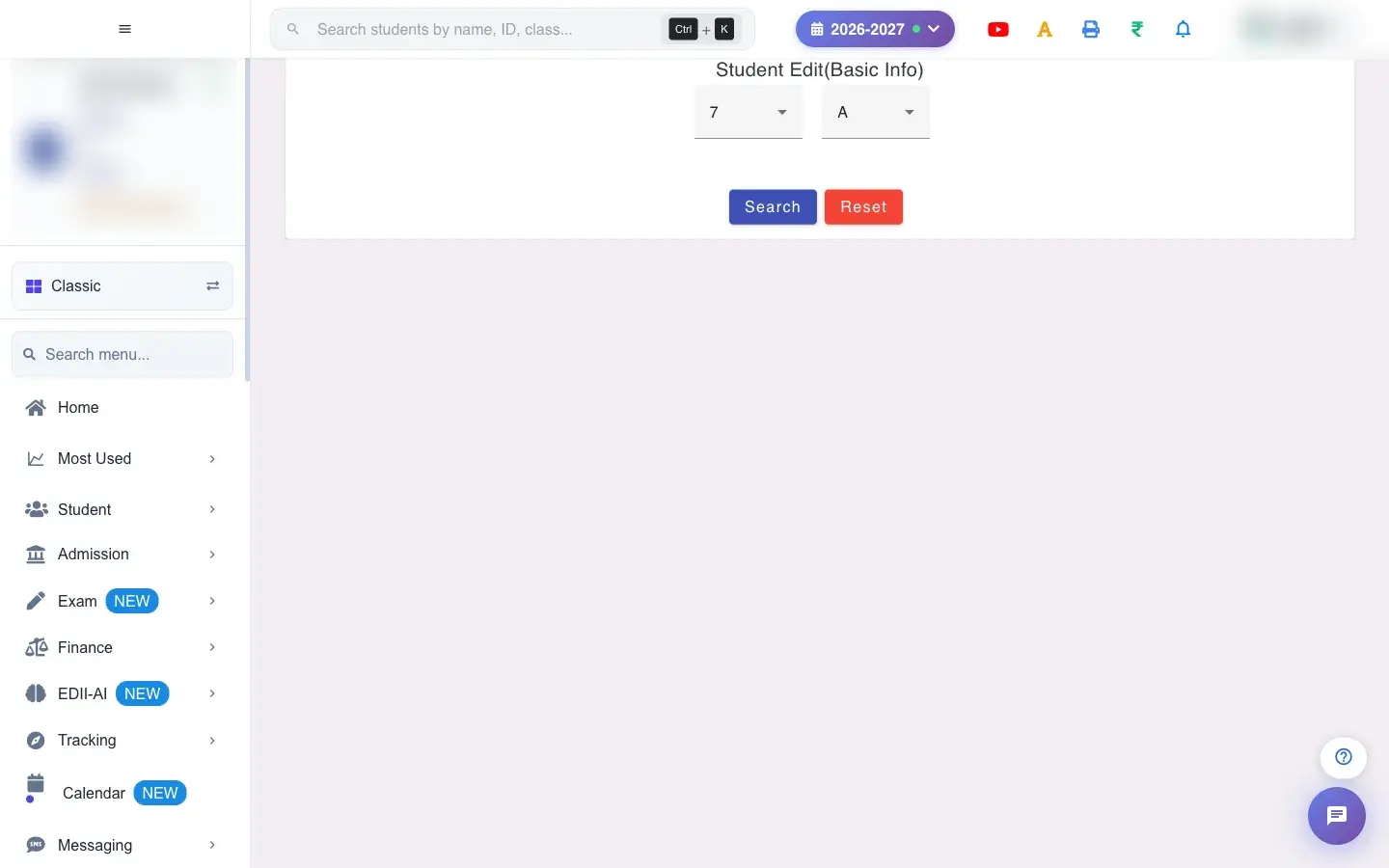
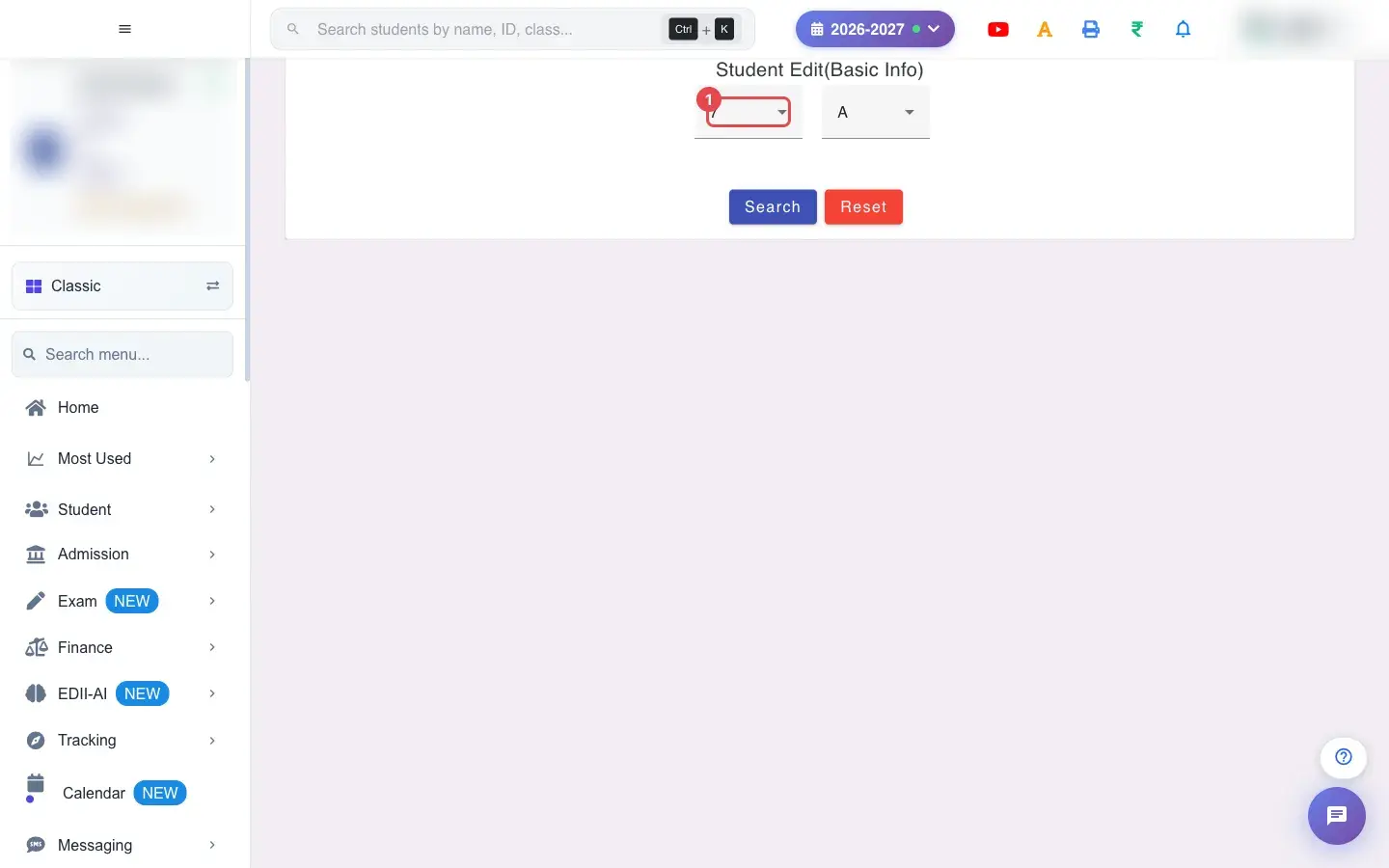
Section titled “Step by step”1. Choose Select Class (for example 7)
Section titled “1. Choose Select Class (for example 7)”Choose the Class.
 Open a bigger pictureतस्वीर बड़ी करें
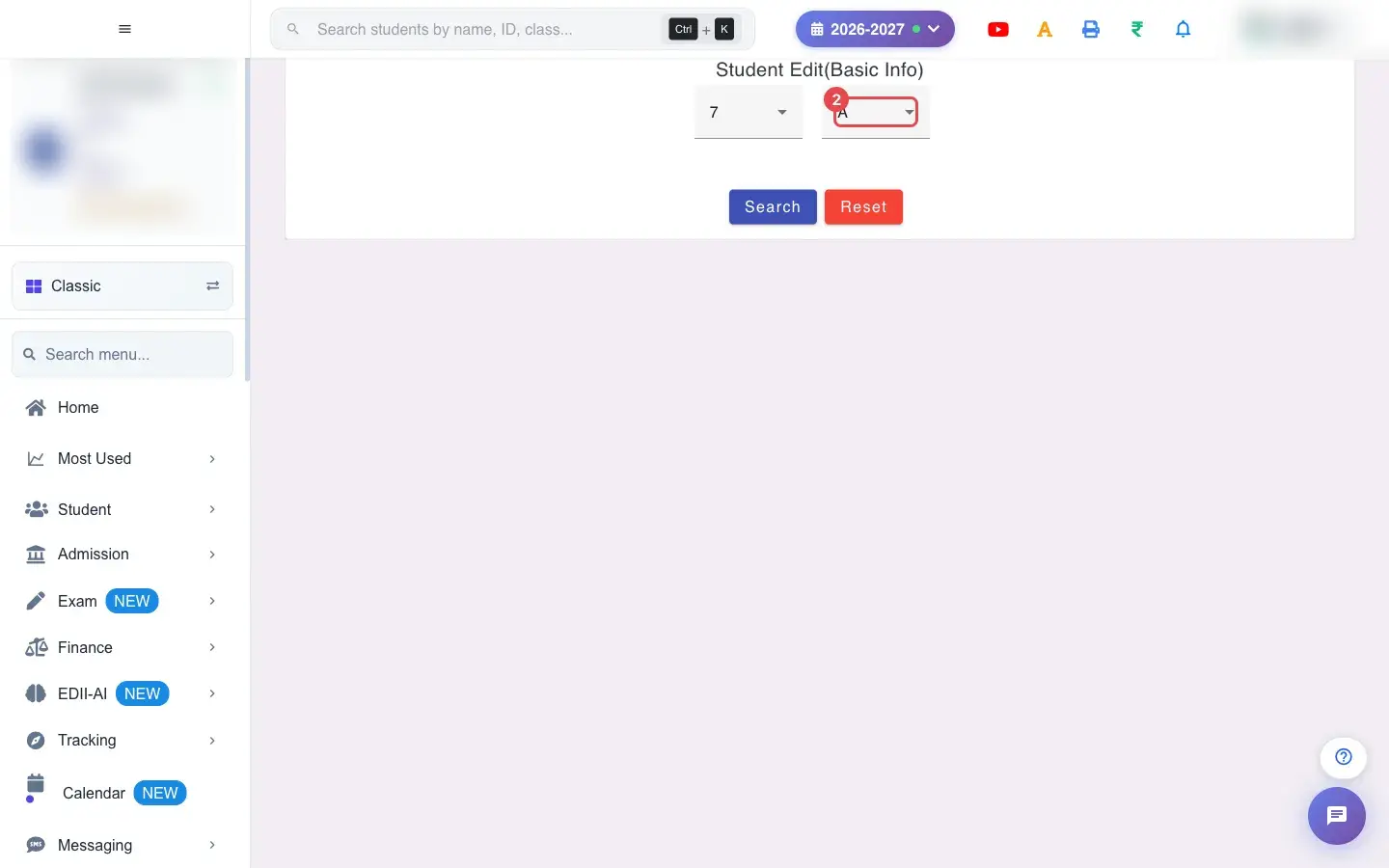
2. Choose Select Section (for example A)
Section titled “2. Choose Select Section (for example A)”Choose the Section.
 Open a bigger pictureतस्वीर बड़ी करें
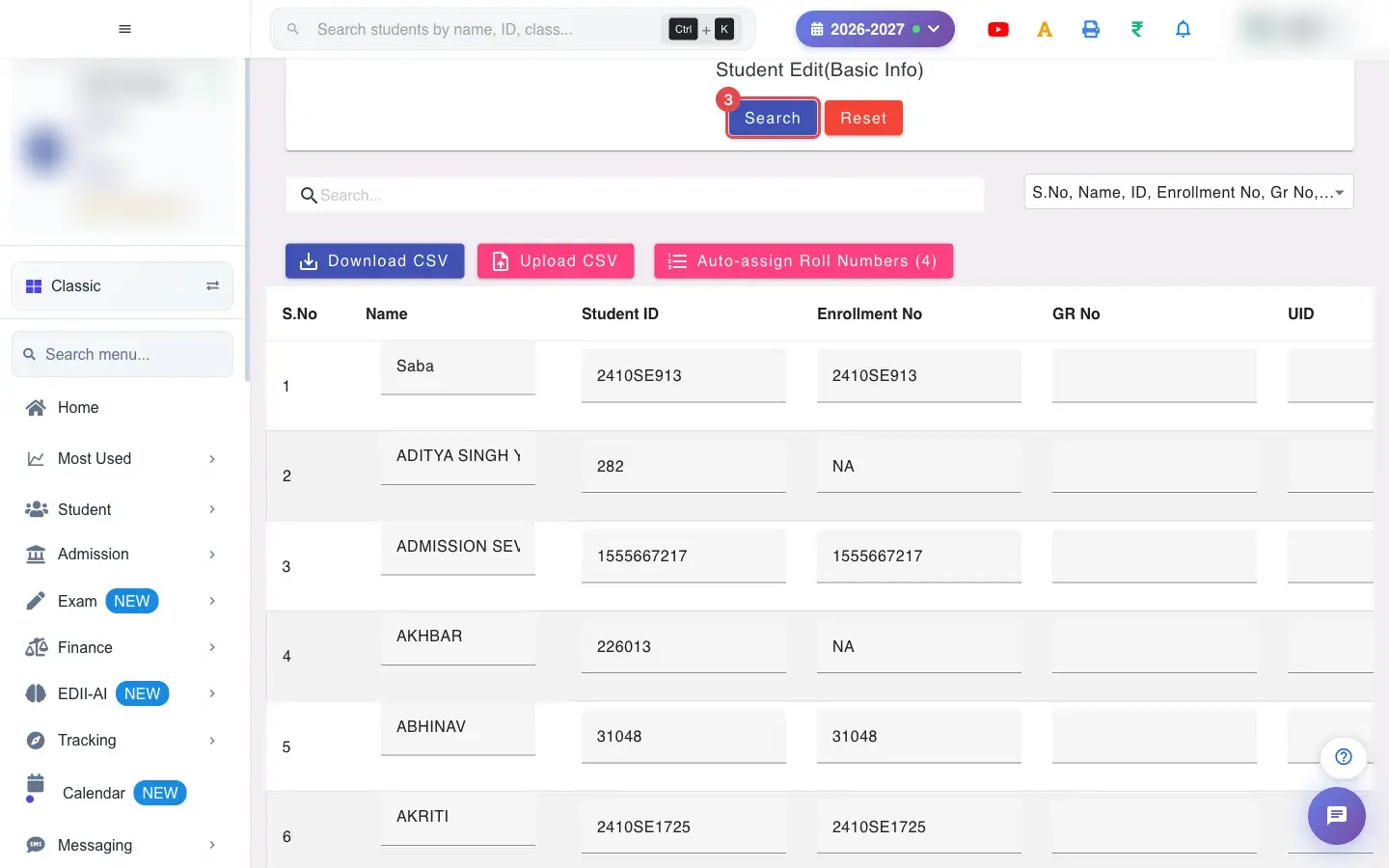
3. Select Search
Section titled “3. Select Search”Select Search. The students appear in an editable table.
 Open a bigger pictureतस्वीर बड़ी करें
4. Choose which columns to edit
Section titled “4. Choose which columns to edit”Select Fields to Display lets you show or hide columns: S.No, Name, ID, Enrollment No, GR No, UID, Date Of Birth, Date of Admission, Father Name, Mother Name, Phone No, Address, Last School, Gender, Category, Student Type, Special Category, Stream, Religion, House, TcIssued, Income, Aadhaar, Pen No, Blood Group, Height, Weight, Rollno, Image, Attachments, SMID, FMID, Scholar Number and Father’s Mobile. Fewer columns make the table easier to edit.
5. Edit a value
Section titled “5. Edit a value”Click a box and type. Dates use DD-MM-YYYY; a wrong format shows Please enter a valid date in DD-MM-YYYY format. Gender offers None, Male, Female and Other; category, student type, stream, religion and house are lists from your school’s settings. When you leave the box the change is saved for that student and a message Details of <name> updated appears.
6. Check the PEN number
Section titled “6. Check the PEN number”A PEN number must have more than 10 digits (PEN Number must be more than 10 digits) and must not belong to another student.
7. Change a photo or attachments
Section titled “7. Change a photo or attachments”Edit Image opens a file chooser for the student’s photo (Image uploaded successfully). The paperclip opens the student’s Attachments.
8. Auto-assign roll numbers
Section titled “8. Auto-assign roll numbers”Select Auto-assign Roll Numbers (N), where N is how many students are missing one. Roll numbers are assigned and you see Roll numbers assigned to …. If everyone already has one you see Every loaded student already has a roll number. Search a class first, or you see Search a class/section first, then assign roll numbers.
9. Edit in Excel with CSV
Section titled “9. Edit in Excel with CSV”Download CSV creates a file of the loaded class. Edit values in Excel but do not delete or change the ediiid column. Select Upload CSV and choose the file; EDII shows what will change as Save Imported Changes (N), and you confirm by selecting it. Nothing is imported until you confirm.
10. Select All and reset
Section titled “10. Select All and reset”Select All ticks every row for bulk actions; Reset clears the class and section.
With data
Section titled “With data”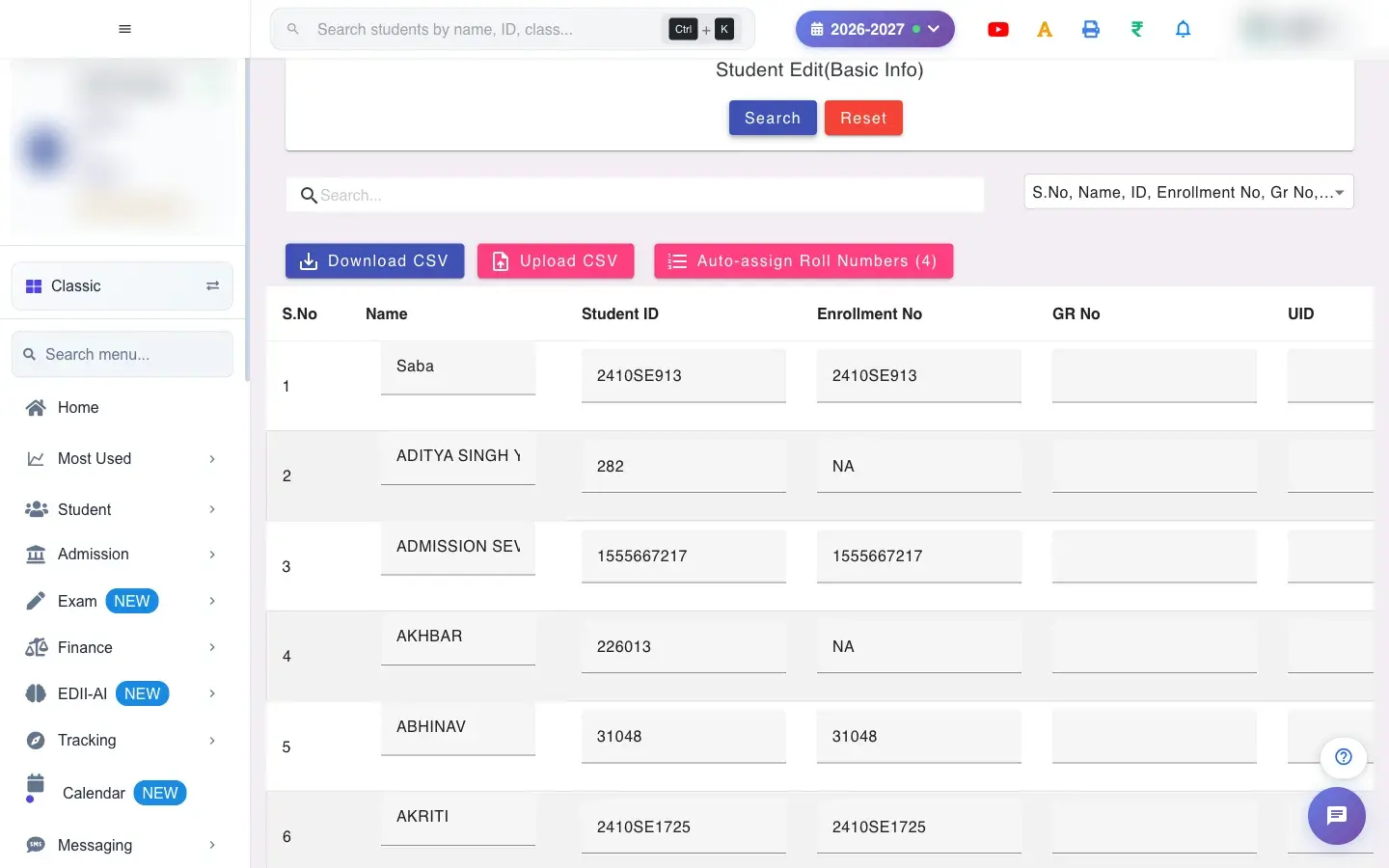 Open a bigger pictureतस्वीर बड़ी करें
Fields and filters
Section titled “Fields and filters”| Field | What it is | Notes |
|---|---|---|
| Select Class / Select Section | The students to edit. | Required. |
| Select Fields to Display | Visible columns. | Only changes the view. |
| Date of Birth / Date of Admission | Dates. | DD-MM-YYYY. |
| PEN Number | Permanent Education Number. | More than 10 digits, unique. |
| Phone No / Phone No(2) / Father’s Mobile No | Parent numbers. | Messages and the student app use these. |
Buttons
Section titled “Buttons”| Button | What it does | What happens next |
|---|---|---|
| Search | Loads the class. | Shows Network Issue, Please Try Again. if it fails. |
| Download CSV | Exports the loaded class. | Search first, or you see Search a class/section first, then download the file to edit. |
| Upload CSV | Reads an edited file. | Shows changes to confirm; nothing is saved yet. |
| Save Imported Changes (N) | Applies the uploaded changes. | Updates N students. |
| Auto-assign Roll Numbers (N) | Numbers students who have none. | Existing roll numbers are not changed. |
| Edit Image / Attachments | Photo and documents. | Saved immediately. |
Columns
Section titled “Columns”| Column | Meaning |
|---|---|
| Name / Student ID / Enrollment No / GR No / UID / Rollno | Identity and numbering. |
| Date of Birth / Date of Admission | Key dates. |
| Father Name / Mother Name / Phone No / Address | Family contact details. |
| Category / Student Type / Special Category / Stream / Religion / House | Classification, from school lists. |
| Income / Aadhaar / Pen No / Blood Group / Height / Weight / FMID / SMID | Other records. |
After you save
Section titled “After you save”- Each edited value is written to the student’s record straight away.
- Changes appear in the student list, reports, ID cards, report cards and the apps.
- A CSV import replaces the values of the matched students only after you confirm.
Good to know
Section titled “Good to know”- The ediiid column in a CSV must stay unchanged; otherwise the import is blocked (Import blocked — the ediiid column was changed so rows no longer match. Nothing was imported.).
- A CSV needs data rows (The file has no data rows. Download the file, edit values, then re-upload.).
- A class and section must be searched before any download or upload.
- Dates must be DD-MM-YYYY.
Messages you may see
Section titled “Messages you may see”| Message | What it means | What to do |
|---|---|---|
| Search a class/section first, then download the file to edit. | No class is loaded. | Choose a class and search. |
| Could not read the file. Please upload a valid CSV. | The file is not a CSV. | Save as CSV and upload again. |
| The file must keep the “ediiid” column (it links each row to a student). Re-download and try again. | The key column is missing. | Download a fresh file and edit only the values. |
| Import blocked — the ediiid column was changed so rows no longer match. Nothing was imported. | The key column was altered. | Download again and keep ediiid as it is. |
| Roll numbers assigned to … | Roll numbers were given. | Check the Rollno column. |
| Every loaded student already has a roll number. | Nothing to assign. | Nothing to do. |
| PEN Number must be more than 10 digits | PEN too short. | Enter the full PEN. |
| Image uploaded successfully | The photo was saved. | Nothing to do. |
- Download a CSV before any bulk upload as a backup.
- Hide columns you are not editing; the table stays easy to read.
- Do roll numbers last, after names and sections are final.
Stuck? Try this
Section titled “Stuck? Try this”| Problem | Likely cause | What to do |
|---|---|---|
| My CSV import was blocked | The ediiid column was changed or removed. | Download a fresh CSV and change only the other columns. |
| A dropdown shows a blank | The student’s category, type or special category is not in the school’s list. | Add the value in Preferences or choose another. |
Did this page help?क्या इस पेज से मदद मिली?
Thanks! Glad it helped.धन्यवाद! अच्छा लगा कि काम बन गया।
Sorry about that. Ask in your own words, or write to us.माफ़ कीजिए। अपने शब्दों में पूछें, या हमें लिखें।