
Screen guide · Web app
Leave Management
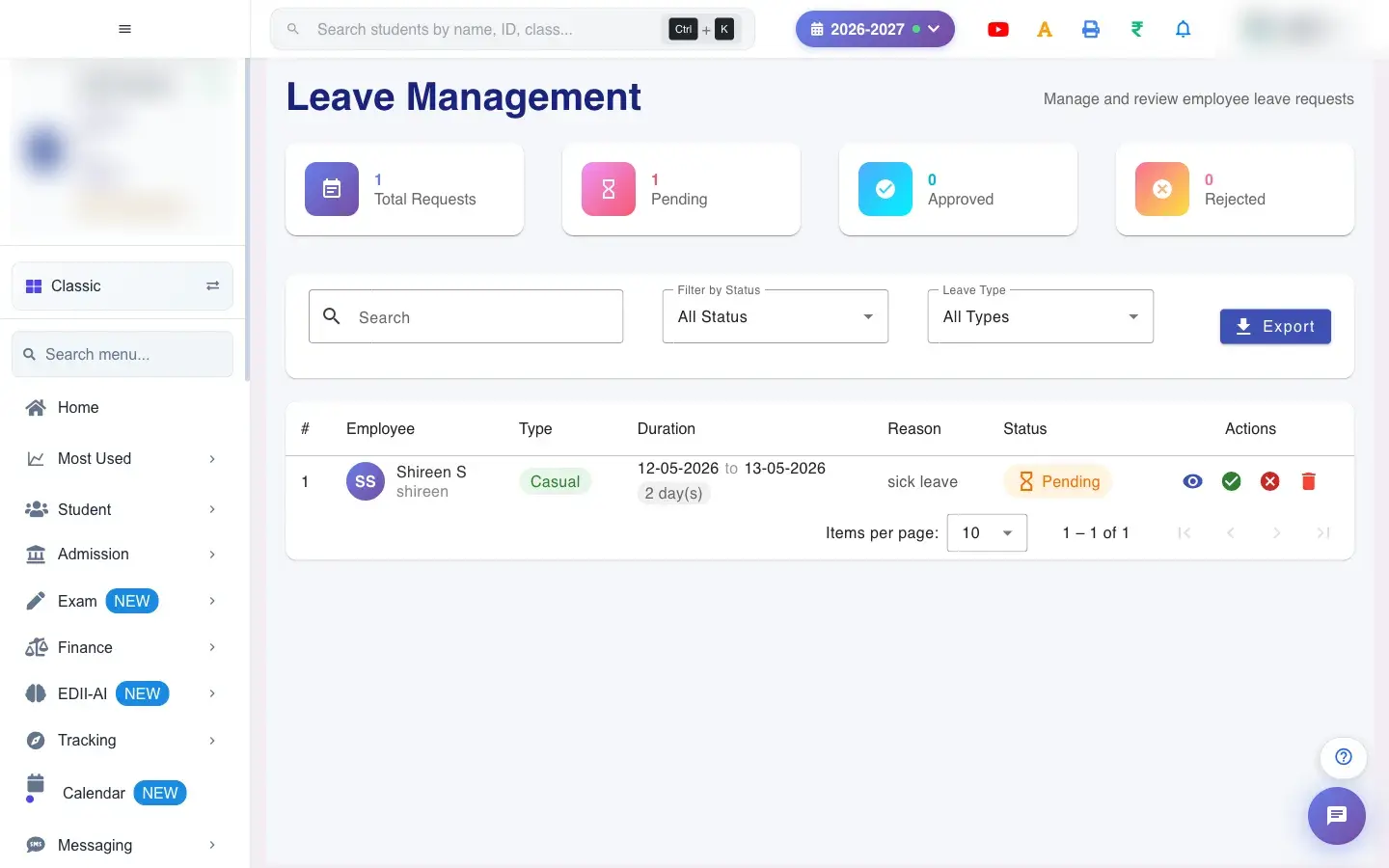
Review every staff leave request: filter by status, type and employee, open the details, approve or reject pending requests, delete a request, and export or print the list.
यह पेज अंग्रेज़ी में है। कुछ समझ न आए तो ।
Leave Management (HRMS › Leave Management) is the administrator’s inbox for staff leave. Four counters show Total Requests, Pending, Approved and Rejected. Below them is the full list with Employee, Type, Duration (with the number of days), Reason, Status and Actions.
Who uses it and when
Section titled “Who uses it and when”The principal or HR approves leave here, usually daily during busy periods.
Before you start
Section titled “Before you start”- Your role must have leave administration access. Others see You do not have permission to access this page.
Where to find it
Section titled “Where to find it”- Menu: HRMS › Leave Management
- Address:
/view/view-leave-admin - If it is missing from your menu, your role does not include it. Ask your school admin.
 Open a bigger pictureतस्वीर बड़ी करें
Step by step
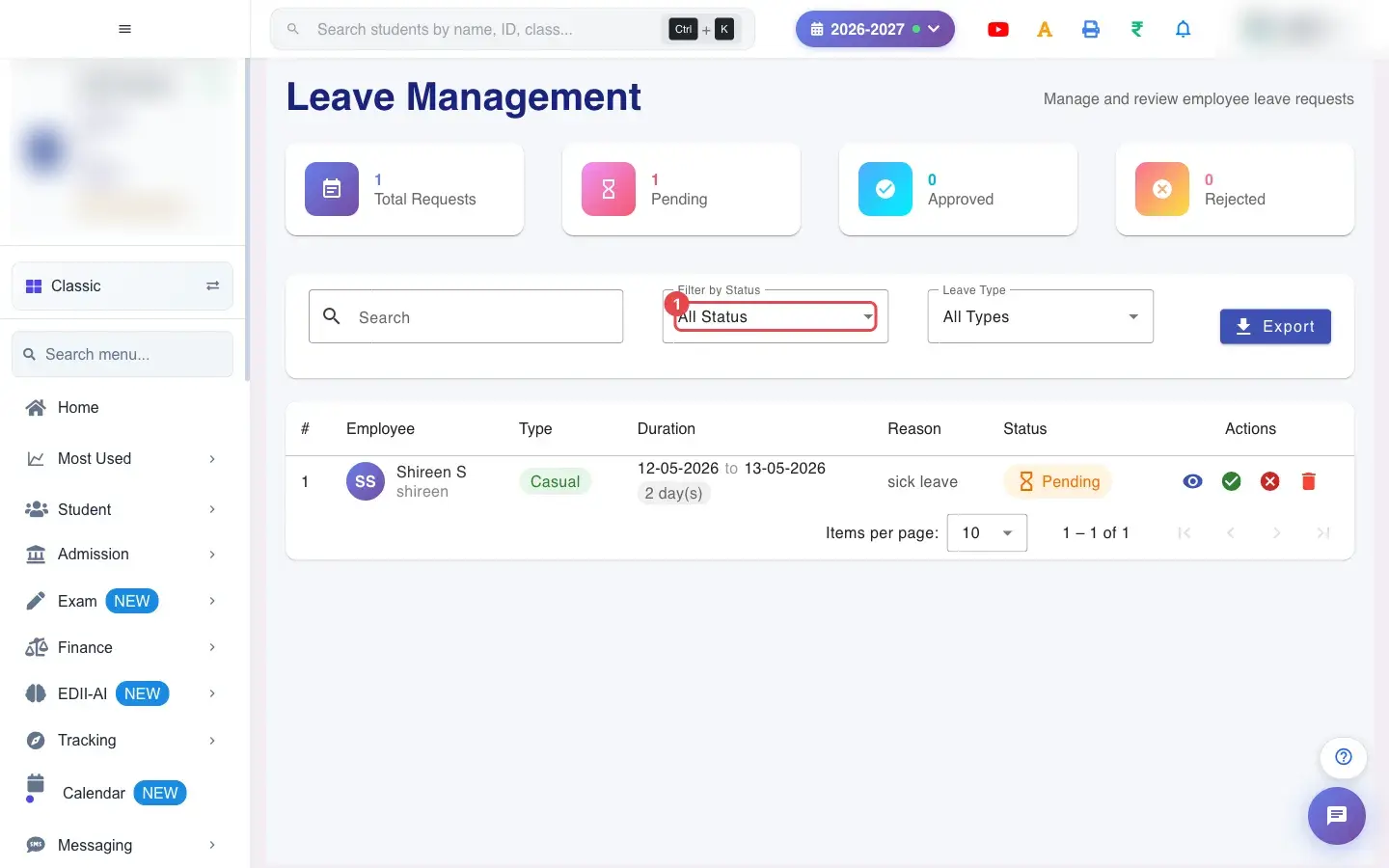
Section titled “Step by step”1. Choose Filter by Status (for example All Status)
Section titled “1. Choose Filter by Status (for example All Status)”Filter by Status: All Status, Pending, Approved or Rejected.
 Open a bigger pictureतस्वीर बड़ी करें
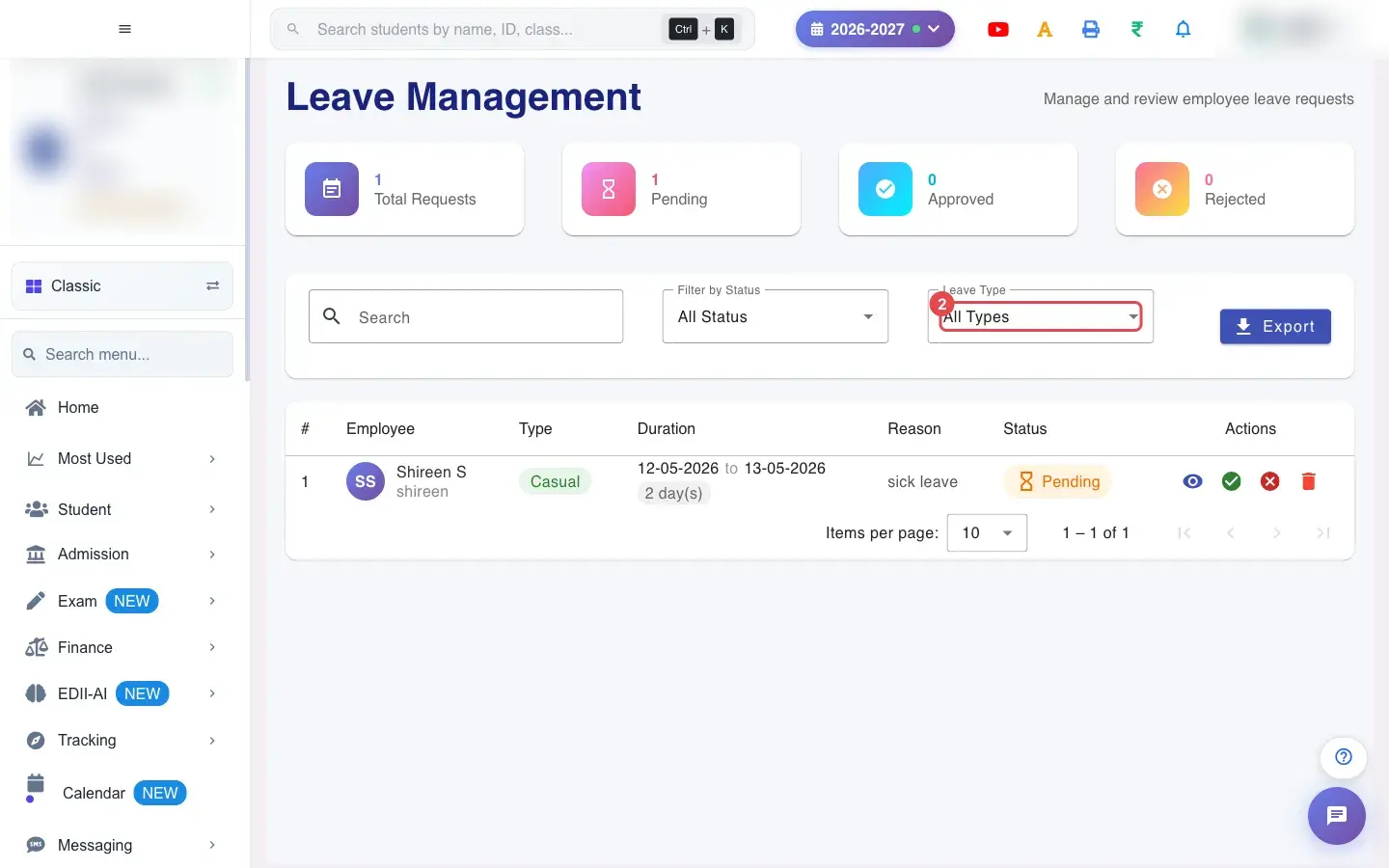
2. Choose Leave Type (for example All Types)
Section titled “2. Choose Leave Type (for example All Types)”Leave Type: All Types, Paid Leave, Unpaid Leave, Sick Leave, Casual Leave and any others you defined.
 Open a bigger pictureतस्वीर बड़ी करें
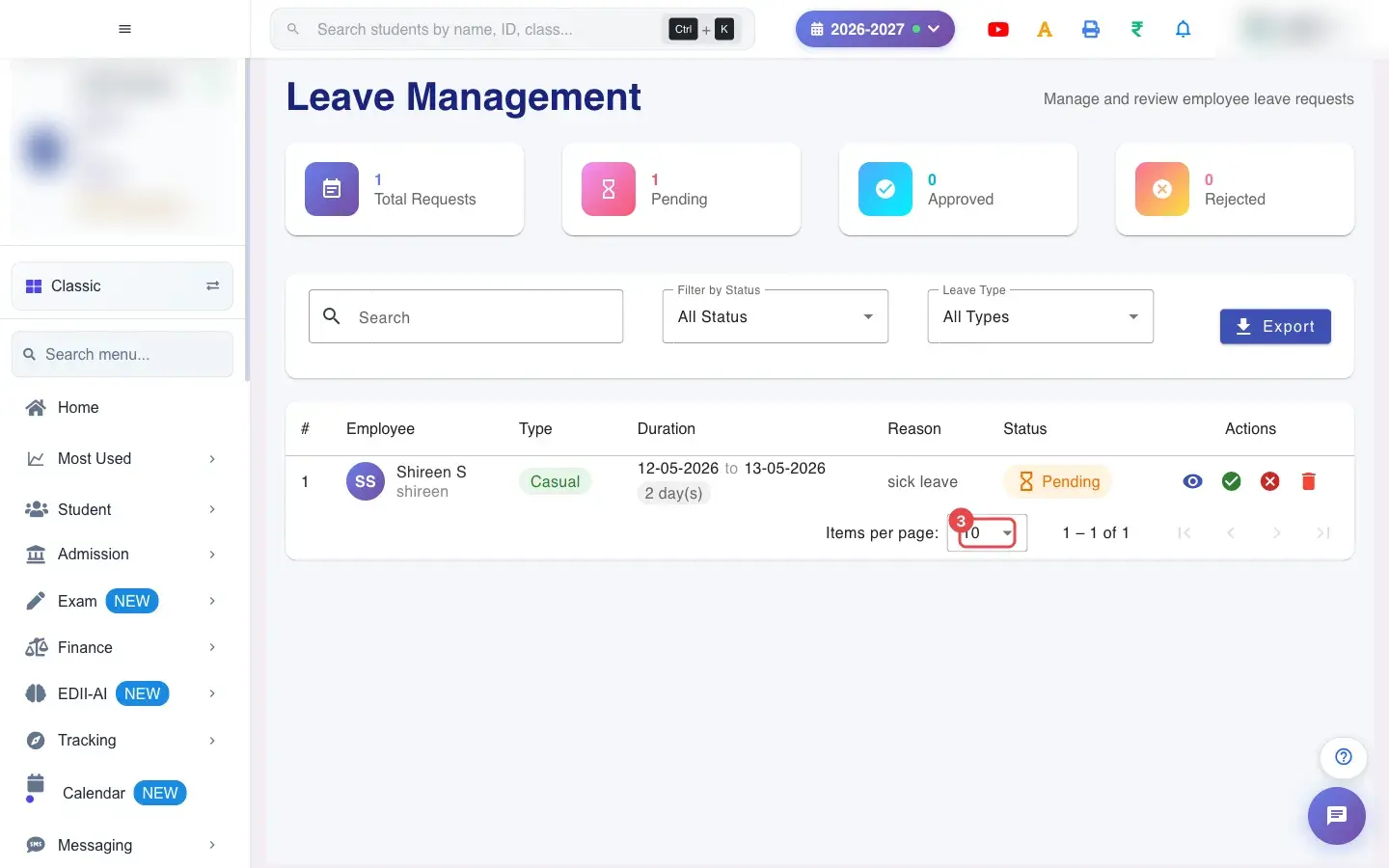
3. Choose 10 (for example 10)
Section titled “3. Choose 10 (for example 10)”Choose how many requests to show per page.
 Open a bigger pictureतस्वीर बड़ी करें
4. Search and filter
Section titled “4. Search and filter”Use Search to find an employee, and the Employee column header to sort.
5. Open a request
Section titled “5. Open a request”The eye icon opens Leave Request Details: employee, leave type, duration, reason, comments and status.
6. Approve or reject
Section titled “6. Approve or reject”On a pending request use the tick to approve or the cross to reject. The message reads Leave approved successfully! or Leave rejected successfully!. You can add comments for the employee.
7. Delete a request
Section titled “7. Delete a request”The bin icon asks Are You Sure , You want To delete? Choose Yes to delete (Leave deleted successfully!) or Cancel.
8. Export or print
Section titled “8. Export or print”Export offers Export to Excel and Print Report; the printout has Report Generated On.
With data
Section titled “With data”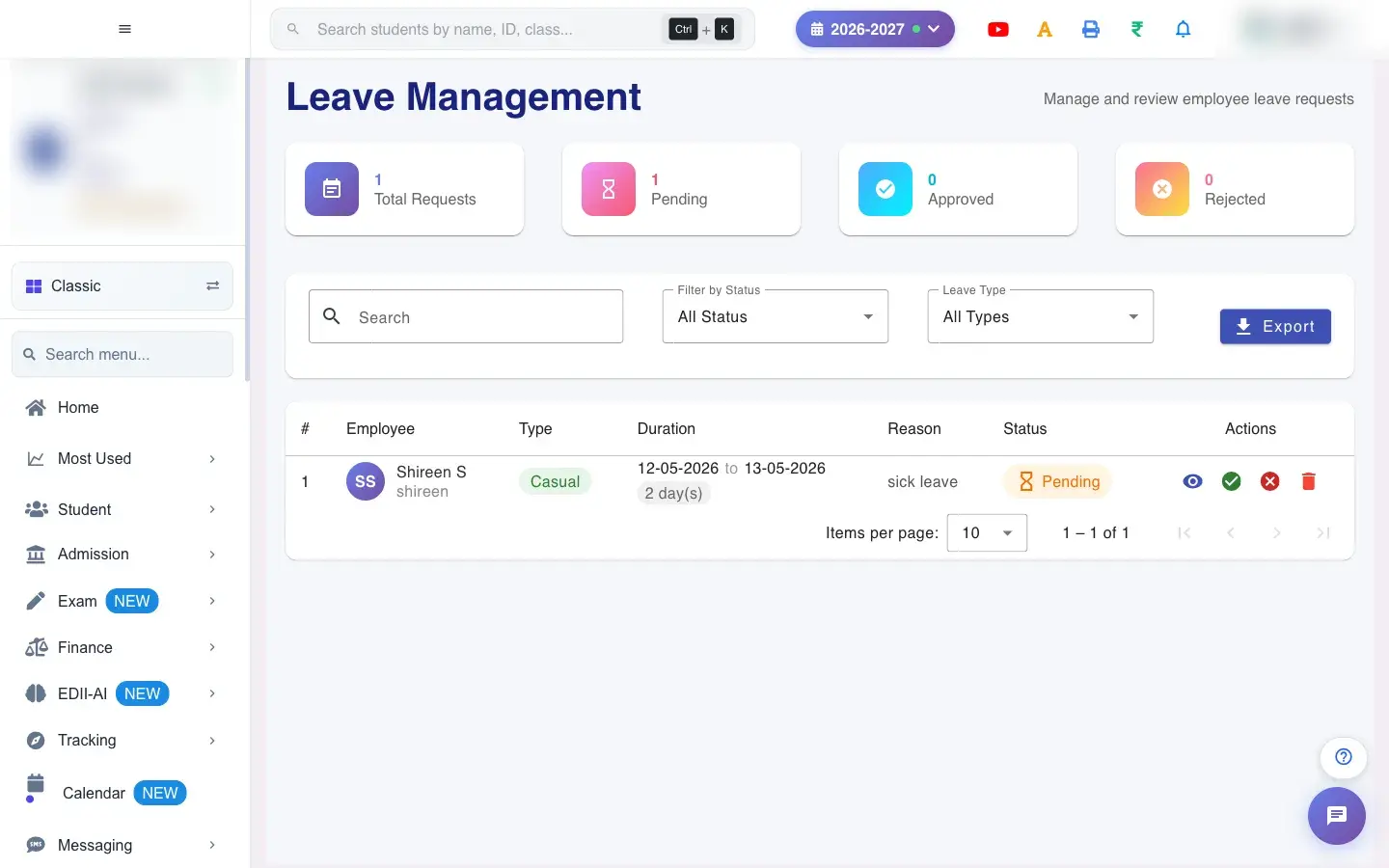 Open a bigger pictureतस्वीर बड़ी करें
Fields and filters
Section titled “Fields and filters”| Field | What it is | Notes |
|---|---|---|
| Filter by Status | Show requests with one status. | All, Pending, Approved, Rejected. |
| Leave Type | Show one type. | From your leave types. |
| Search | Find by employee. | Only filters the list. |
Buttons
Section titled “Buttons”| Button | What it does | What happens next |
|---|---|---|
| Approve (tick) / Reject (cross) | Decides a pending request. | The status changes and the employee sees it in My Leave. |
| View (eye) | Shows the request details. | Read only. |
| Delete (bin) | Removes the request after you confirm. | Cannot be undone. |
| Export / Print Report | Downloads or prints the list. | Opens a file or the print window. |
Columns
Section titled “Columns”| Column | Meaning |
|---|---|
| Employee | Who asked for leave. |
| Type / Duration | Leave type and the dates, with the number of days. |
| Reason / Status / Actions | Why, the decision so far, and what you can do. |
After you save
Section titled “After you save”- Approving or rejecting records the decision against the request and changes its status.
- Deleting removes the request completely.
Good to know
Section titled “Good to know”- Only administrators can open this screen.
- Deleting asks for confirmation.
Messages you may see
Section titled “Messages you may see”| Message | What it means | What to do |
|---|---|---|
| Leave approved successfully! / Leave rejected successfully! | The decision was saved. | Nothing to do. |
| Leave deleted successfully! | The request was removed. | Nothing to do. |
| You do not have permission to access this page | Your role cannot manage leave. | Ask an administrator. |
| Connection error. Please check your internet. | The request failed. | Try again. |
- Set Filter by Status to Pending to see only what needs a decision.
- Look at the Leave Balances tab before approving.
Stuck? Try this
Section titled “Stuck? Try this”| Problem | Likely cause | What to do |
|---|---|---|
| No leave requests | Nothing matches the filters. | Set Status and Type back to All. |
Did this page help?क्या इस पेज से मदद मिली?
Thanks! Glad it helped.धन्यवाद! अच्छा लगा कि काम बन गया।
Sorry about that. Ask in your own words, or write to us.माफ़ कीजिए। अपने शब्दों में पूछें, या हमें लिखें।