
Screen guide · Web app
Offline Exam: Result Release Dates
Decide when students can see their offline exam results in the app, by class and exam type; until the release date, the marks stay hidden.
यह पेज अंग्रेज़ी में है। कुछ समझ न आए तो ।
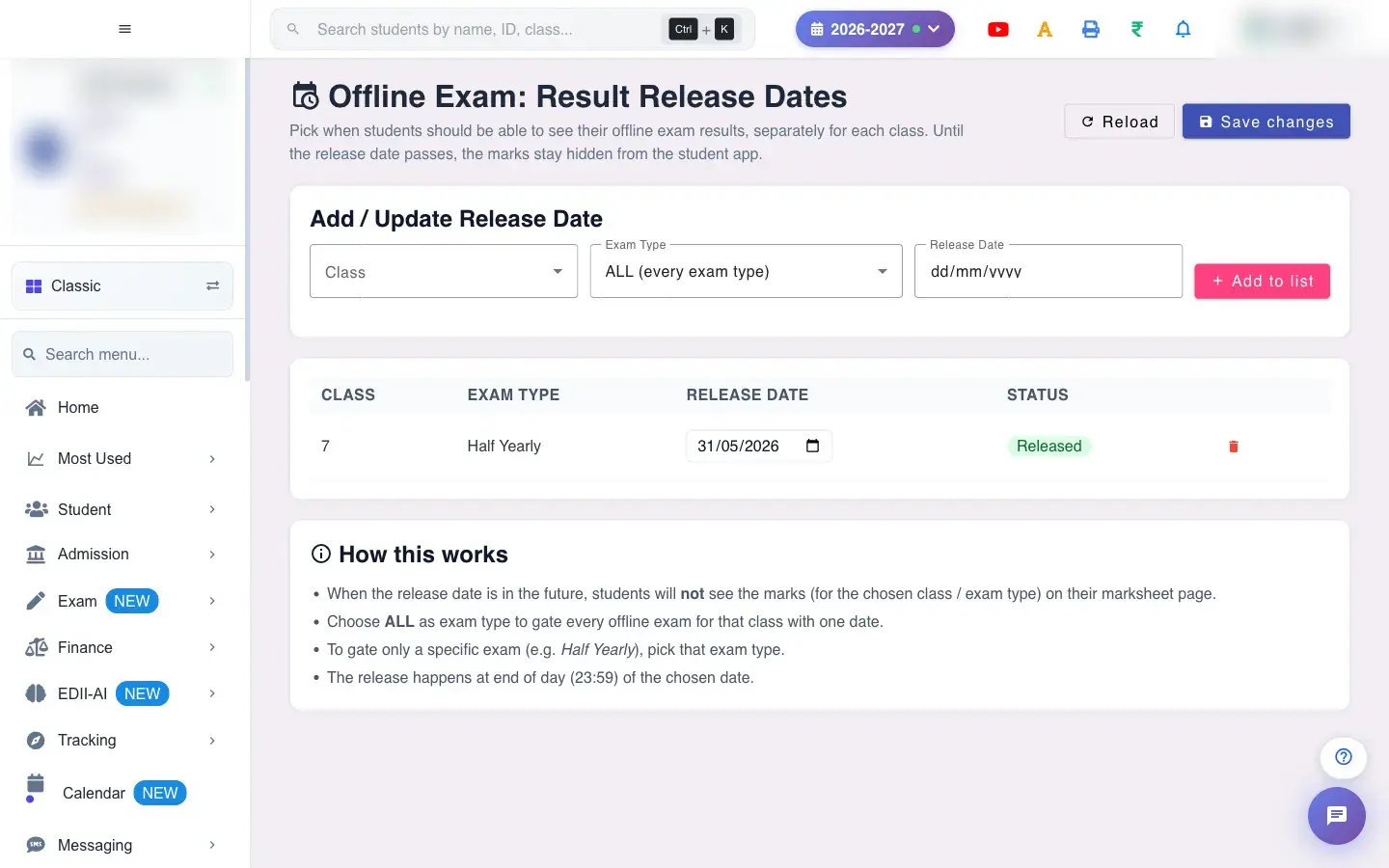
Offline Exam: Result Release Dates (Exam › Result Release Dates) controls when students and parents see offline exam marks. Pick a class, an exam type (or ALL (every exam type)) and a Release Date and select Add to list. Until the release date passes, the marks are hidden from the student app marksheet page.
The table lists each rule with its Class, Exam Type, Release Date and Status. Reload refreshes it and Save changes stores your edits.
Who uses it and when
Section titled “Who uses it and when”The exam in-charge sets release dates before results are entered, so marks are not seen early.
Before you start
Section titled “Before you start”- Decide the date results should become visible.
Where to find it
Section titled “Where to find it”- Menu: Exam › Result Release Dates
- Address:
/view/exam-result-release-date - If it is missing from your menu, your role does not include it. Ask your school admin.
 Open a bigger pictureतस्वीर बड़ी करें
Step by step
Section titled “Step by step”1. Add a rule
Section titled “1. Add a rule”Choose the Class (Please pick a class), the Exam Type (or ALL) and the Release Date (Please pick a release date), then select Add to list.
2. Check the status
Section titled “2. Check the status”Status shows whether the date is in the future (marks hidden) or has passed (marks visible).
3. Save or remove
Section titled “3. Save or remove”Select Save changes (Saved; No changes to save if nothing changed). Remove a rule from the list to stop gating (Removed).
With data
Section titled “With data”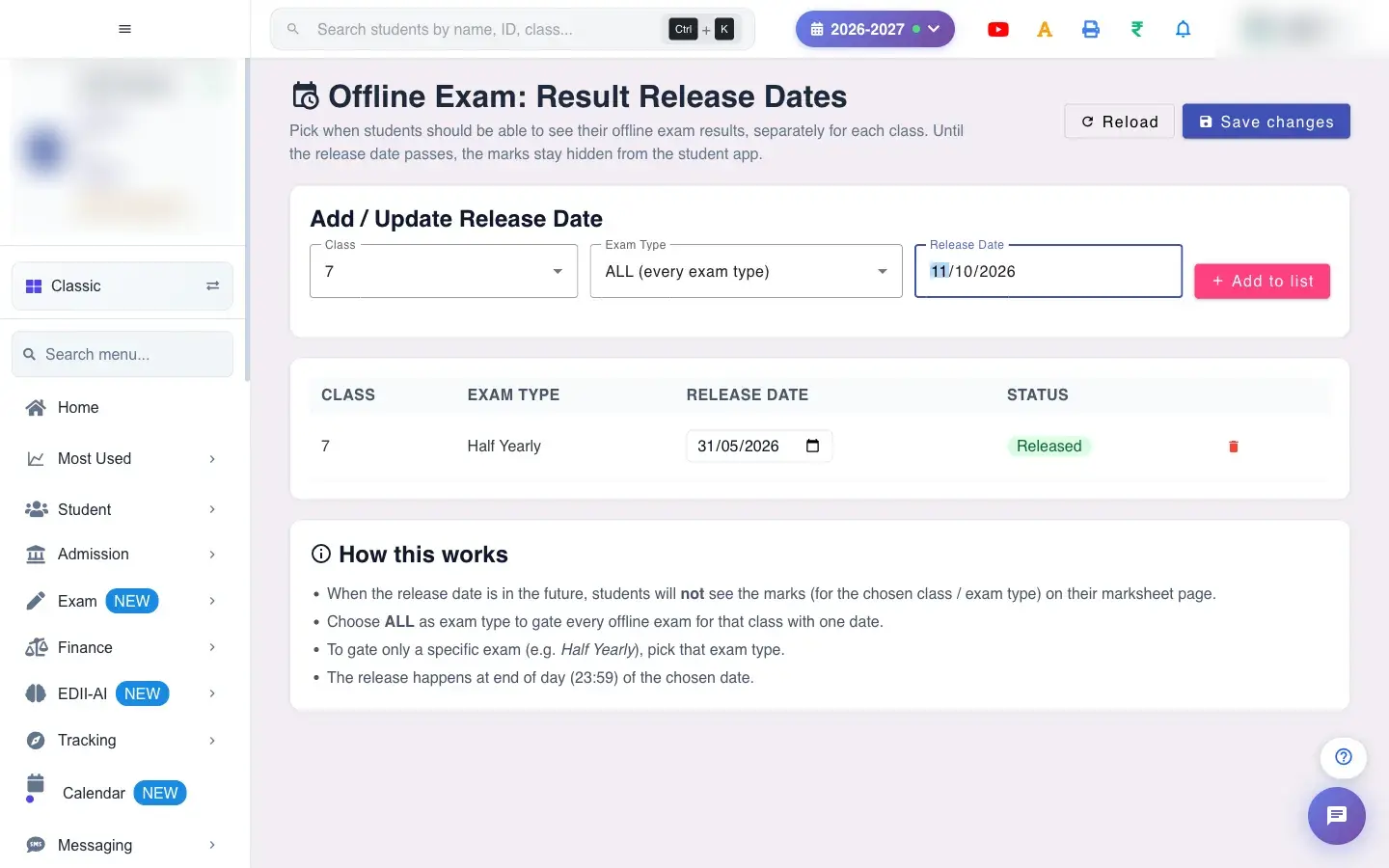 Open a bigger pictureतस्वीर बड़ी करें
Fields and filters
Section titled “Fields and filters”| Field | What it is | Notes |
|---|---|---|
| Class | Which class. | Required. |
| Exam Type | One exam type or ALL. | ALL gates every offline exam for the class. |
| Release Date | When marks become visible. | Required. |
Buttons
Section titled “Buttons”| Button | What it does | What happens next |
|---|---|---|
| Add to list | Adds a rule. | Appears in the table. |
| Save changes | Stores the rules. | Saved. |
| Reload | Refreshes the list. | Unsaved edits are lost. |
Columns
Section titled “Columns”| Column | Meaning |
|---|---|
| Class / Exam Type / Release Date / Status | The rule and whether it is in force. |
After you save
Section titled “After you save”- While the release date is in the future, students do not see the marks for that class and exam type on their marksheet page; from the date onwards they do.
Good to know
Section titled “Good to know”- Marks are hidden until the release date passes.
- ALL covers every offline exam of the class.
Messages you may see
Section titled “Messages you may see”| Message | What it means | What to do |
|---|---|---|
| Please pick a class / Please pick a release date | A choice is missing. | Choose it. |
| No changes to save | Nothing changed. | Edit first. |
| Saved / Removed | The change was stored. | Nothing to do. |
| Network issue while loading release dates / saving / removing | A request failed. | Try again. |
- Set the date before entering marks so nothing leaks early.
- Use ALL to gate a whole class at once.
Stuck? Try this
Section titled “Stuck? Try this”| Problem | Likely cause | What to do |
|---|---|---|
| Parents already see marks | No rule exists or the date has passed. | Add a rule with a future date. |
Did this page help?क्या इस पेज से मदद मिली?
Thanks! Glad it helped.धन्यवाद! अच्छा लगा कि काम बन गया।
Sorry about that. Ask in your own words, or write to us.माफ़ कीजिए। अपने शब्दों में पूछें, या हमें लिखें।