
Screen guide · Admin app
Sign in
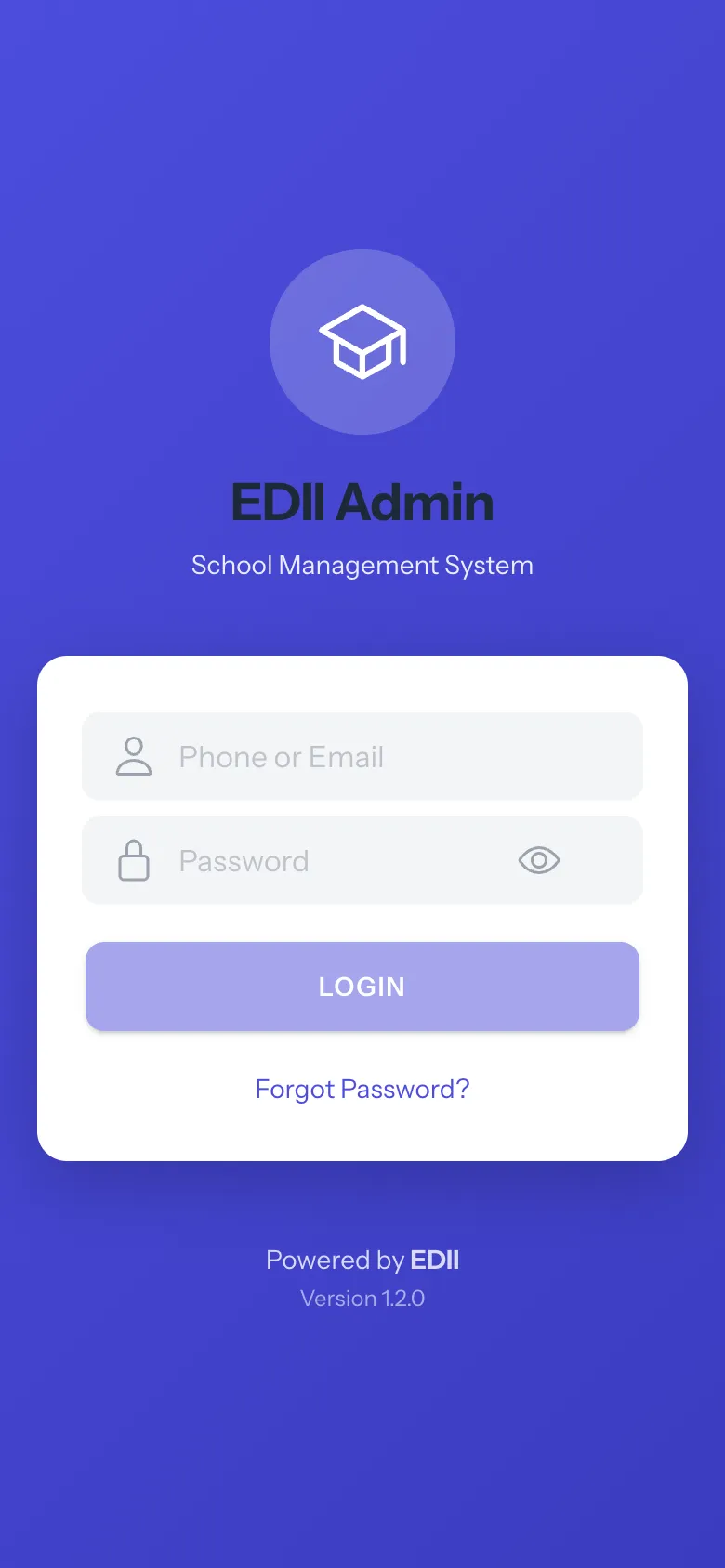
Sign in to the EDII Admin app with your user ID and password.
यह पेज अंग्रेज़ी में है। कुछ समझ न आए तो ।
EDII Admin (School Management System) asks for your User ID (in the first box, marked Phone or Email) and Password (use the eye to show the password). LOGIN turns on once both are filled in. Select it. A green Login successful! message confirms it and Today opens. You stay signed in until you log out (More › Settings › LOGOUT). The app version is shown at the bottom.
Forgot Password? tells you to contact your school administrator to reset the password. (On the EDII web sign-in page you can also reset it yourself with a one-time code; once signed in, More › Settings › Change Password does the same.)
Who uses it and when
Section titled “Who uses it and when”Principals and administrators.
Before you start
Section titled “Before you start”- Use the same User ID and password as the web app.
Where to find it
Section titled “Where to find it”- Install EDII Admin and open it. The sign-in screen appears the first time and after you log out.
 Open a bigger pictureतस्वीर बड़ी करें
Step by step
Section titled “Step by step”1. Enter your User ID
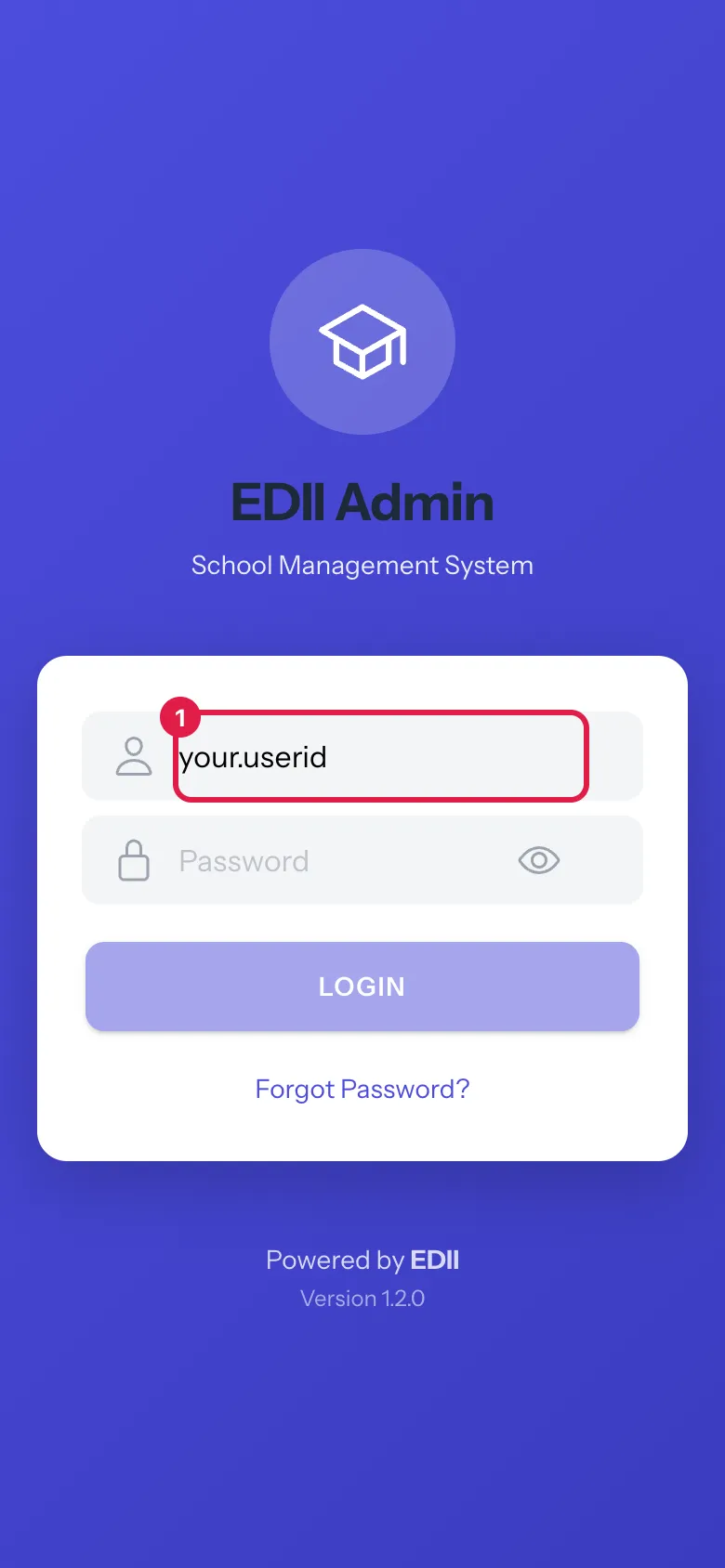
Section titled “1. Enter your User ID”Type your User ID in the first box (Phone or Email).
 Open a bigger pictureतस्वीर बड़ी करें
2. Enter your password
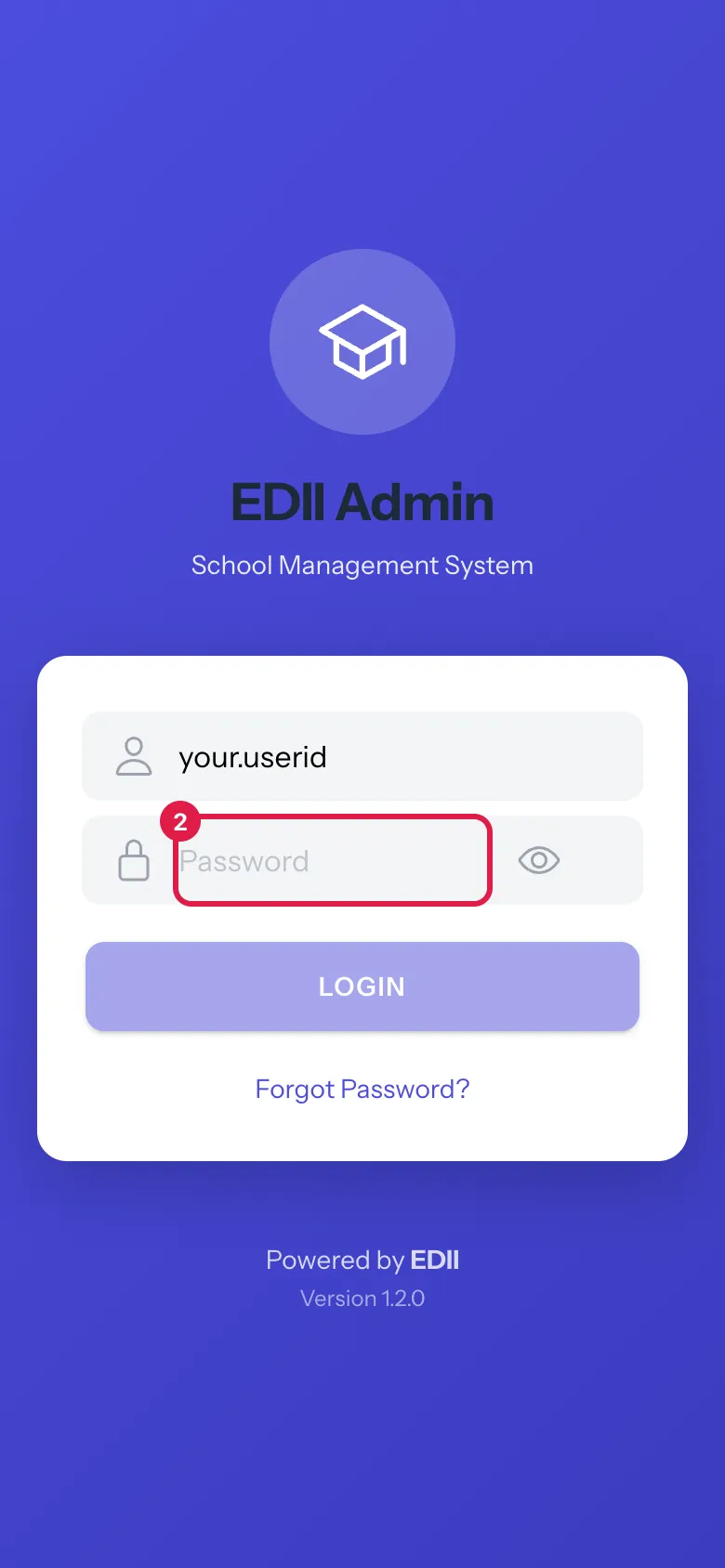
Section titled “2. Enter your password”Type your Password.
 Open a bigger pictureतस्वीर बड़ी करें
3. Log in
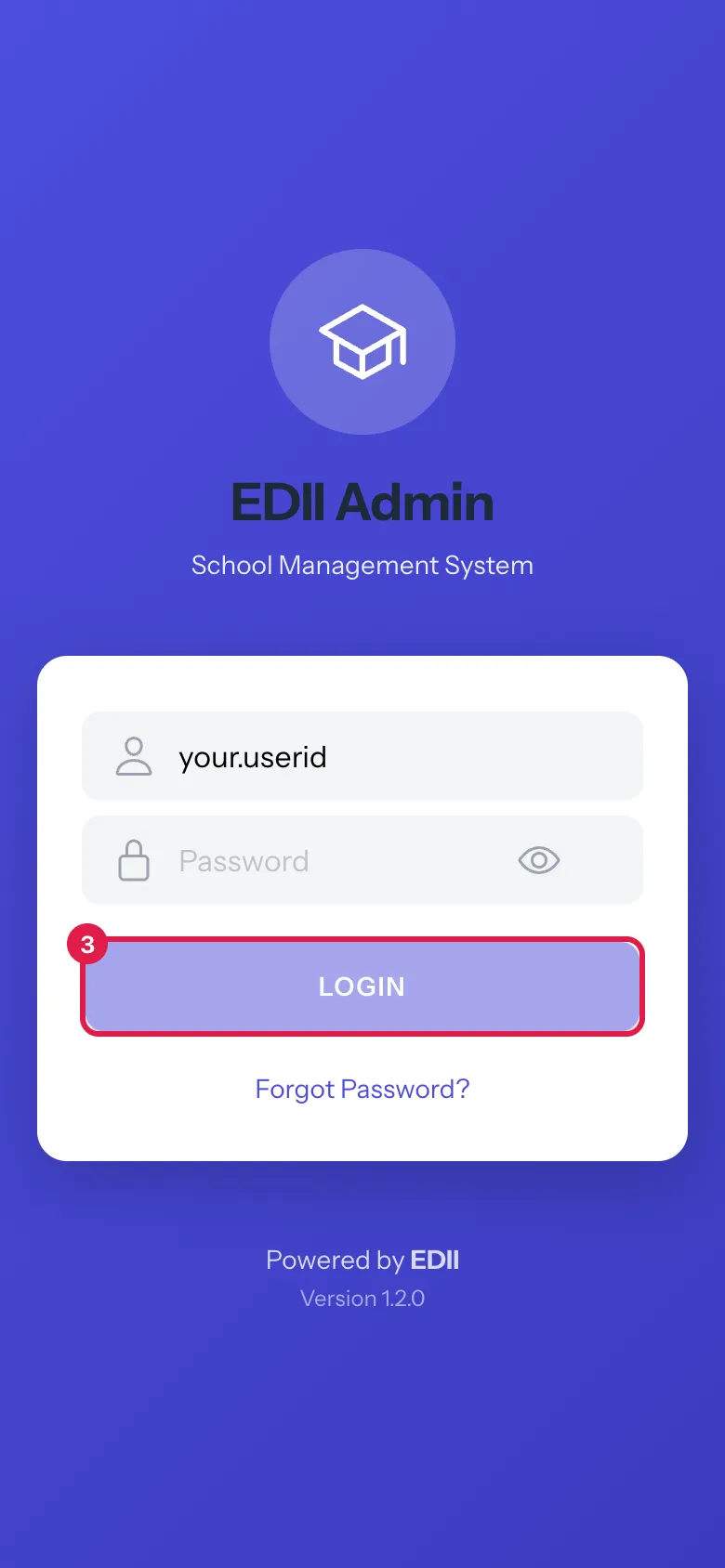
Section titled “3. Log in”Select LOGIN. Today opens.
 Open a bigger pictureतस्वीर बड़ी करें
Fields and filters
Section titled “Fields and filters”| Field | What it is | Notes |
|---|---|---|
| User ID | Your user ID. | Required. |
| Password | Your password. | Required. |
Buttons
Section titled “Buttons”| Button | What it does | What happens next |
|---|---|---|
| LOGIN | Checks your details. | Login successful! and Today. |
| Forgot Password? | Explains how to get a reset. | A message says to contact your school administrator. |
After you save
Section titled “After you save”- You are signed in on this phone.
Good to know
Section titled “Good to know”- Both boxes are required.
Messages you may see
Section titled “Messages you may see”| Message | What it means | What to do |
|---|---|---|
| Login successful! | You are signed in. | Nothing to do. |
| Please contact your school administrator to reset your password. | The app does not reset passwords on the sign-in screen. | Ask your administrator, or use Forgot password? on the web sign-in page. |
- Phone-number login is not available for admin accounts.
Stuck? Try this
Section titled “Stuck? Try this”| Problem | Likely cause | What to do |
|---|---|---|
| I cannot sign in | Wrong details or no internet. | Check the details; reset the password on the web. |
Did this page help?क्या इस पेज से मदद मिली?
Thanks! Glad it helped.धन्यवाद! अच्छा लगा कि काम बन गया।
Sorry about that. Ask in your own words, or write to us.माफ़ कीजिए। अपने शब्दों में पूछें, या हमें लिखें।