
Screen guide · Web app
Enter Marks
Find the tests of a class and section and open a markslip to enter each student's marks, with a printable empty marks slip.
यह पेज अंग्रेज़ी में है। कुछ समझ न आए तो ।
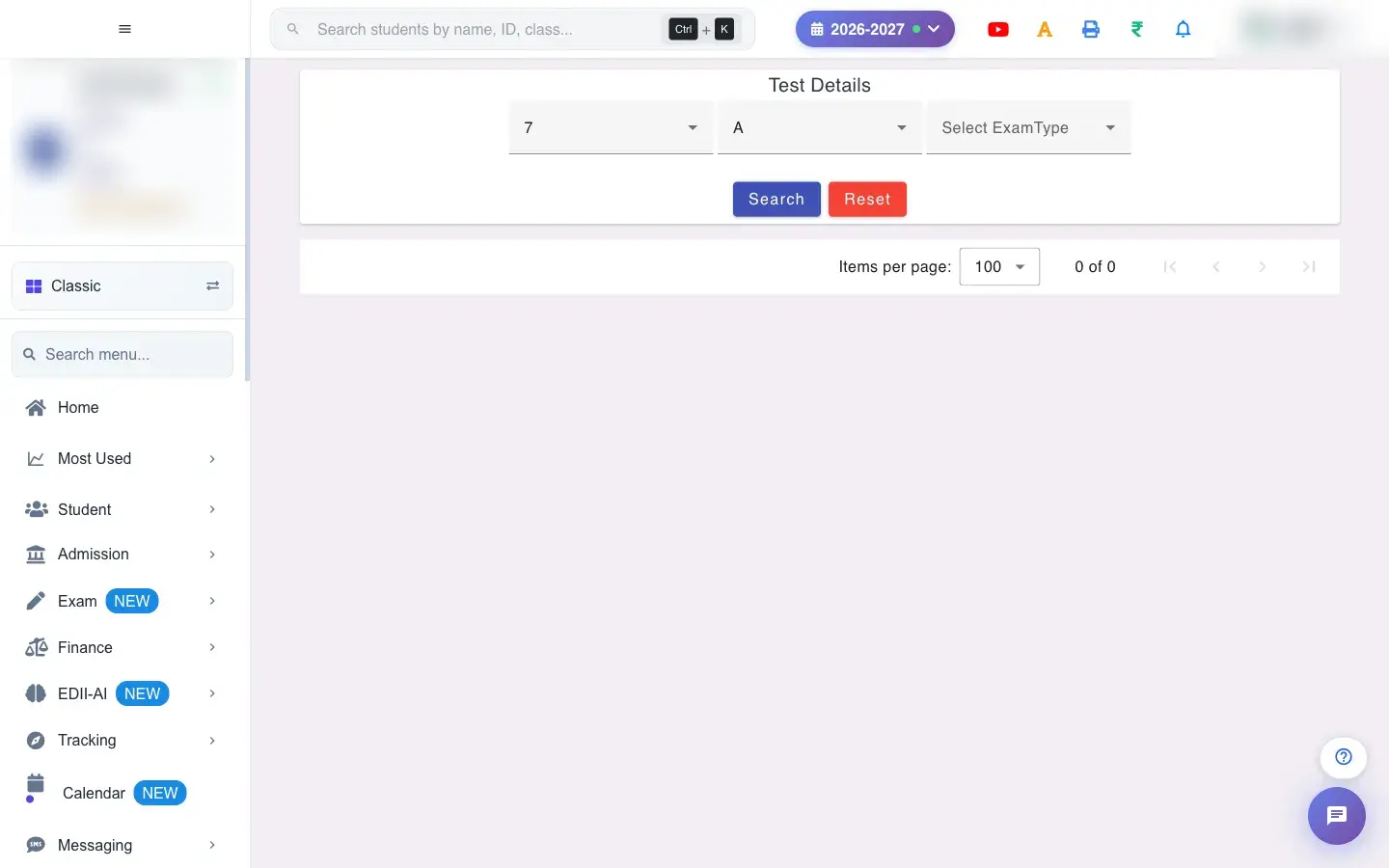
Enter Marks (Exam › Enter Marks) is where marks of offline exams are entered. Choose the Class and Section and press Search to list the tests: Date, Subject, Exam Type and a Marks button. Select the add button to open the Markslip for that test, where every student has a box for their marks.
Print empty marks slip prints a blank sheet with the class, section, exam type and subject, columns for serial number, roll number, name and total, and a summary block (total students, present, absent, minimum, maximum and average marks, and the share of students in each marks band from 90% down to 0%) and lines for the examiner, class teacher, exam HOD and principal to sign.
Who uses it and when
Section titled “Who uses it and when”Teachers enter marks after each exam.
Before you start
Section titled “Before you start”- The test must exist (Exam › Create Test).
Where to find it
Section titled “Where to find it”- Menu: Exam › Enter Marks
- Address:
/view/enter-test-marks - If it is missing from your menu, your role does not include it. Ask your school admin.
 Open a bigger pictureतस्वीर बड़ी करें
Step by step
Section titled “Step by step”1. Choose class and section
Section titled “1. Choose class and section”Pick the Class and Section (both required) and select Search.
2. Pick the test
Section titled “2. Pick the test”Find the test by date, subject and exam type. Use Select Fields to Display and Search… to filter.
3. Open the markslip
Section titled “3. Open the markslip”Select the add icon under Marks to open the markslip and type each student’s marks. See Edit Marks for how saving works.
4. Print a blank slip
Section titled “4. Print a blank slip”Select Print empty marks slip to give teachers a paper copy for writing marks first.
With data
Section titled “With data”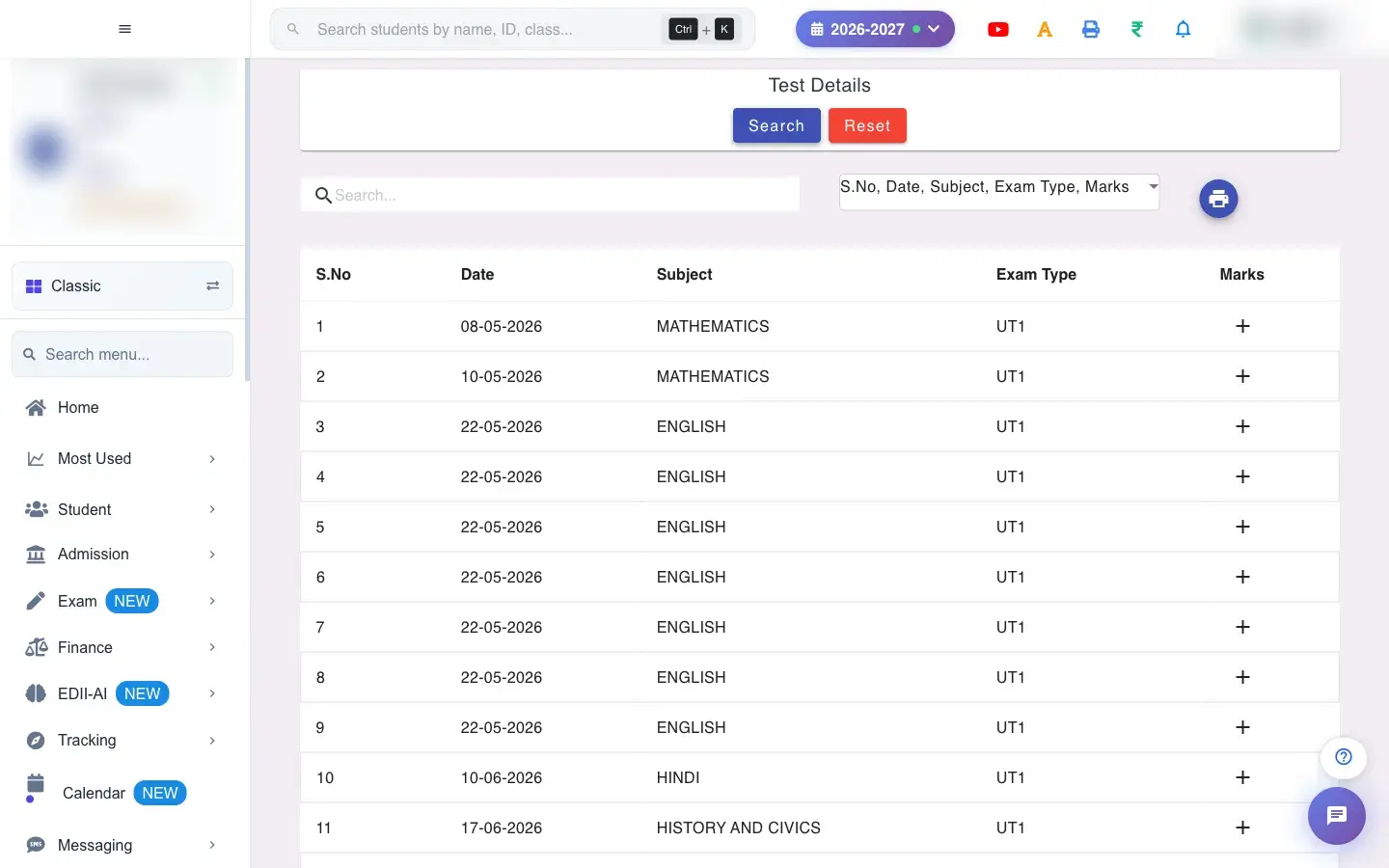 Open a bigger pictureतस्वीर बड़ी करें
Fields and filters
Section titled “Fields and filters”| Field | What it is | Notes |
|---|---|---|
| Select Class / Select Section | The tests to list. | Required. |
| Select Fields to Display | Columns. | View only. |
| Search… | Find a test. | Only filters. |
Buttons
Section titled “Buttons”| Button | What it does | What happens next |
|---|---|---|
| Search | Lists the tests. | Shows Network Issue, Please Try Again. if it fails. |
| Marks (add) | Opens the markslip. | You enter marks there. |
| Print empty marks slip | Prints a blank slip. | Opens the print window. |
Columns
Section titled “Columns”| Column | Meaning |
|---|---|
| Date / Subject / Exam Type | The test. |
| Marks | Opens marks entry. |
After you save
Section titled “After you save”- Listing changes nothing; marks are saved on the markslip.
Good to know
Section titled “Good to know”- Class and section are required.
Messages you may see
Section titled “Messages you may see”| Message | What it means | What to do |
|---|---|---|
| Network Issue, Please Try Again. | The list could not load. | Try again. |
- Print the empty slip for teachers to fill in before typing.
Stuck? Try this
Section titled “Stuck? Try this”| Problem | Likely cause | What to do |
|---|---|---|
| A test is missing | It was not created for this class and section. | Create it in Create Test. |
Did this page help?क्या इस पेज से मदद मिली?
Thanks! Glad it helped.धन्यवाद! अच्छा लगा कि काम बन गया।
Sorry about that. Ask in your own words, or write to us.माफ़ कीजिए। अपने शब्दों में पूछें, या हमें लिखें।