
Screen guide · Web app
Attendance Report Bulk
A month-long attendance sheet for the whole school: every student with a column for each day, built automatically for the current month.
यह पेज अंग्रेज़ी में है। कुछ समझ न आए तो ।
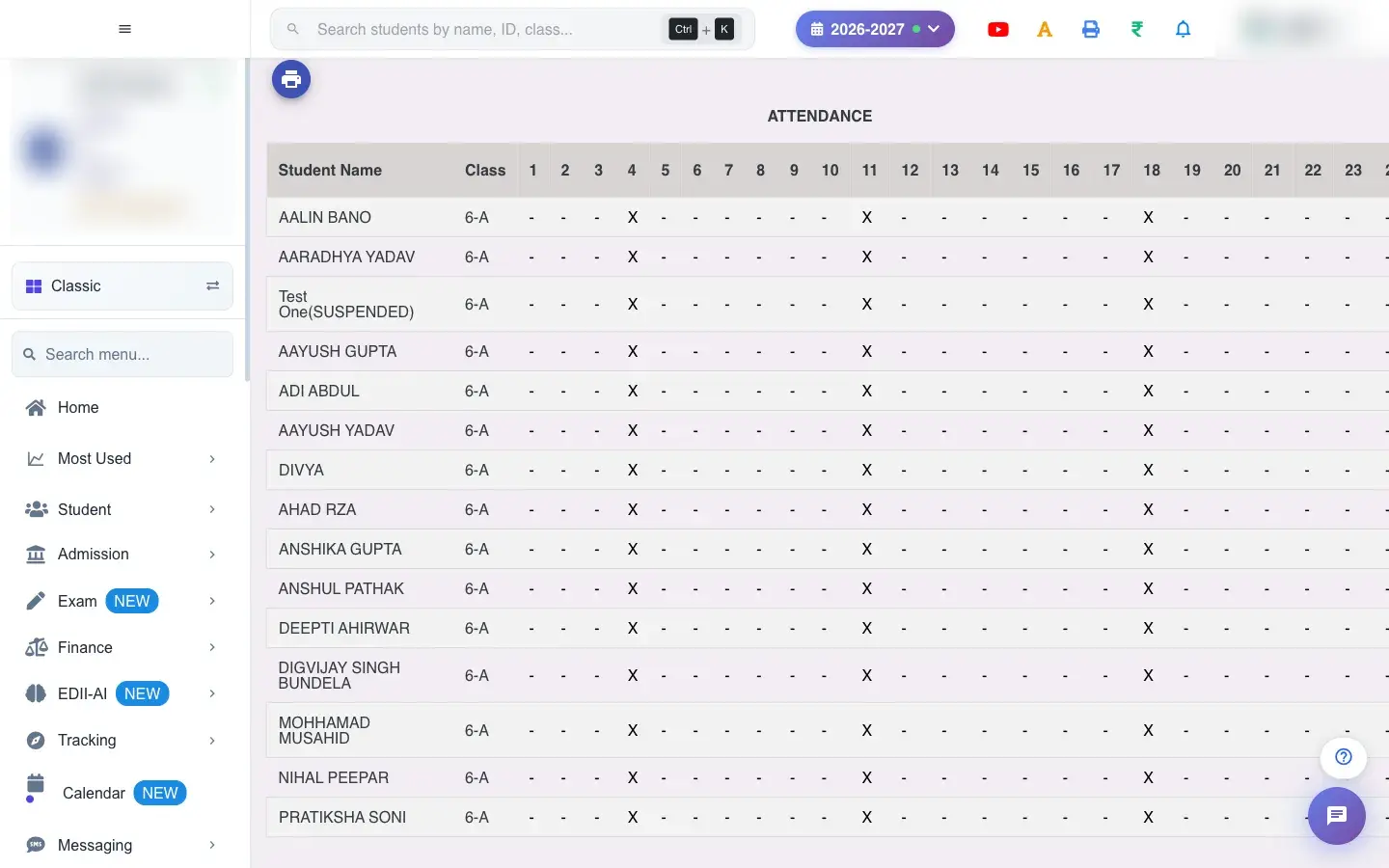
Attendance Report Bulk (Student › Attendance Report Bulk) builds the whole school’s attendance for the current month in one report. Each row is a student, with the class and one column per day of the month (1, 2, 3 …).
There are no filters. Because the report collects every class and section, it can take a while to build; the page tells you what it is doing.
Who uses it and when
Section titled “Who uses it and when”The office uses it at month end for the monthly attendance return, and the principal for a quick look at the whole school.
Before you start
Section titled “Before you start”- Attendance must be marked for the month. Early in the month, or when nothing is marked, the page says so.
Where to find it
Section titled “Where to find it”- Menu: Student › Attendance Report Bulk
- Address:
/view/student-attendance-report-bulk - If it is missing from your menu, your role does not include it. Ask your school admin.
 Open a bigger pictureतस्वीर बड़ी करें
Step by step
Section titled “Step by step”1. Open the screen and wait
Section titled “1. Open the screen and wait”The report starts building as soon as the page opens. You see Building This Month’s Report and a note that attendance is being collected for every class and section, so it can take a while.
2. Read the sheet
Section titled “2. Read the sheet”When it is ready the heading shows Report Generated On with the time. Each row has Student Name, Class and the days of the month across the page.
3. If it does not load
Section titled “3. If it does not load”If the report cannot be built you see Attendance Report Not Available and a Retry button. Select Retry to build it again.
4. If nothing is marked
Section titled “4. If nothing is marked”If no attendance was saved this month yet, the page says No Attendance Marked and No attendance has been marked for this month yet.
5. Print
Section titled “5. Print”Use the print option and choose a paper size: A4, A5, A3 or Letter, in portrait or landscape, to match the school’s print settings. A3 landscape fits all days on one sheet.
Buttons
Section titled “Buttons”| Button | What it does | What happens next |
|---|---|---|
| Retry | Builds the report again. | Shows Attendance Report Fetched! when it works or Network Issue, Please Try Again. if not. |
| Prints the sheet. | Opens the print window with the page size you chose. |
Columns
Section titled “Columns”| Column | Meaning |
|---|---|
| Student Name | The student. |
| Class | Class and section. |
| 1, 2, 3 … | One column per day of the month with that day’s attendance. |
After you save
Section titled “After you save”- This screen only reads data. Nothing is saved or sent.
Good to know
Section titled “Good to know”- It always shows the current month.
- It covers every class and section, so large schools should expect a wait.
Messages you may see
Section titled “Messages you may see”| Message | What it means | What to do |
|---|---|---|
| Attendance Report Fetched! | The report was built. | Nothing to do. |
| Network Issue, Please Try Again. | The report could not be built. | Check the internet and select Retry. |
| No attendance has been marked for this month yet. | There is nothing to show. | Mark attendance first. |
- Open this screen when the network is quiet; building it for a big school takes the longest.
- Use landscape and A3 to see all days of the month in one view.
Stuck? Try this
Section titled “Stuck? Try this”| Problem | Likely cause | What to do |
|---|---|---|
| Attendance Report Not Available | The report could not be built. | Press Retry. If it keeps failing, try again later or use the single-class Attendance Report. |
Did this page help?क्या इस पेज से मदद मिली?
Thanks! Glad it helped.धन्यवाद! अच्छा लगा कि काम बन गया।
Sorry about that. Ask in your own words, or write to us.माफ़ कीजिए। अपने शब्दों में पूछें, या हमें लिखें।