
Screen guide · Admin app
Money
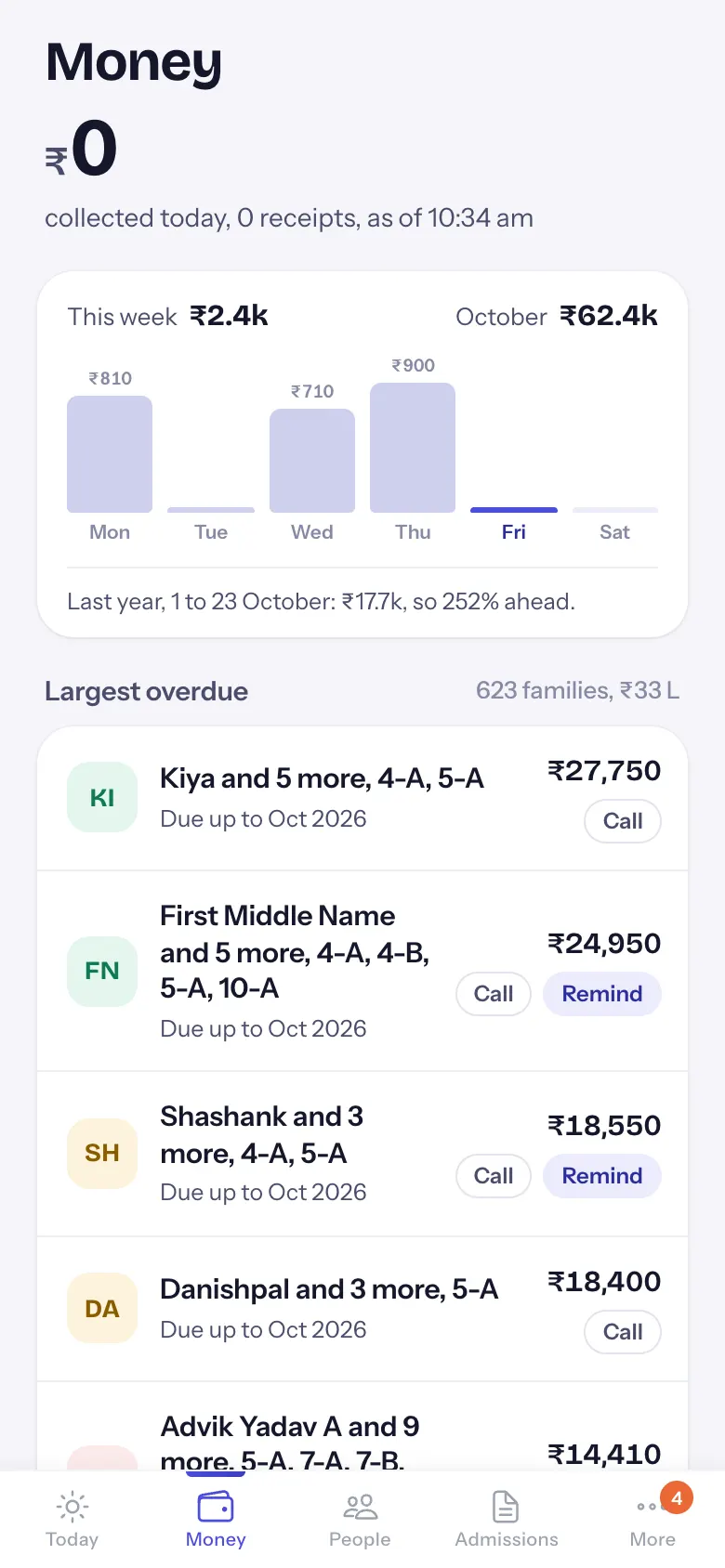
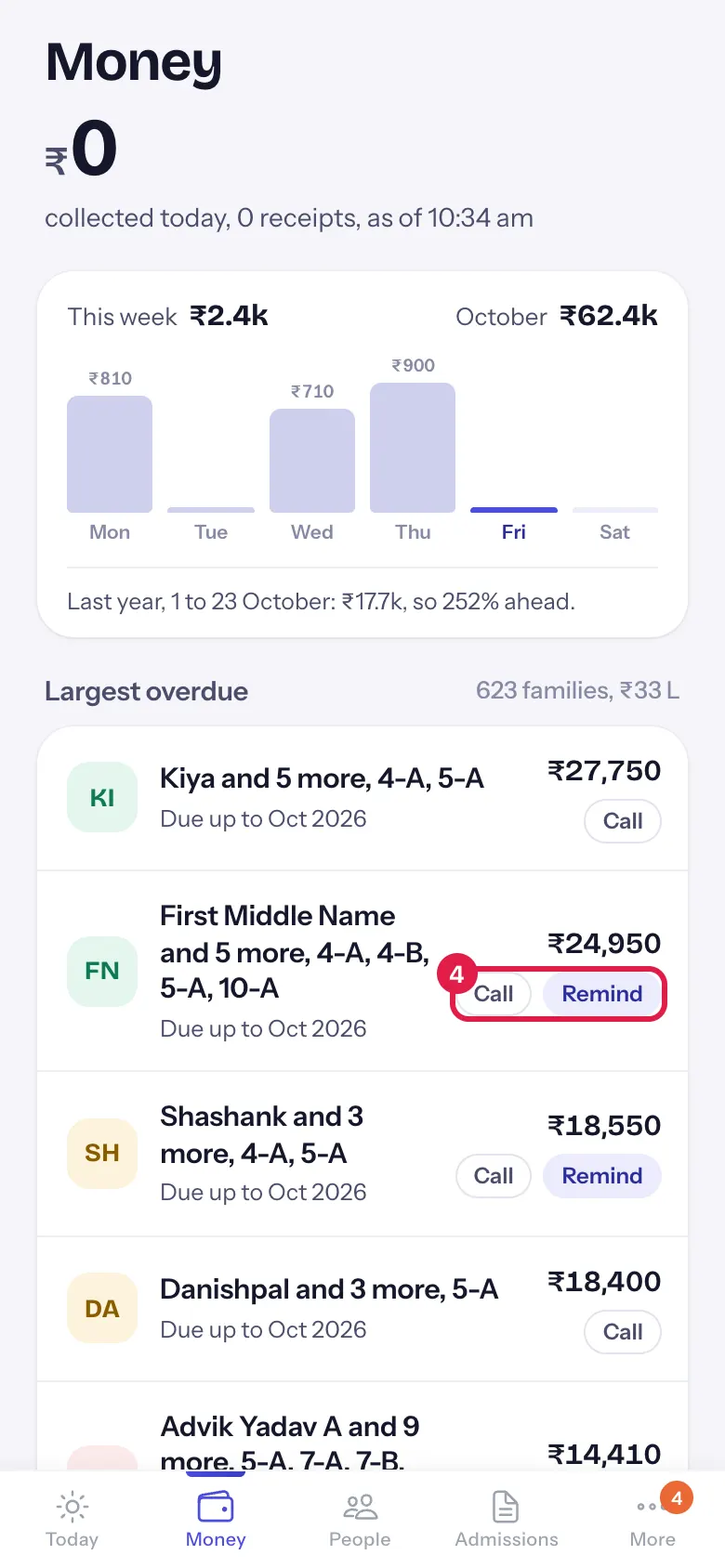
Fees at a glance: collected today by payment mode, this week day by day, the month so far against the same days last year, and the families with the largest overdue fees, with Call and Remind.
यह पेज अंग्रेज़ी में है। कुछ समझ न आए तो ।
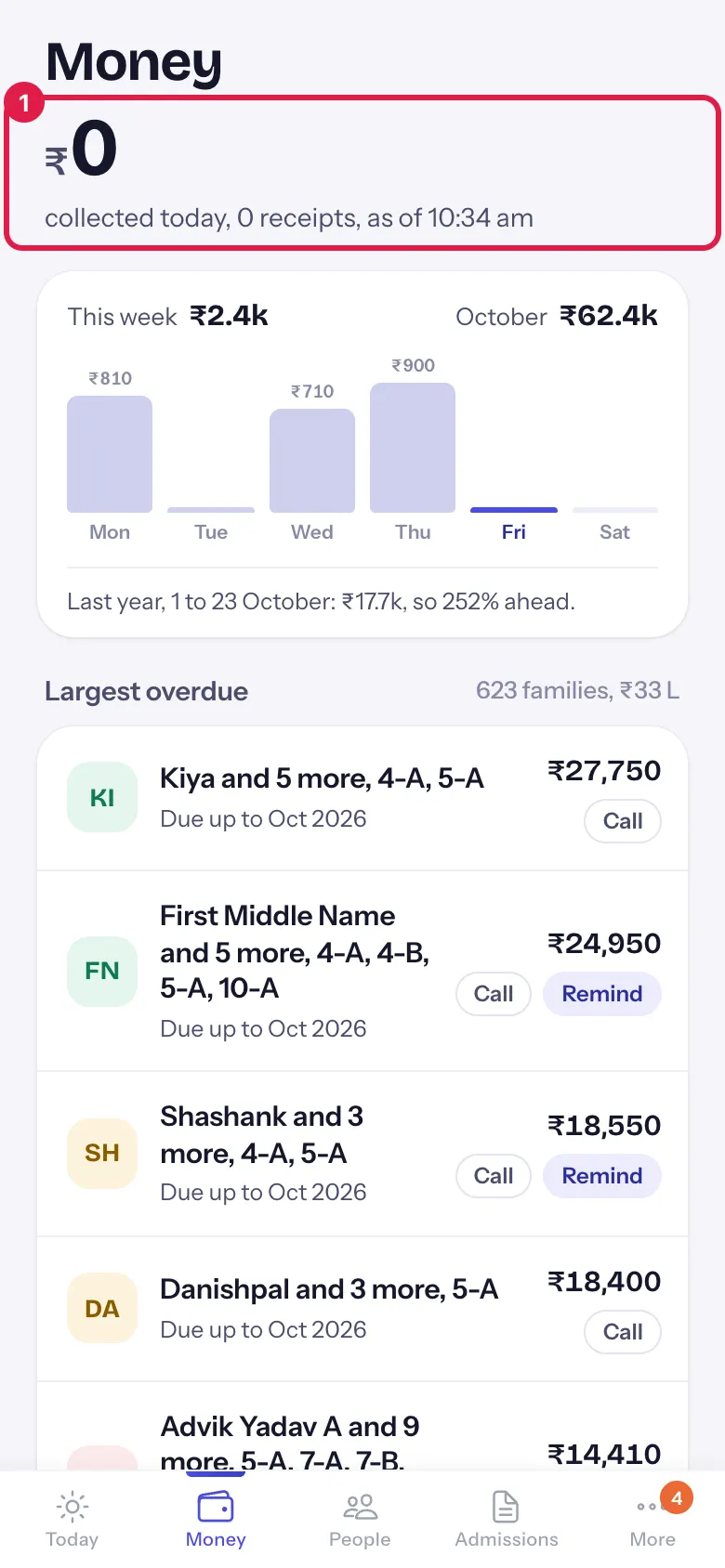
At the top: ₹ collected today, with the number of receipts and the time (collected today, 4 receipts, as of 10:30 am). A bar splits it by mode: Online, Cash, Cheque, Card and Wallet (only the modes used today).
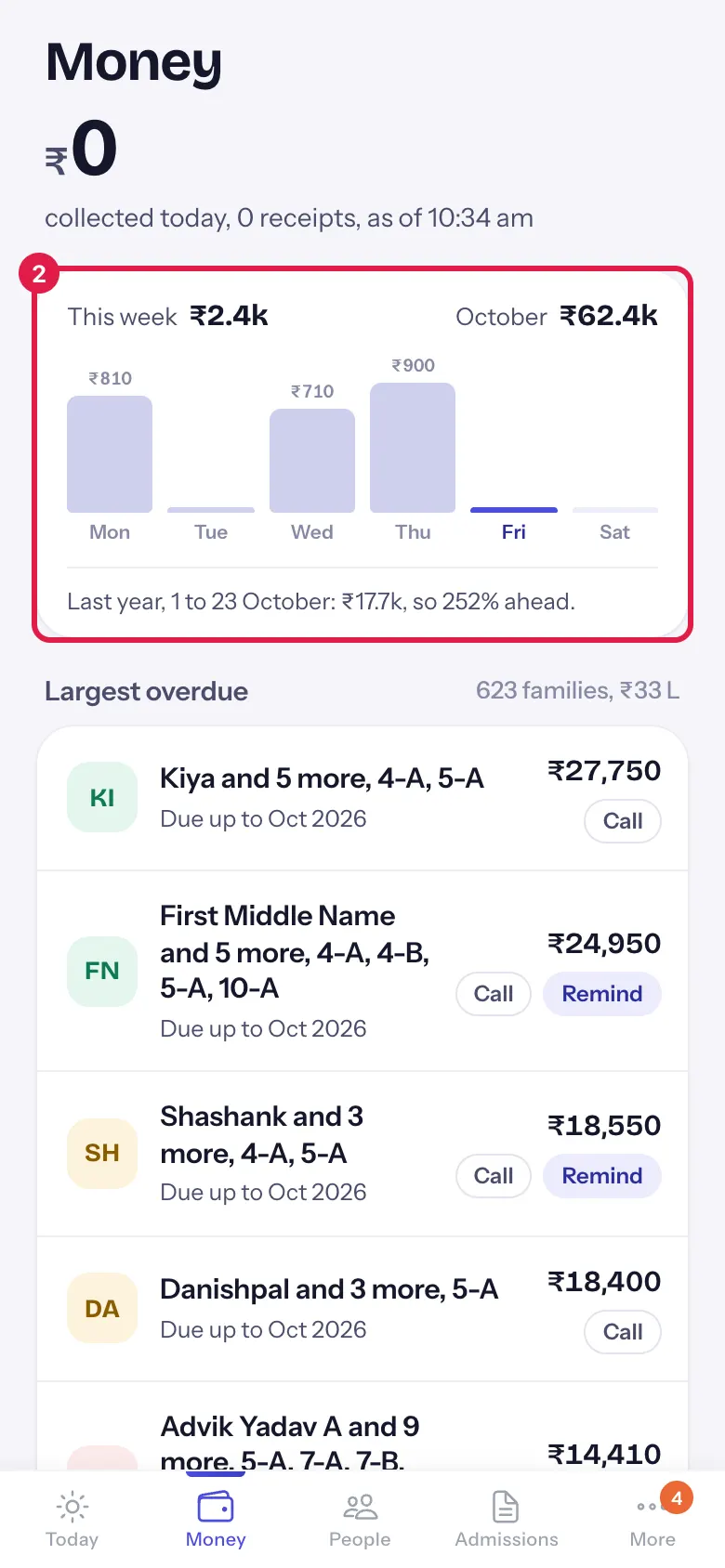
This week gives the week’s total and the month so far (October ₹1.2L), with a bar for each day from Monday to Saturday; today is highlighted. Under it, the month against the same days last year: Last year, 1 to 23 October: ₹98K, so 22% ahead. (or behind, or the same).
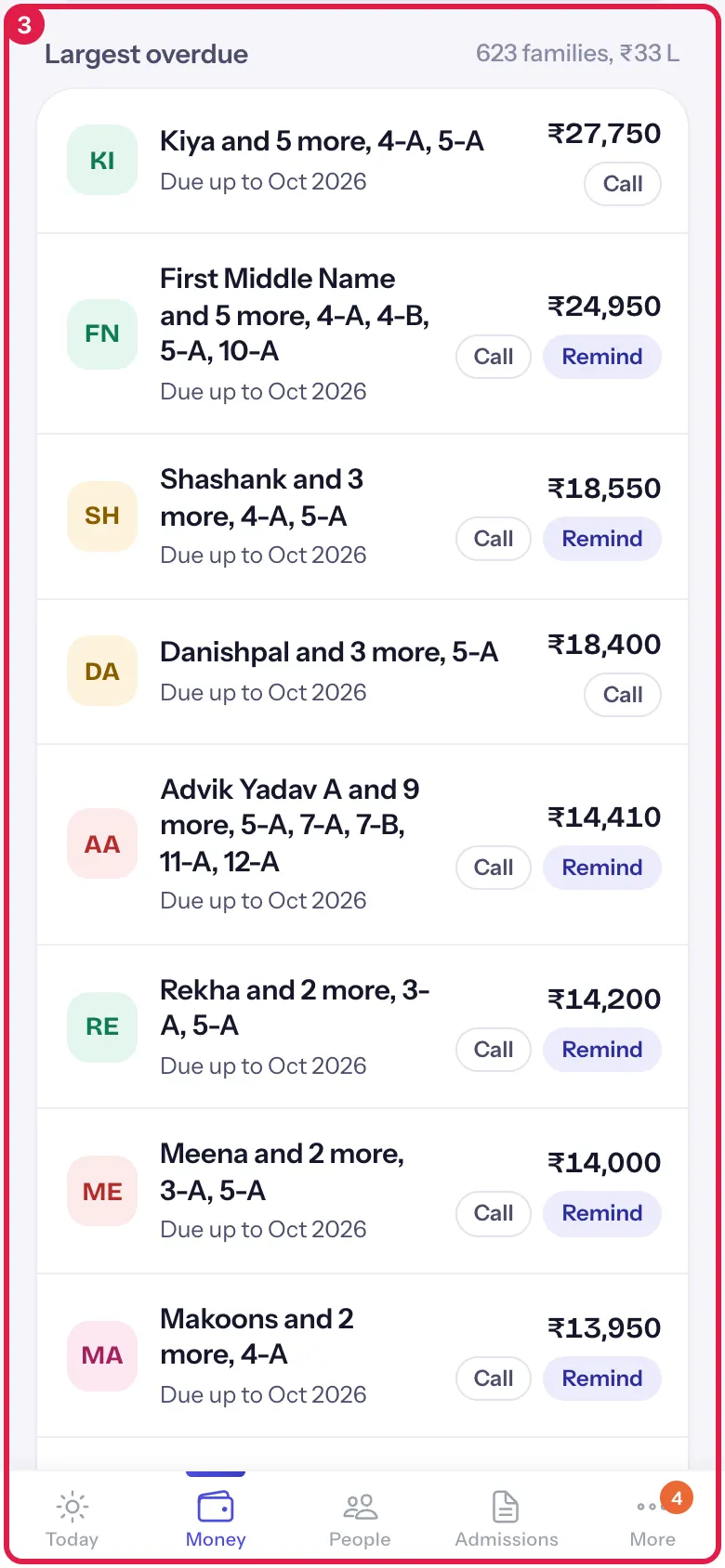
Largest overdue (36 families, ₹4.1L) lists the twelve families with the most fees due up to this month. Brothers and sisters with the same parent phone number count as one family (Aarav and Diya, 4-A, 7-B). Each row shows Due up to <month>, the amount, Call (dials the parent) and Remind. When nothing is due: Nobody has fees due up to this month.
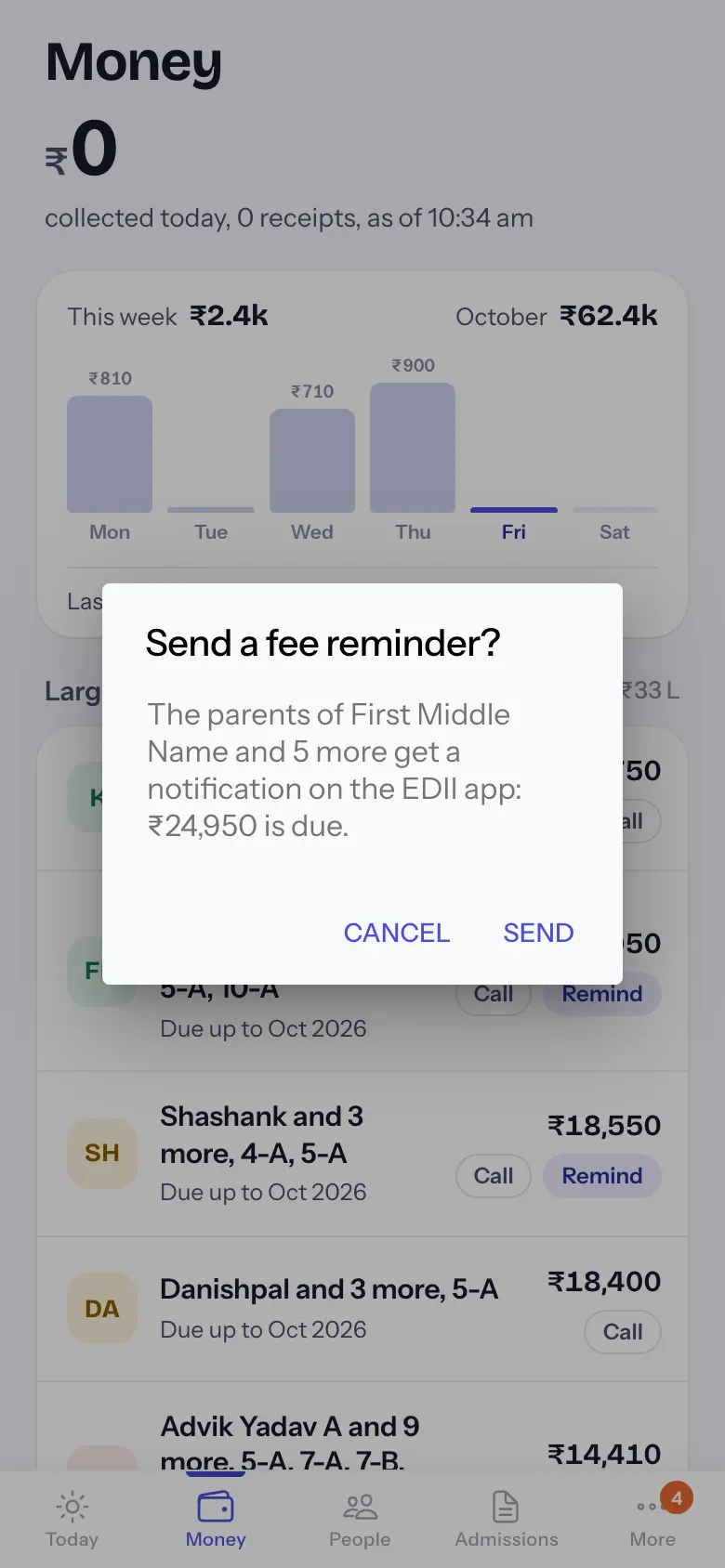
Remind asks first: Send a fee reminder? The parents of <names> get a notification on the EDII app: ₹… is due. Select Send or Cancel. The parents get a notification in the EDII parent app (Dear Parent, ₹… in school fees is due for <names>. Please pay at the earliest. You can pay in the EDII app.). The row then says Reminded just now. and the button reads Sent.
Who uses it and when
Section titled “Who uses it and when”Principals and accountants, daily.
Before you start
Section titled “Before you start”- Fees are set up and collected in EDII (fee counter or online).
Where to find it
Section titled “Where to find it”- Choose Money in the bottom bar.
- Or select the money tile on Today.
 Open a bigger pictureतस्वीर बड़ी करें
Step by step
Section titled “Step by step”1. See today’s collection
Section titled “1. See today’s collection”Read the amount, the receipts and the split by mode.
 Open a bigger pictureतस्वीर बड़ी करें
2. Compare the week and the month
Section titled “2. Compare the week and the month”The bars show each day this week. The line under them compares this month with the same days last year.
 Open a bigger pictureतस्वीर बड़ी करें
3. Look at the largest overdue
Section titled “3. Look at the largest overdue”The families with the most fees due are at the top.
 Open a bigger pictureतस्वीर बड़ी करें
4. Call or remind a family
Section titled “4. Call or remind a family”Select Call to phone the parent, or Remind to send a notification.
 Open a bigger pictureतस्वीर बड़ी करें
5. Confirm the reminder
Section titled “5. Confirm the reminder”Check the names and amount, then select Send (or Cancel).
 Open a bigger pictureतस्वीर बड़ी करें
Buttons
Section titled “Buttons”| Button | What it does | What happens next |
|---|---|---|
| Call | Dials the parent’s number. | Your phone’s dialler opens. |
| Remind | Asks to send the parents a fee reminder. | Confirm with Send: Reminder sent to the parents of <names>. |
After you save
Section titled “After you save”- A reminder is a notification in the EDII parent app, sent to the parents of those children.
Good to know
Section titled “Good to know”- Remind shows only when the children can be matched to their fee records; Call only when a phone number is on record.
- Amounts due are up to the current month, not the whole year.
Messages you may see
Section titled “Messages you may see”| Message | What it means | What to do |
|---|---|---|
| Reminder sent to the parents of <names>. | The notification went out. | Nothing to do. |
| Couldn’t send the reminder. | It failed. | Try again. |
| Couldn’t read the collection. | Receipts could not be read; the amount shows —. | Pull down to try again. |
| Couldn’t read the dues. | The overdue list failed. | Pull down to try again. |
- Remind the top few families on a Monday morning, then call those who do not pay by Thursday.
- Use More › Fees by class for the whole session and every defaulter.
Stuck? Try this
Section titled “Stuck? Try this”| Problem | Likely cause | What to do |
|---|---|---|
| Today shows ₹0 but fees were collected | The receipts are not entered yet, or were entered with another date. | Check today’s receipts in the web app, then pull down. |
| A paid family still shows | The payment was entered after the screen loaded. | Pull down to refresh. |
Did this page help?क्या इस पेज से मदद मिली?
Thanks! Glad it helped.धन्यवाद! अच्छा लगा कि काम बन गया।
Sorry about that. Ask in your own words, or write to us.माफ़ कीजिए। अपने शब्दों में पूछें, या हमें लिखें।