
Get started · Web app
Sign in and sign out
लॉगिन और लॉगआउट
Sign in with your username and password (or Google, or your phone number) and sign out safely.
यह पेज अंग्रेज़ी में है। कुछ समझ न आए तो ।
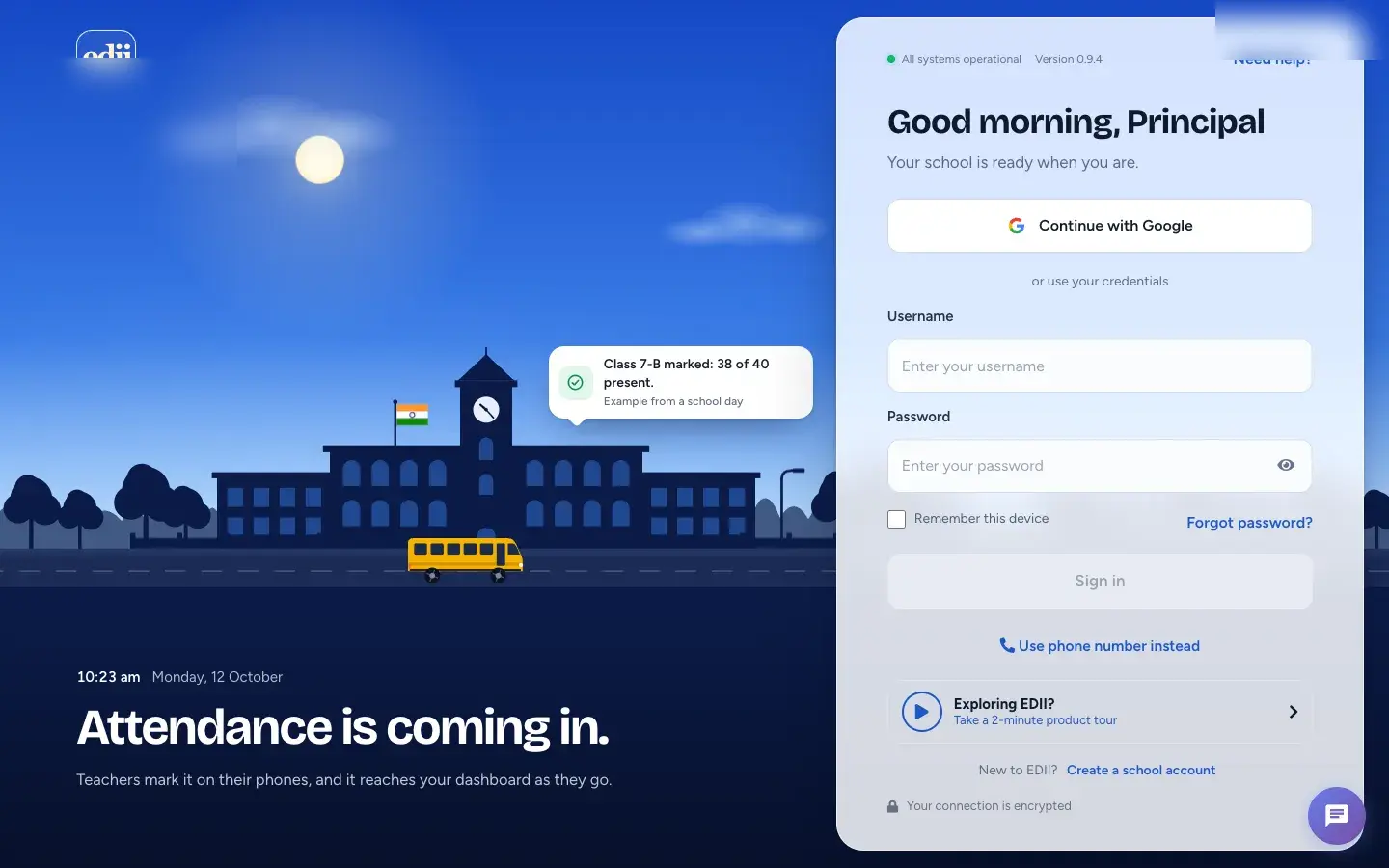
The sign-in page greets you with Good morning, Principal and a few ways in: Continue with Google, a username and password, or Use phone number instead. A green All systems operational line shows EDII’s service status and the app version appears beside it.
Before you start
Section titled “Before you start”- Your school gives you a username and password (administrator accounts are also asked for a one-time code).
- Your school ID helps if you need support.
1. Open the sign-in page
Section titled “1. Open the sign-in page”Go to the EDII address your school uses. If you are not signed in you see the sign-in page.
 Open a bigger pictureतस्वीर बड़ी करें
2. Enter your details
Section titled “2. Enter your details”Type your Username and Password (use the eye to show the password). Tick Remember this device only on your own computer.
Open a bigger pictureतस्वीर बड़ी करें3. Press Sign in
Section titled “3. Press Sign in”Select Sign in. If your account is an administrator account EDII says Admin login detected. Sending OTP… and asks for the one-time code; type it to continue. Successfully Logged In! then opens the dashboard.
Open a bigger pictureतस्वीर बड़ी करें4. Use Google instead
Section titled “4. Use Google instead”Select Continue with Google to sign in with the school’s Google account. If your email is linked to more than one school, choose the school from the list (Choose your school).
Open a bigger pictureतस्वीर बड़ी करें5. Sign out
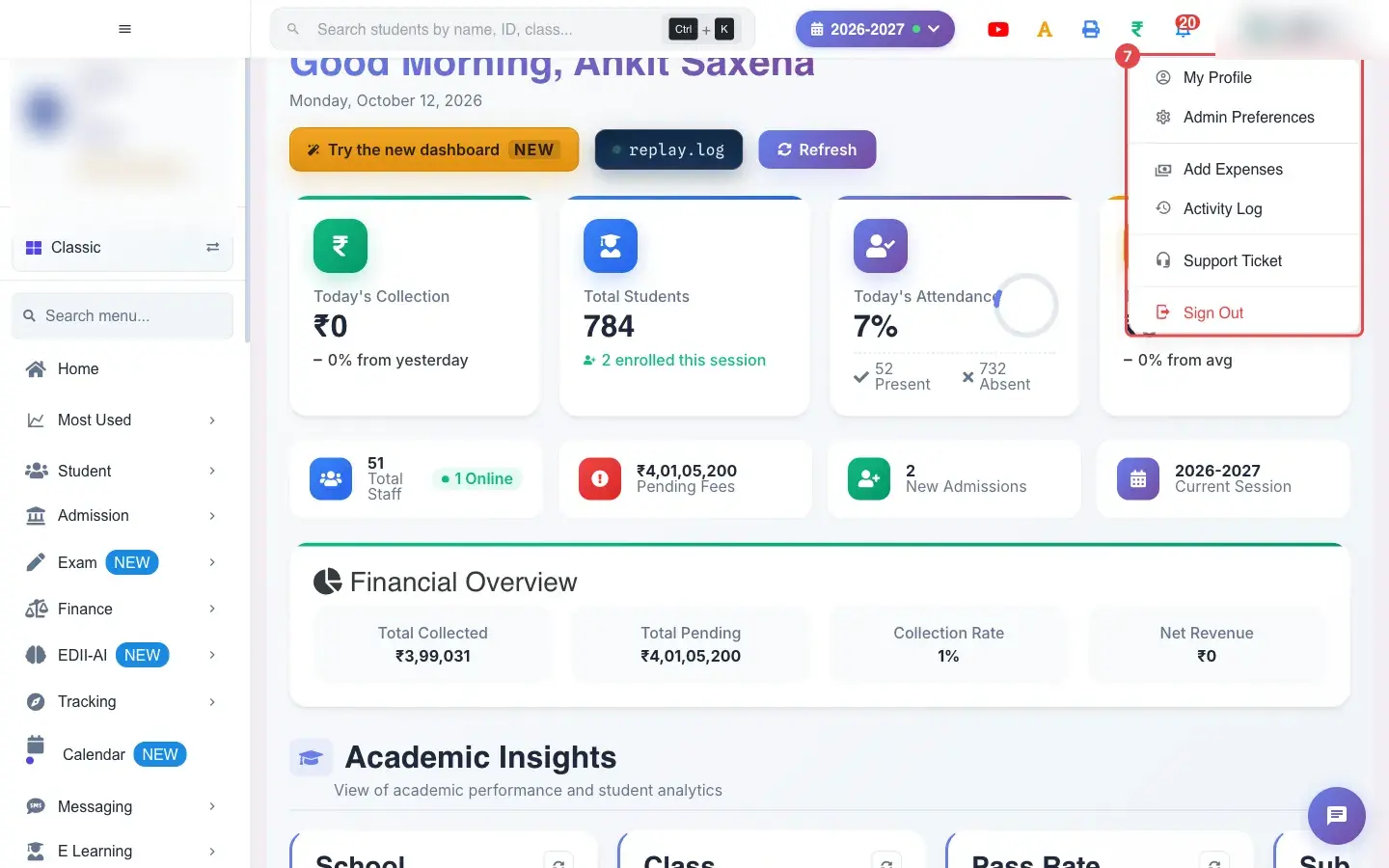
Section titled “5. Sign out”Open your name (top right) and choose Sign Out. Always sign out on a shared computer.
 Open a bigger pictureतस्वीर बड़ी करें
What happens next
Section titled “What happens next”- After signing in, EDII opens the dashboard for your school and session.
Good to know
Section titled “Good to know”- Blank username or password shows Id/Password cannot be blank.
- You stay signed in until you sign out or the session expires.
Stuck? Try this
Section titled “Stuck? Try this”| You see | Why | What to do |
|---|---|---|
| I forgot my password | You do not remember the password. | Select Forgot password? to reset it with a WhatsApp code (see Forgot password / locked out). |
| No one-time code arrives | The code is delayed or the contact on record is wrong. | Wait a minute, then try again; contact support from Need help?. |
Did this page help?क्या इस पेज से मदद मिली?
Thanks! Glad it helped.धन्यवाद! अच्छा लगा कि काम बन गया।
Sorry about that. Ask in your own words, or write to us.माफ़ कीजिए। अपने शब्दों में पूछें, या हमें लिखें।